Education
Staff and staff attendance
Education Standard and above · 13 min read · Updated 18 October 2026
What this does
Staff holds the employment record of every teacher and staff member. Staff attendance records who came to work, who was late, who was on leave and which days were holidays.
Who can use it
Staff with the Staff Profile and Staff Attendance permissions. A staff member whose login is linked to an active staff profile can check in for themselves and ask for leave.
Which package includes it
Education Standard and Education Campus. Education Essentials does not include Staff or Staff Attendance.
How staff use your User seats
A staff member is also a user who signs in. Adding a staff member uses one ordinary User seat of your package, the same seats you see as Users under My Plan. There is no separate limit for staff. Student portal logins do not use seats. If your package has no seat left, the new staff member is refused with a message that the user limit has been reached.
Where to find it
Open HR. It holds Staff, My Payslips, Attendance and Payroll.
- Staff is the list of staff profiles.
- Attendance holds five screens: My Attendance, My Leave, Team Attendance, Leave Management and Attendance Settings. You see only the screens your role allows.
- Payroll is a separate workflow. See Payroll.
Attendance and Payroll are two different things. Attendance records who worked and when. Payroll turns salaries into payslips and pays them. Recording attendance does not pay anyone, and generating payroll does not change attendance.
Who sees which staff
You work with your own place in the hierarchy (Business Group, Legal Entity, Operating Unit, Sub Unit) and the places beneath it. A manager of an Operating Unit sees the staff of that Operating Unit and of the Sub Units under it. A manager of one Sub Unit sees only that Sub Unit. Nobody can see a parent, a sibling or an unrelated branch. This applies to Staff, Team Attendance, Leave Management and Payroll, and to the Role and Staff lists you can choose from. See Roles.
Steps: add a staff member
- Open HR, then Staff, and click New Staff Profile (1).
- On Identity, enter the Name and Email, and choose the Department, then the Designation, and the Role. The role decides what the person can do. You can choose only roles from your own place in the hierarchy and the places beneath it. See Roles and access.
- Click Next. On Employment, enter the joining date, qualification, employment type and salary.
- Click Next. On Bank & Emergency Contact, add the details you want to keep, then save.
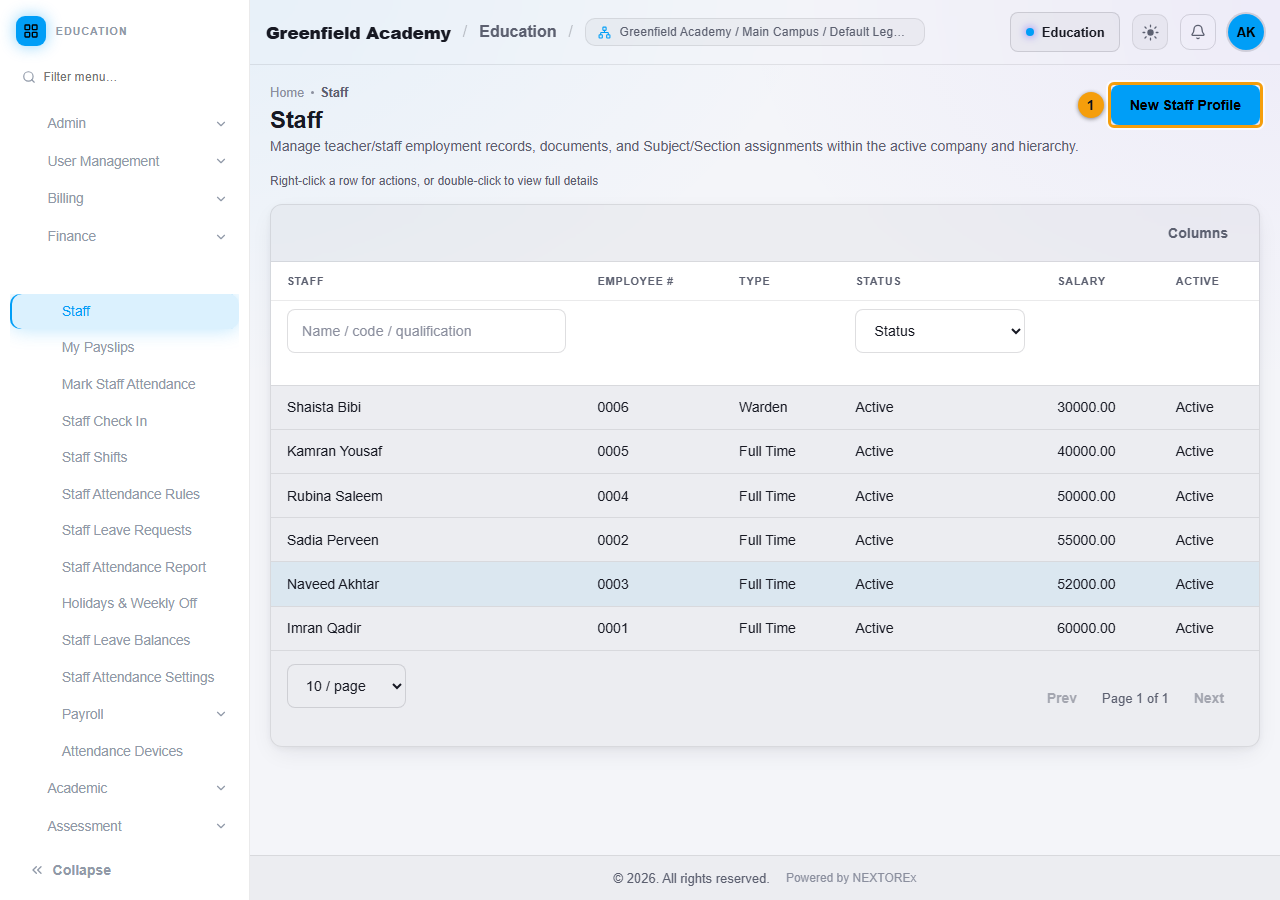
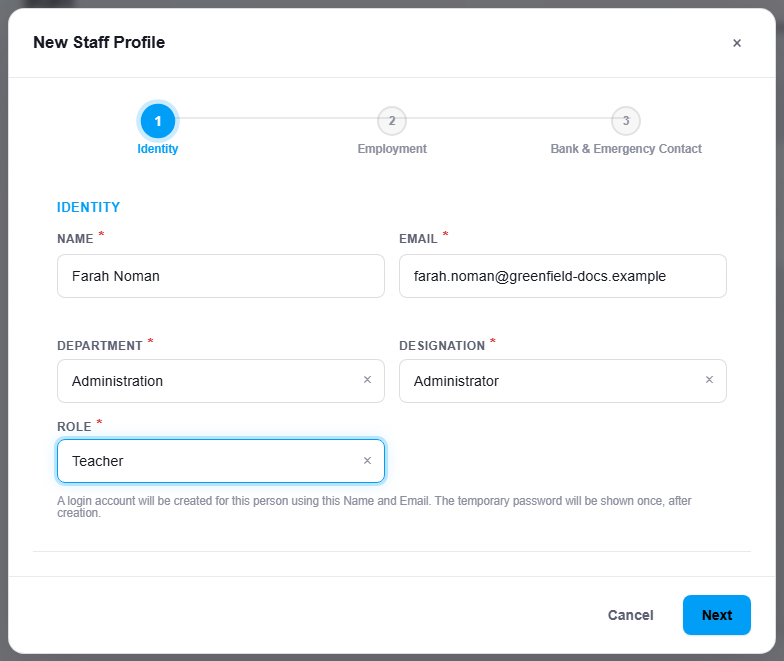
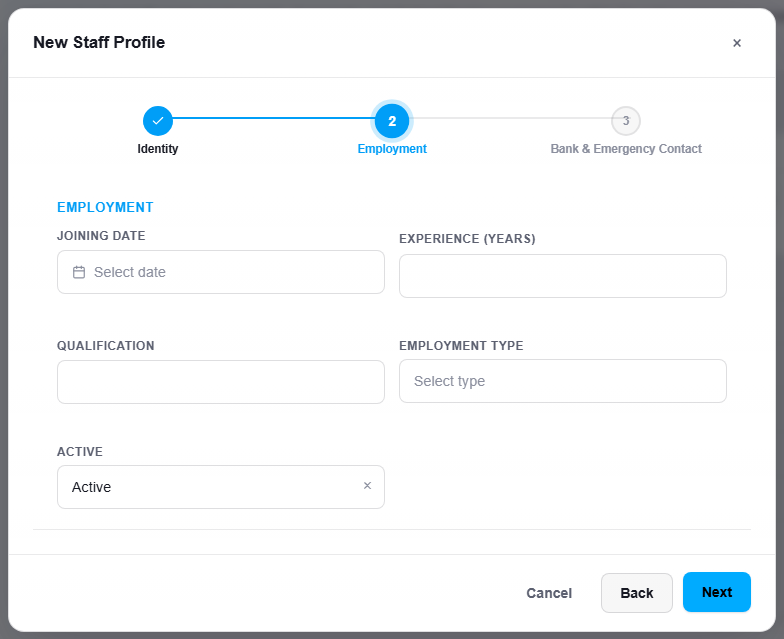
A login account is created for the person from the name and email. A temporary password is shown once after saving. Copy it and share it safely.
Steps: assign a teacher to Subjects and Sections
- On the Staff list, right-click the teacher and choose Documents & Assignments.
- Open Subjects & Sections.
- Choose the Subject, the Academic Group and the Section, and click Assign. A teacher can also be made Incharge of a Section.
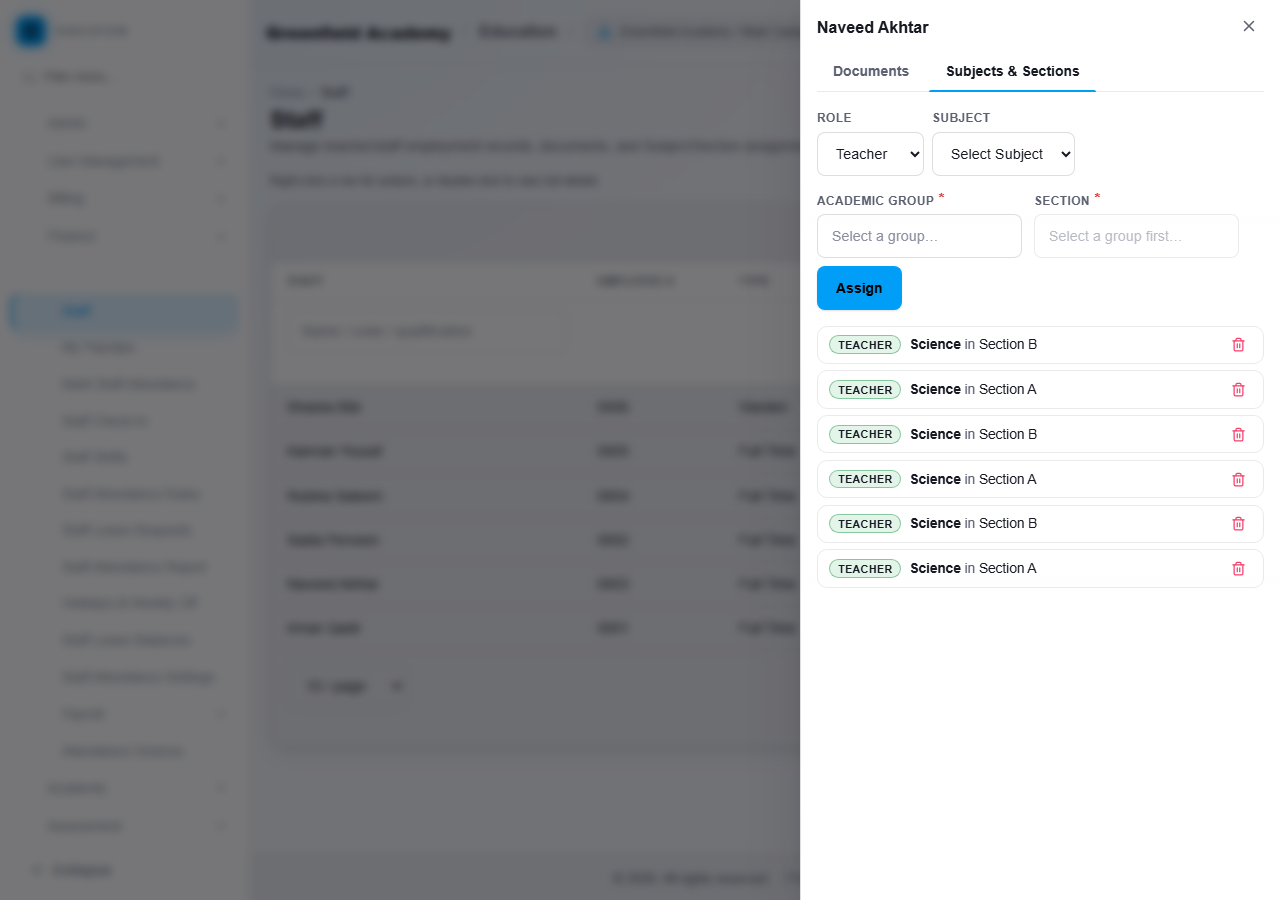
These links decide which Sections a teacher can see for attendance, marks, the timetable, study material and assignments.
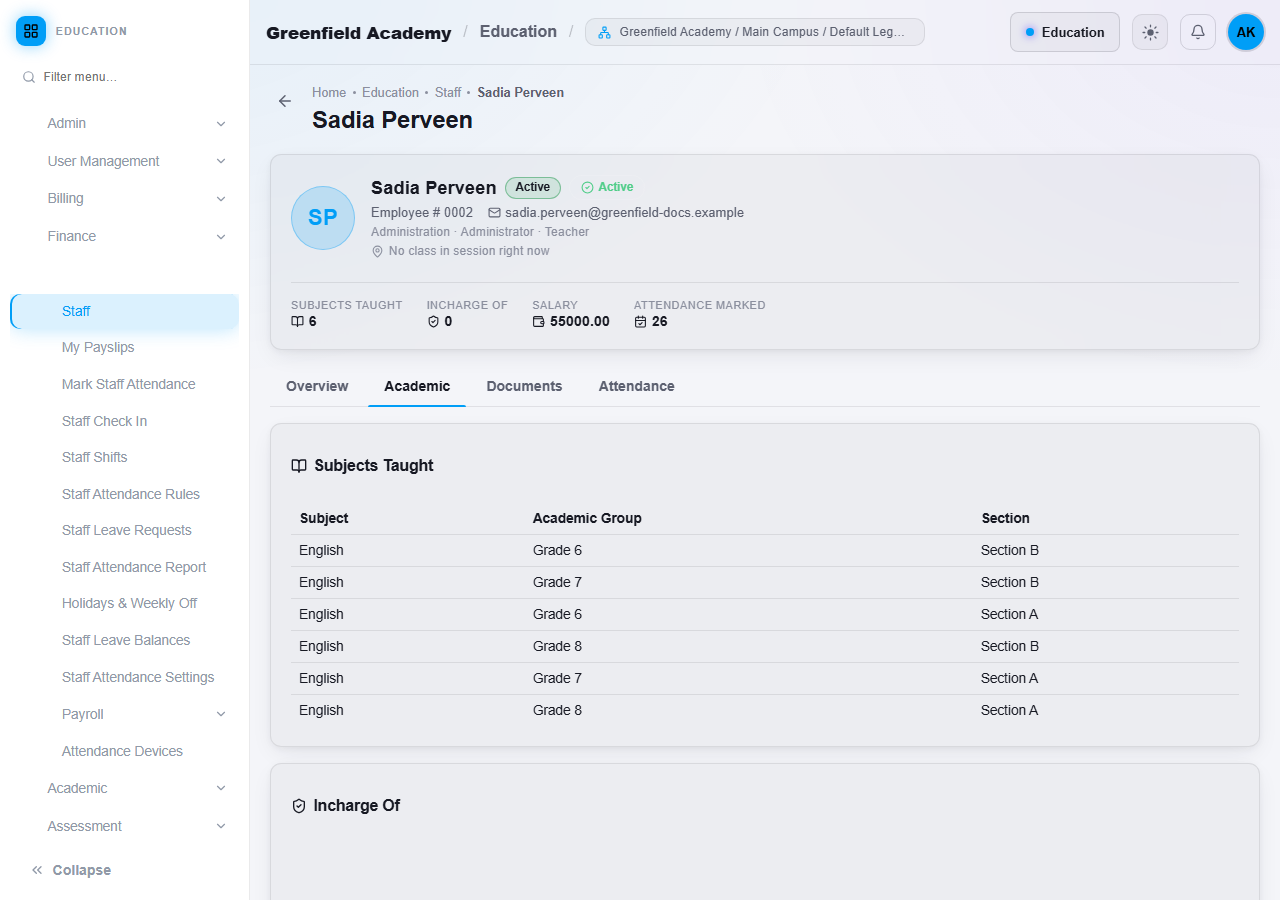
The staff profile (right-click, View Details) shows the identity, employment and bank details, the Subjects taught, the documents and a month-by-month attendance summary.
My Attendance
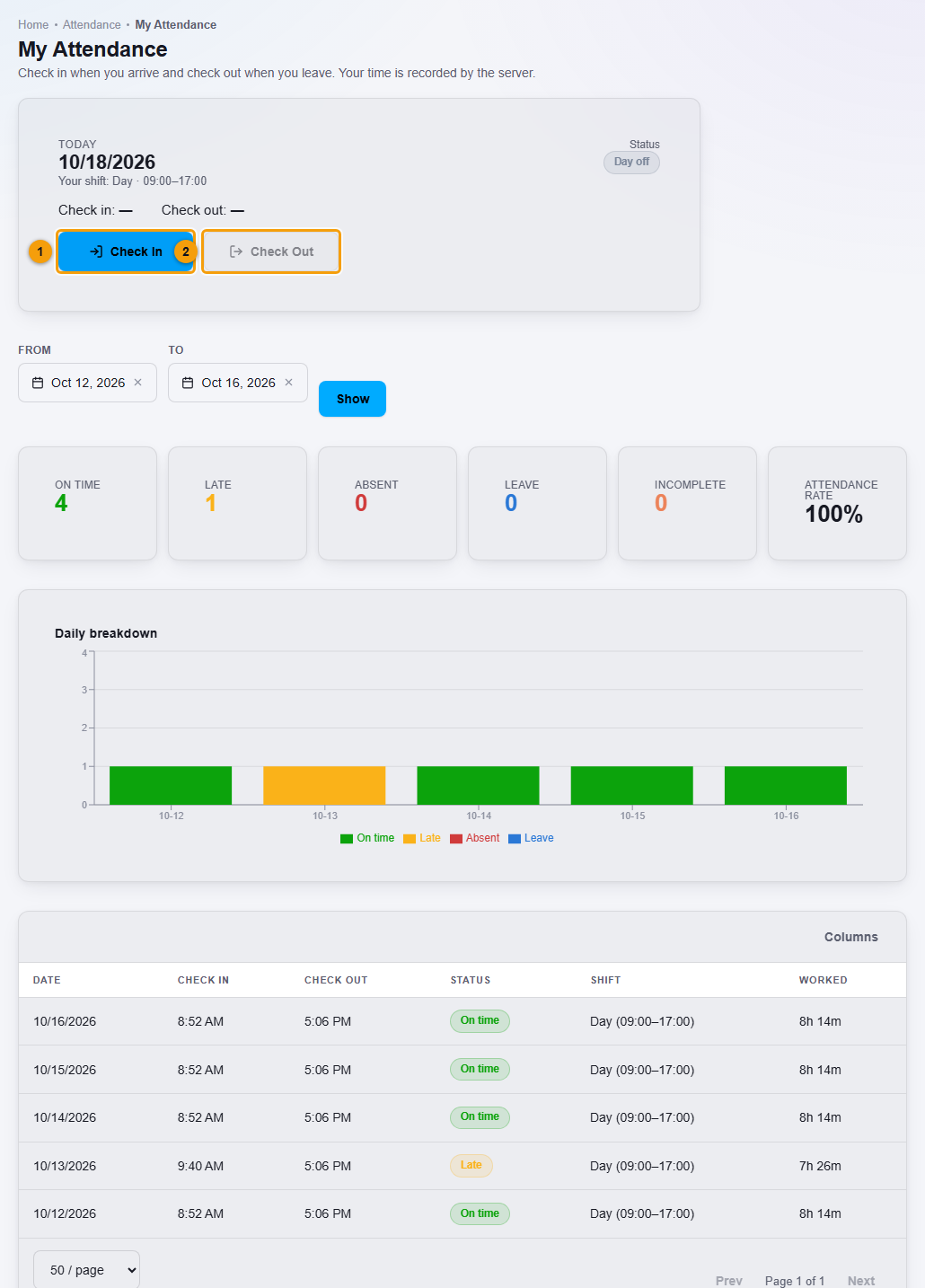
My Attendance is the screen every staff member uses for their own day. Open HR, then Attendance, then My Attendance.
Check In and Check Out
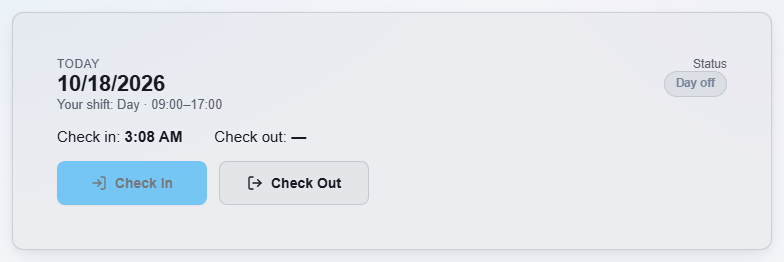
- The Today card shows today's date, your shift, your status, and your Check in and Check out times.
- Click Check In (1) when you arrive. The system records the current time of your institution. You do not choose the time yourself.
- Click Check Out (2) when you leave. Check Out stays greyed out until you have checked in.
- After you check in, Check In is greyed out. There is one check-in a day.
Under the card, choose From and To, then click Show to see your own history. You see:
- Summary tiles: On time, Late, Absent, Leave, Incomplete (a finished day with a check-in but no check-out) and Attendance rate.
- A Daily breakdown chart.
- A table with the Date, Check in, Check out, Status, Shift and Worked time.
If your login is not linked to an active staff profile, the screen says so and there is nothing to check in to. Ask your administrator.
What the statuses mean
| Status | What it means |
|---|---|
| On time | You checked in by your shift start plus the grace time. |
| Late | You checked in after the grace time. On the Today card the badge also shows how many minutes late. |
| Absent | The working period is over and there is no attendance, no approved leave and no day off. |
| Leave | You have approved leave for that day. |
| Day off | A weekly off day or a holiday. It is never counted as an absence. |
| Half day / Short time | Shown when the time worked is below the limits set in Attendance Settings. |
| No check-out | You checked in but never checked out. |
How Late is decided
The system compares your Check In with your Shift start time and the Grace time in your attendance rule. For example, with a 09:00 shift and a 15-minute grace time, a check-in at 09:15 is On time and 09:16 is Late. This is only an example. Your own result follows the shift and grace time your administrator set in Attendance Settings.
When someone becomes Absent
Absent is never given to a future day, or to today before the working period has finished. A staff member is absent only after the day is over, when there is no check-in, no approved leave and the day is not a weekly off day or holiday. The shift and rule decide the details, and Absent can appear a little after the day closes.
My Leave
Open HR, then Attendance, then My Leave.
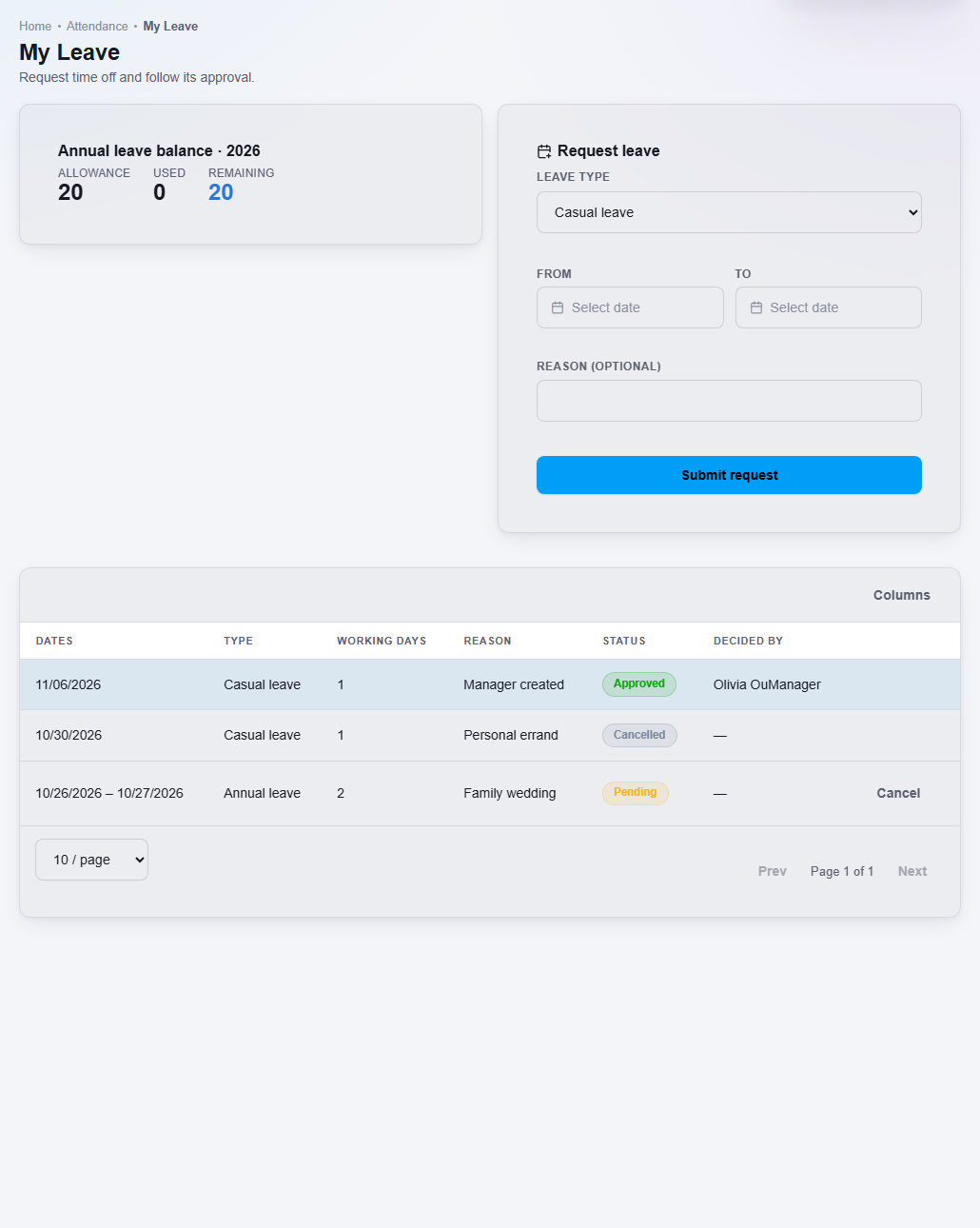
- Look at Annual leave balance for the year: Allowance, Used and Remaining. If no allowance was set for you, the card says so. You can still ask for other kinds of leave.
- Under Request leave, choose the Leave type, then From and To, and add a Reason if you want to.
- Click Submit request.
- Your request appears in the table as Pending. A manager then makes it Approved or Rejected.
- To withdraw a request that is still Pending, click Cancel on its row and confirm. It shows as Cancelled.
The table shows Dates, Type, Working days, Reason, Status and Decided by. Leave that a manager recorded for you shows Recorded by manager.
Leave types and the annual balance
The leave types are Annual leave, Sick leave, Casual leave, Unpaid leave and Other. Only Annual leave is tracked against a balance. It is checked when you ask and again when it is approved, and the days are counted when it is approved. The other types do not use the annual balance. A weekly off day or holiday inside a leave range still shows as Day off, not as an absence.
Leave Management
Open HR, then Attendance, then Leave Management. It has two tabs: Requests and Annual balances. You see only the staff within your own place in the hierarchy and the places beneath it.
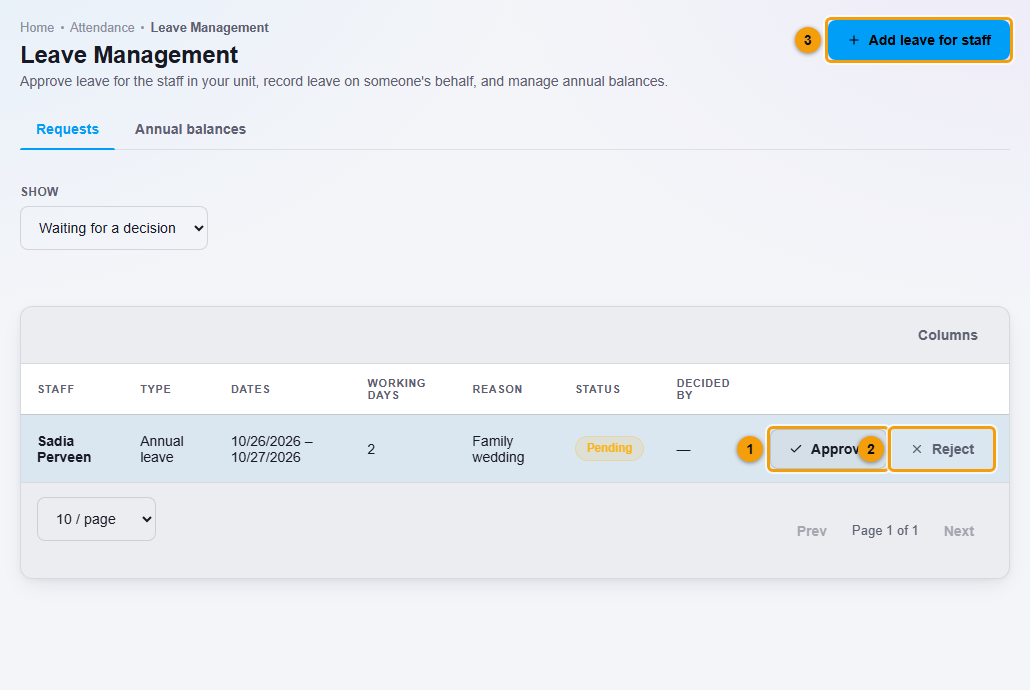
Approve or reject a request
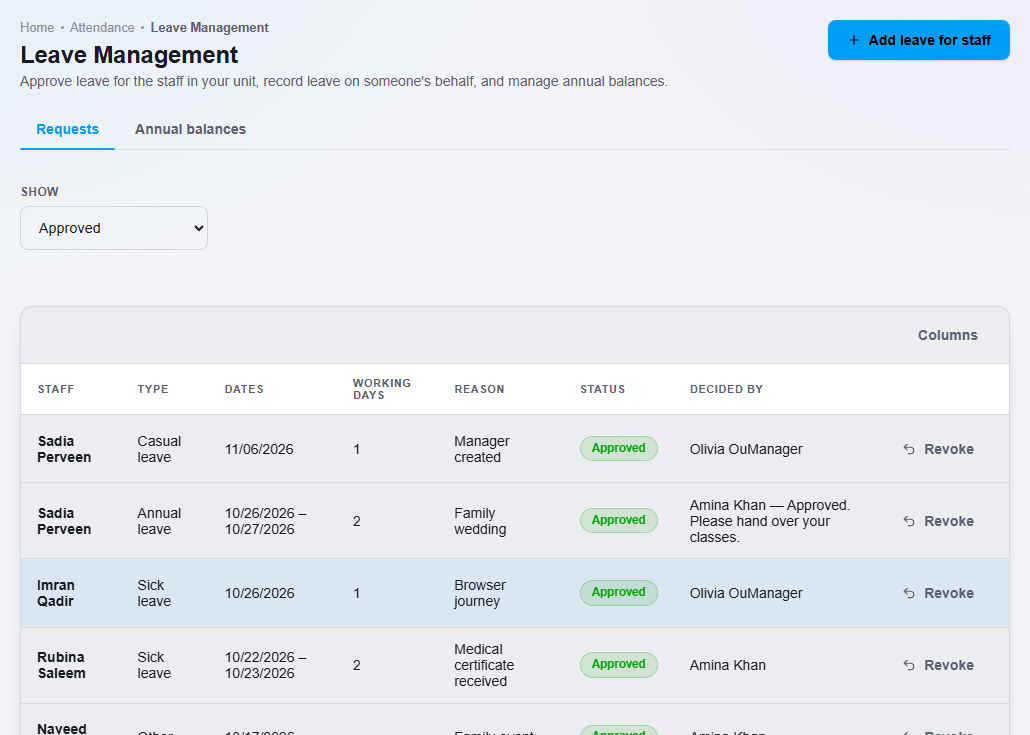
- On Requests, the list starts on Waiting for a decision. Use Show to see Approved, Rejected, Cancelled or Everything.
- Click Approve (1) or Reject (2) on the row.
- Read the request, add a Comment (optional), and confirm.
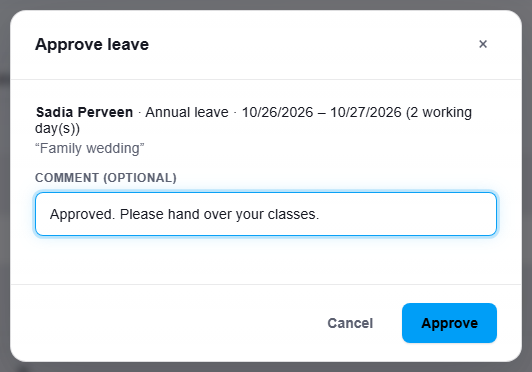
An approved request becomes Leave in the staff member's attendance for those days. You can Revoke an approved leave later. Any annual balance it used is given back and the days are worked out again.
Add leave for a staff member
Use this when someone told you in person, or sent a medical certificate.
- Click Add leave for staff (3).
- Choose the Staff, the Leave type, From, To and a Reason.
- Click Record leave.
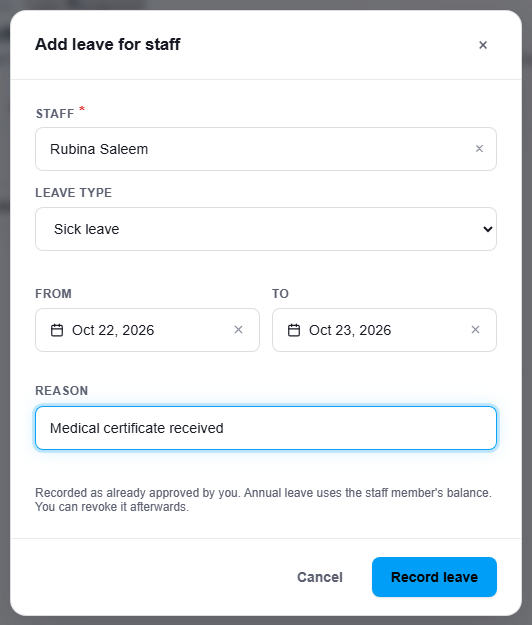
Leave that a manager adds is Approved immediately. Annual leave uses the staff member's balance.
Annual balances
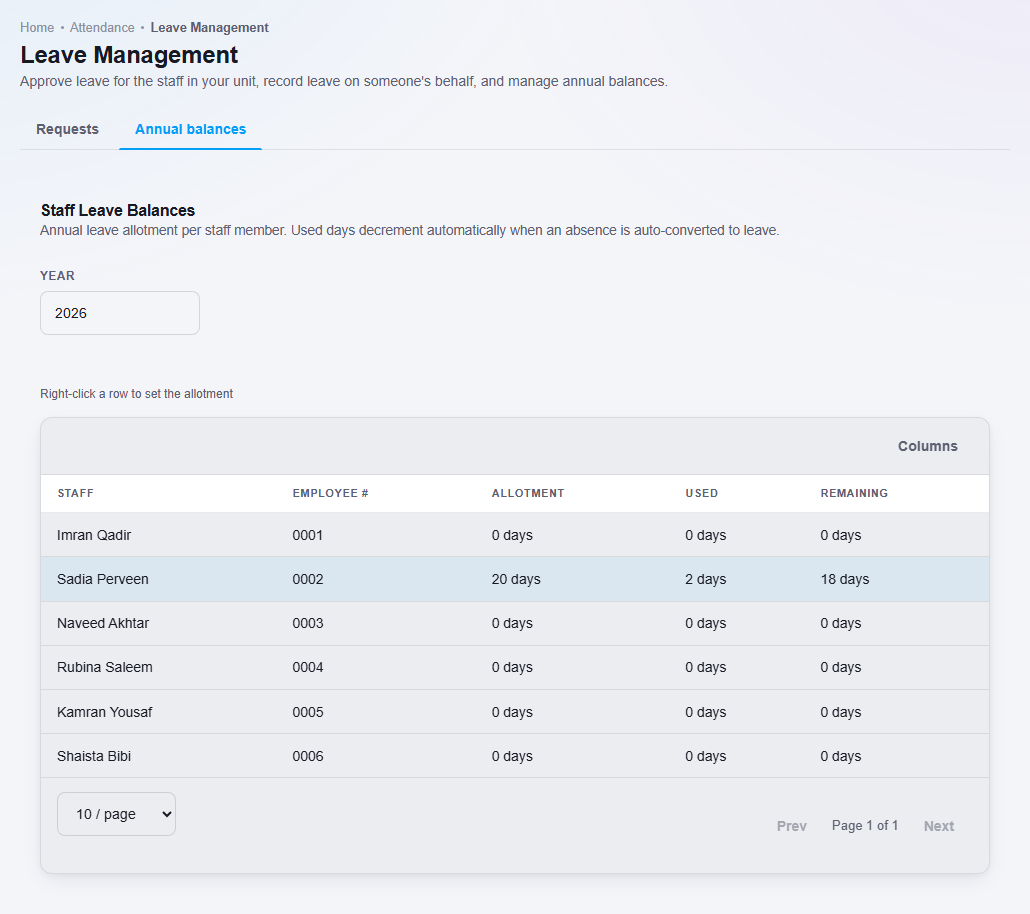
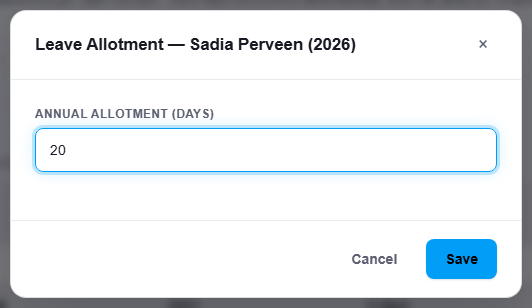
Open the Annual balances tab. It shows the Allotment, Used and Remaining days of each staff member for a year. To set the allowance, right-click a staff member, choose Set Allotment, enter the days and click Save.
Team Attendance
Open HR, then Attendance, then Team Attendance. It shows the attendance of the staff in your unit and the units beneath it. It replaces the older Mark Staff Attendance and Staff Attendance Report screens.
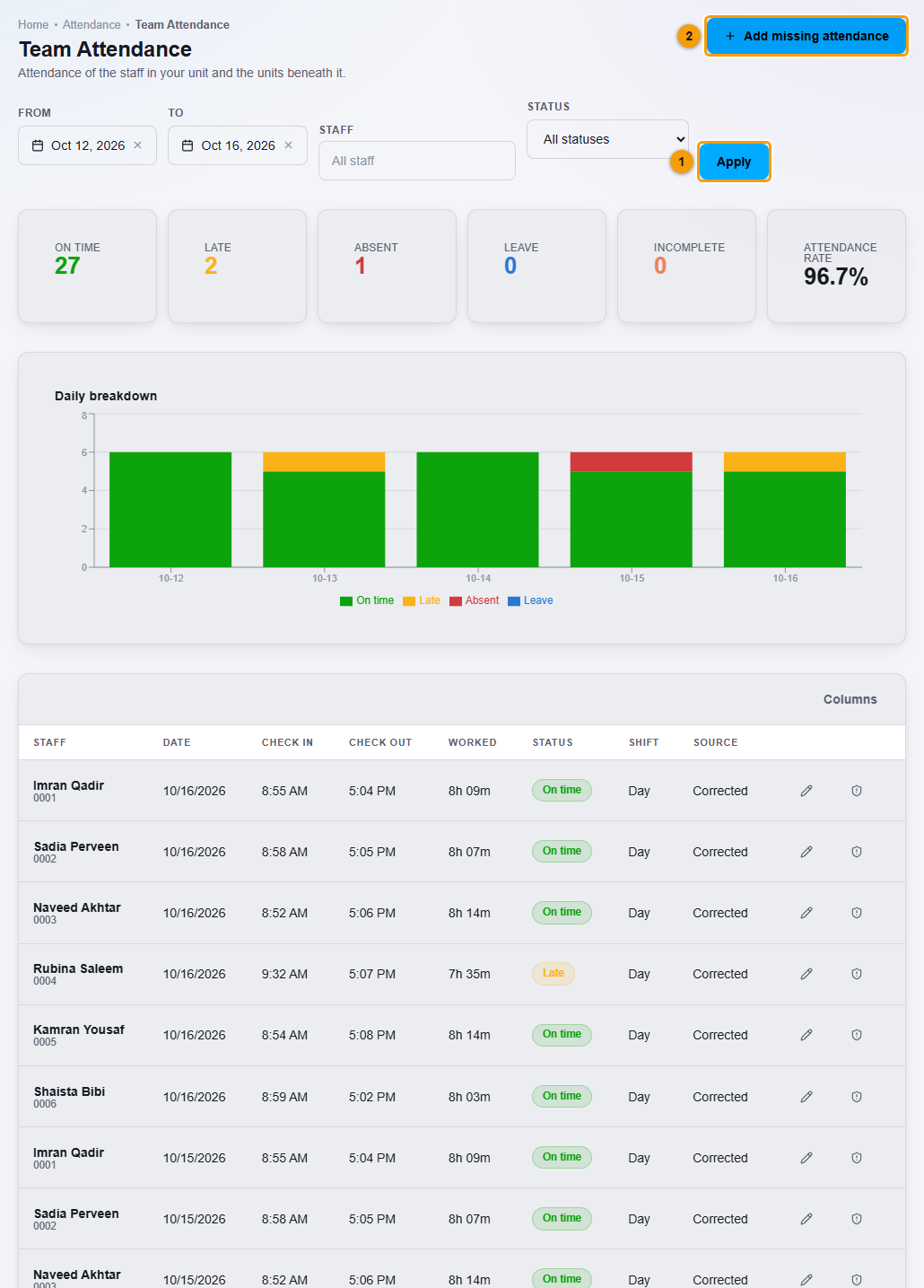
The table has these columns: Staff, Date, Check in, Check out, Worked, Status, Shift and Source. Unit appears when you can see more than one unit. Source shows Self for a staff member's own check-in, Device for an attendance device, and Corrected when a manager changed the times.
Choose these filters, then click Apply:
- From and To for the dates.
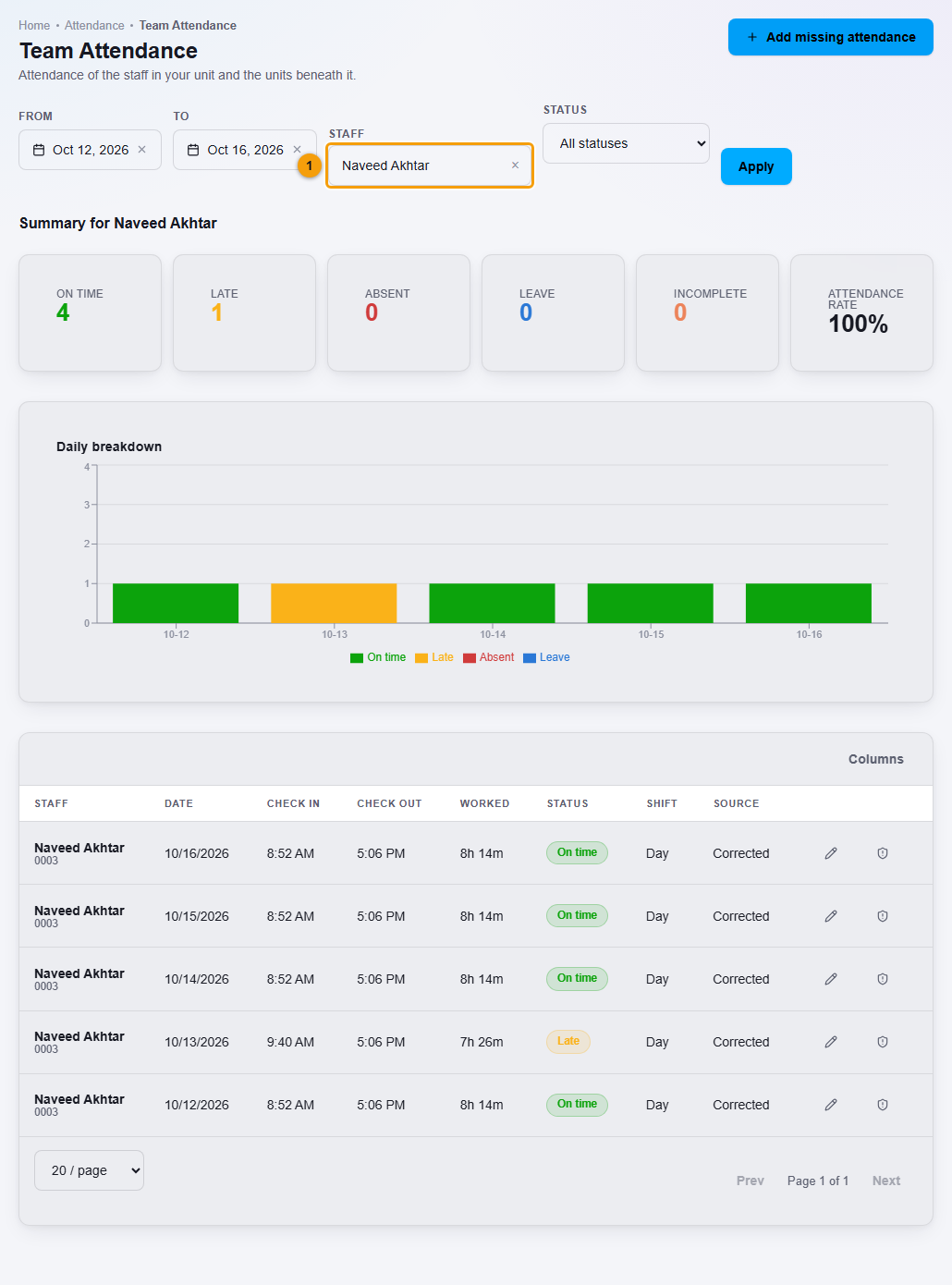
- Staff for one person.
- Unit to look at one unit (only when you can see more than one).
- Status: On time, Late, Absent, Leave, Day off / Holiday, Half day / Short time or No check-out.
The summary tiles and the daily chart cover the dates and the staff you chose. The Status filter narrows the table only.
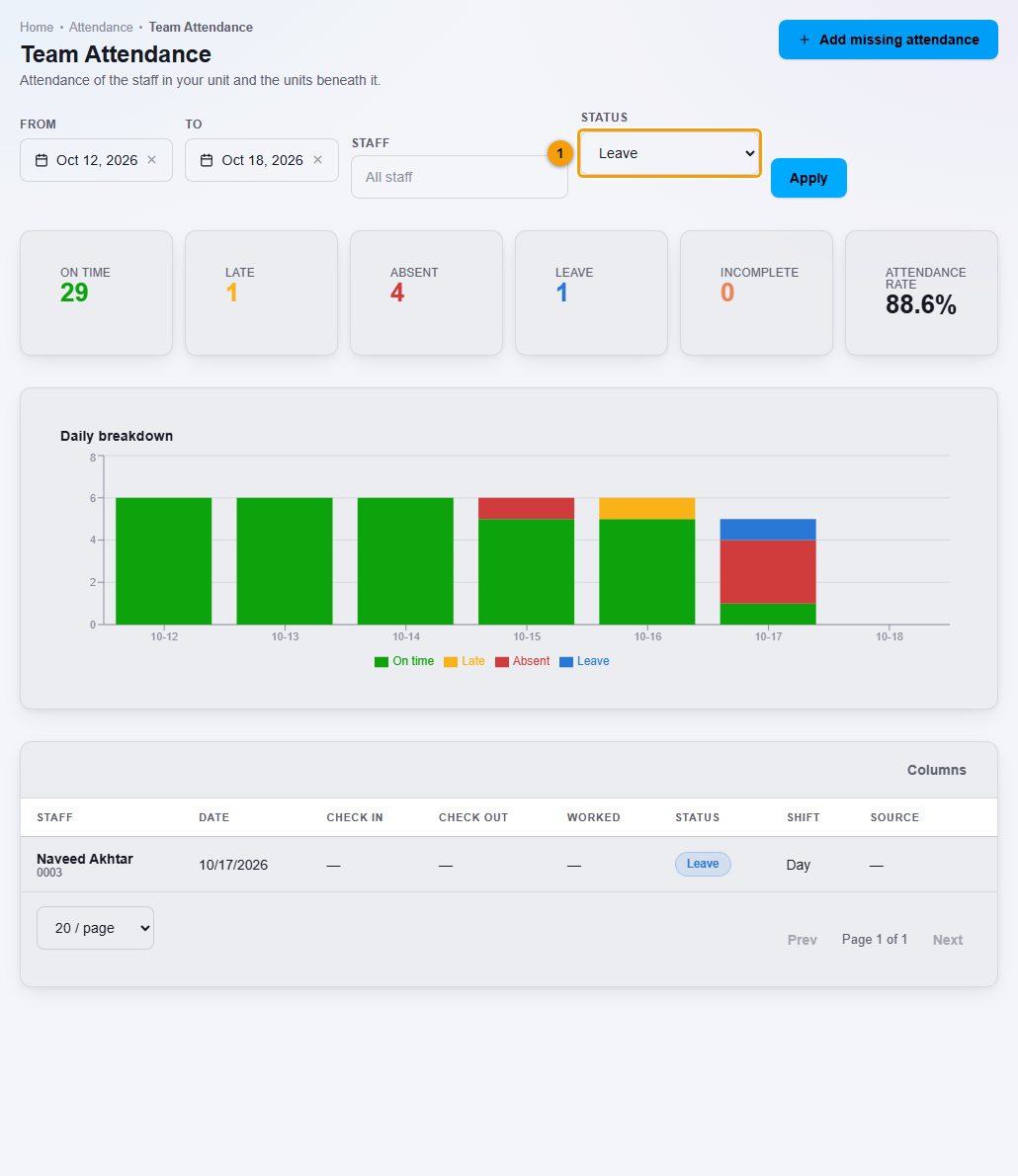
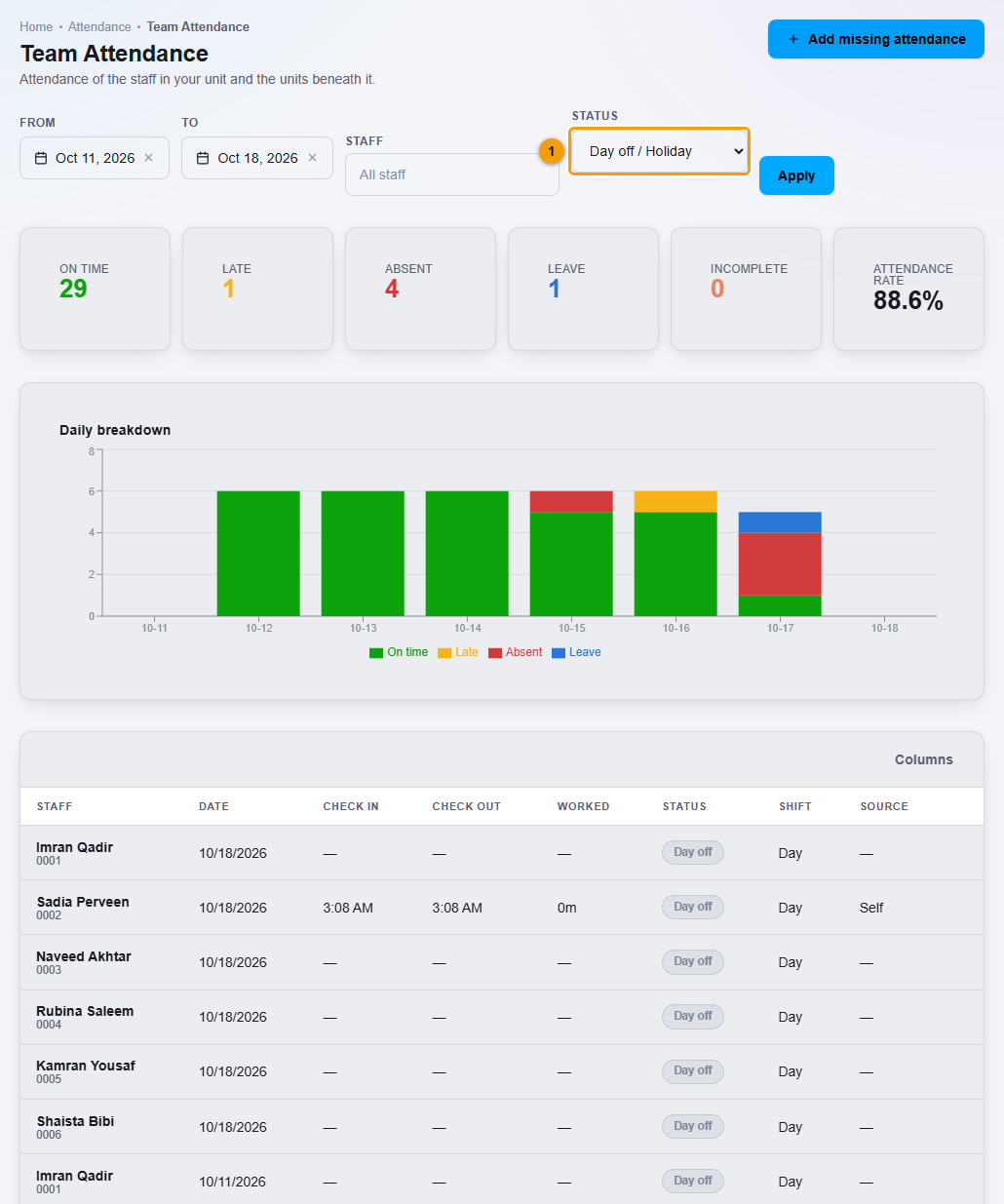
Attendance summaries
The tiles show On time, Late, Absent, Leave, Incomplete and Attendance rate. The rate is the days attended divided by the days expected. Leave and days off are not counted against anyone. These are the only summaries on the screen.
Correct an attendance record
Use this when the recorded times are wrong.
- Find the staff member and the day, then click the pencil icon on the row.
- Change Check in or Check out. The date stays the same: the times belong to that attendance day.
- Enter the Reason. It is required.
- Click Save.
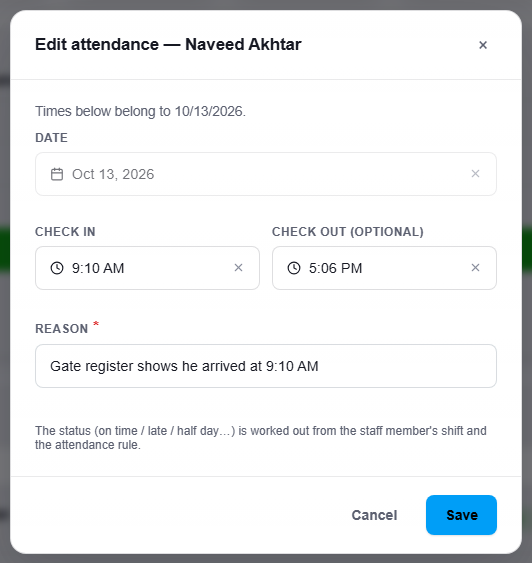
The status is worked out again from the shift and the attendance rule. In the example the check-in moved from 9:40 AM to 9:10 AM, so Late became On time. The row then shows Corrected in Source.
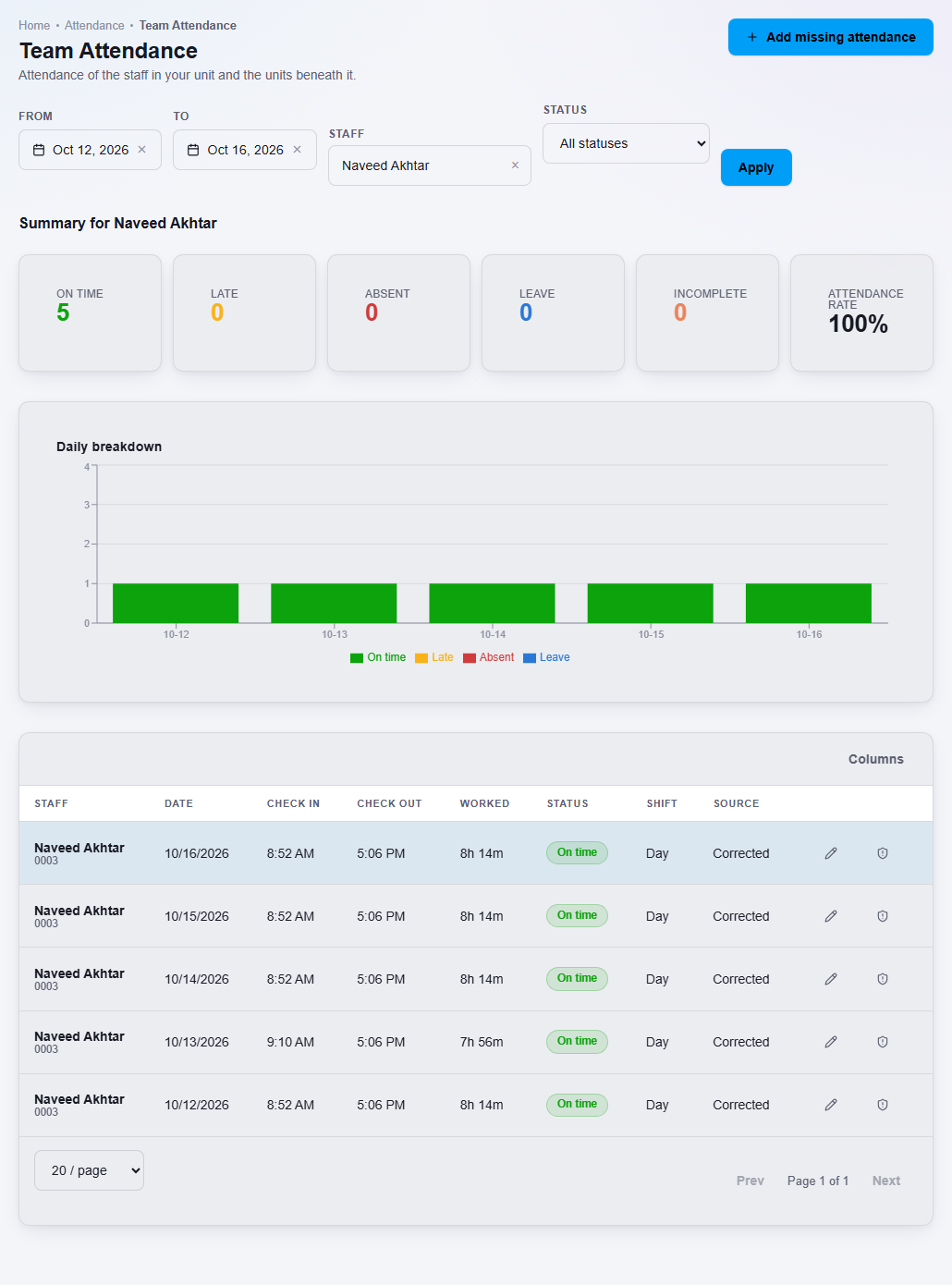
Rows for approved leave and for days off cannot be edited here.
Add missing attendance
Use this when a staff member forgot to check in and out, so no attendance exists for that day.
- Click Add missing attendance (2).
- Choose the Staff and the Date.
- Enter Check in, and Check out if you know it.
- Enter the Reason, then click Save.
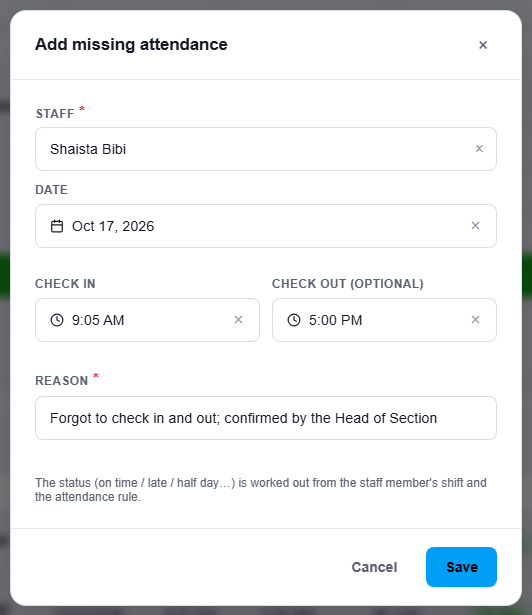
A staff member has one attendance record per day. Adding attendance for a day that already has one updates it. It does not make a second record.
Attendance Settings
Open HR, then Attendance, then Attendance Settings. It is for administrators. It has five tabs.
| Tab | What it is for |
|---|---|
| Shifts | The working hours, for example Day, 09:00 to 17:00. One shift can be the default. |
| Attendance rules | How strict lateness is: the Grace (late) time and the minutes needed for a full or half day. |
| Holidays & weekly off | The Weekly Off Days and the Holidays. These dates count as a day off, not an absence. |
| Devices | Attendance devices that an administrator can register. |
| General | Company-wide behaviour, such as Auto-convert Absent to Leave. |
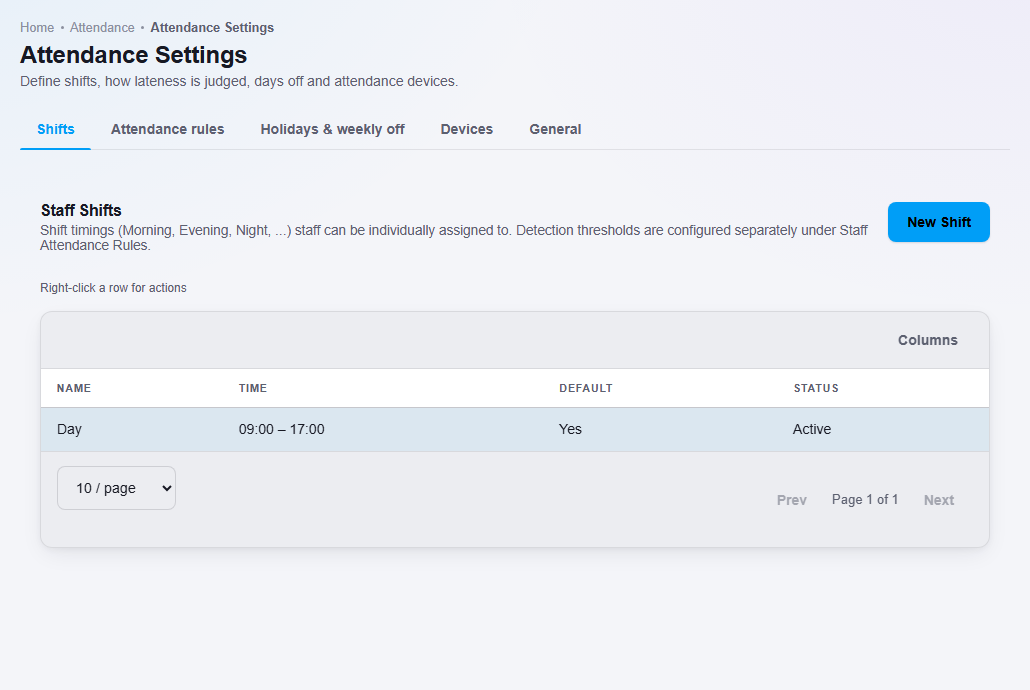
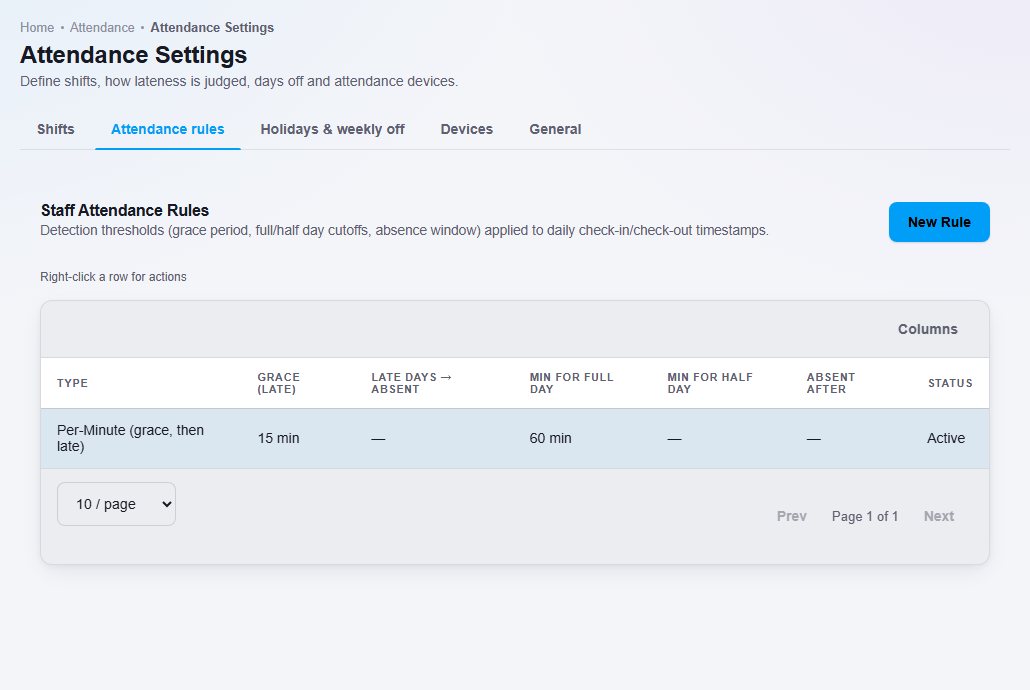
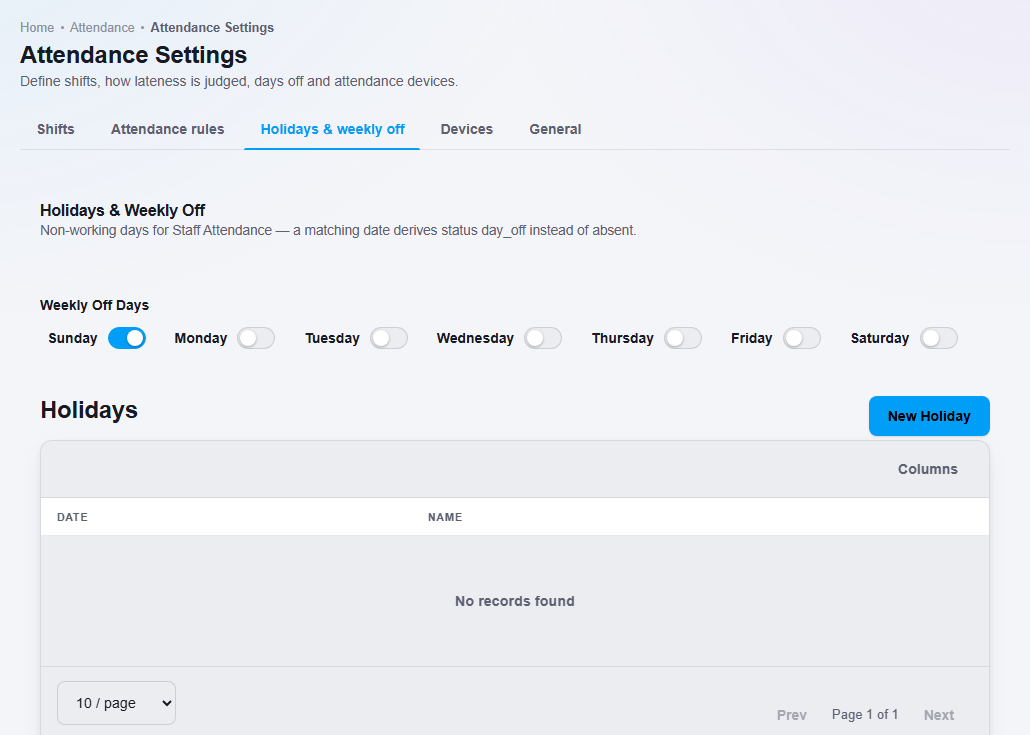
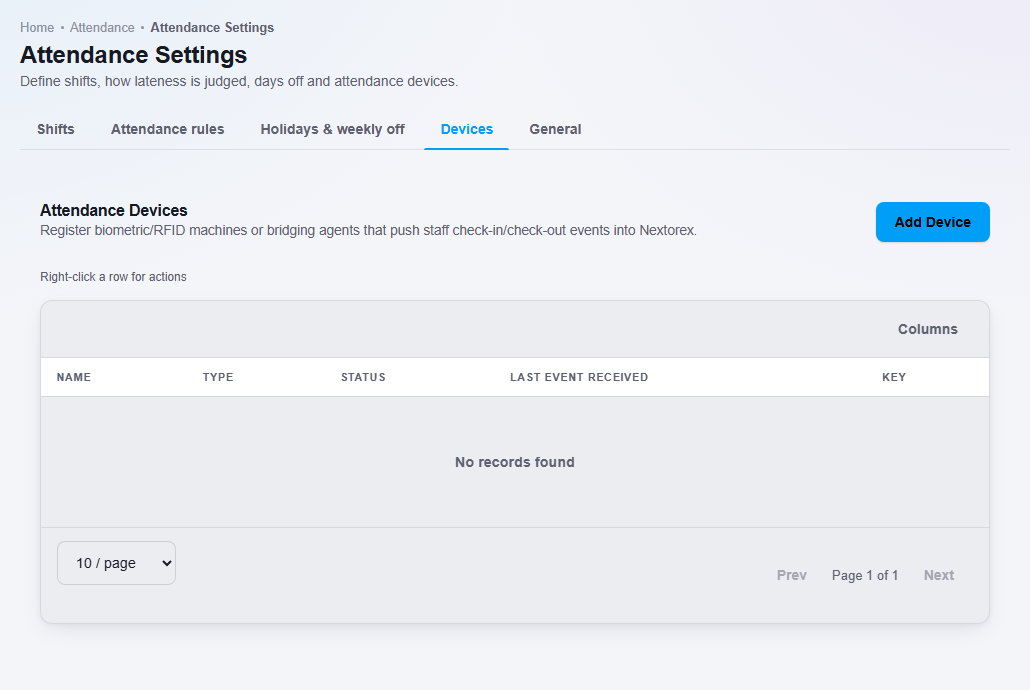
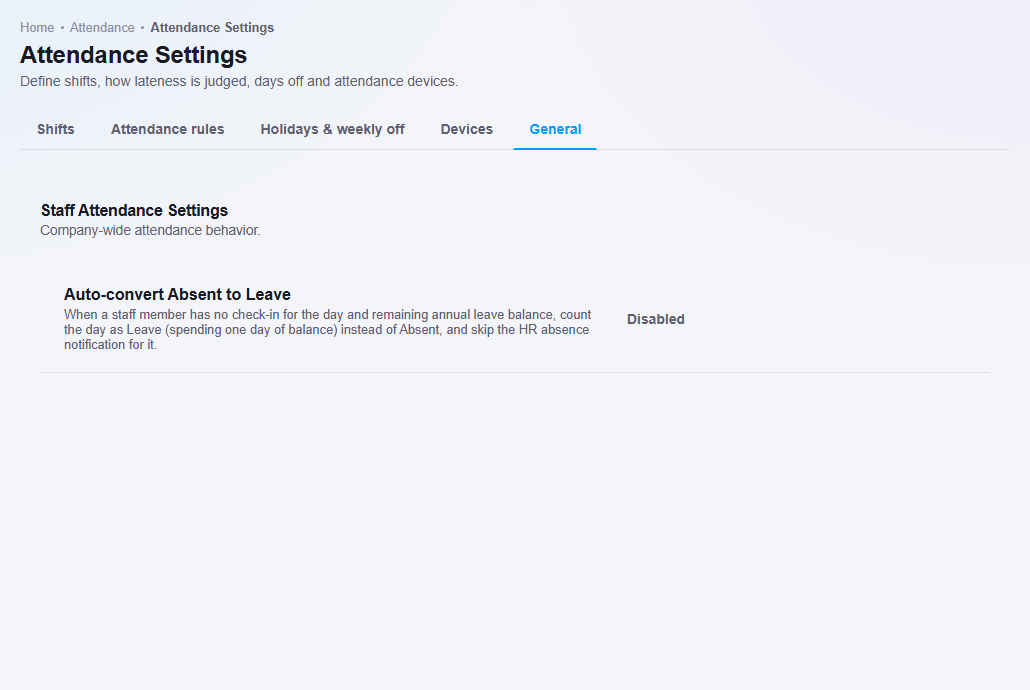
Add holidays before the days they fall on, so a school holiday is never judged as an absence. When Auto-convert Absent to Leave is on, a day with no check-in becomes Leave while the staff member still has annual balance, instead of Absent. It is off until you turn it on.
Important rules
- One staff member uses one User seat.
- Check In and Check Out record the system's time. Staff cannot choose it. Only a manager can correct times, and a correction needs a reason.
- Only Approved leave becomes Leave. A Pending request changes nothing.
- Approved leave and day-off rows cannot be edited.
- Absent is never given to a future day.
- Attendance and Payroll are separate. See Payroll.
- Student attendance is separate from staff attendance. See Student attendance.
Common mistakes
- Forgetting to add holidays, so a school holiday looks like an absence.
- Expecting a leave request to count before a manager approves it.
- Choosing a Role that gives the person too little or too much access. Check the role.
- Losing the temporary password. It is shown once.