Education
Fees, scholarships, waivers and fee generation
Education Essentials and above · 4 min read · Updated 17 October 2026
What this does
A Fee Structure says how much students in one Academic Group pay and how often. When you generate fees, NEXTOREx creates one fee invoice for every student in that Group. A scholarship lowers what one student pays. A scholarship of 100 percent is a waiver: the student is recorded as waived and no money is owed.
Who can use it
Staff whose role allows Fee Structure, Scholarship and Fee Generation actions, usually the accounts or administration team.
Which package includes it
All Education packages include fees, scholarships and waivers.
Where to find it
Open Student Finance, then Fee Structures.
Steps: create a Fee Structure
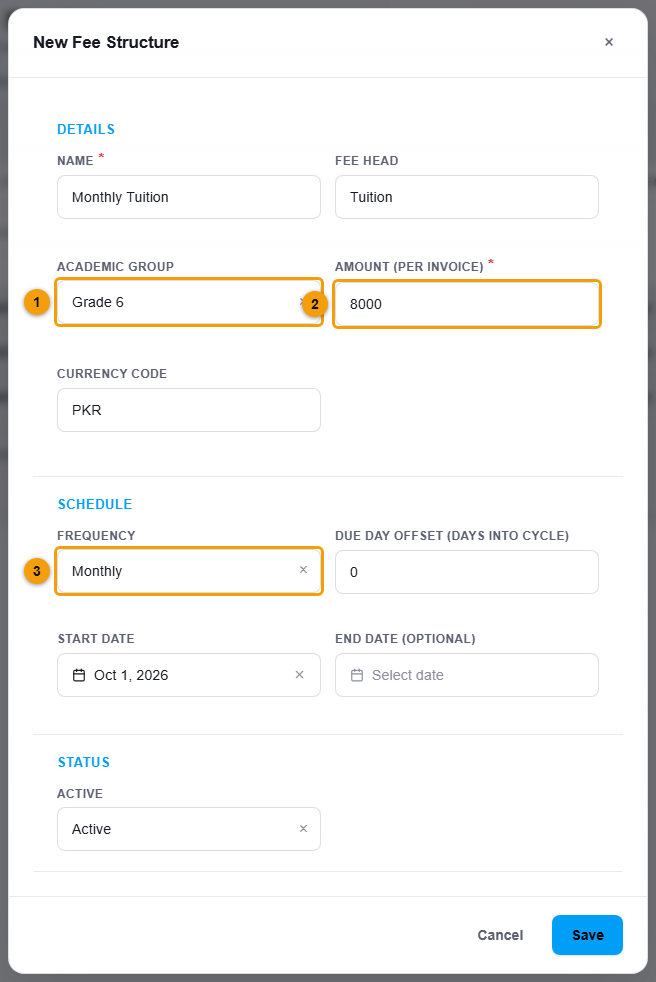
- Click New Fee Structure.
- Enter a Name, for example
Monthly Tuition, and an optional Fee Head, for exampleTuition. - Choose the Academic Group (1). The fee is charged to the students of this Group.
- Enter the Amount (per invoice) (2).
- Type the Currency Code, for example
PKR. If you leave it empty the fee is created in US dollars, so always type your own currency. - Under Schedule, choose the Frequency (3): one-off, monthly, termly or installments. For installments, also enter how many.
- Set the Due Day Offset (days into cycle) and the Start Date. An End Date is optional.
- Click Save.
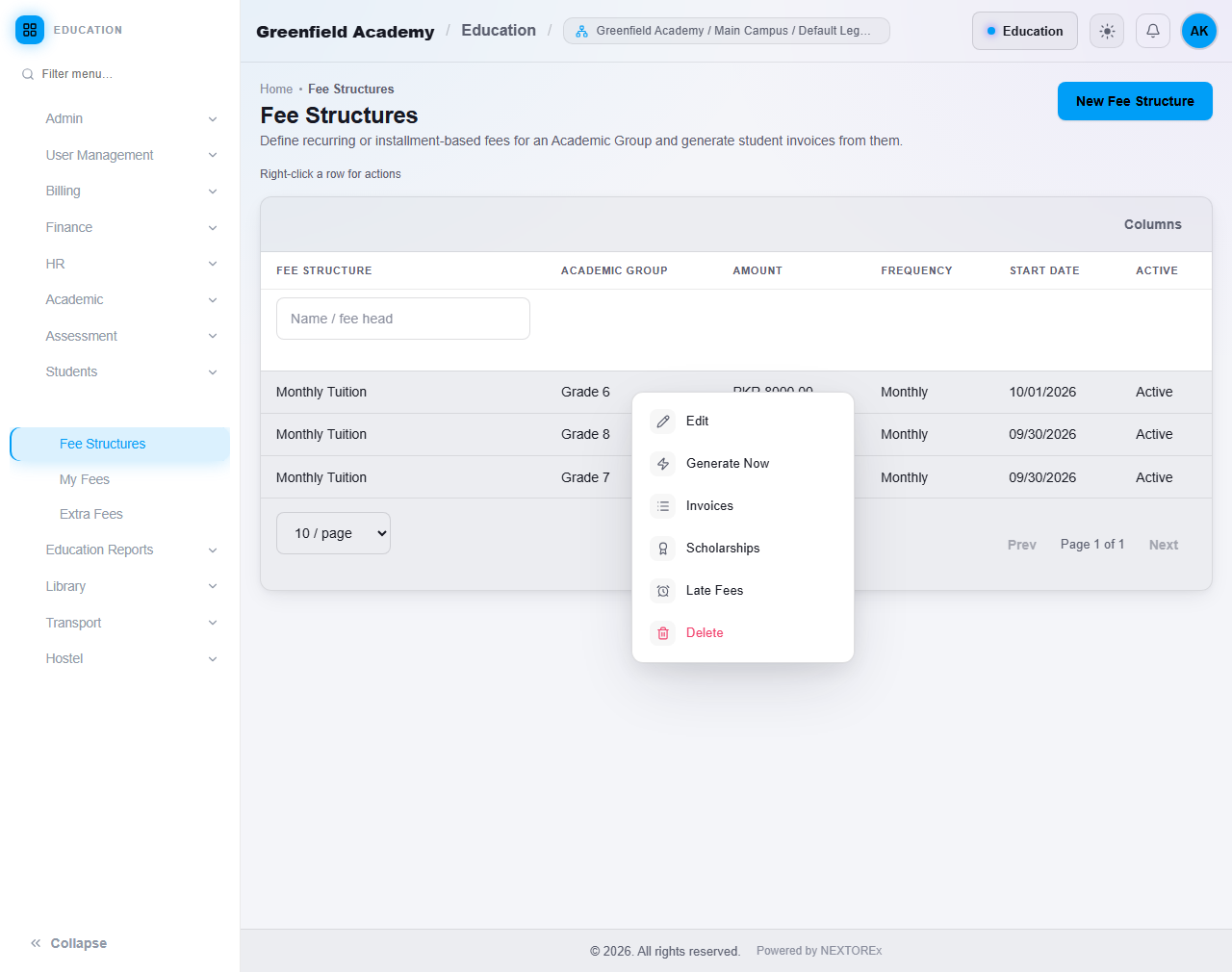
The list shows every Fee Structure. Right-click a row for its actions.
Steps: give a scholarship or a waiver
Assign scholarships before you generate the month, so the invoice is created with the right amount.
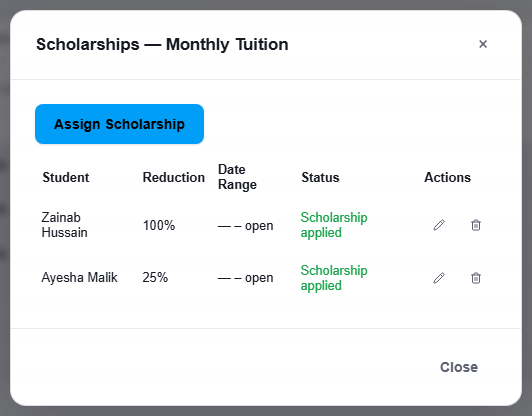
- Right-click the Fee Structure and choose Scholarships.
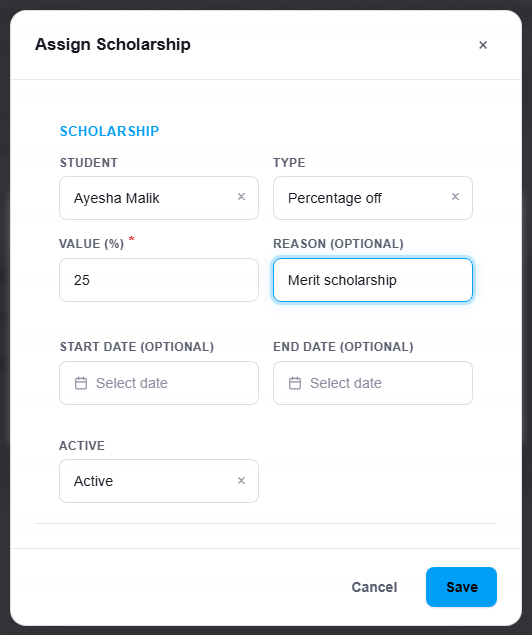
- Click Assign Scholarship.
- Choose the Student. Choose the Type: Percentage off or Fixed amount off. Enter the Value.
- Add a Reason if you want. You can also set a start and end date.
- Click Save.
What each kind does:
| Kind | What the student sees |
|---|---|
| Partial scholarship, for example 25 percent | The invoice is created for the full amount and a credit note lowers the amount due. A fee of 8,000 with a 25 percent scholarship shows 6,000 still due. |
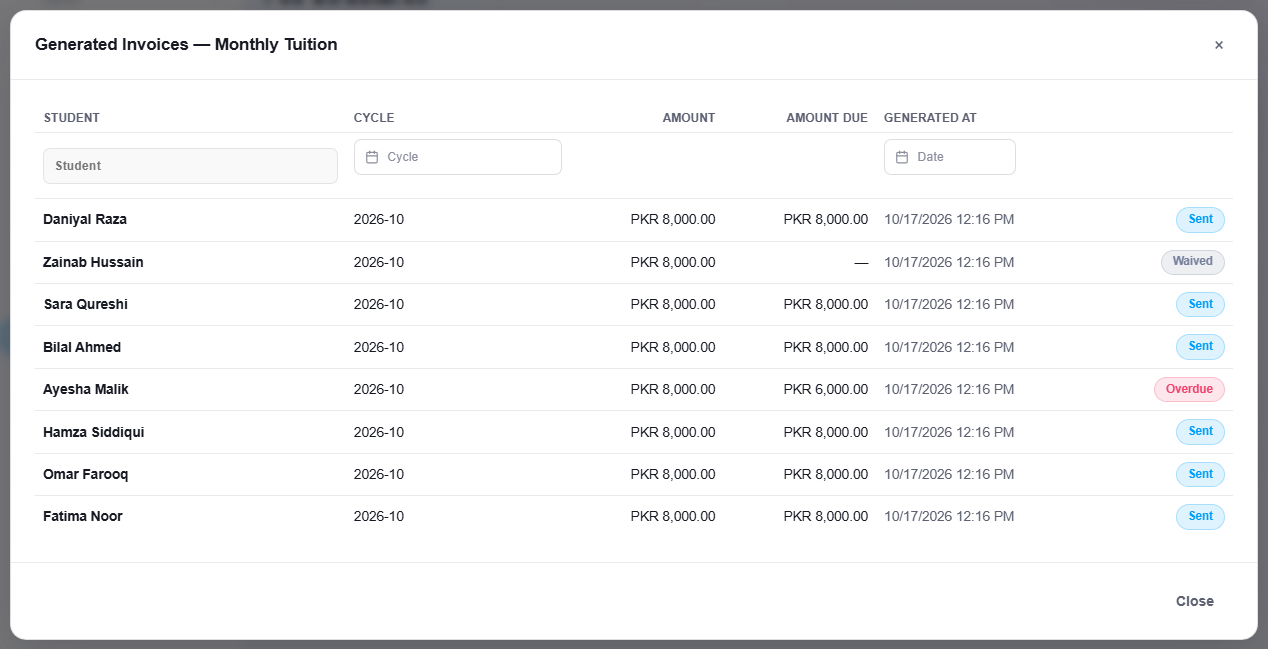
| 100 percent scholarship (waiver) | No invoice and no credit note are created. The fee is recorded as Waived with nothing due. |
Steps: generate fees
- Right-click the Fee Structure and choose Generate Now.
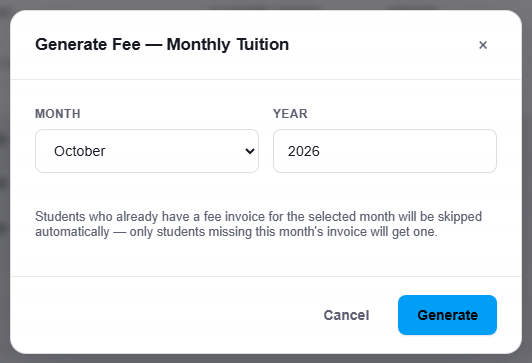
- Choose the Month and Year.
- Click Generate.
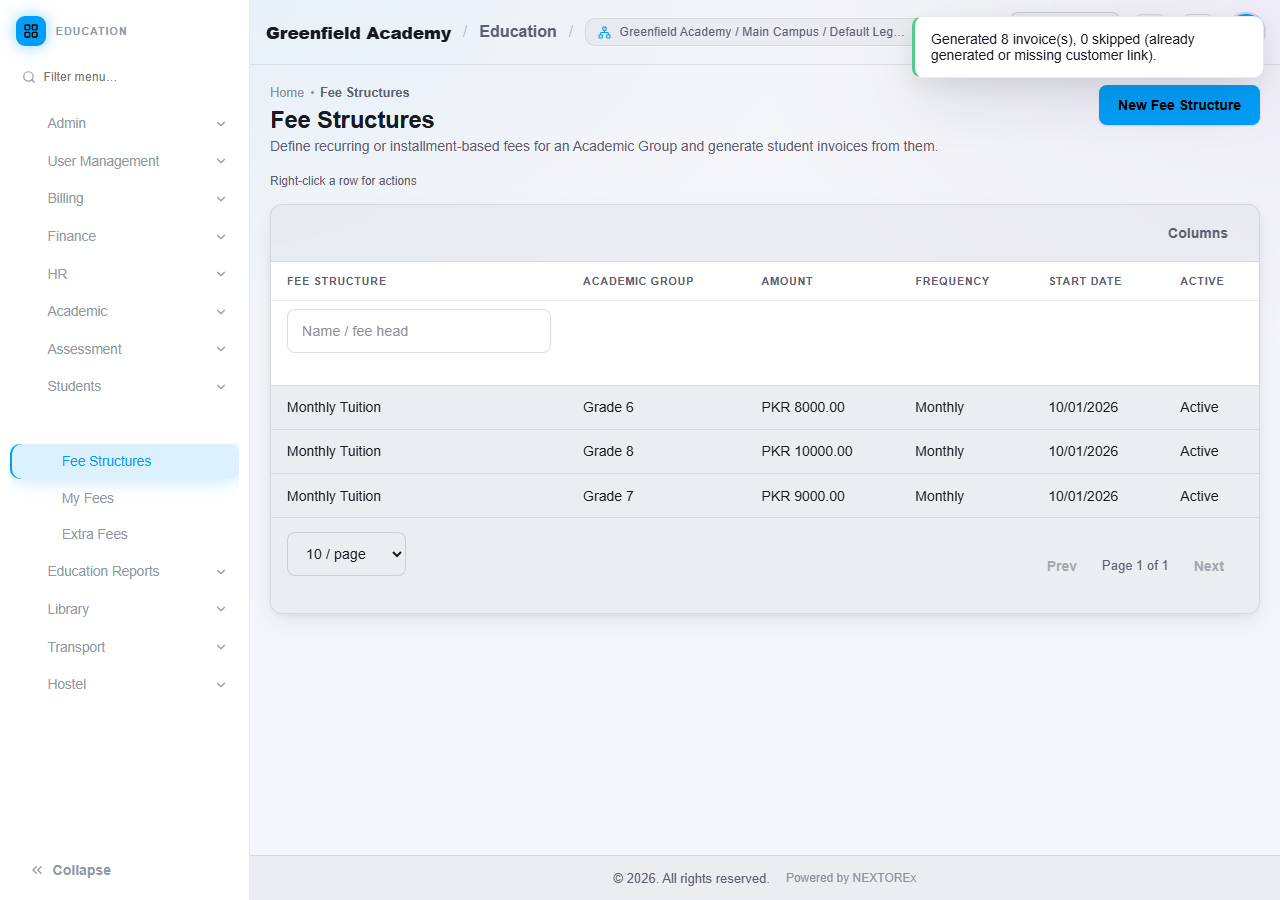
A message tells you how many invoices were created and how many were skipped.
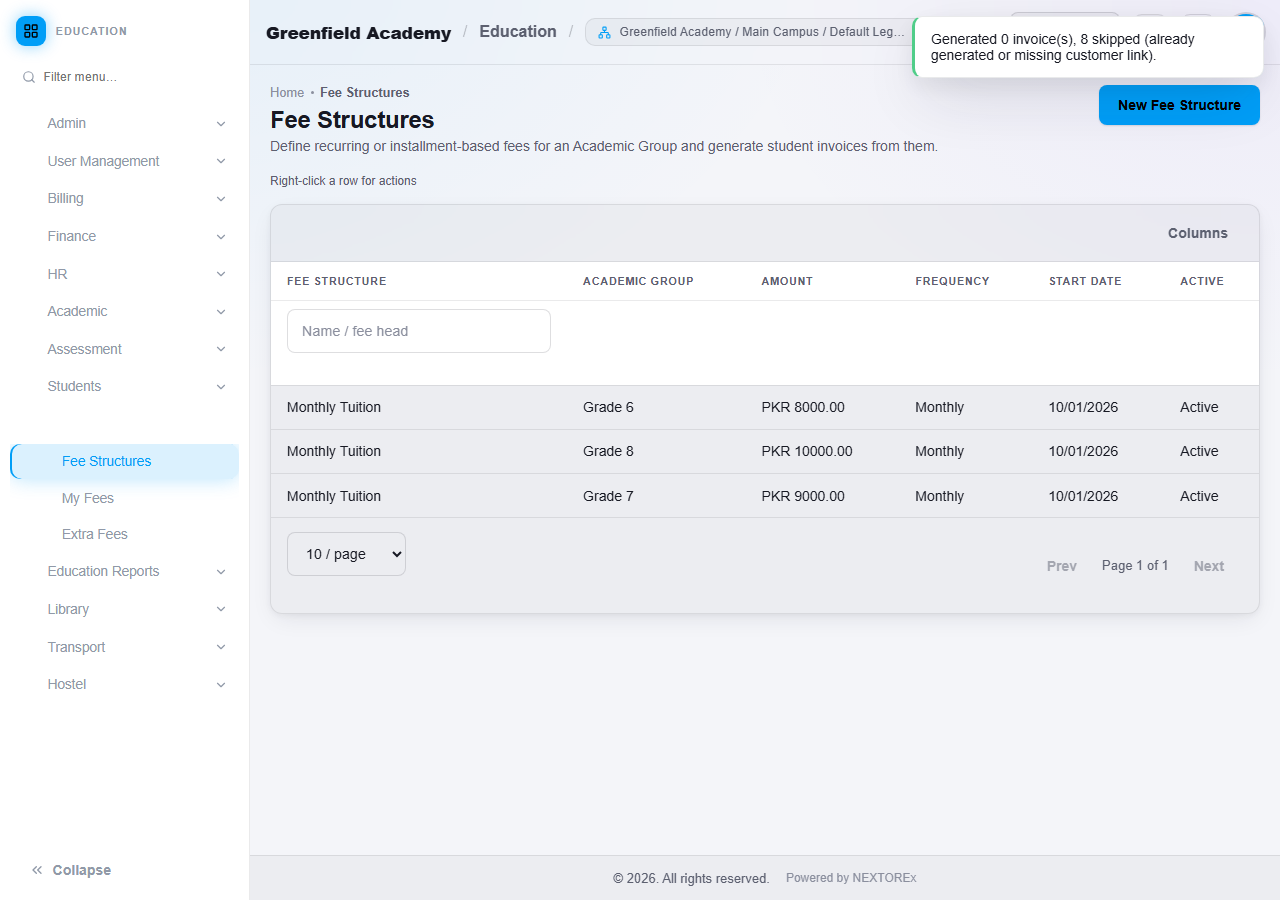
Generating twice is safe
Students who already have a fee invoice for the selected month are skipped automatically. Only students who are missing that month's invoice get one. You can generate again at any time without charging anyone twice.
See what was generated
Right-click the Fee Structure and choose Invoices. Each row shows the student, the month, the amount, the amount still due and the status. A waived student shows Waived and no amount due.
What happens next
Collect the money with a receipt. See Student payments and fee statement. Look at who still owes money with the Dues only filter of the Fee Collection report.
Other fee tools
- Late Fees: right-click a Fee Structure and choose Late Fees. A late fee rule has a grace period and either a percentage or a fixed amount. Overdue fee invoices are not charged anything unless you create a rule.
- Extra Fees: open Student Finance, then Extra Fees to charge a one-off fee with a reason and an amount to chosen students, to a whole Group or Section, or to enter each student's own opening balance.
- Transport and hostel fees are generated from their own screens. See Transport and Hostel.
Important rules
- Fees are charged to the students of the Fee Structure's Group. Students without a Group are not included.
- Use the same currency for all of your fees.
- A scholarship does not change an invoice that was already generated. Assign it first, then generate.
- Online fee payment is not part of Education. Fees are collected by recording a receipt.
Common mistakes
- Forgetting the Currency Code. Type it every time.
- Assigning a scholarship after the month was generated and expecting the existing invoice to change.
- Entering 100 percent as a normal discount and then looking for an invoice. A full scholarship creates no invoice by design. Look for the Waived status instead.