Education
Payroll
Education Campus · 6 min read · Updated 18 October 2026
What this does
Payroll creates one payslip for every active staff member for a month. Each payslip starts from the staff member's salary, subtracts deductions and any advance installment, and shows the net pay. You then pay each payslip from a cash or bank account.
Payroll is a separate workflow from attendance. Attendance records who worked and when. Payroll only uses the month's records when a deduction rule depends on absences or late arrivals. See Staff and staff attendance.
Who can use it
Staff whose role includes the Payroll permissions: view, manage (generate and finalise) and pay. Education finance access is intentionally limited: payroll payments use the shared finance screens, not the full ERP or POS accounting application. See Education receipt and payment vouchers.
You see payroll only for the staff in your own place in the hierarchy and the places beneath it. A manager of one Sub Unit does not see the payslips of another Sub Unit.
Which package includes it
Education Campus. Education Essentials and Education Standard do not include Payroll.
Where to find it
Open HR, then Payroll, then Payroll Runs. The same group holds Staff Advances and Deduction Rules.
Before you start
- Add your staff and set their salaries on the Staff screen. See Staff and staff attendance. If an active staff member has no salary, the page warns you that they would be paid 0 and links to the Staff screen.
- Record the month's attendance. Deductions that depend on absences or late arrivals use this month's records.
- Make sure the account you will pay from has enough money. Receipts from students add money to it.
The page
The Pay period chooses the month. You can also filter by Staff, Status (Waiting to be paid or Paid) and, when you can see more than one unit, Unit. Click Apply after you change a filter.
The table shows each staff member by name and employee code. It does not show internal numbers.
| Column | What it shows |
|---|---|
| Staff | The staff member's name and employee code. |
| Unit | Their unit. It appears when you can see more than one unit. |
| Period | The month, for example 2026-10. |
| Gross | The salary before deductions. |
| Deductions | Deduction rules and any advance installment. Hover to see the advance part. |
| Net pay | What the staff member is paid. |
| Status | Draft, Ready to pay or Paid. |
| Paid on | The date it was paid. |
| Actions | A print icon for the payslip and, for an unpaid payslip, the Pay button. |
The tiles above the table show Payslips paid out of the total, Gross, Deductions and Net pay.
A box above the tiles always tells you the next step, for example Step 1 — Generate payroll, Step 2 — Review the payslips or Step 3 — payslips are waiting to be paid.
Steps: Generate, Review, Finalise, Pay
1. Generate
- Open Payroll Runs and choose the Pay period, the month you want to pay.
- Click Generate payroll (1). Generating can take a little while, because the month's attendance is closed first.
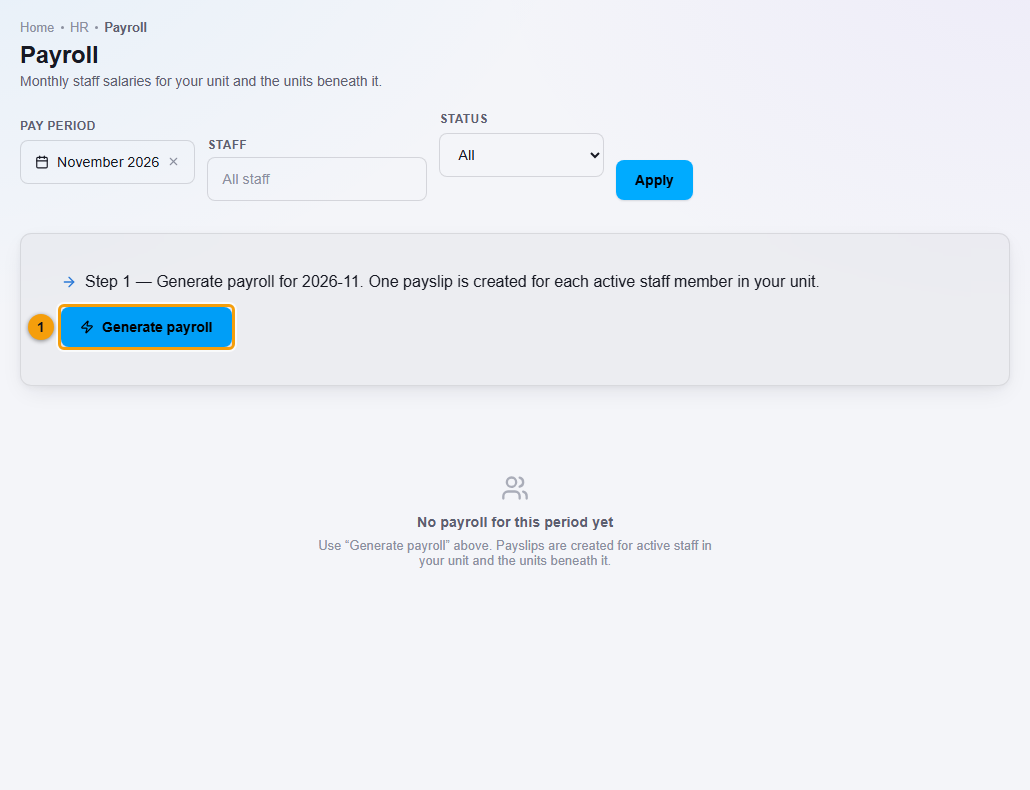
A Draft run appears with one payslip for each active staff member in your unit and the units beneath it.
2. Review
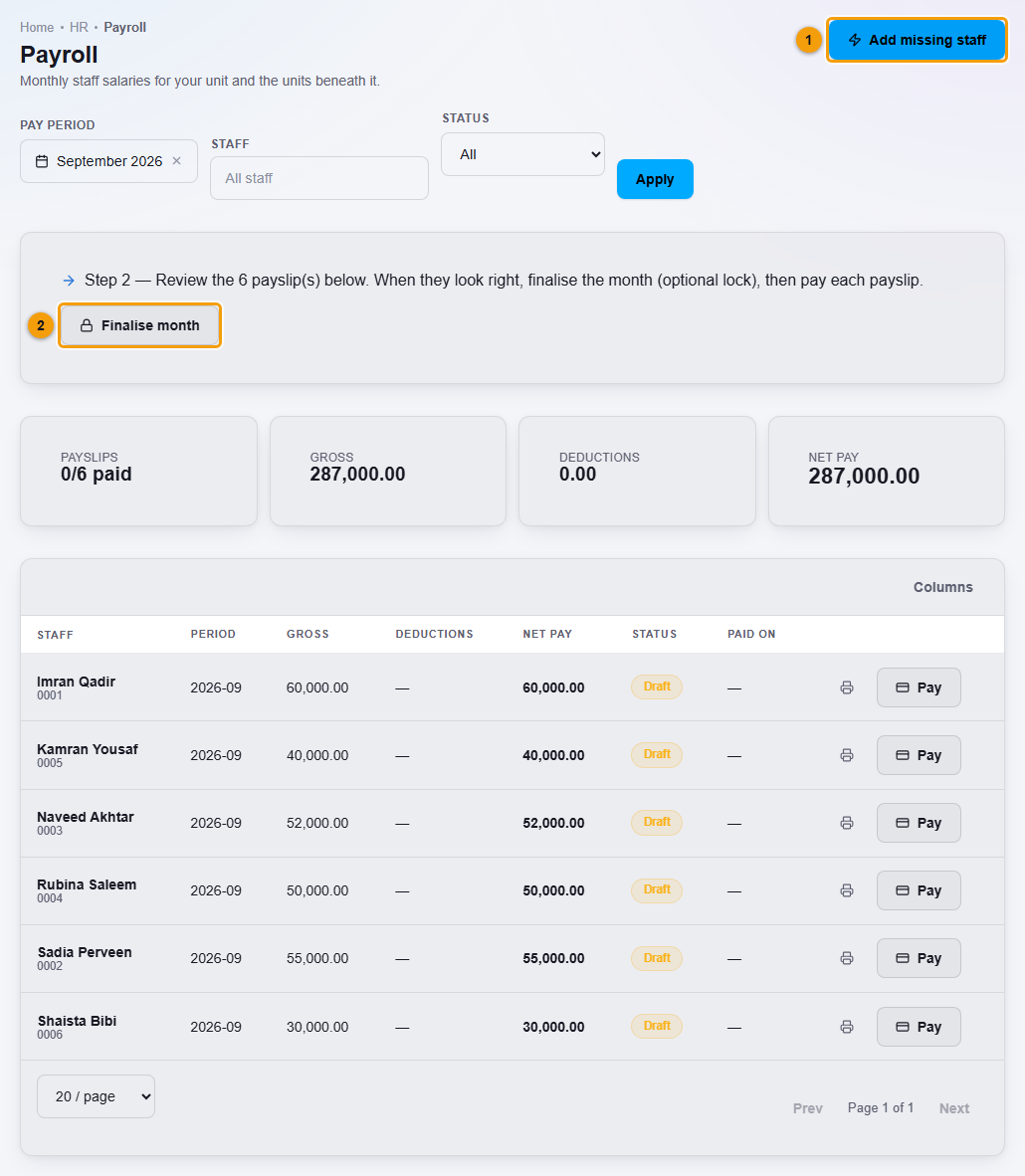
Check each payslip: the gross, the deductions and the net pay. The box above the tiles says Step 2 — Review. If you add a staff member before you finalise, click Add missing staff (1). It adds payslips only for staff who do not have one. Payslips that already exist are never created twice.
3. Finalise
Click Finalise month (2) and confirm when the payslips look right. The status changes from Draft to Ready to pay.
A finalised run is locked. The Add missing staff button goes away and no new payslips are added to that month. A staff member who joins after you finalise is therefore not part of that run. This is how the month is kept fixed, so review who is included before you finalise.
4. Pay
- Click Pay on a payslip's row.
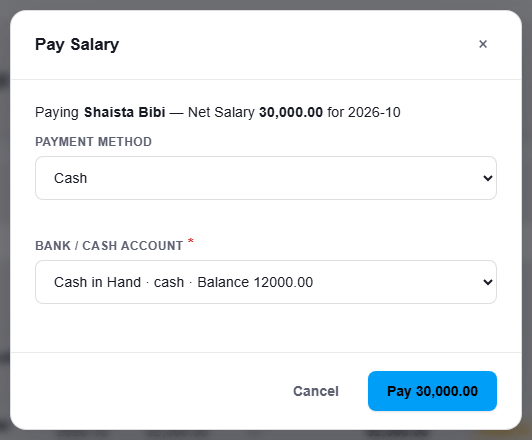
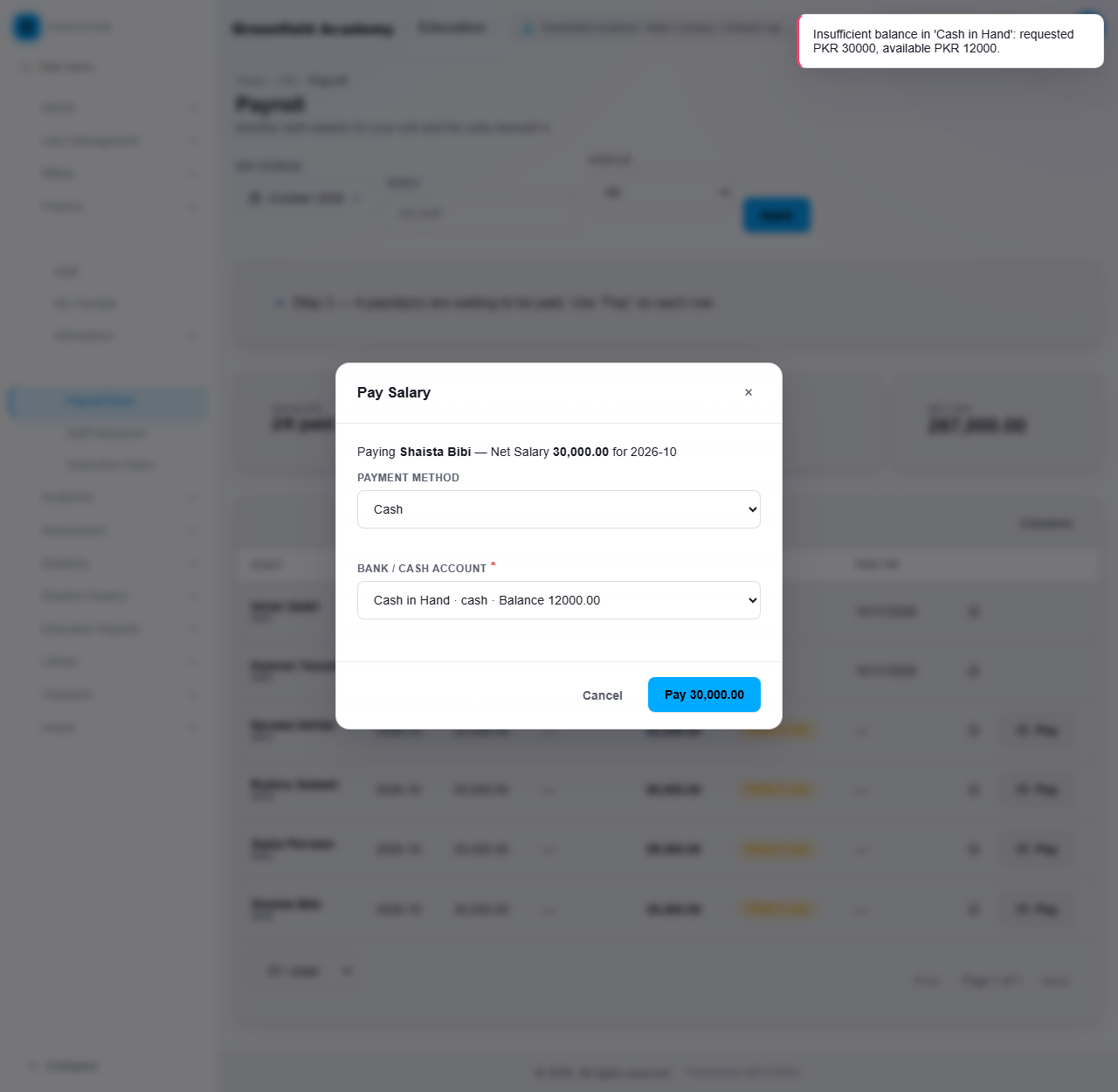
- Choose the Payment method (Cash, Bank Transfer or Cheque) and the Bank / Cash account. The list shows each account's balance.
- Click the Pay button, which shows the amount.
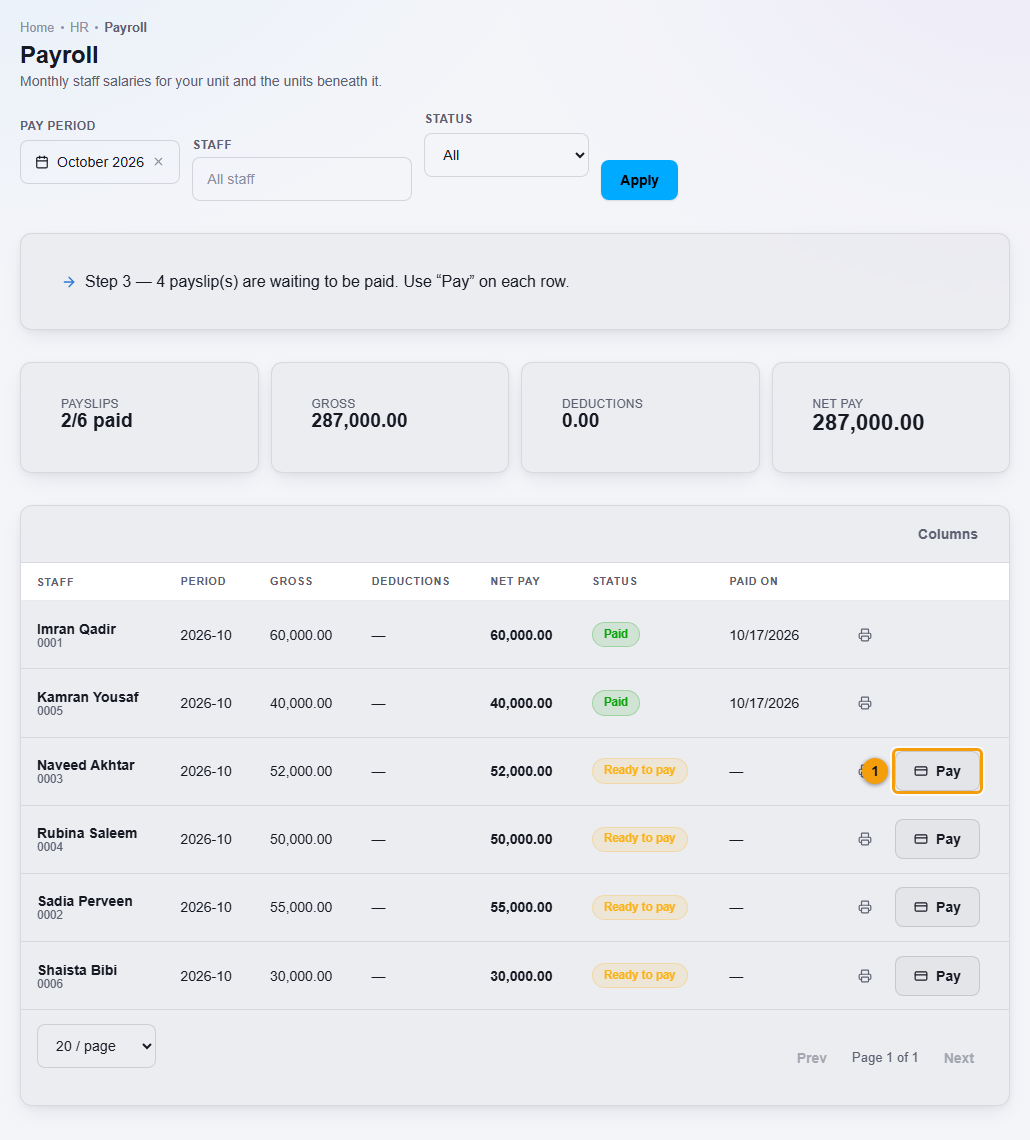
The message Salary paid. appears and the status changes to Paid, with the date in Paid on. The tile shows how many are paid, for example 2/6 paid.
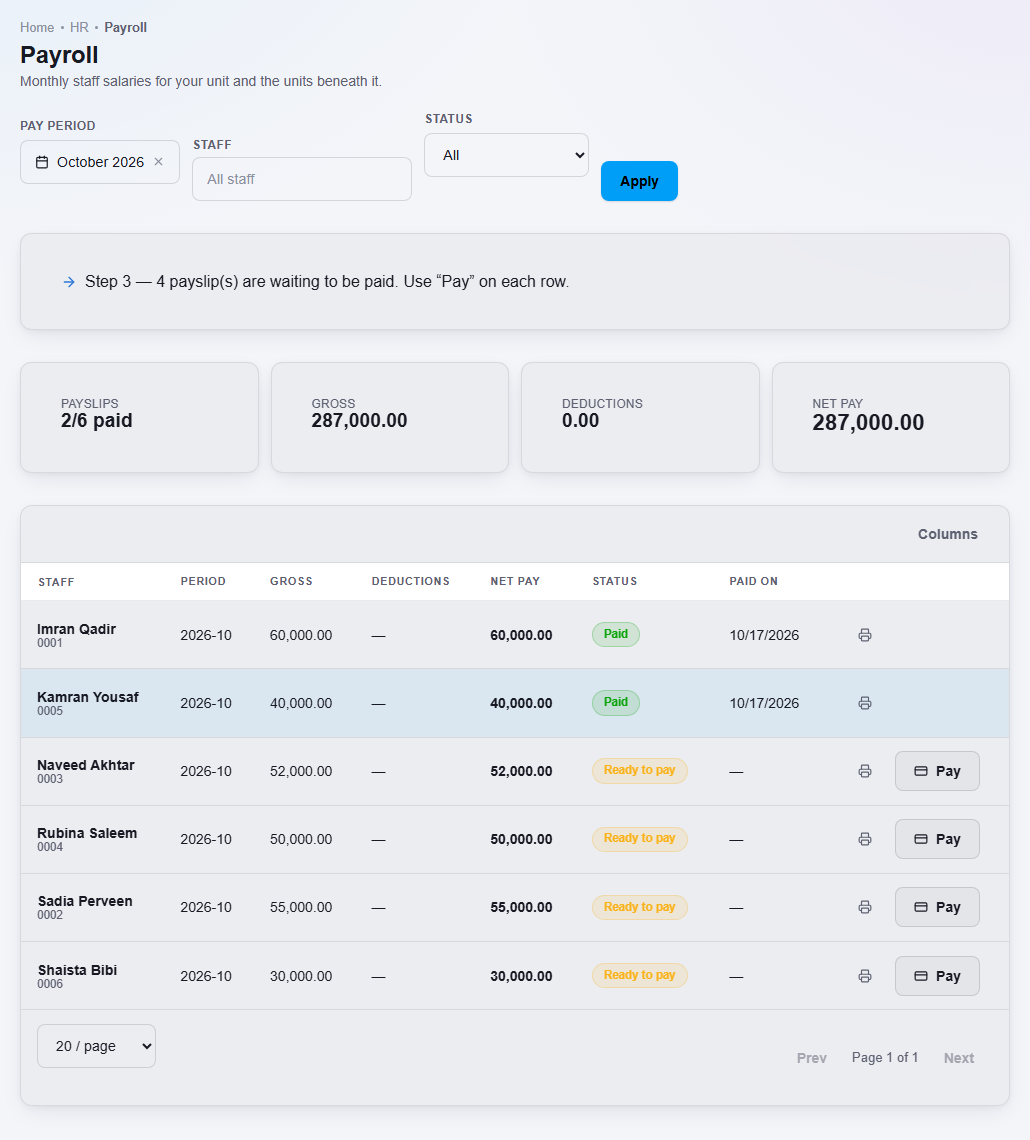
You pay each payslip separately. The normal order is to finalise first, but the Pay button is also shown on Draft payslips. Paying a payslip posts the payment to your cash or bank account through the shared finance screens. This guide does not cover full accounting.
When the balance is too low
If the account holds less than the net pay, the payment is refused and nothing is posted. The message shows the amount requested and the amount available, for example Insufficient balance in 'Cash in Hand': requested PKR 30000, available PKR 12000. Add money to the account, for example by recording a student receipt, then pay again. The payslip stays unpaid until it is paid.
Advances and deductions
- Staff Advances: advance salary given to staff. It is recovered through a fixed monthly installment the next time payroll is generated.
- Deduction Rules: salary deductions applied automatically when payroll is generated. Flat and percentage rules apply to every active staff member. Attendance-based rules use that month's absent and late counts.
Each payslip shows the deductions and advance installment that were applied.
The payroll cost report
Education Reports, then Payroll Cost Report, shows the total net pay per month and a trend across recent months. See Education reports and dashboard.
Important rules
- One payslip per staff member per month.
- A finalised month is locked: no new payslips are added to it.
- A payslip that is already paid cannot be paid again.
- A payslip with a net pay of zero has nothing to pay.
- A payment can never take an account below zero.
- You see payroll only for staff in your own place in the hierarchy and the places beneath it.
Common mistakes
- Generating payroll before the month's attendance is recorded.
- Finalising before checking who is included. A staff member added afterwards is not in the finalised run.
- Trying to pay salaries when the cash or bank account is empty. Record receipts first.
- Expecting the run to pay everyone at once. You pay each payslip separately.