Education
Students: admission and management
Education Essentials and above · 5 min read · Updated 17 October 2026
What this does
The Students screen holds every student record, from the first inquiry to enrolment and withdrawal. Each student has a Group and a Section, an admission status, guardian details and a fee history.
Who can use it
Staff whose role includes the Student permissions. Students themselves only see their own information.
Which package includes it
All Education packages. The number of students you can have enrolled depends on the package: 200 on Education Essentials, 750 on Education Standard and 2,500 on Education Campus.
Where to find it
Open Students, then All Students.
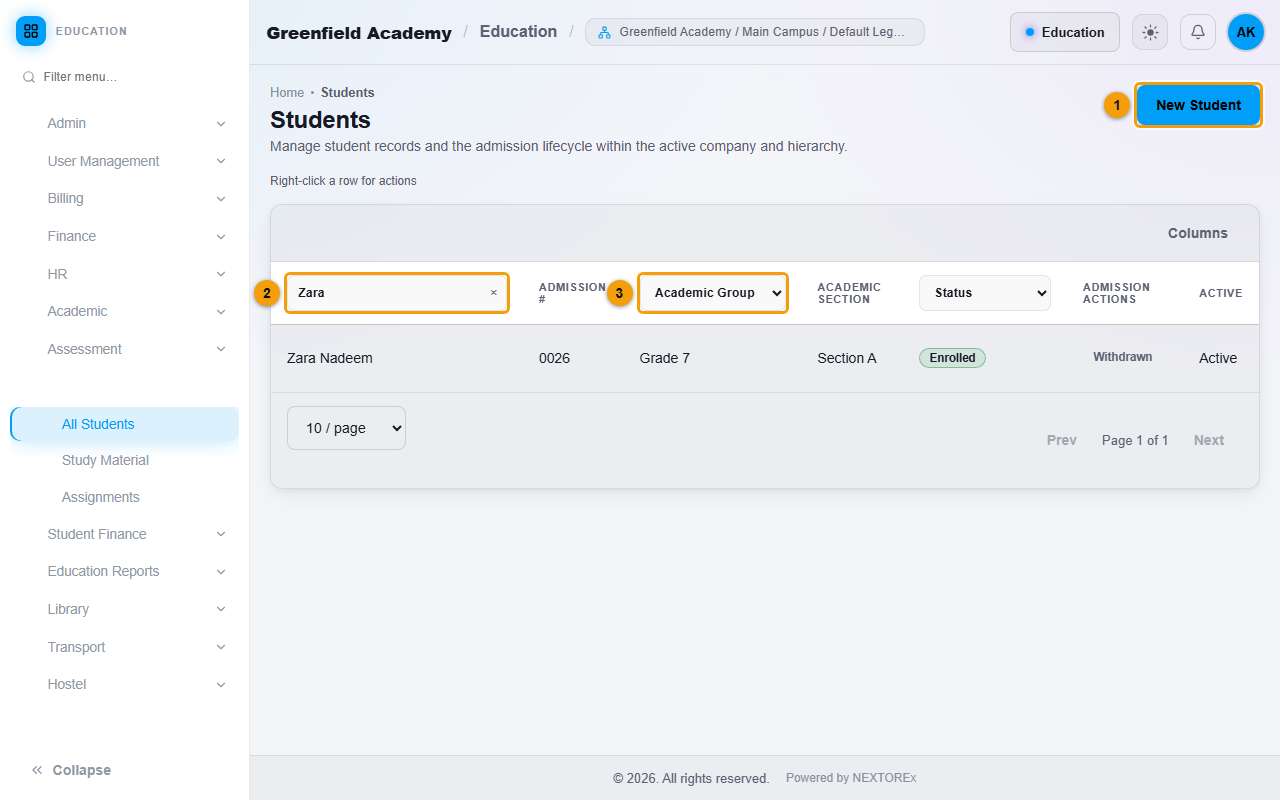
Steps: add a student
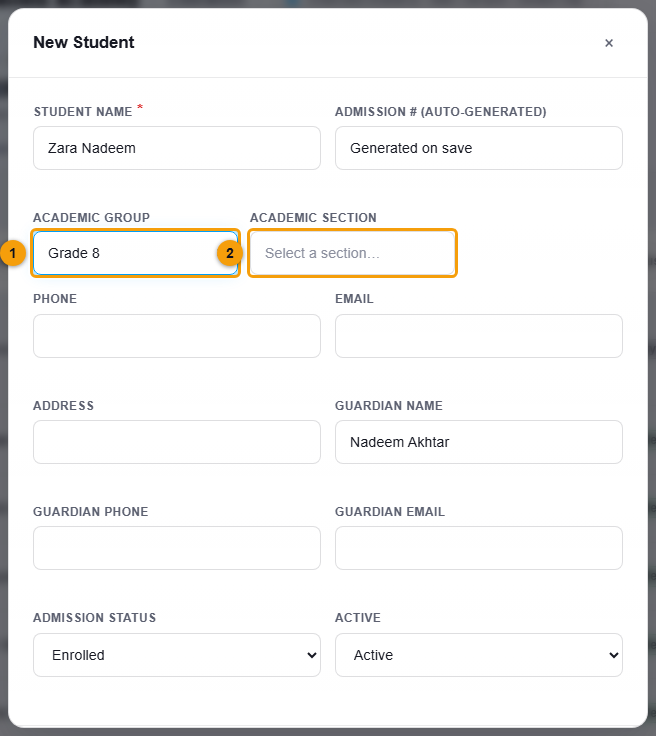
- Click New Student (1).
- Enter the Student Name. The Admission # is created for you when you save.
- Choose the Academic Group first. The Academic Section stays unavailable until a Group is chosen.
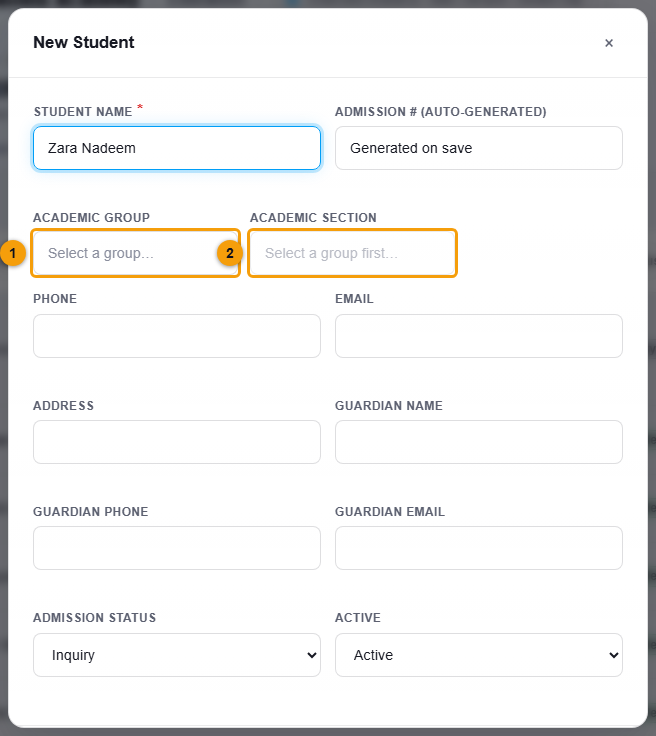
Before a Group is chosen, the Section says Select a group first (2).
- Open Academic Section. Only the Sections that belong to the chosen Group are listed, and each shows its short description.
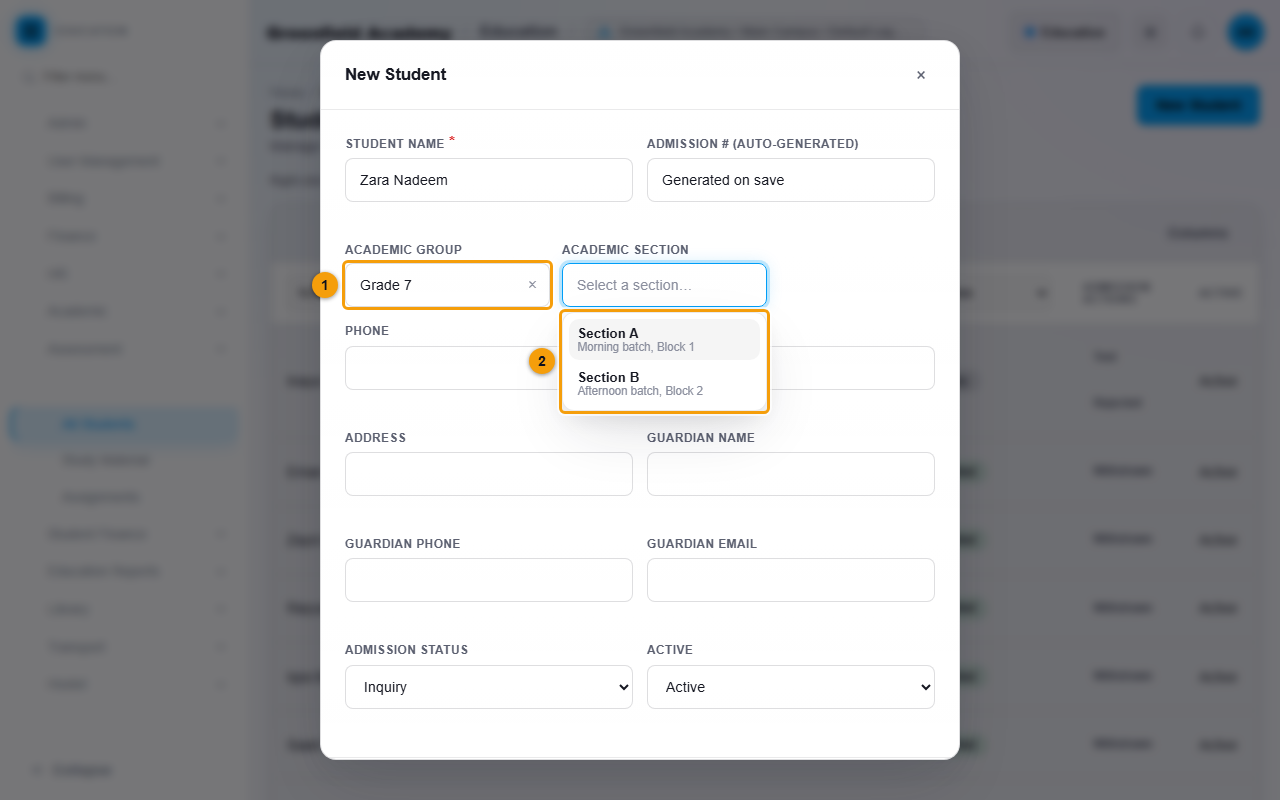
After choosing Grade 7 (1), only Section A and Section B of Grade 7 are offered (2).
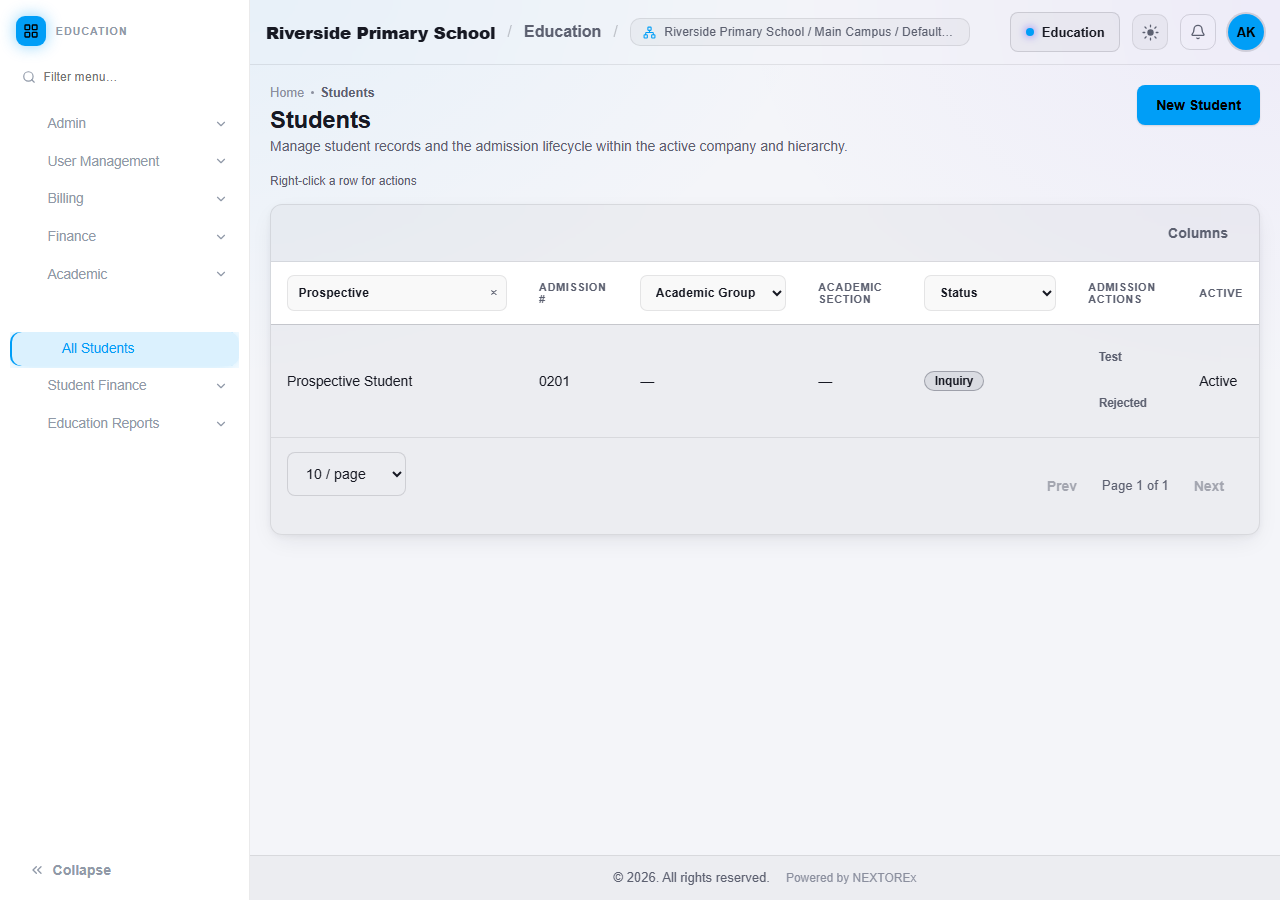
- Fill in the guardian name, phone and email if you have them, and choose the Admission Status. Use Inquiry for a prospective student and Enrolled for a student who has joined.
- Click Save.
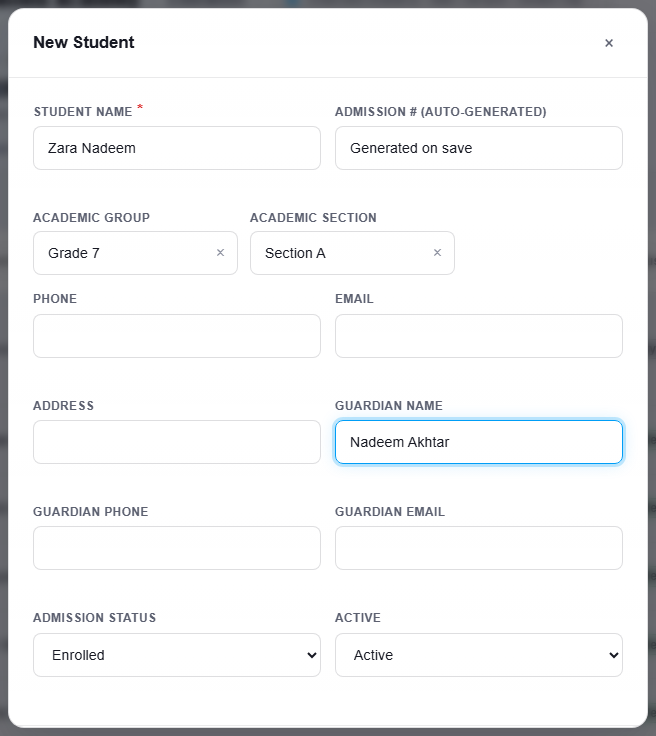
If you change the Group after choosing a Section, the Section is cleared so you cannot end up with a Section from another Group.
The student login
When a student is saved, NEXTOREx also creates a Student Portal login. A window appears with the login email and a one-time password. Share them with the student or guardian. The student is asked to change the password after the first sign-in. Copy the password before you click Done, because it is not shown again.
Student portal logins do not use up the User seats of your package. See Education plans, limits and combining apps.
The admission steps
A record moves forward one step at a time, using the action links at the end of its row:
| From | Next step |
|---|---|
| Inquiry | Test or Rejected |
| Test | Admitted or Rejected |
| Admitted | Enrolled or Withdrawn |
| Enrolled | Withdrawn |
| Rejected or Withdrawn | No further steps |

A student counts toward your package limit only while the status is Enrolled, the student is Active and the record is not deleted.
Edit, view or delete a student
- Right-click the student's row.
- Choose View Details, Edit or Delete.
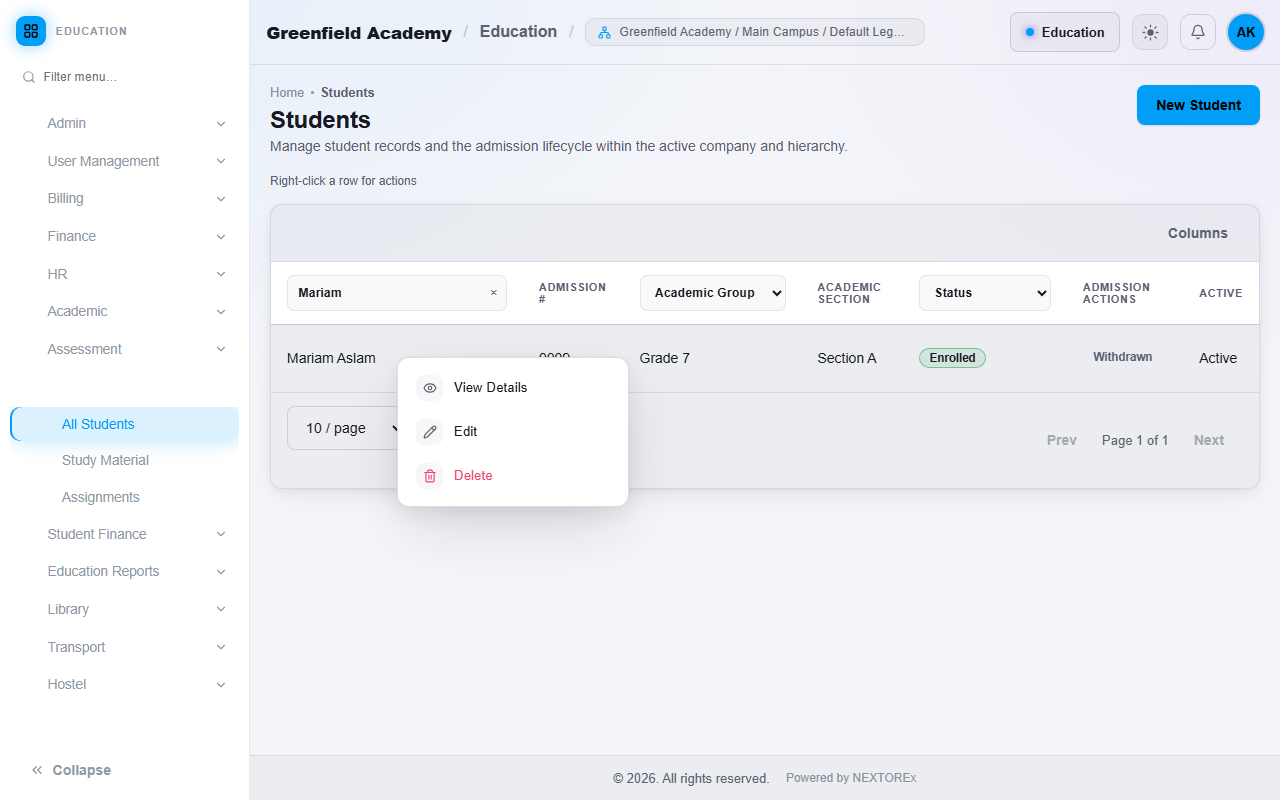
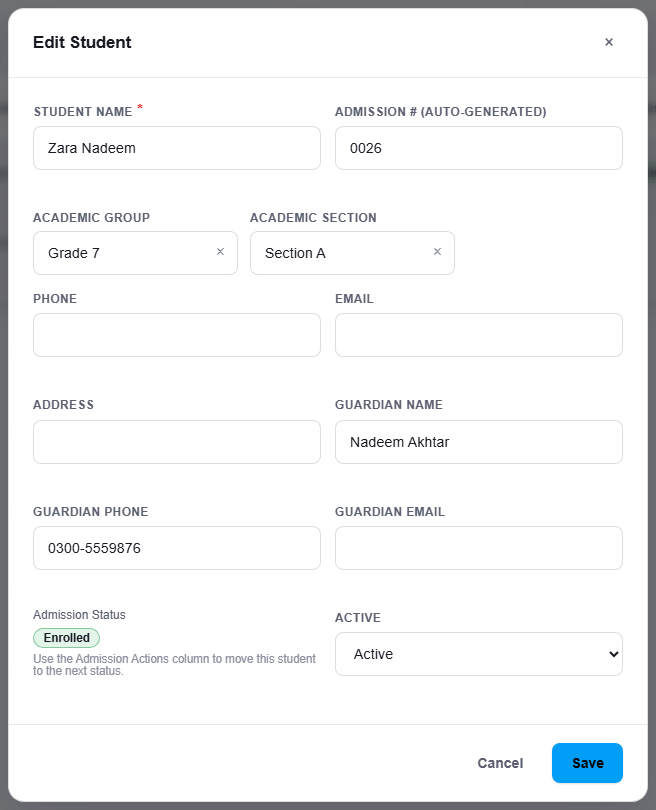
Edit opens the same form as New Student.
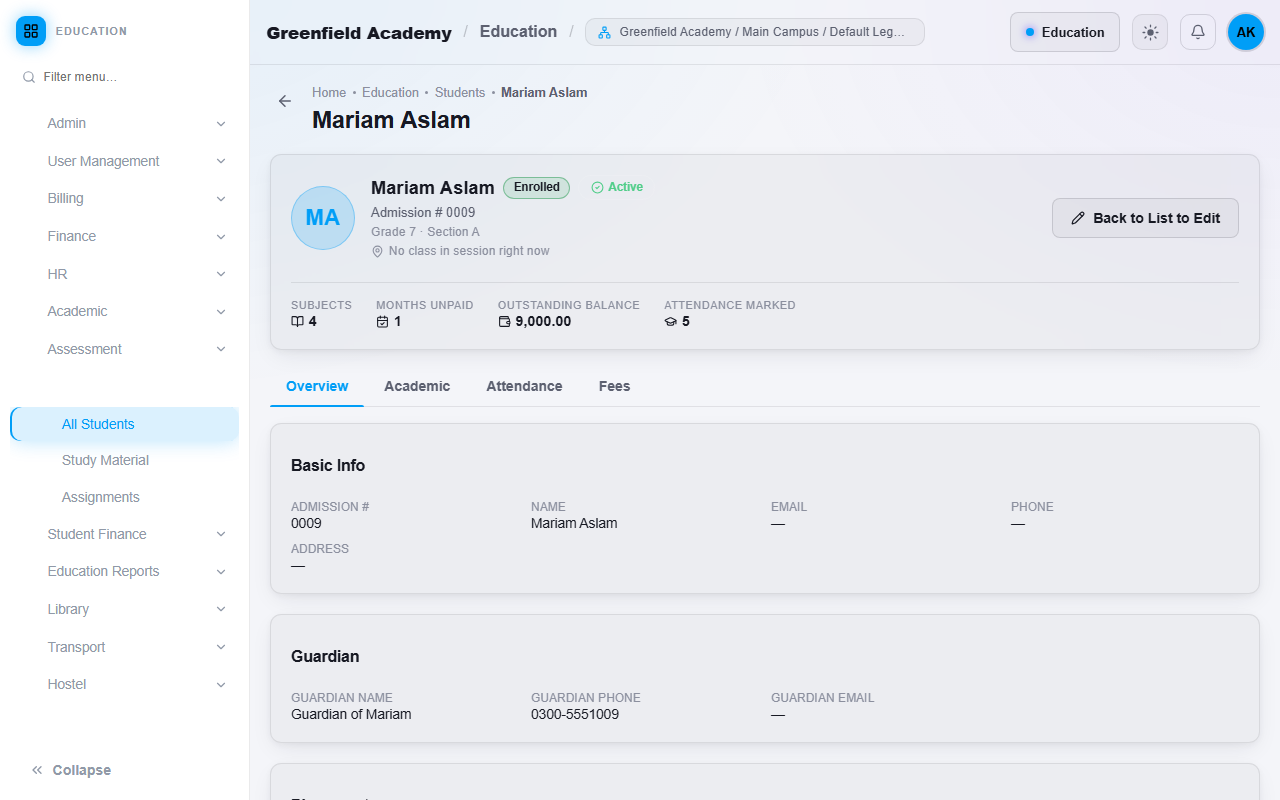
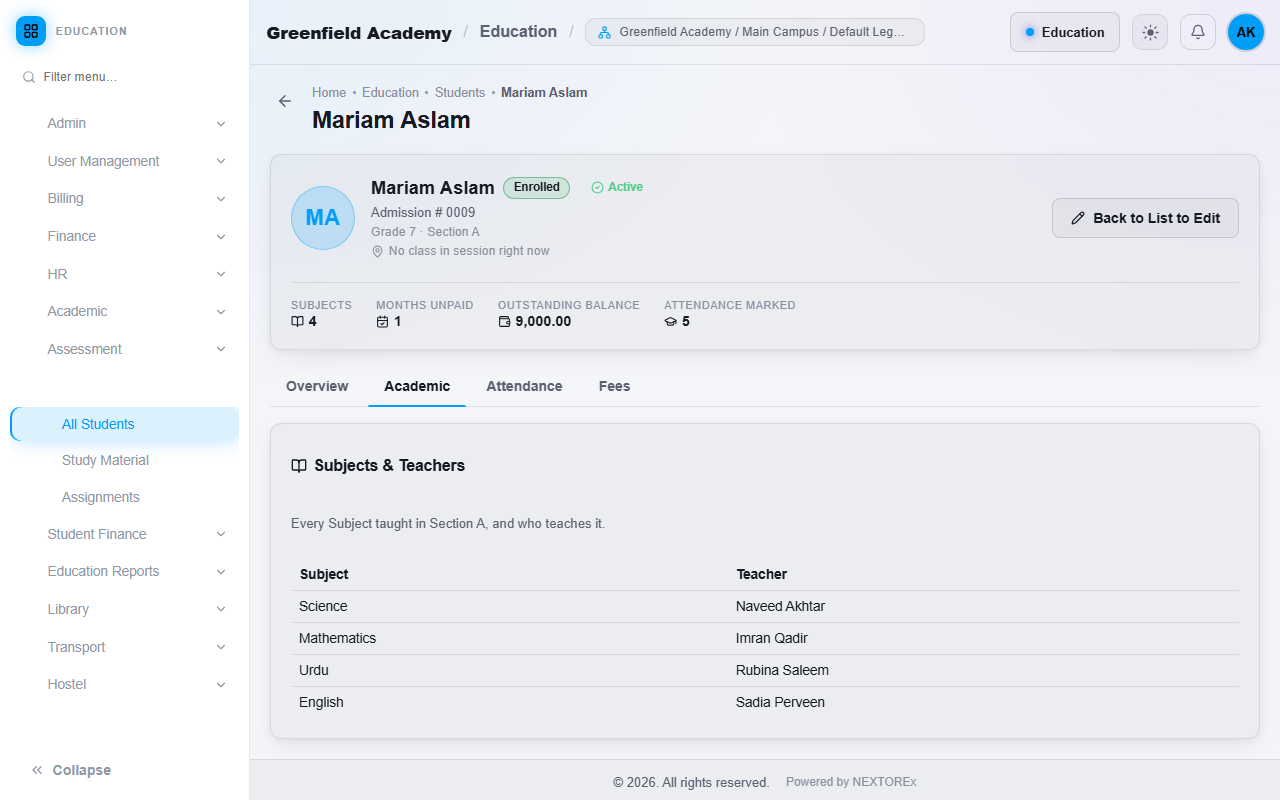
View Details opens the student profile. The top shows the number of Subjects, months unpaid, the outstanding balance and how many days of attendance are marked. The tabs are:
- Overview: personal and guardian details and the Group and Section.
- Academic: the Subjects of the student's Section and who teaches each one.
- Attendance: present, absent, late and leave days, month by month.
- Fees: every fee invoice of the student. See Student payments and fee statement.
Student limit
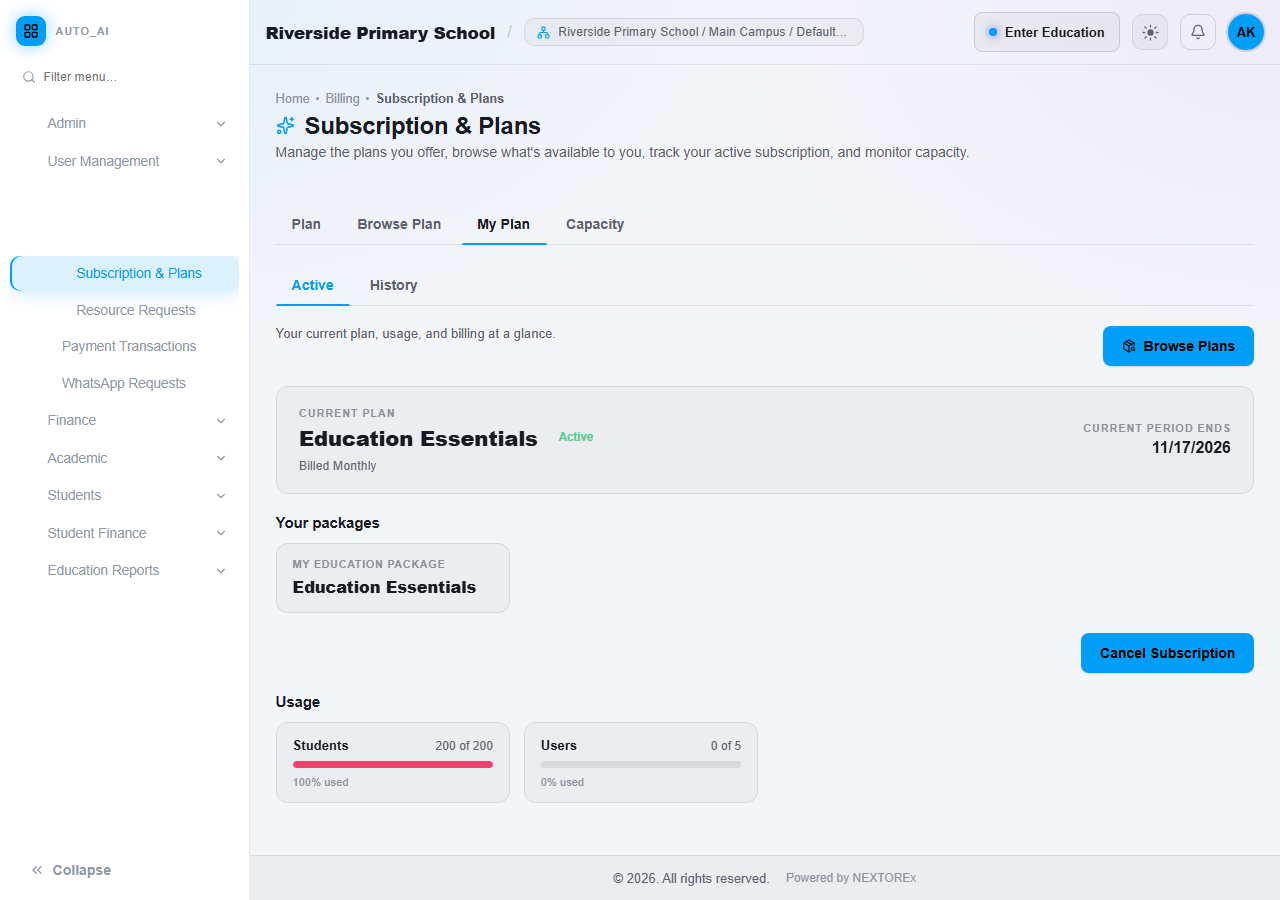
Your package allows a fixed number of enrolled students.
- A billable Student is a student who is enrolled, active and not deleted.
- Inquiry, Test, Admitted and Rejected records do not use up capacity.
- You can see usage under Billing, Subscriptions, Subscription & Plans, My Plan.
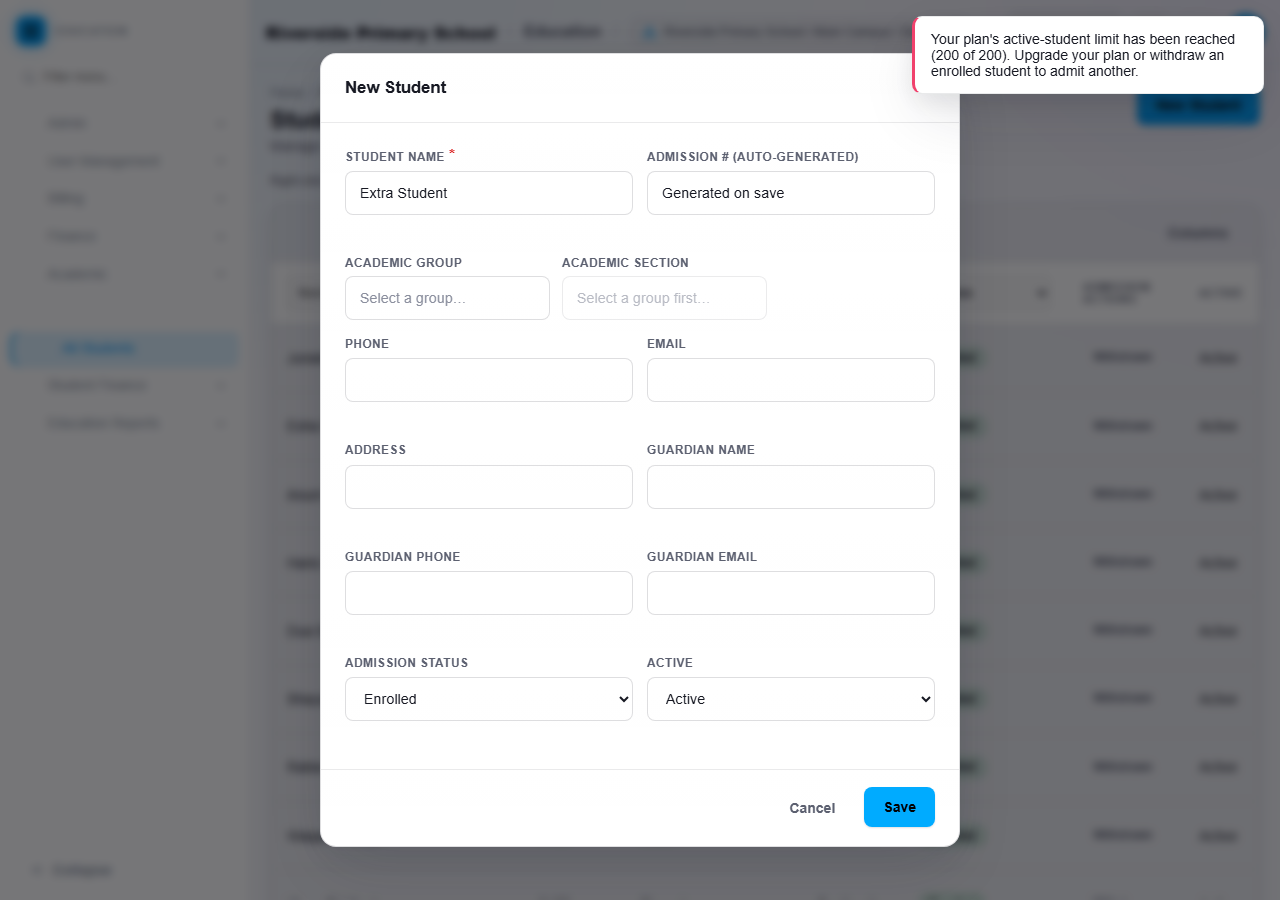
When the limit is reached:
- Your existing students and data stay safe and keep working.
- You can still record inquiries, edit students, take attendance and collect fees.
- You cannot add or re-activate another enrolled student until a place becomes free or you upgrade.
To free a place, withdraw a student who has left. To increase the limit, move to a larger package.
If you move to a smaller package than the number of students you already have, no student is deleted. For example, a school with 600 students on a 200-student package keeps all 600, but no new enrolled student can be added until the number falls below the limit or the package is upgraded.
Important rules
- Pick the Group first, then the Section.
- Admission status moves forward only. A Rejected or Withdrawn record is final.
- Deleting a student removes the record from your lists and it no longer counts toward the limit.
Common mistakes
- Saving a student as Enrolled before you are ready. Use Inquiry until the admission is confirmed.
- Closing the login window without copying the one-time password.
- After a refused save, trying a different record in the same window. Close the window and open New Student again.