Education
Education receipt and payment vouchers
Education Essentials and above · 4 min read · Updated 17 October 2026
What this does
A voucher is a record of money moving. In Education you use two kinds every day:
- Receipt: money received, for example a student paying fees.
- Payment: money paid out, for example a staff member's advance.
Education can record these transactions on its own. You do not need to buy the ERP or POS application for it.
Who can use it
Staff whose role allows creating and viewing vouchers, normally the accounts team.
Which package includes it
All Education packages include receipts and payments for student and staff money. Payments to staff need the staff features of Education Standard or Education Campus, because Essentials has no staff records.
What Education includes, and what it does not
Education includes the shared finance screens it needs: Finance, Voucher, the account and bank lists you can view, and ledgers for students and staff. It is not the ERP or POS accounting application. It has no sales orders, POS checkout, product stock or purchasing. If you also buy the ERP/POS application, those screens appear in the same account. See Education plans, limits and combining apps.
Where to find it
Open Finance, then Voucher. Use the Receipt and Payment buttons at the top.
Steps: a receipt from a student
The full steps are in Student payments and fee statement. In short:
- Click Receipt.
- Choose the Bank / Cash Account and the Income / Asset Account.
- Enter the Amount.
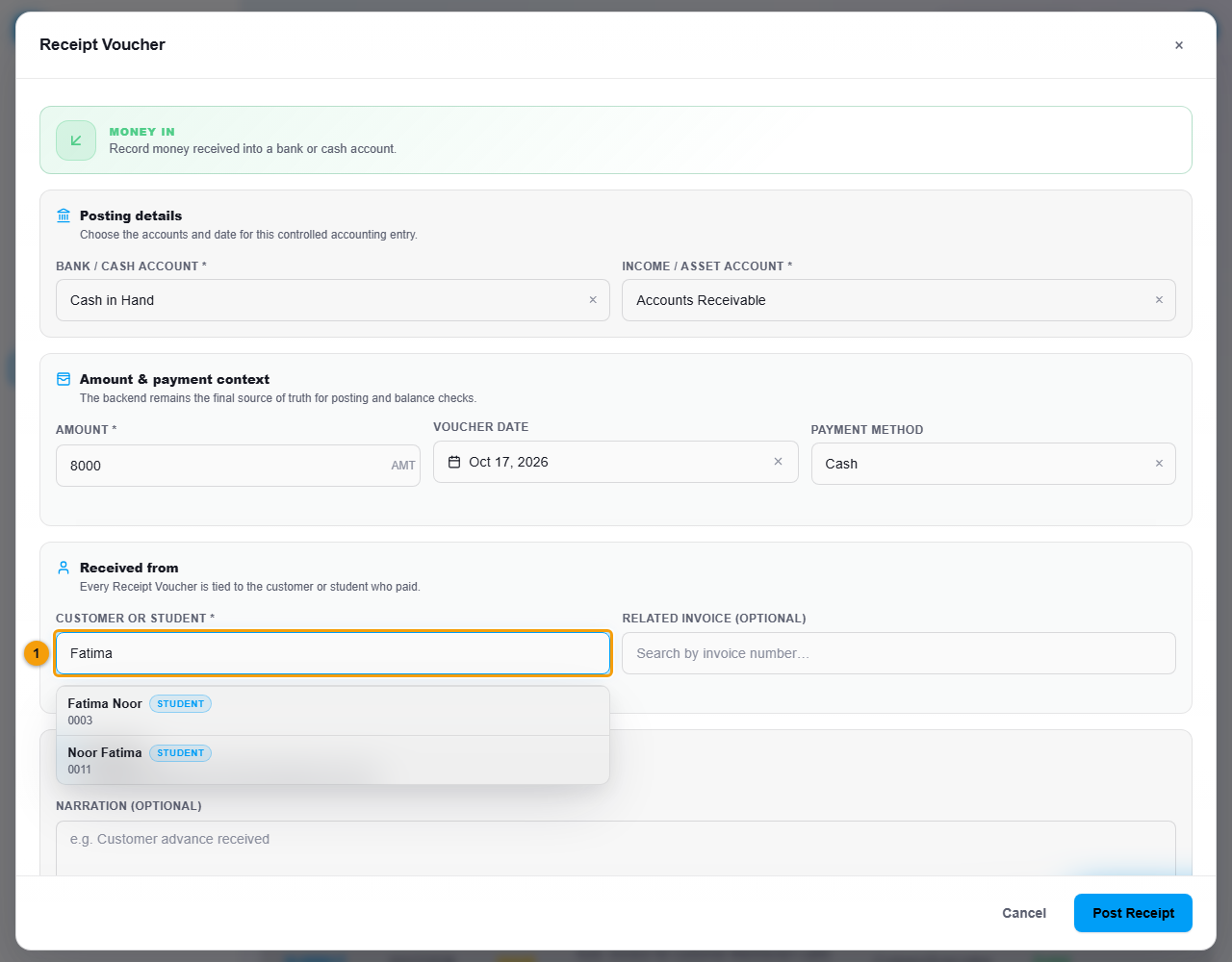
- Type the student's name in Customer or Student (1) and choose the person.
- Choose the Related Invoice if the money pays a fee invoice.
- Click Post Receipt.
One box for students and customers
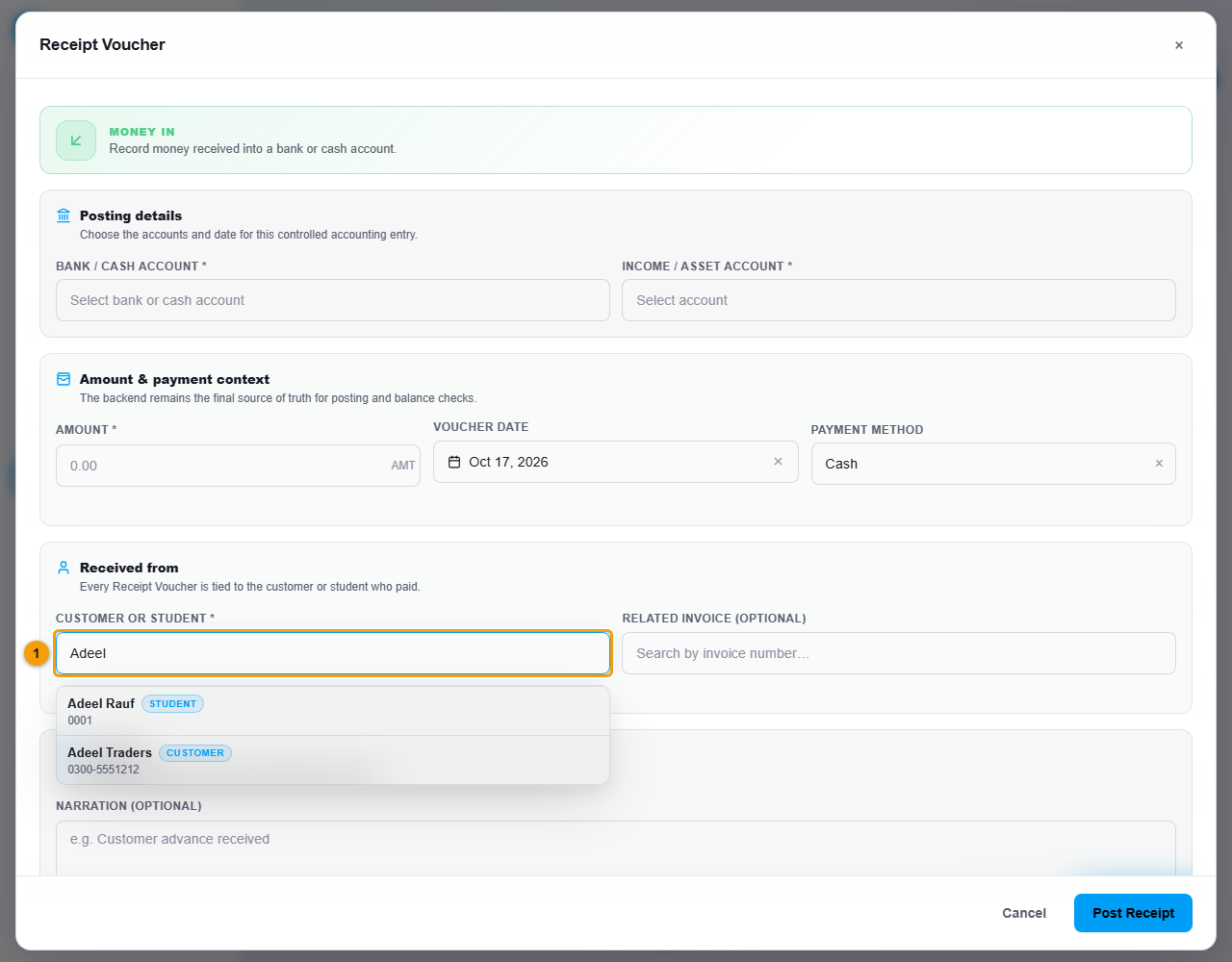
The Customer or Student box searches both lists at once and marks each result with a badge. If your organisation uses only Education, you see students. If you also use the ERP/POS application, you also see customers, and the badge tells them apart.
Steps: a payment to a staff member
- Click Payment.
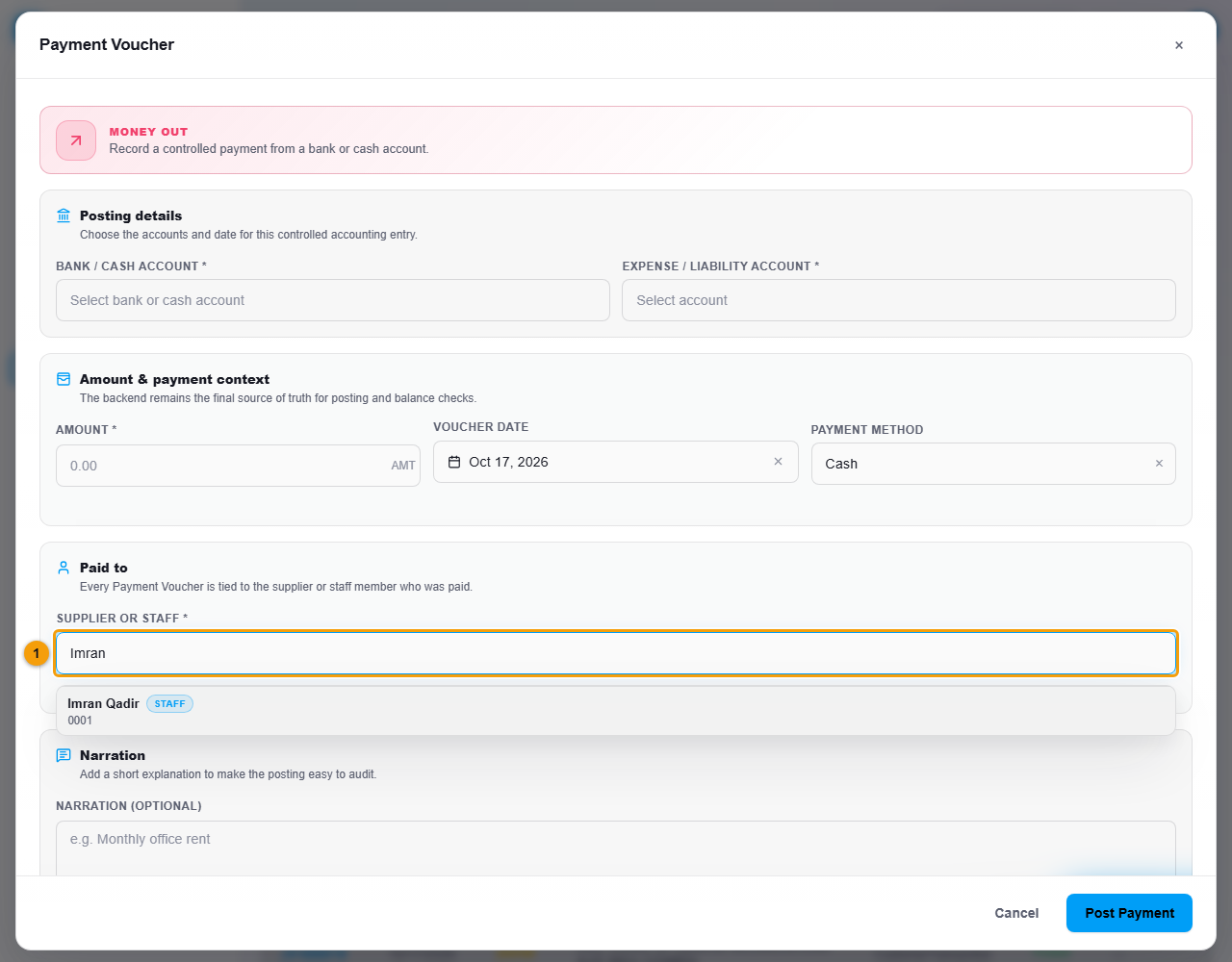
- In Supplier or Staff (1), type the person's name. A STAFF badge shows a staff member. If you also use the ERP/POS application, suppliers appear here with a SUPPLIER badge.
- Choose Advance (recoverable) if the money is an advance you expect to recover, or Reimbursement (expense) if it repays the staff member for something they paid for.
- Choose the Bank / Cash Account that pays, enter the Amount and click Post Payment.
For a staff member, the account can stay empty. NEXTOREx then uses its default staff advance or reimbursement account.
Salaries are normally paid from Payroll, not from a voucher. See Payroll.
Payments are refused when the money is not there
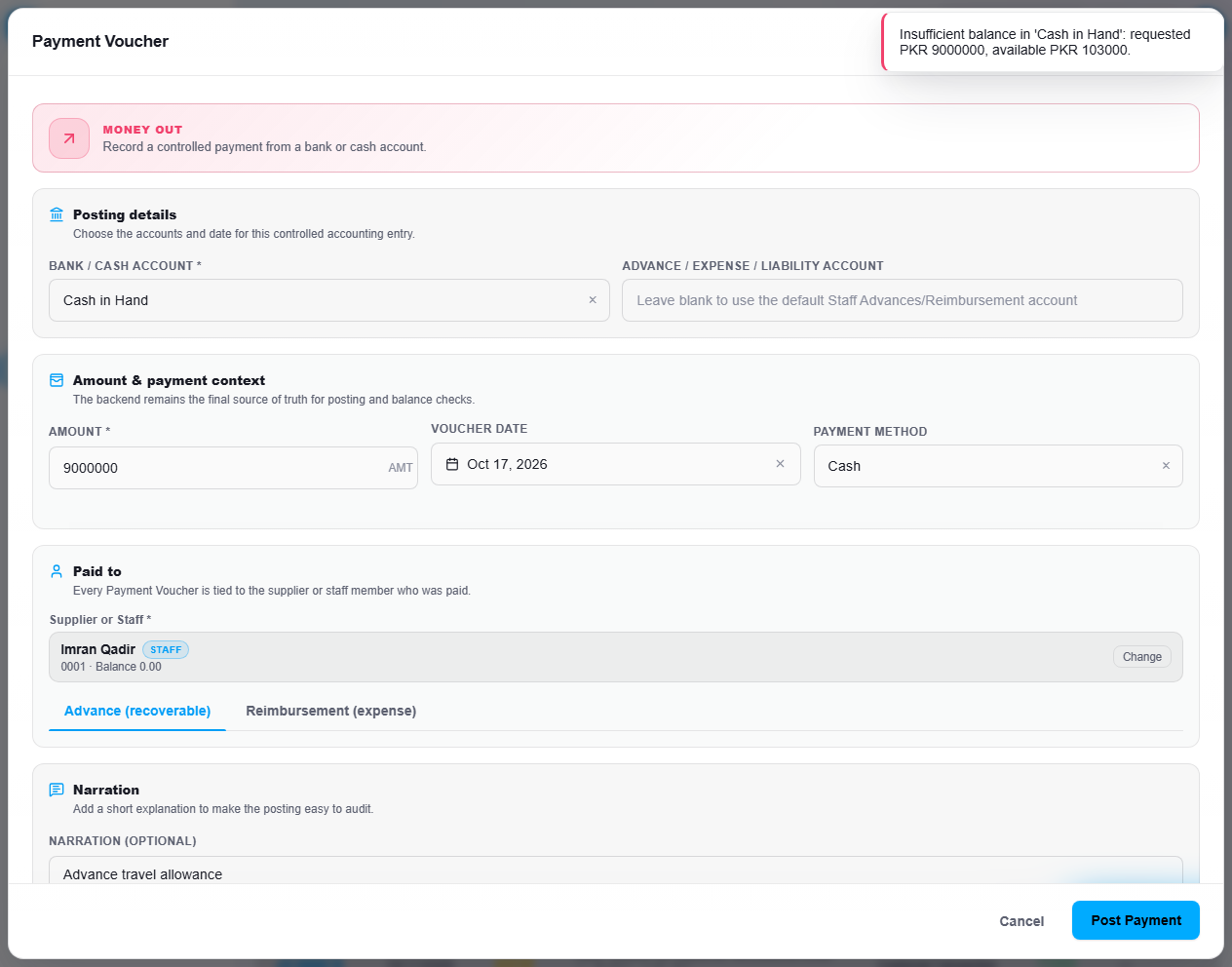
You cannot pay out more than the account holds. NEXTOREx shows a message such as Insufficient balance in 'Cash in Hand': requested PKR 9000000, available PKR 103000 and nothing is posted. Money enters the account when you record receipts, for example from students. Check the balance, or choose a different account, and try again.
What happens next
The voucher appears in the list. To undo a voucher, right-click it and choose Reverse voucher, then post the correct one. Posted vouchers are never edited.
Important rules
- A receipt against a student invoice must go to Accounts Receivable.
- A receipt can only be linked to an invoice of the person you chose.
- An overdraft is always refused.
- The list of vouchers shows entries NEXTOREx created automatically, such as one for every fee invoice, as well as the ones you post.
Common mistakes
- Looking for a customer or supplier screen in an Education-only account. Those belong to the ERP/POS application.
- Choosing the wrong account for a student invoice receipt. Choose Accounts Receivable.
- Paying salaries by hand-made vouchers instead of using Payroll.