Education
Education reports and dashboard
Education Essentials and above · 4 min read · Updated 18 October 2026
What this does
Education has one overview page for the whole institution, the Institution Overview, and a set of reports for fees, attendance, exams and payroll. Each report answers a clear question and can be printed.
Who can use it
Staff whose role includes the matching report permission. Each report has its own permission, so you can give the principal the overview and the accounts team the fee reports.
Which package includes it
| Report | Package |
|---|---|
| Institution Overview | Essentials and above |
| Fee Collection Report (with the Dues only filter) | Essentials and above |
| Attendance Summary | Essentials and above |
| Student Attendance Report and Student Fee Statement | Essentials and above |
| Team Attendance (staff attendance, under HR, Attendance) | Standard and above |
| Exam Results Analytics and Report Cards | Standard and above |
| Payroll Cost Report | Campus |
Where to find it
Open Education Reports. It holds Institution Overview, Fee Collection Report, Exam Results Analytics, Attendance Summary and Payroll Cost Report. Your menu shows only the reports your package and role include.
Steps: open a report
- Open Education Reports and click the report you want.
- Choose the dates and any filter at the top, for example an Academic Group.
- Click Generate or Filter. The figures and tables update.
- Click Print to print the report.
Which branch the numbers include
The branch you are working in is shown at the top of the page, next to the name of your institution. Every report and the overview count the selected branch plus the branches below it that you are allowed to see. If your account can work in more than one branch, change it with the branch switcher at the top to see another branch. A report never includes data from a branch you have no access to.
Institution Overview
The overview is the Education dashboard. Choose the From and To dates and click Generate (1).
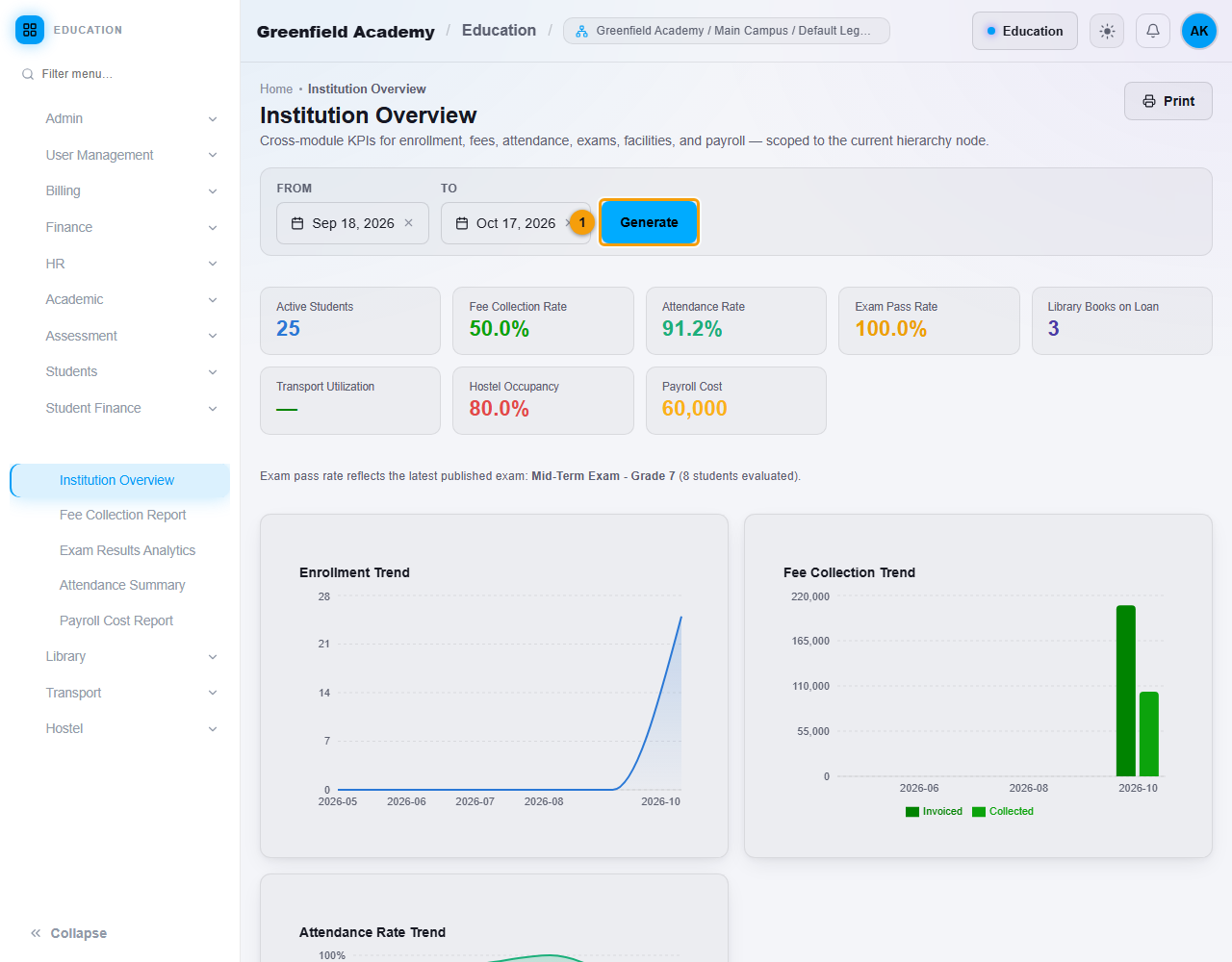
It shows these figures for the period:
- Active Students: students who are enrolled and active.
- Fee Collection Rate: how much of the fees invoiced has been collected.
- Attendance Rate: the share of marked student days that were present.
- Exam Pass Rate: the pass rate of published exams.
- Library Books on Loan, Transport Utilization and Hostel Occupancy.
- Payroll Cost.
A dash means there is nothing to measure yet, for example no published exam. Below the figures you see the enrollment trend, the fee collection trend (invoiced and collected) and the attendance rate trend.
Fee Collection Report
Invoiced, collected and outstanding amounts across tuition, late fees, extra fees, transport, hostel and library fines. Choose an Academic Group and dates, then click Filter. Tick Dues only (unpaid invoices, largest first) to list only the unpaid invoices. The cards show Invoiced, Collected, Outstanding, Scholarship Credits, Fully Waived, Collection Rate and the number of fee invoices, followed by a breakdown by fee type and the invoice list.
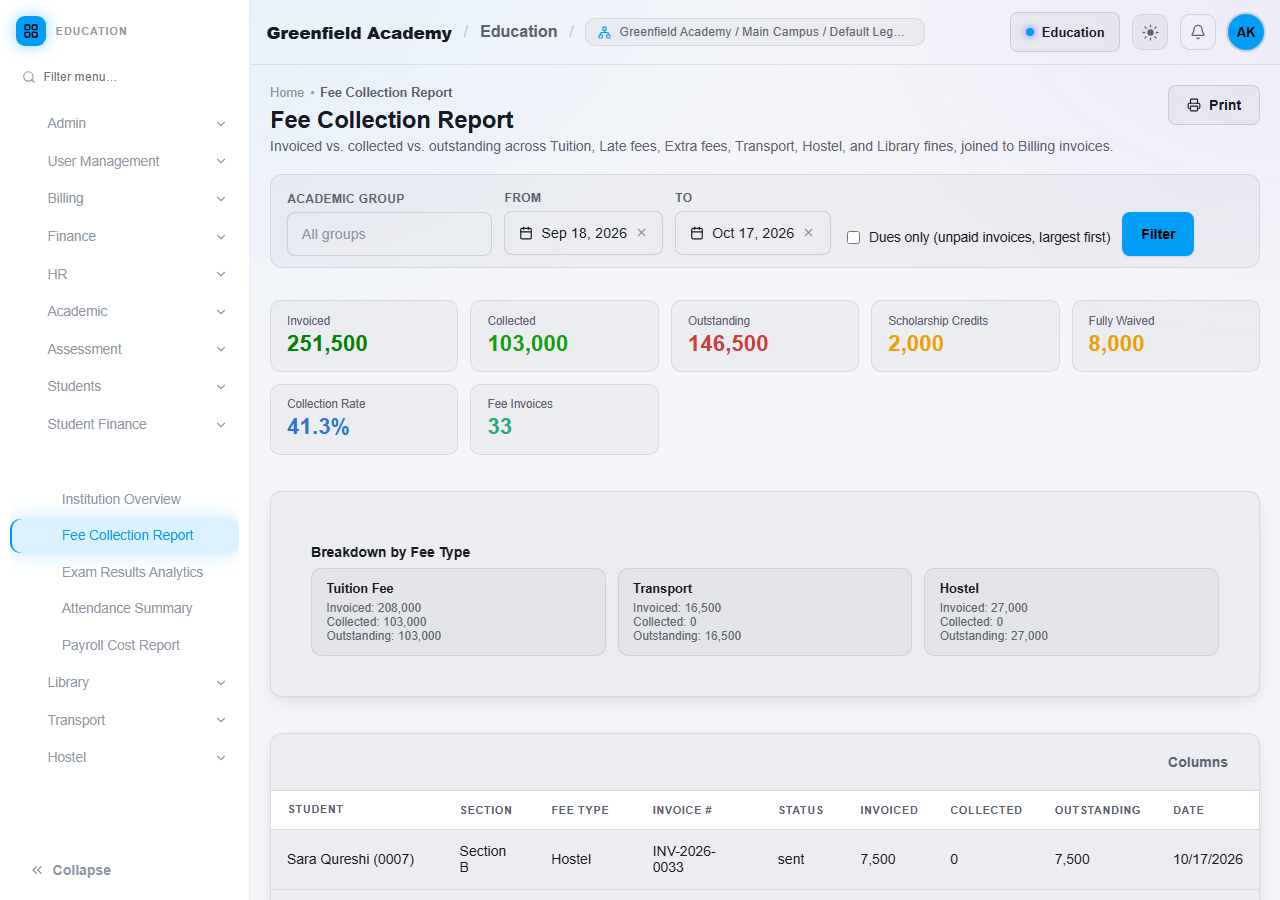
See Student payments and fee statement for the Dues only filter and for a single student's fee statement.
Attendance Summary
The student attendance rate of every Section over a period, for the whole institution. Choose an Academic Group if you want and the dates, then click Filter. You see the overall rate, the number of records marked, how many Sections are tracked, the day with the lowest attendance, a table by day and a Breakdown by Academic Section with present, absent, late and leave counts.
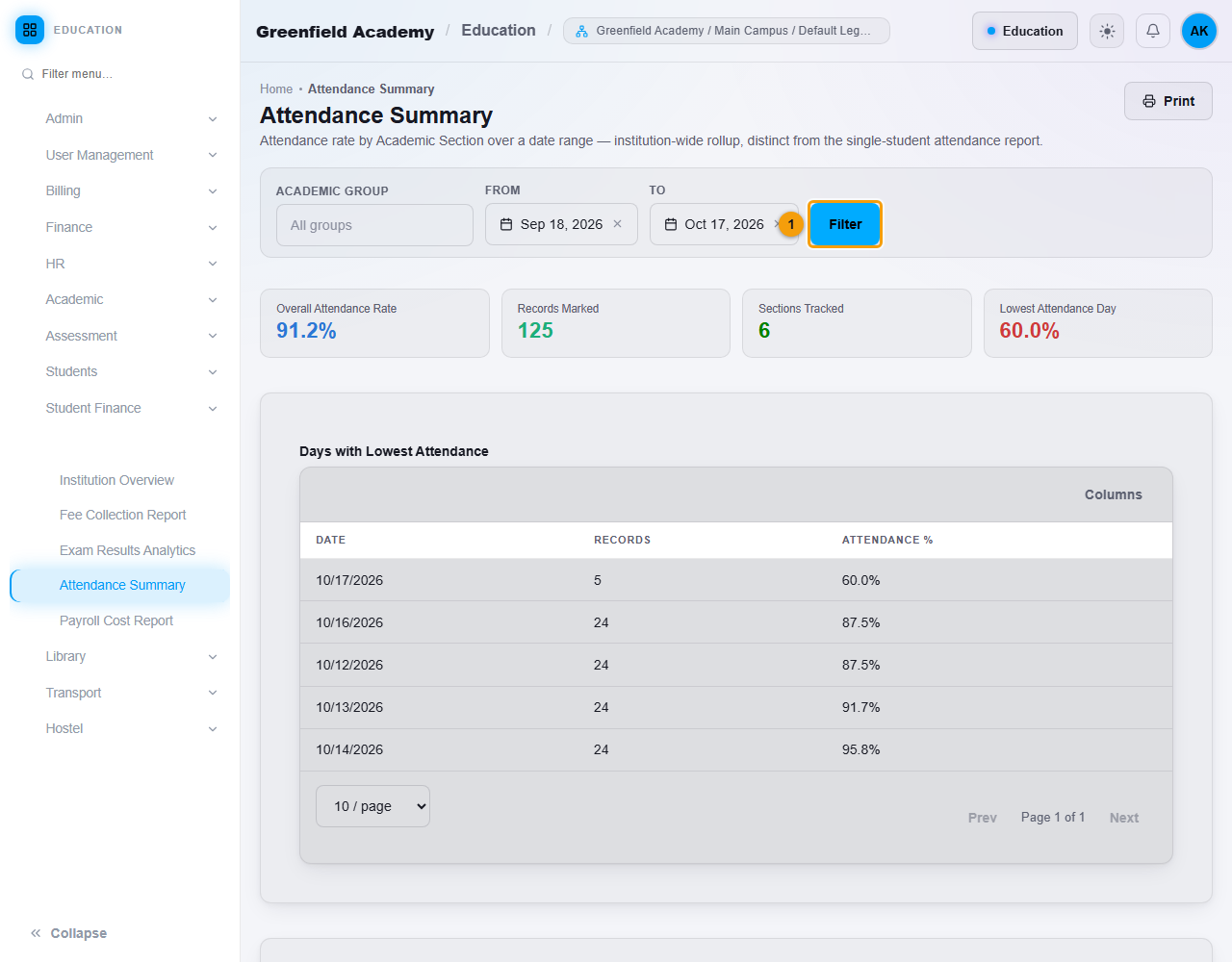
For one Section's daily register and trend, use Academic, Attendance Report. See Student attendance.
Staff attendance is separate. For your staff, open HR, then Attendance, then Team Attendance. See Staff and staff attendance.
Exam Results Analytics
The pass rate by Section and Subject for one published exam. Choose the Term and the Exam, then click Filter. Only published exams are offered.
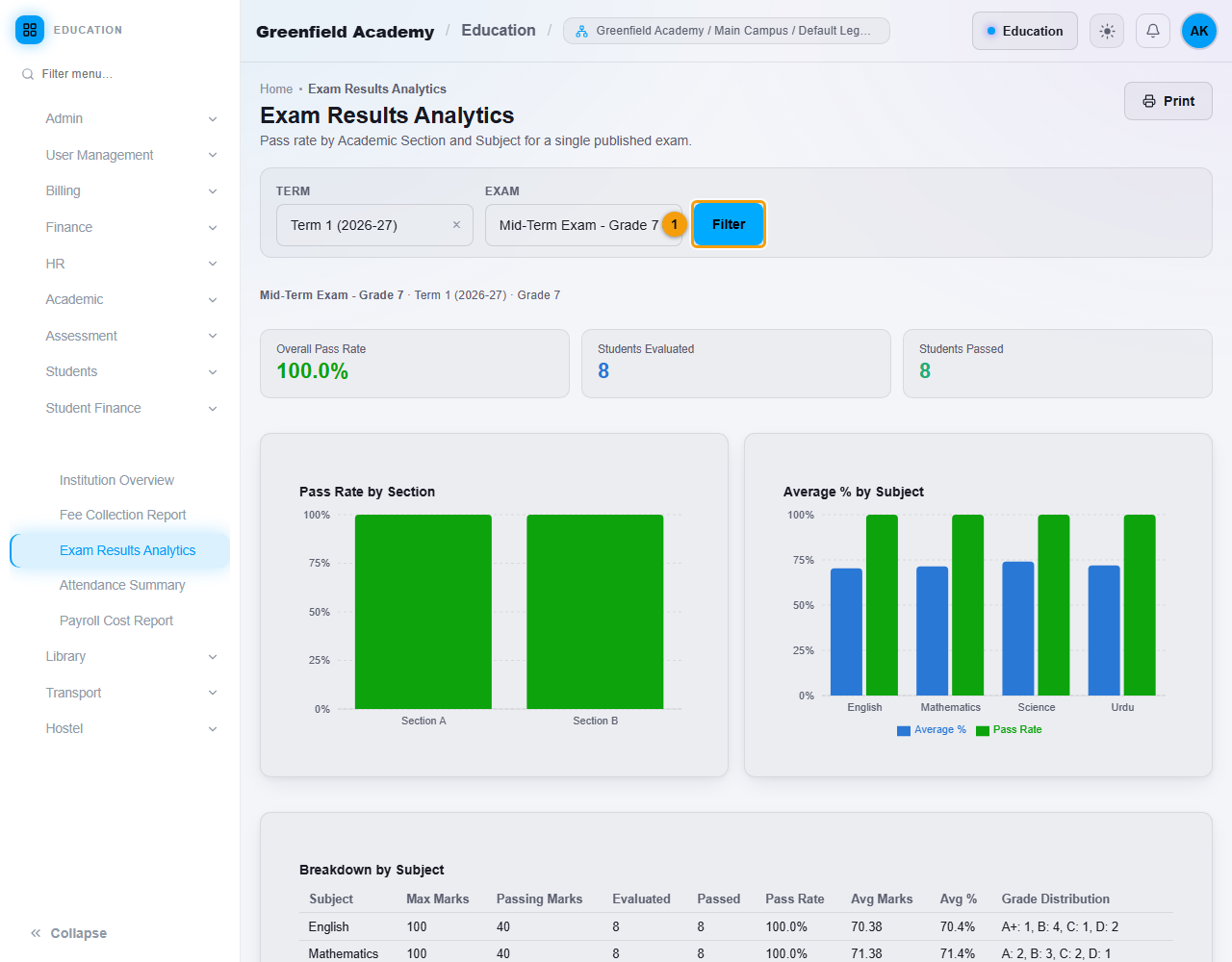
A single student's results are on the report card. See Exams, marks and report cards.
Payroll Cost Report
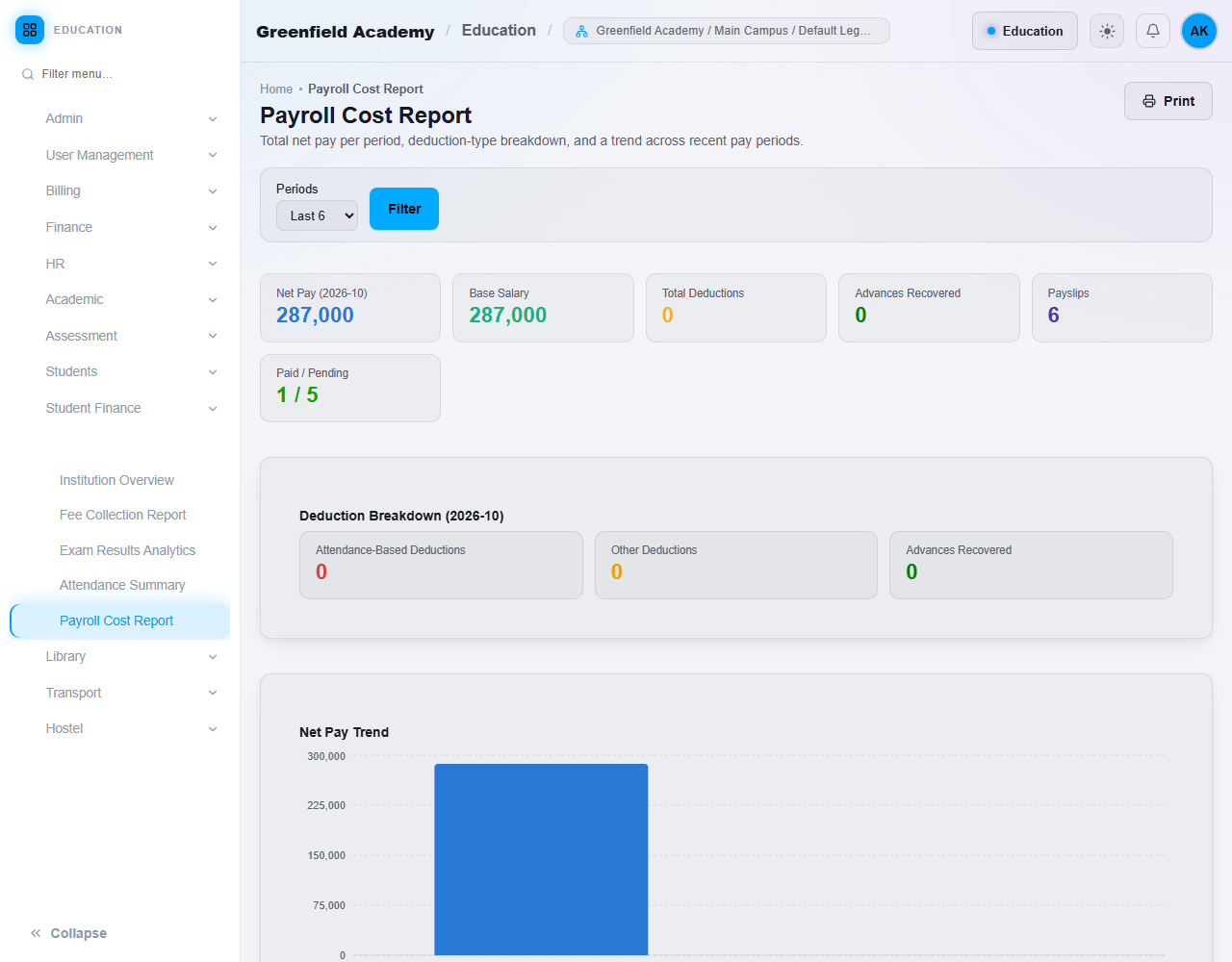
The total net pay for each month, a breakdown of deduction types and a trend. Choose Last 3, Last 6 or Last 12 periods and click Filter. It shows No payroll runs found yet until payroll has been generated.
Important rules
- Reports show the selected branch and the branches below it that you may see.
- Exam Results Analytics lists published exams only.
- Reports show what is recorded. A report cannot be more complete than attendance, marks and receipts that were saved.
- Education reports cover Education data. They are not the ERP or POS financial reports.
Common mistakes
- Reading the report for the wrong branch. Check the branch selector first.
- Looking for an exam in Exam Results Analytics before publishing it.
- Expecting dues to include waived fees. A waived fee is not owed.