Education
Education getting started and academic structure
Education Essentials and above · 3 min read · Updated 17 October 2026
What this does
NEXTOREx Education helps a school or academy manage students, fees, attendance and, on larger packages, staff, exams, timetables, a library, transport, hostel and payroll. This guide shows where everything is and how to build your academic structure, the Groups, Sections and Subjects that every other Education screen depends on.
- Academic Group: a class, grade or programme, for example Grade 7.
- Academic Section: a division inside one Group, for example Section A. A Section always belongs to one Group.
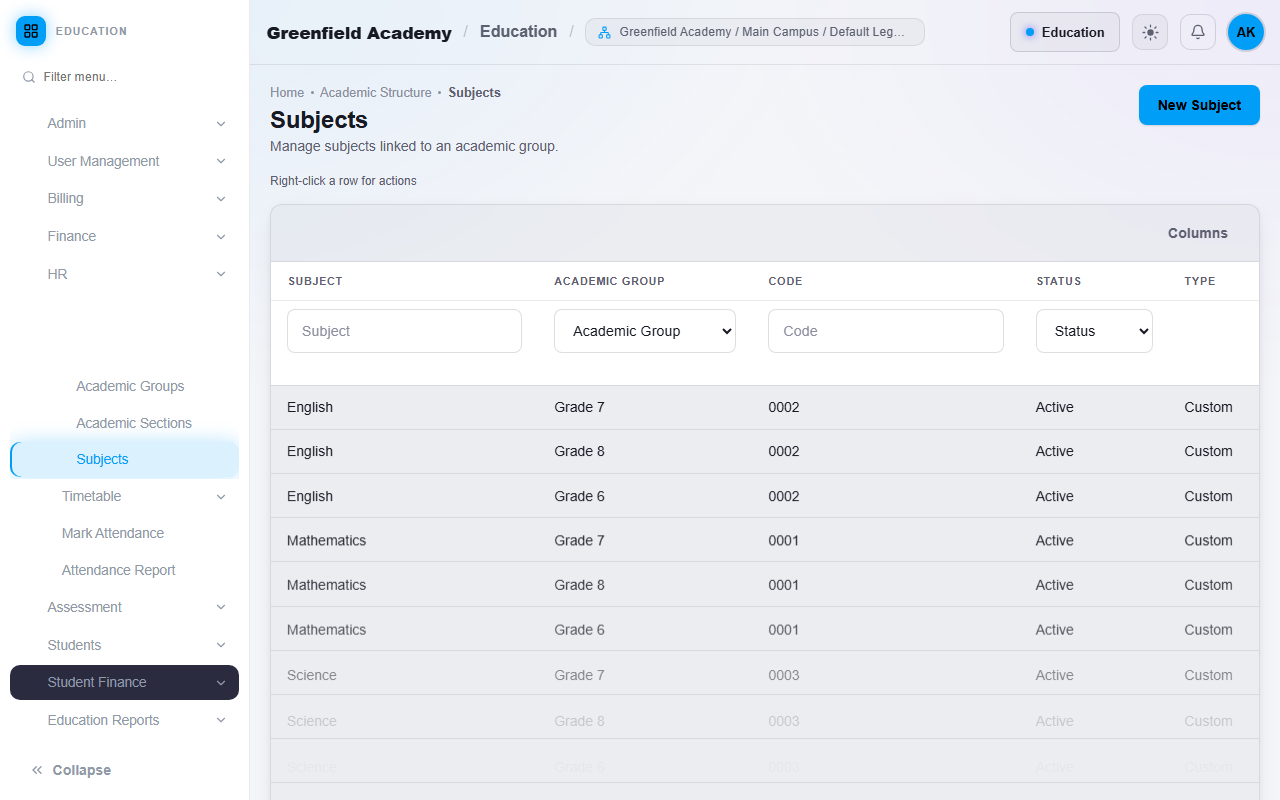
- Subject: a subject taught to one Group, for example Mathematics.
Who can use it
Staff whose role allows it. A school owner or administrator normally sets up the structure once. Teachers and other staff only see the screens their role allows.
Which package includes it
All three Education packages include the academic structure. See Education plans, limits and combining apps for what each package adds.
Where to find it
Open the Education application. The menu on the left groups the screens:
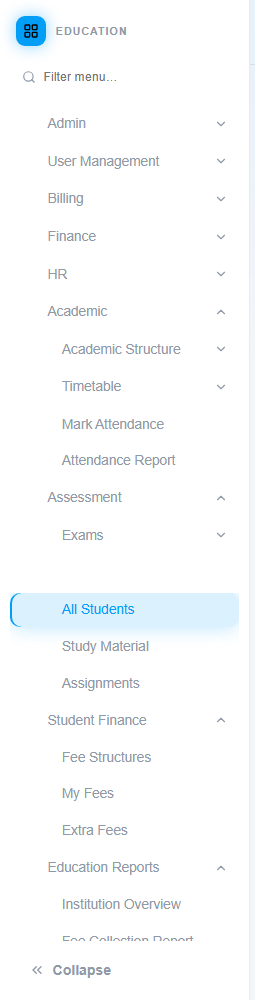
- Academic holds Academic Structure, Timetable, Mark Attendance and Attendance Report.
- Students holds All Students, Study Material and Assignments.
- Student Finance holds Fee Structures, My Fees and Extra Fees.
- Education Reports holds the reports and the Institution Overview.
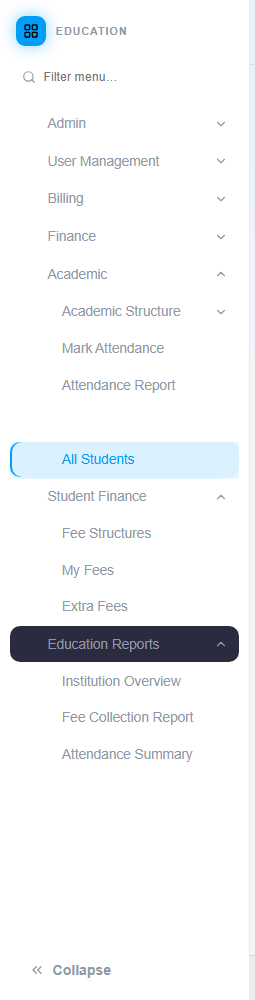
Your menu shows only what your package and your role include. For example, an Education Essentials school does not see Timetable, Exams, Library, Transport, Hostel or Payroll.
Steps
Create the structure in this order. Each step needs the one before it.
1. Create your Academic Groups
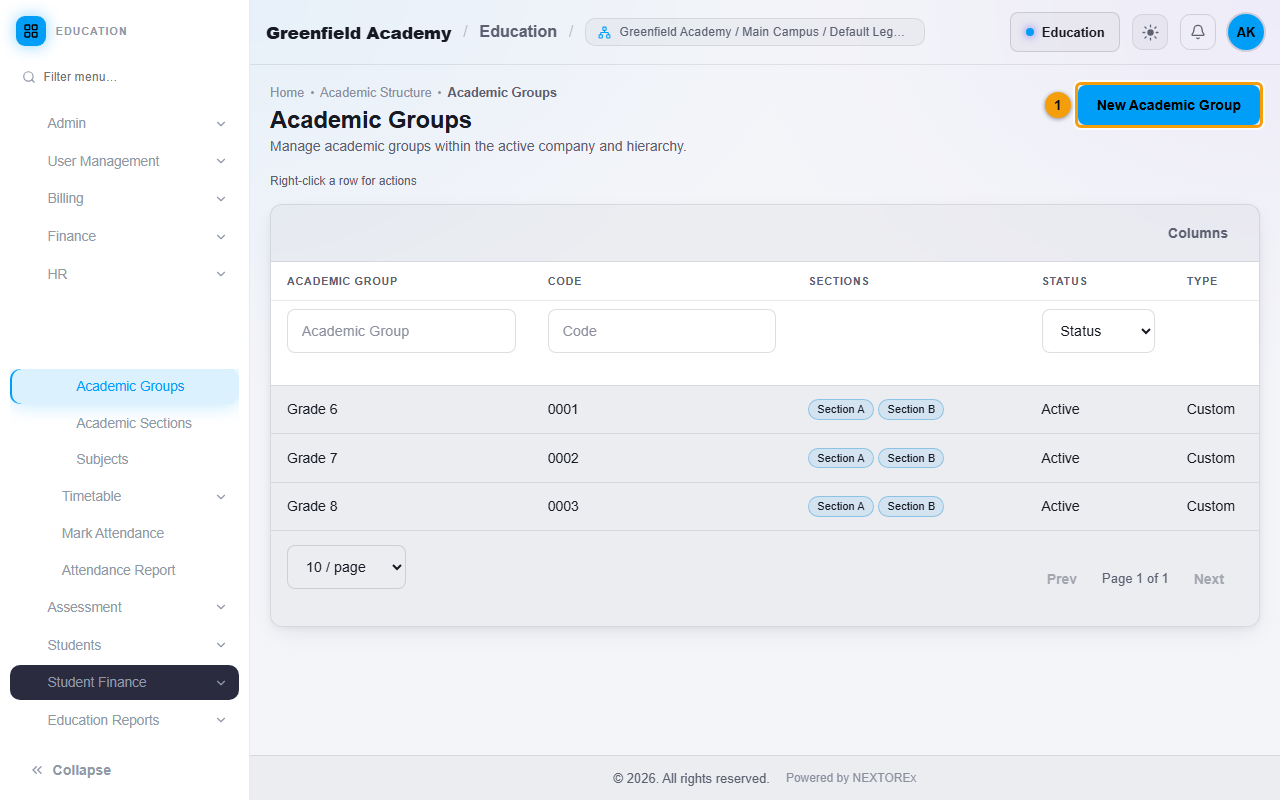
- Open Academic, then Academic Structure, then Academic Groups.
- Click New Academic Group (1).
- Enter the Academic Group Name, for example
Grade 7. NEXTOREx creates the code for you. - Click Save. Repeat for every class or grade.
2. Create the Sections inside each Group
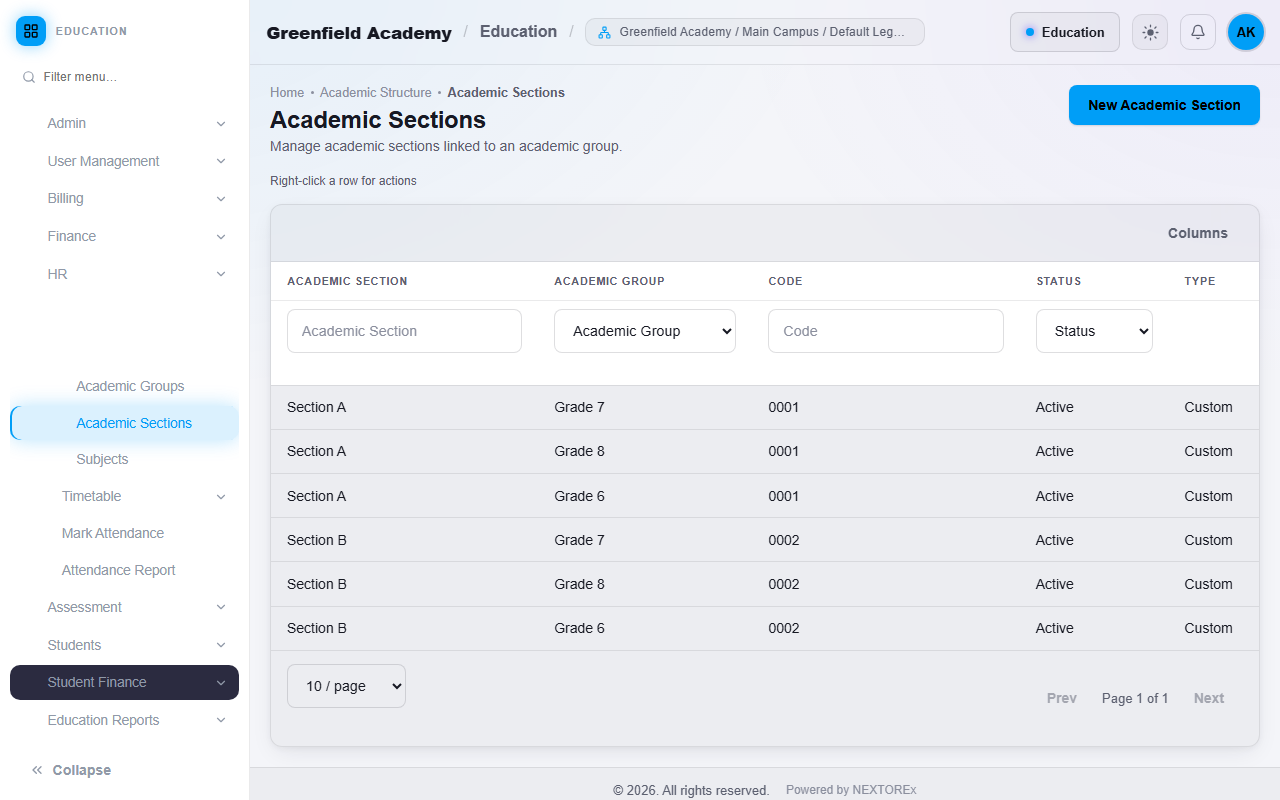
- Open Academic Structure, then Academic Sections.
- Click New Academic Section.
- Choose the Academic Group first. Then enter the Academic Section Name, for example
Section A. - Add a short Description if you want, for example
Morning batch, Block 1. It is shown later when you choose a Section. - Click Save.
3. Create your Subjects
- Open Academic Structure, then Subjects.
- Click New Subject, choose the Academic Group the Subject is taught to, and enter the Subject Name.
- Click Save.
If the same Subject is taught in several Groups, add it once for each Group.
What happens next
You can now admit students. Every place that asks for a Group and a Section works the same way: pick the Group first, then the Section. Read Students: admission and management next.
Important rules
- A Section cannot exist without a Group.
- Wherever you choose a Group and a Section, the Section list shows only the Sections of the Group you chose. Changing the Group clears the Section so the two can never disagree.
- Your company and branch setup comes first. If you manage more than one campus or branch, see Company and branches. Multi-branch setup is part of the platform for every package, not a feature of one Education package.
Common mistakes
- Creating Sections before Groups. Create the Group first.
- Spelling the same Group two ways (for example
Grade 7andClass 7). Choose one name and keep to it. - Adding Subjects to the wrong Group. A Subject belongs to exactly one Group.