Education
Exams, marks and report cards
Education Standard and above · 4 min read · Updated 17 October 2026
What this does
You create an exam for a Term and an Academic Group, say which Subjects it covers and the maximum marks of each. Teachers enter the marks. When you publish the exam, the marks are locked and each student has a report card with their marks, grades, total and percentage.
Who can use it
Staff with the Exam permissions to create and publish exams. Teachers with the permission to enter marks can enter marks only for the Subjects and Sections they are assigned to. Students can see their own published report cards.
Which package includes it
Education Standard and Education Campus. Education Essentials does not include exams.
Where to find it
Open Assessment. It holds Exams (with All Exams, Marks Entry, Report Cards, Terms and Grading Schemes).
Before you start
Set up these three things once:
- Terms: open Terms and click New Term. Enter the Term Name, Start Date and End Date.
- Grading Schemes: open Grading Schemes and click New Grading Scheme. Choose the Type (Percentage, GPA or Custom) and click Add Band for each grade. Each band has a Min Score, a Max Score and a Label, for example 90 to 100 is
A+. - Academic Groups, Sections and Subjects, and the teachers assigned to each Subject.
Steps: create an exam
- Open Assessment, Exams, All Exams and click New Exam (1).
- Enter the Exam Name, and choose the Term and the Academic Group.
- Optionally set the Exam Date.
- Click Add Subject for each Subject in the exam. Enter the Max Marks, the Passing Marks and, if you want, a Grading Scheme.
- Click Save.
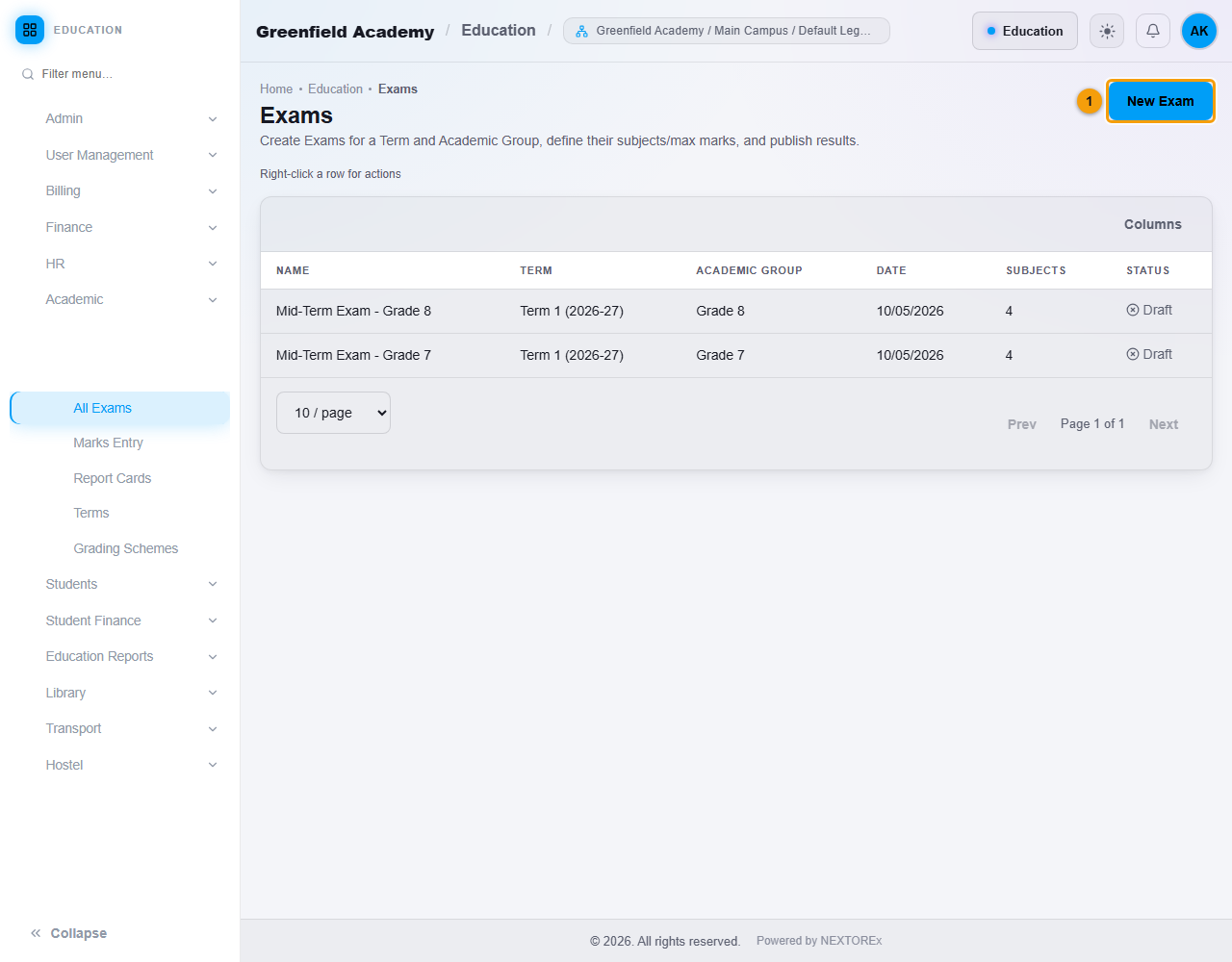
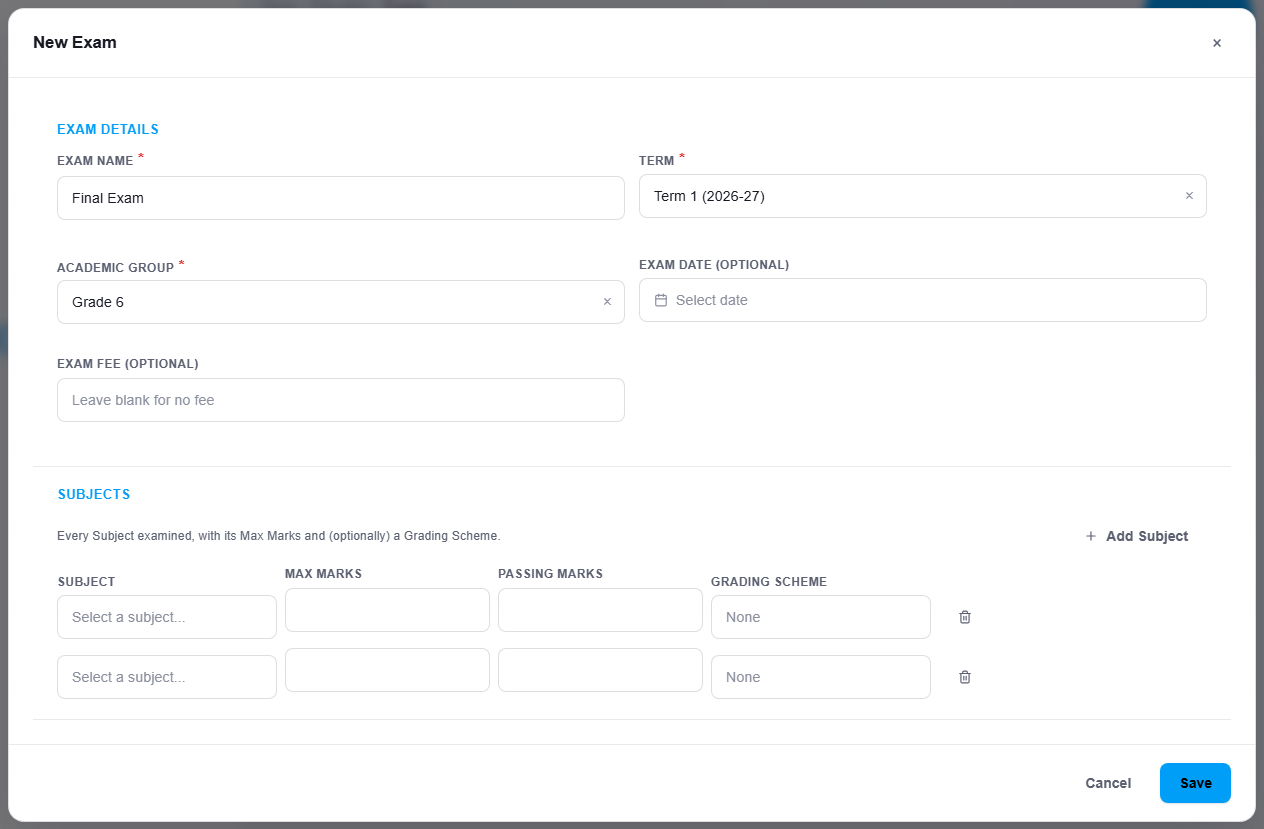
A new exam is a Draft.
Steps: enter marks
- Open Assessment, Exams, Marks Entry.
- Choose the Exam (1) and the Subject (2). Each Subject shows its maximum, for example Mathematics max 100.
- Type each student's Marks Obtained. Add a Remarks note if you want.
- Click Save Marks (3).
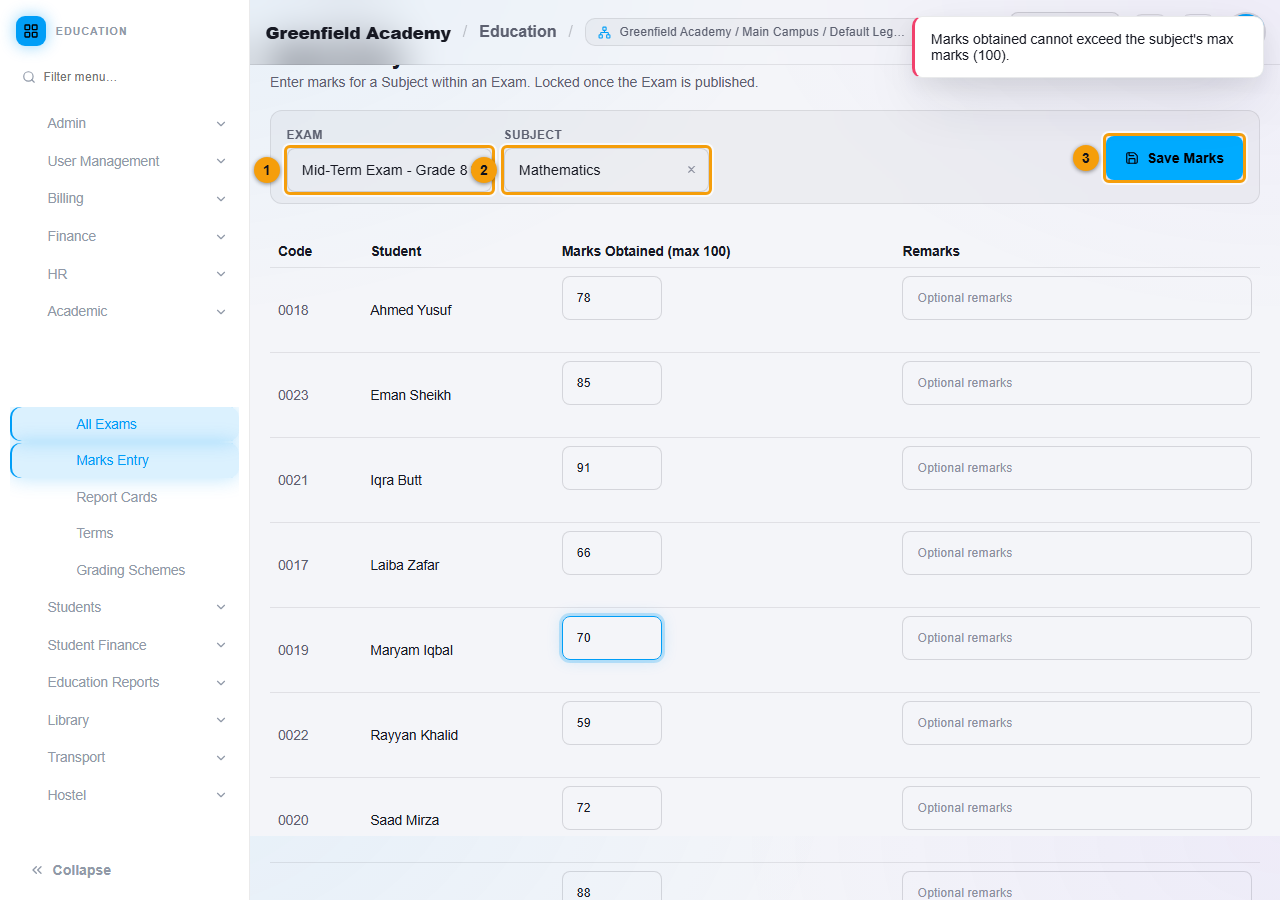
Invalid marks are refused
A mark above the Subject's maximum is not saved. NEXTOREx shows Marks obtained cannot exceed the subject's max marks (100) and keeps the page so you can correct the number.
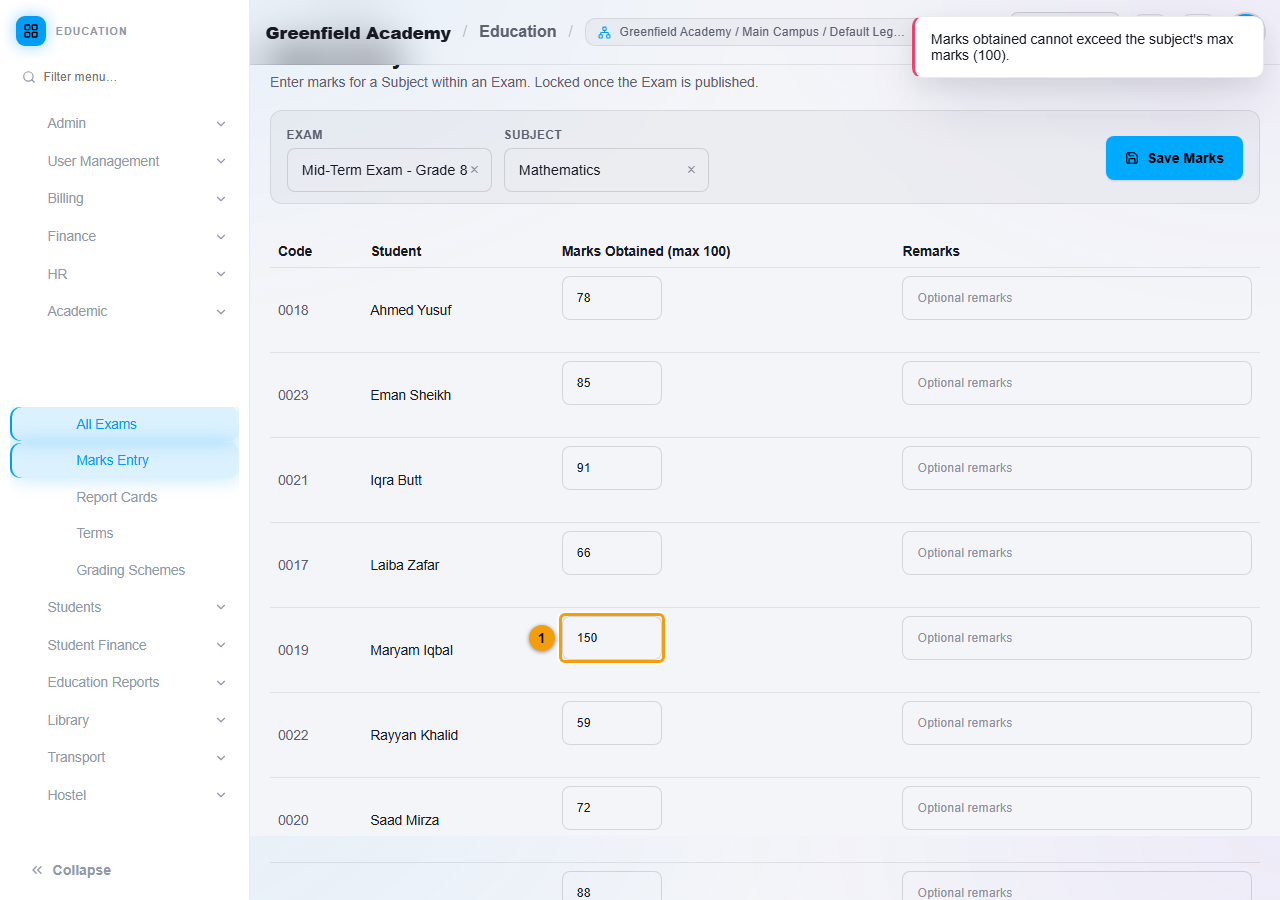
When all marks are valid, a message such as 8 mark(s) saved. confirms the save.
Steps: publish the results
- Open All Exams, right-click the exam and choose Publish.
- The exam status changes from Draft to Published.
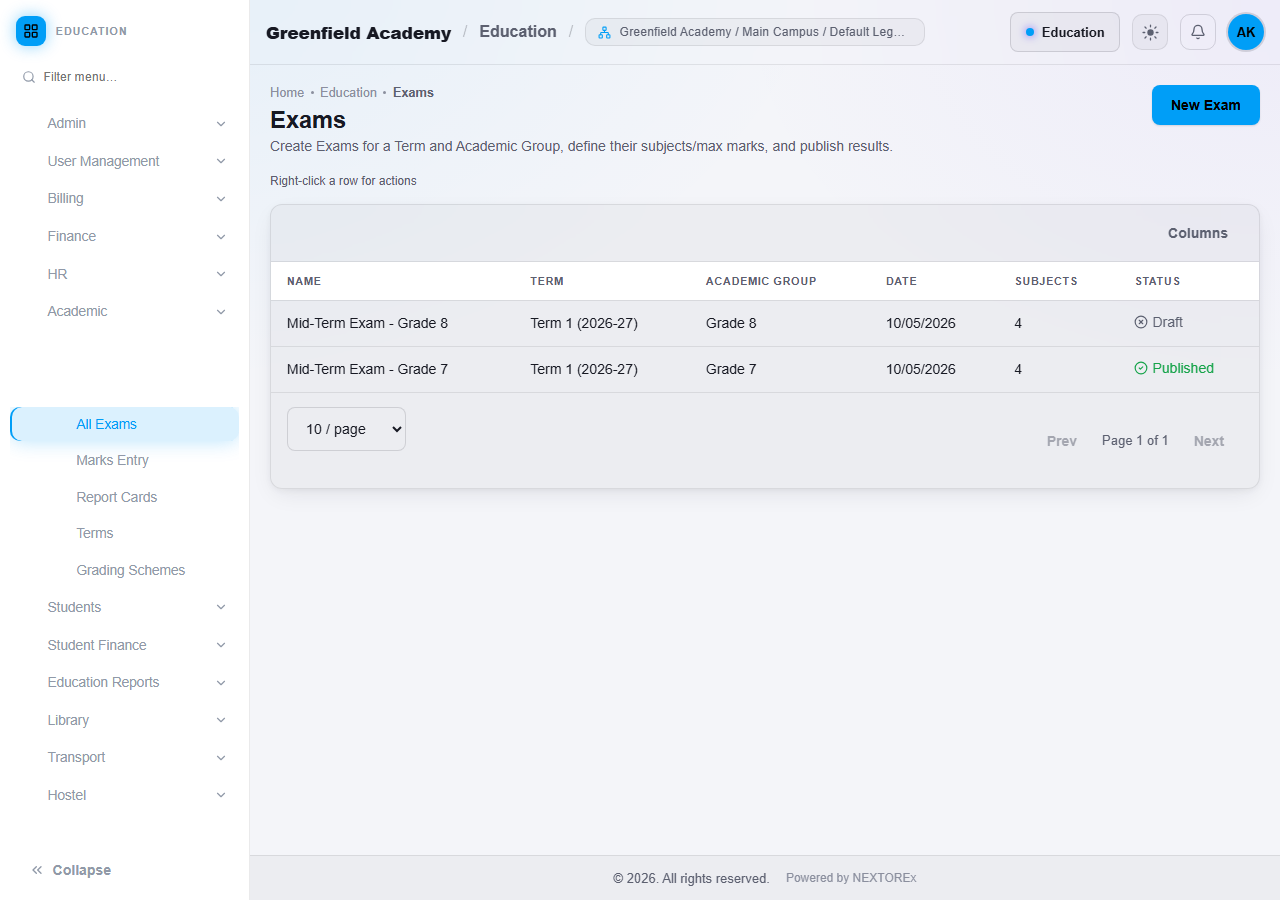
Marks are locked after publishing
On Marks Entry, a published exam shows This exam is published, marks are locked. Unpublish it from the Exams page to edit. To change a mark, right-click the exam on All Exams, choose Unpublish, correct the marks and publish again.
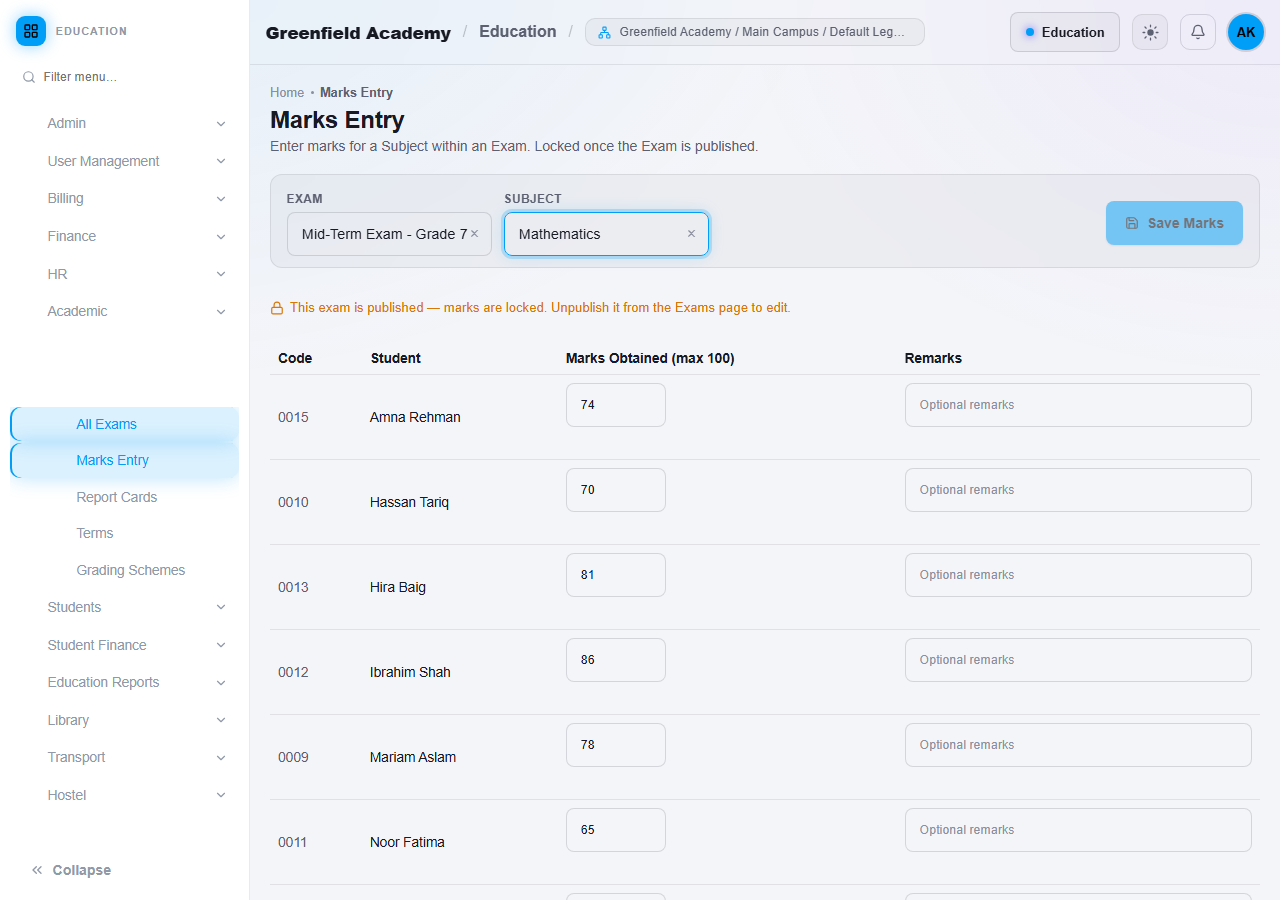
Report cards
- Open Assessment, Exams, Report Cards.
- Choose the Exam and click Browse Students (1).
- Click Report Card on a student's row.
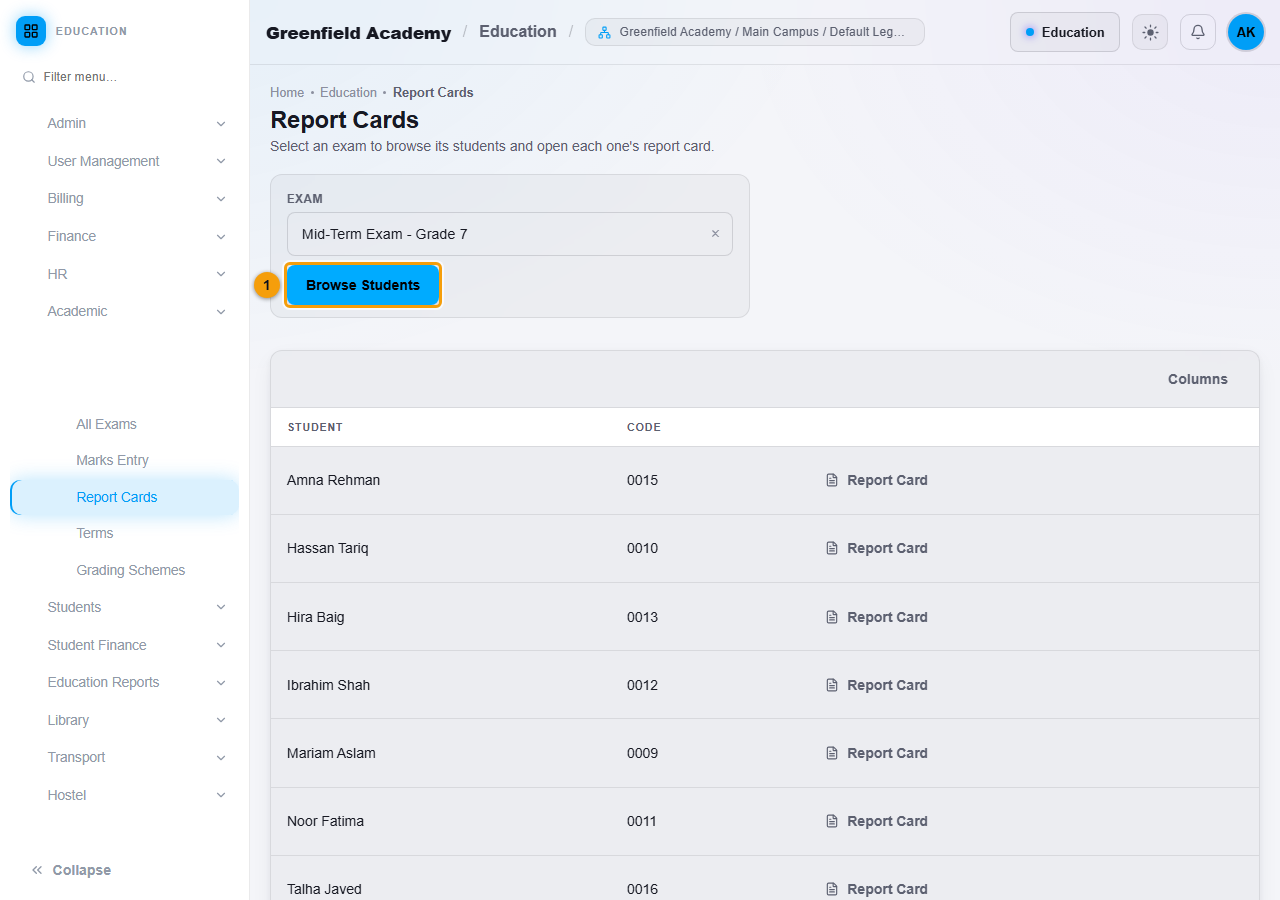
The report card shows each Subject with its maximum marks, passing marks, marks obtained and grade, then the Total, Percentage and Overall Grade. Use Print to print it. A card for an exam that is not published yet is marked as a preview. The heading at the top shows the brand name from your branding settings. If no brand name has been set, it reads Your Company.
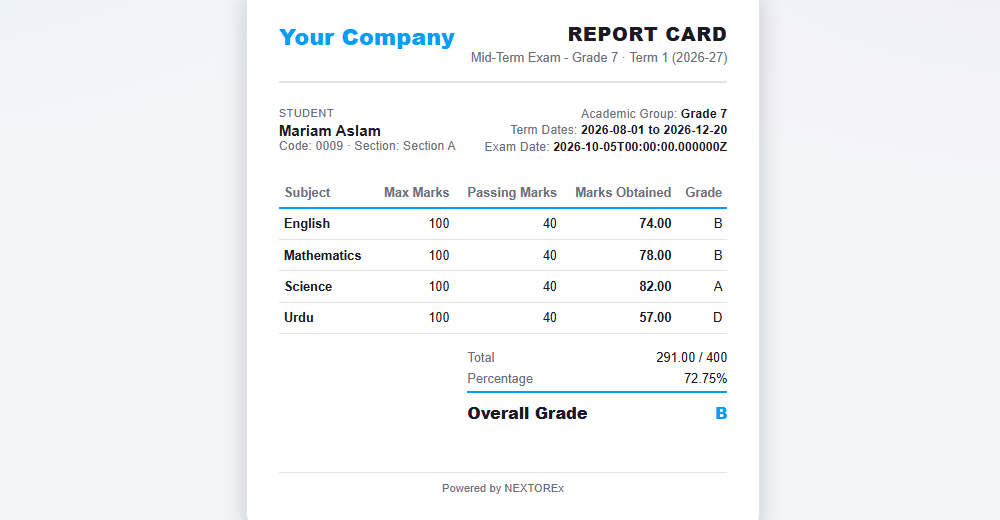
Students see their own published report cards. The Exam Results Analytics report shows pass rates for a published exam. See Education reports and dashboard.
Important rules
- Marks cannot be more than the Subject's maximum.
- A published exam is locked. Unpublish it first to change marks.
- A teacher can enter marks only for the Subjects and Sections assigned to them.
- Only published exams are available in the Exam Results Analytics report.
Common mistakes
- Publishing before every Subject's marks are entered.
- Creating an exam before the Term exists.
- Forgetting to assign the teacher to the Subject and Section, so the teacher cannot enter marks.