Education
LMS: study material, assignments and grading
Education Standard and above · 4 min read · Updated 17 October 2026
What this does
The learning tools let a teacher post study material and assignments for a Subject in a Section. Students of that Section see them, upload their work, and see the teacher's score and feedback. This guide covers only these features: study material, assignments, submissions and grading.
Who can use it
- Teachers who have been assigned to a Subject and a Section manage the material and assignments of exactly those pairs.
- Administrators whose role allows managing the learning tools can manage them for every Subject and Section.
- Students see the material and assignments of their own Section only.
Which package includes it
Education Standard and Education Campus. Education Essentials does not include study material or assignments.
Where to find it
Open Students, then Study Material or Assignments.
How teachers get access
A teacher must first be assigned to the Subject and Section. See Staff and staff attendance.
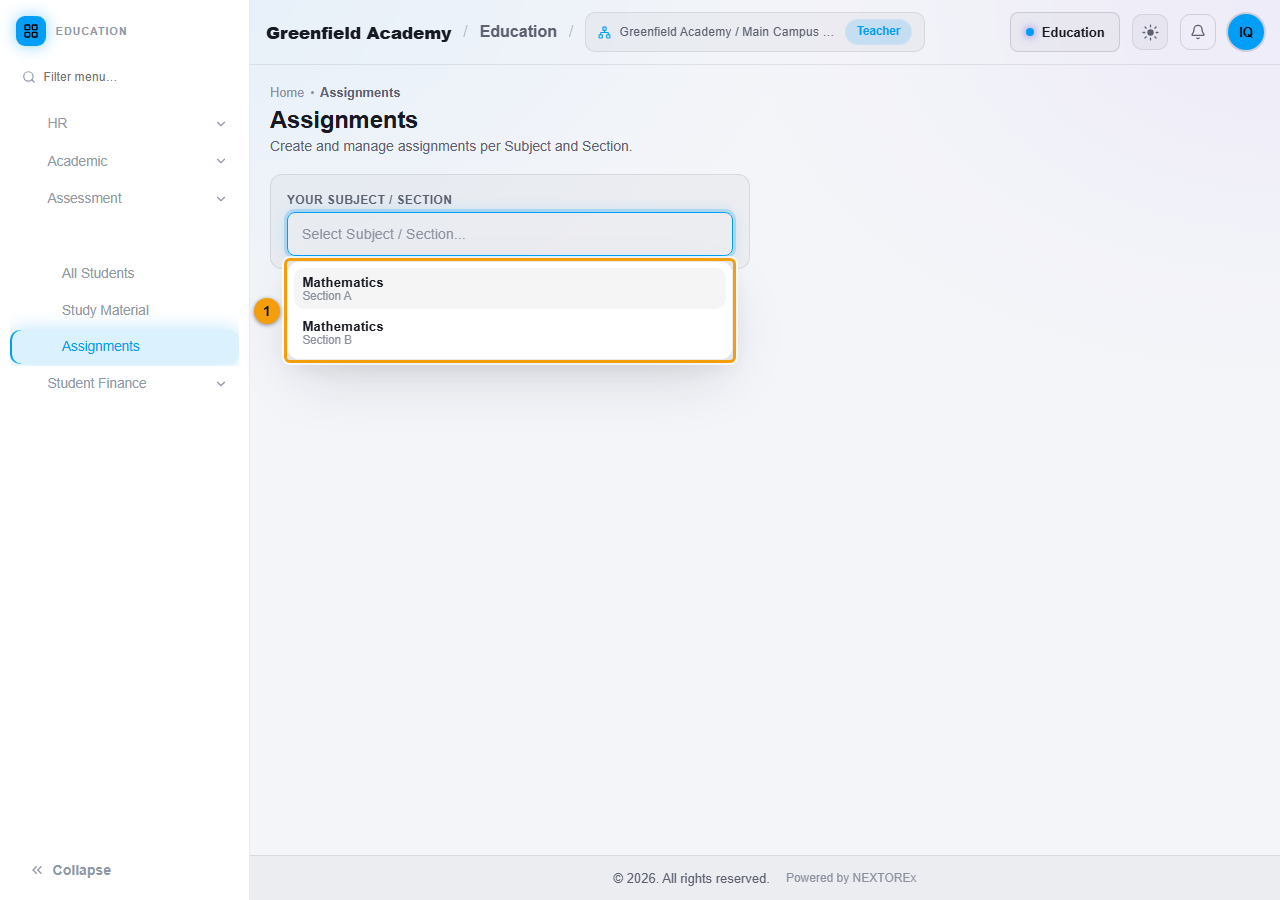
On Study Material and Assignments, a teacher sees the box Your Subject / Section. It lists only the Subject and Section pairs the teacher teaches, for example Mathematics in Section A and in Section B. A teacher does not see, and cannot post for, a Subject they do not teach or a Section they are not assigned to.
Steps: post study material
- Open Students, then Study Material and choose your Subject / Section.
- Click New Material and enter a Title and an optional Description. Click Post.
- To share a file, click Click to attach files. Allowed files are PDF, Word, Excel, images, zip and csv/txt, up to 20 MB.
Steps: set an assignment
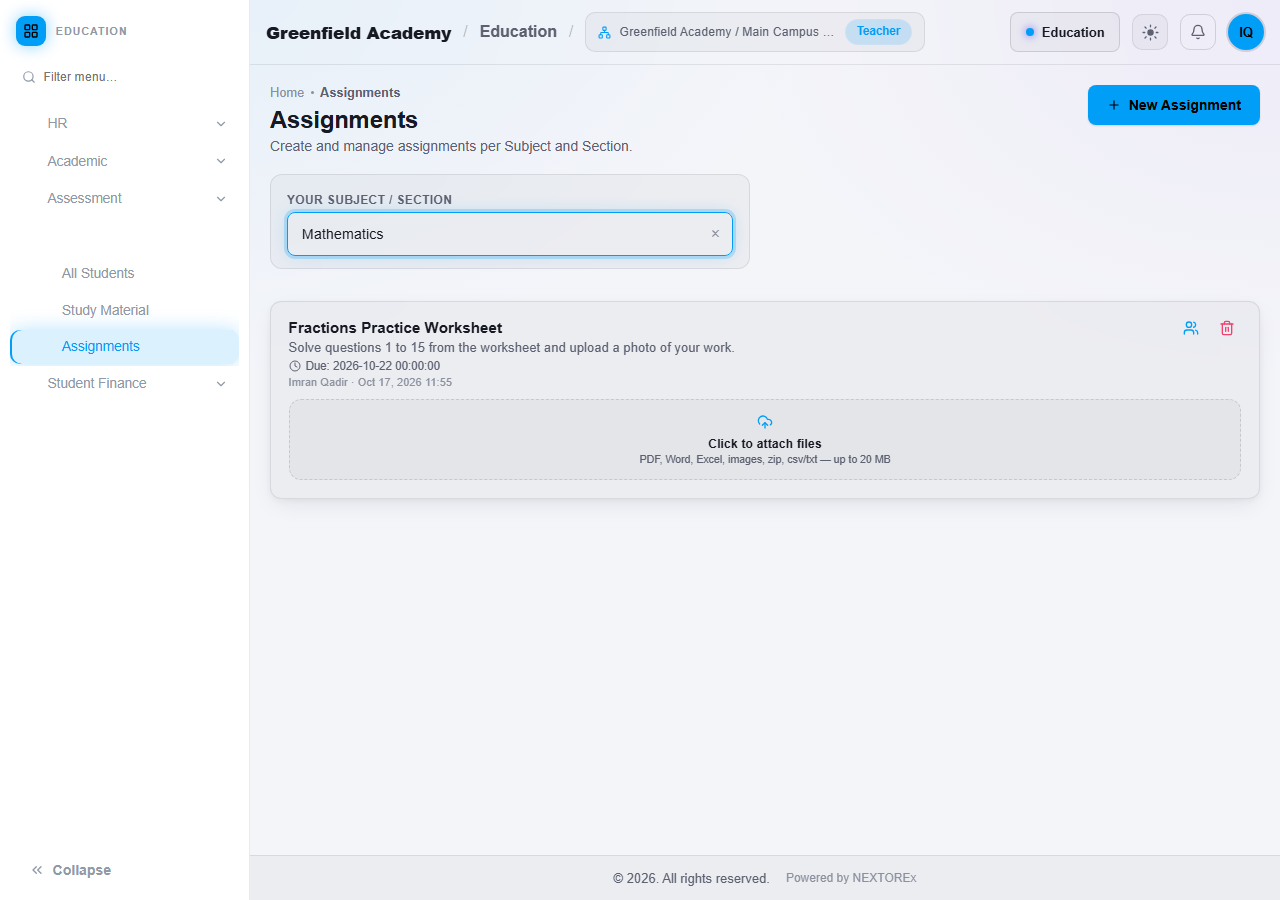
- Open Students, then Assignments and choose your Subject / Section.
- Click New Assignment.
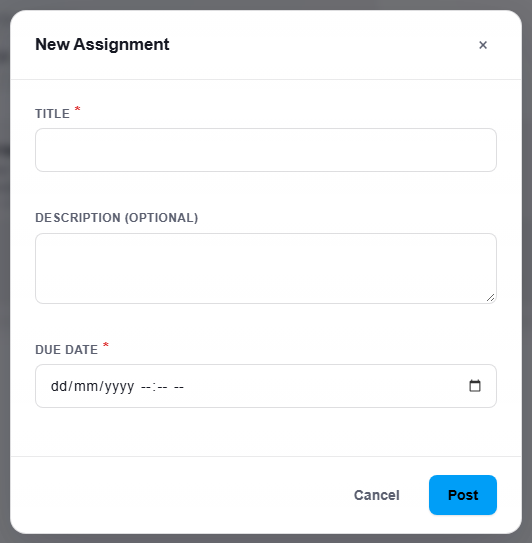
- Enter the Title, an optional Description and the Due Date.
- Click Post.
What students see and do
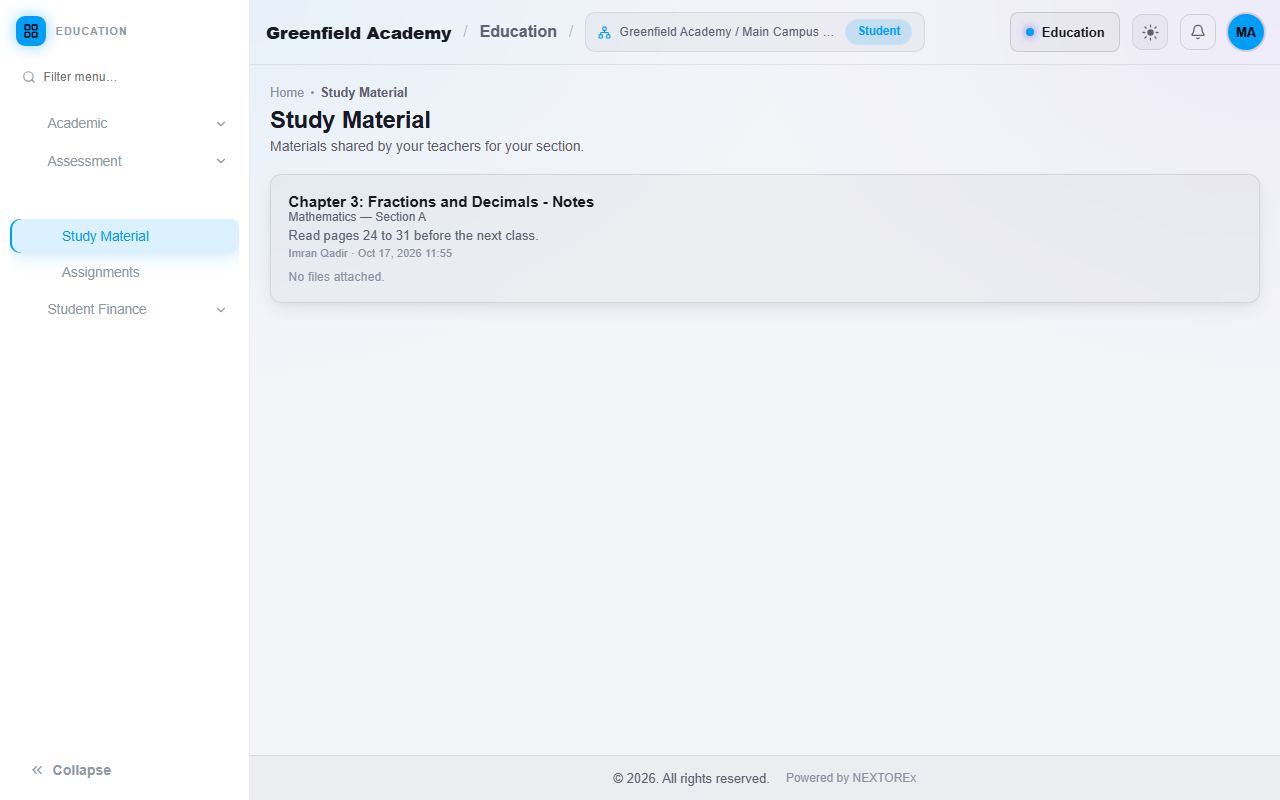
A student opens Students, then Study Material to read the material of their own Section, and Assignments to see what has been set, with the due date.
To hand in work:
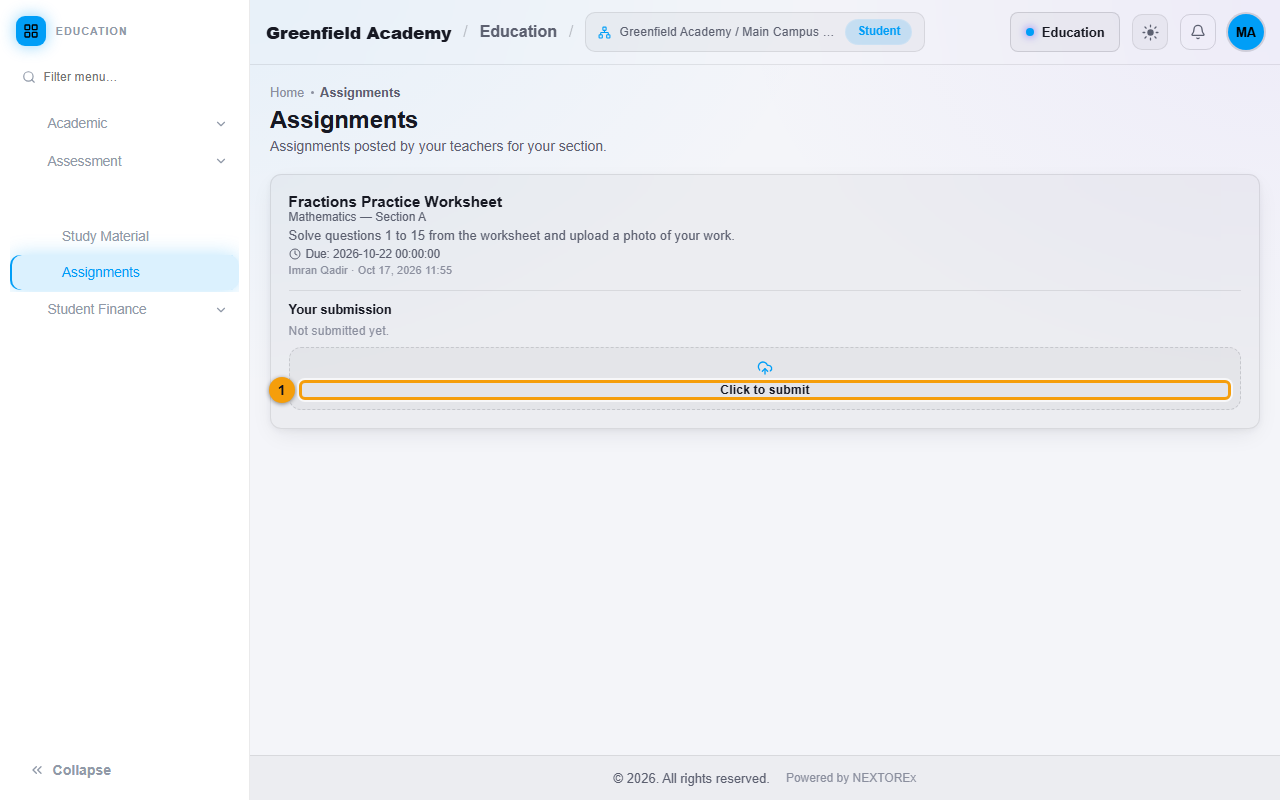
- Open Assignments and click Click to submit (1) under Your submission.
- Choose the file.
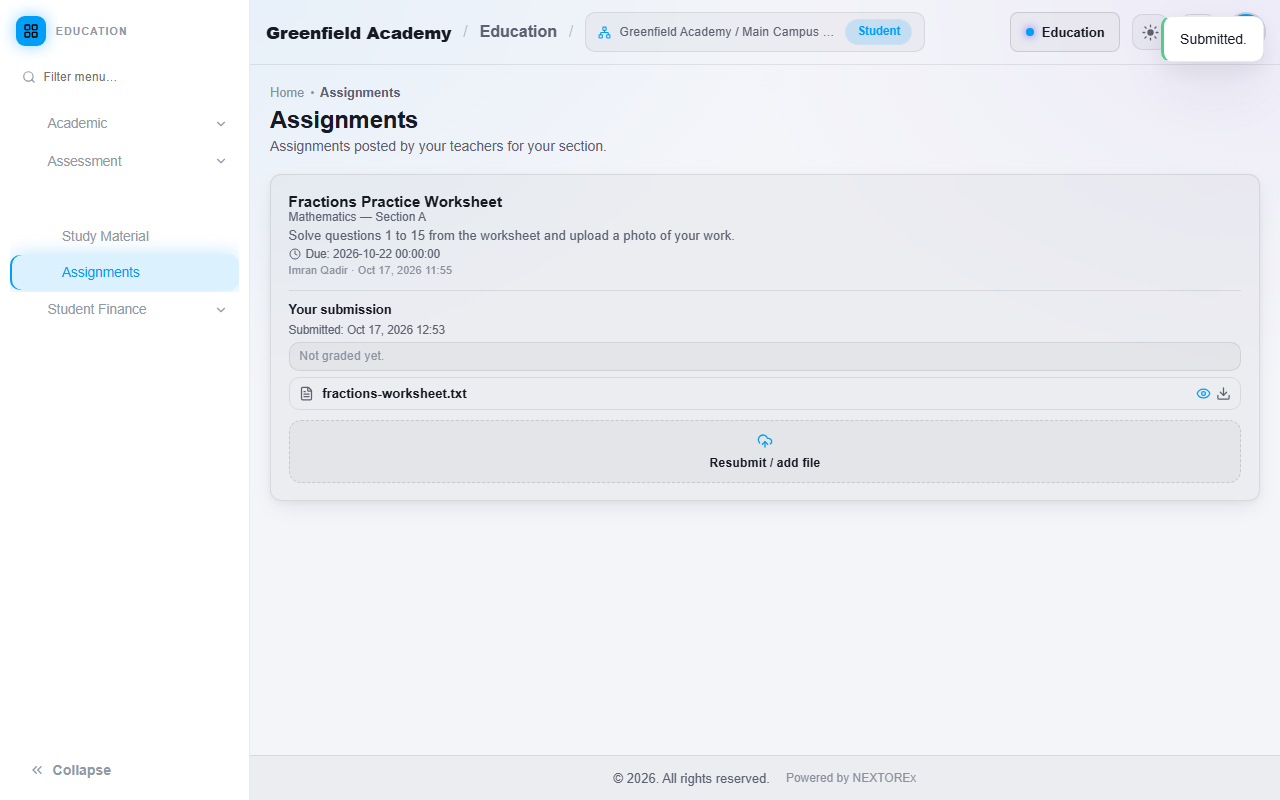
The page then shows Submitted with the date and time, Not graded yet, and the file name. Until the due date, Resubmit / add file lets the student send another file.
Due dates
- A student can submit before the due date and change the submission any time until the due date.
- A first submission after the due date is still accepted, and it is marked late.
- After the due date, a submission that already exists cannot be changed. The student sees that the due date has passed.
Steps: grade the work
- Open Assignments, choose your Subject / Section and click the people icon on the assignment (View submissions).
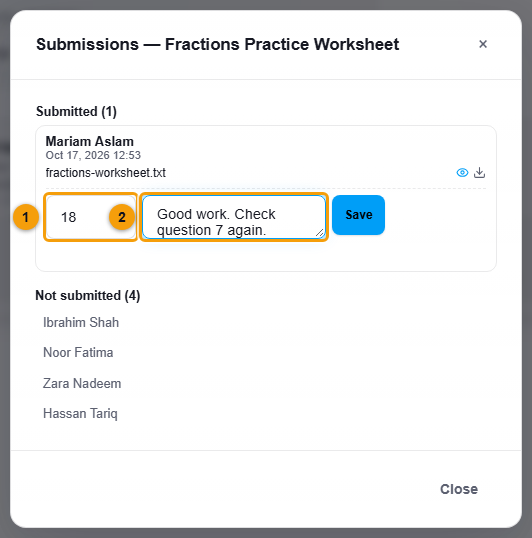
- The window lists Submitted students with their files and Not submitted students by name.
- Enter a Score (1) and, if you want, Feedback (2) for each student.
- Click Save next to that student. The message Grade saved. appears.
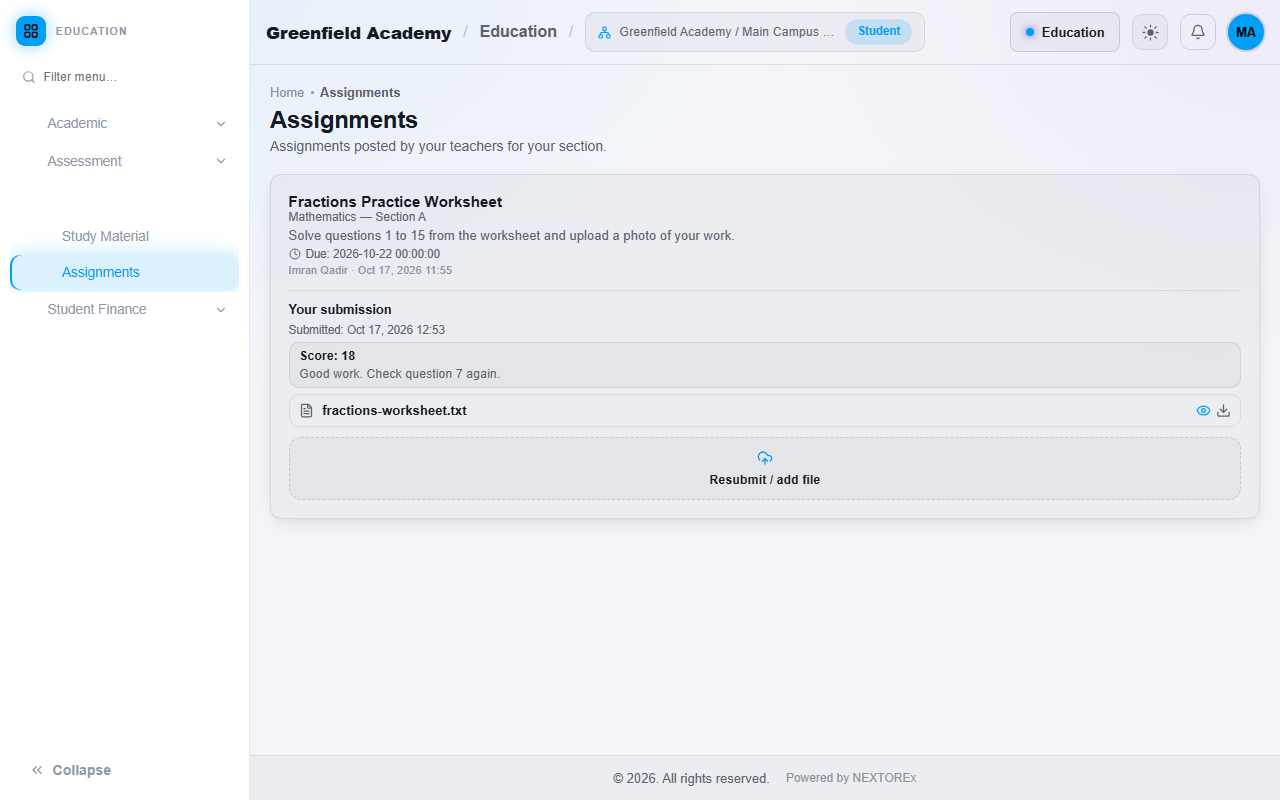
The student then sees the Score and the teacher's feedback beside their submission.
Important rules
- Teachers manage only the Subjects and Sections assigned to them.
- Students see only their own Section.
- Files can be PDF, Word, Excel, images, zip or csv/txt, up to 20 MB each.
- A late first submission is allowed and flagged. Changes after the due date are refused.
Common mistakes
- Looking for a Subject in the Your Subject / Section list that the teacher has not been assigned to. Ask an administrator to assign it.
- Telling students to resubmit after the due date. Resubmitting is refused once the due date has passed.
- Forgetting to click Save beside each student's grade.