Education
Library
Education Standard and above · 4 min read · Updated 17 October 2026
What this does
The Library keeps your book catalog and the physical copies of each book. You issue a copy to a student, record when it comes back, and, if you want, charge a fine for books that are overdue.
Who can use it
Staff whose role includes the Library permissions. Students can see their own library loans.
Which package includes it
Education Standard and Education Campus. Education Essentials does not include the Library.
Where to find it
Open Library. It holds Book Catalog, Circulation and Fine Rules.
Steps: add books and copies
- Open Library, then Book Catalog, and click New Book (1).
- Enter the Title. The author, ISBN and category are optional. You can enter how many copies the library owns.
- Click Save.
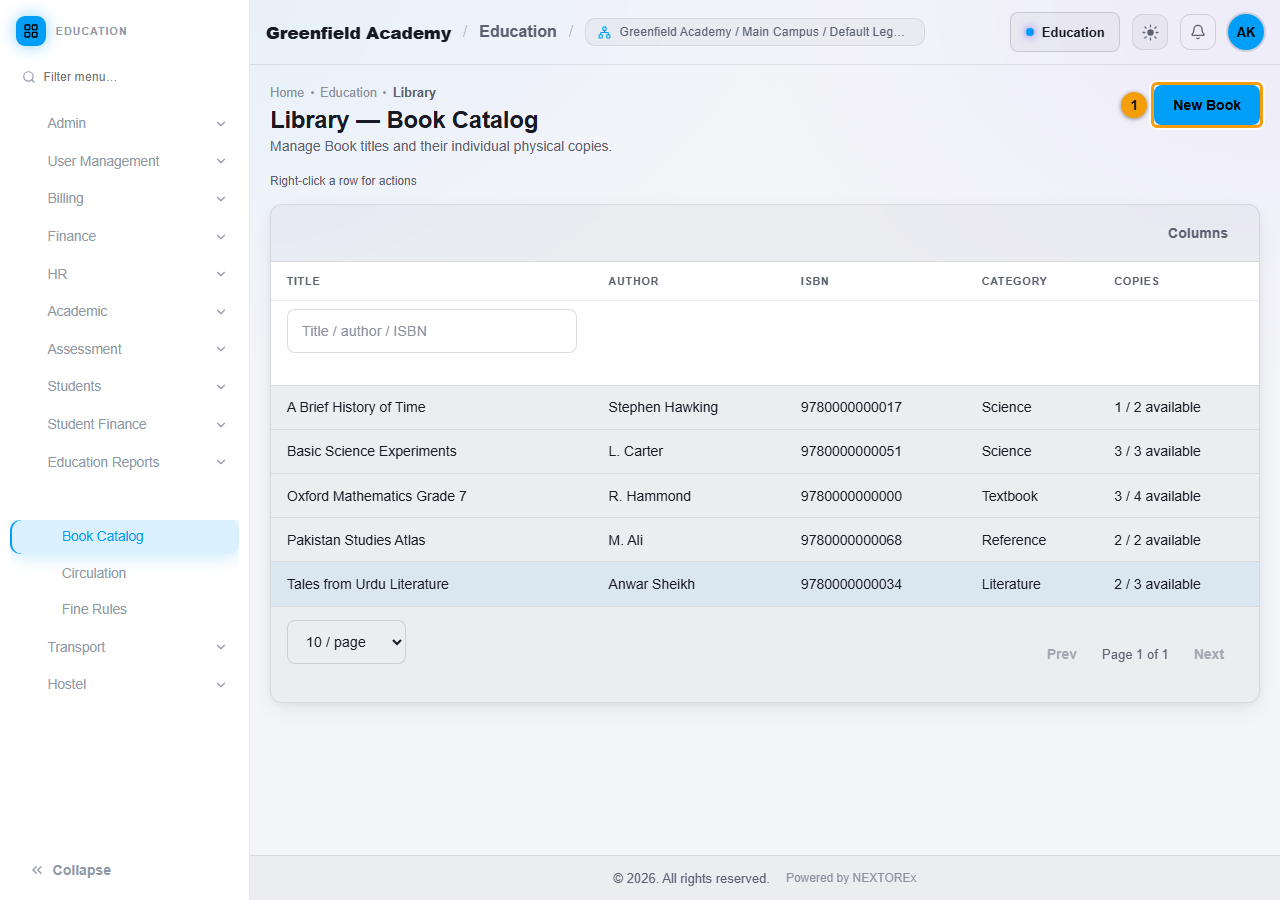
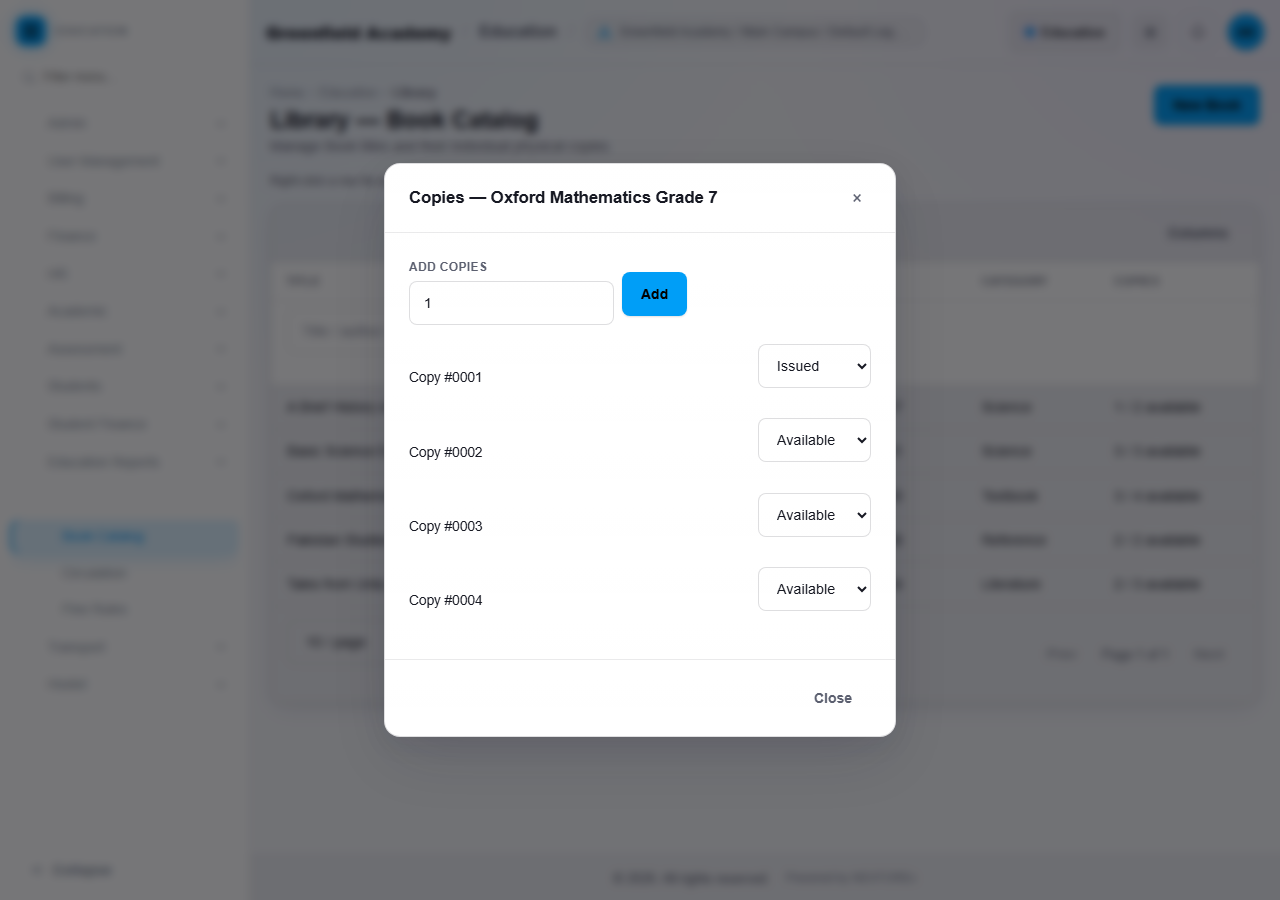
To manage the copies of a book, right-click the book and choose Manage Copies. Each copy has a number and a status: Available, Issued, Lost or Damaged. Click Add to add more copies.
Steps: issue a book
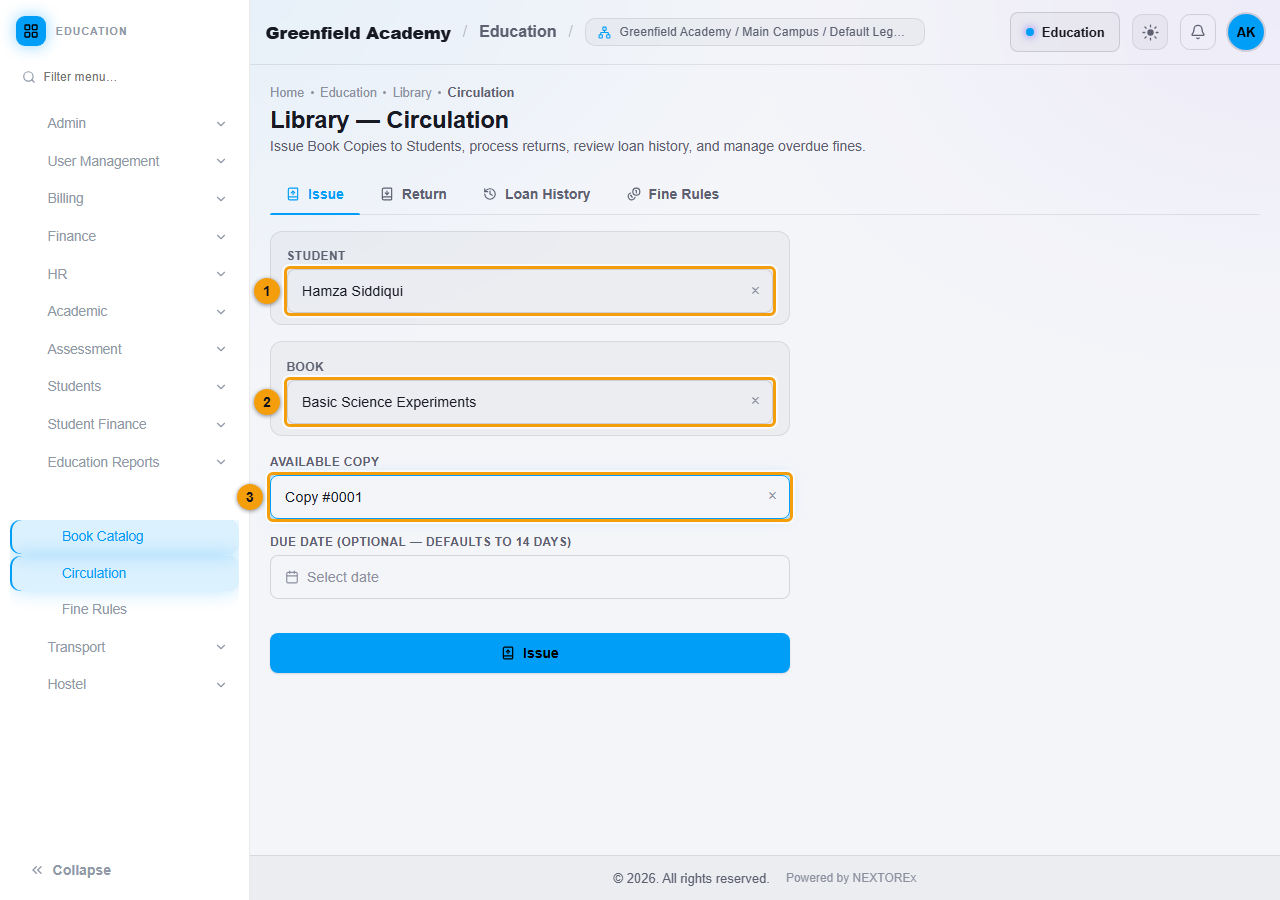
- Open Library, then Circulation, on the Issue tab.
- Choose the Student (1) and the Book (2).
- Choose an Available Copy (3). Only copies that are on the shelf are listed.
- Choose a Due Date. It is optional and defaults to 14 days from today.
- Click Issue.
The message Book Copy issued. confirms it. The copy now shows as Issued and the book's available count goes down.
Steps: return a book
- Open the Return tab and choose the Student.
- The student's open loans are listed with the book, copy, issue date and due date.
- Click Return. If the book was lost or damaged, click Mark Lost or Mark Damaged instead.
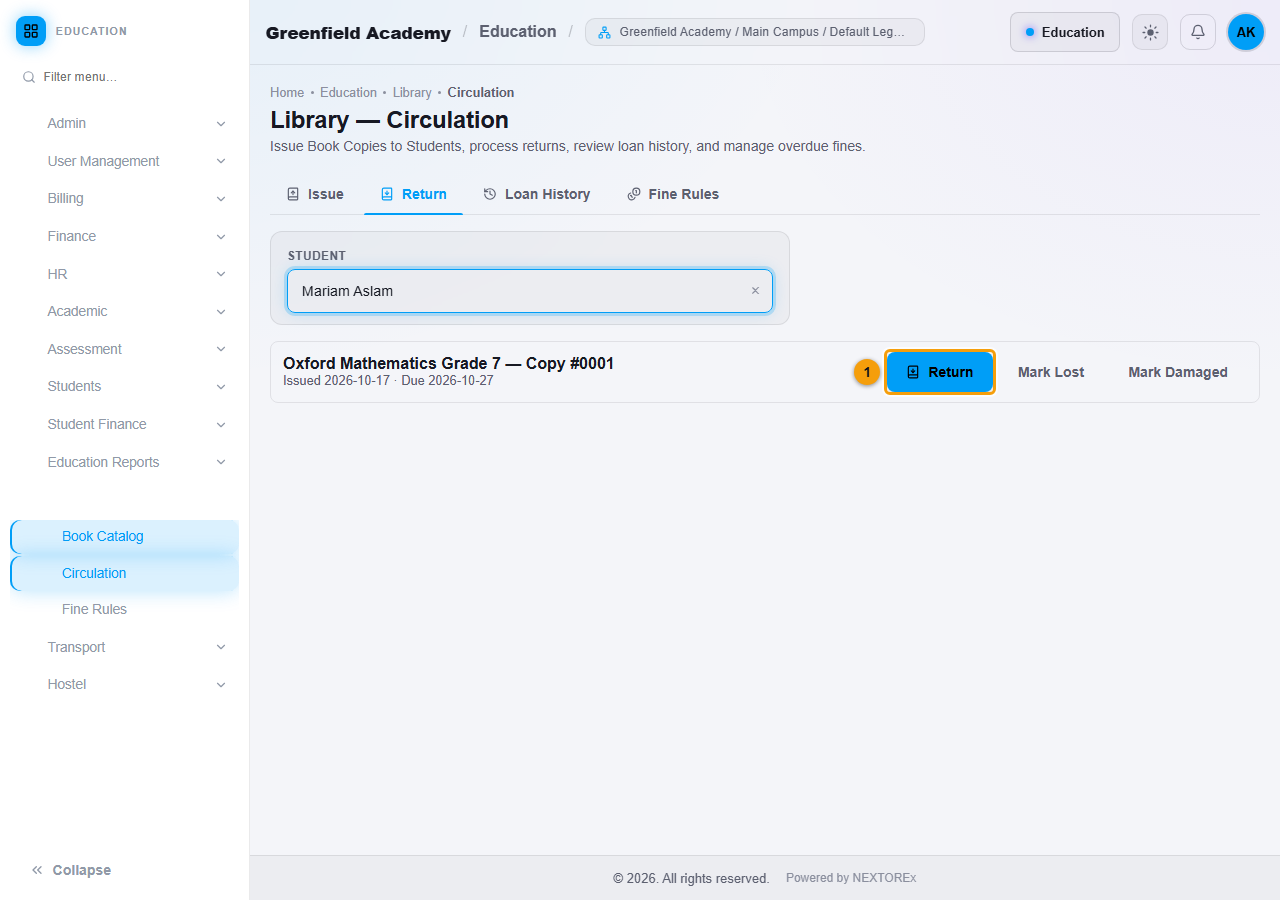
A returned copy becomes Available again. The Loan History tab shows every loan of a student with its issue date, due date, return date, status and any fine.
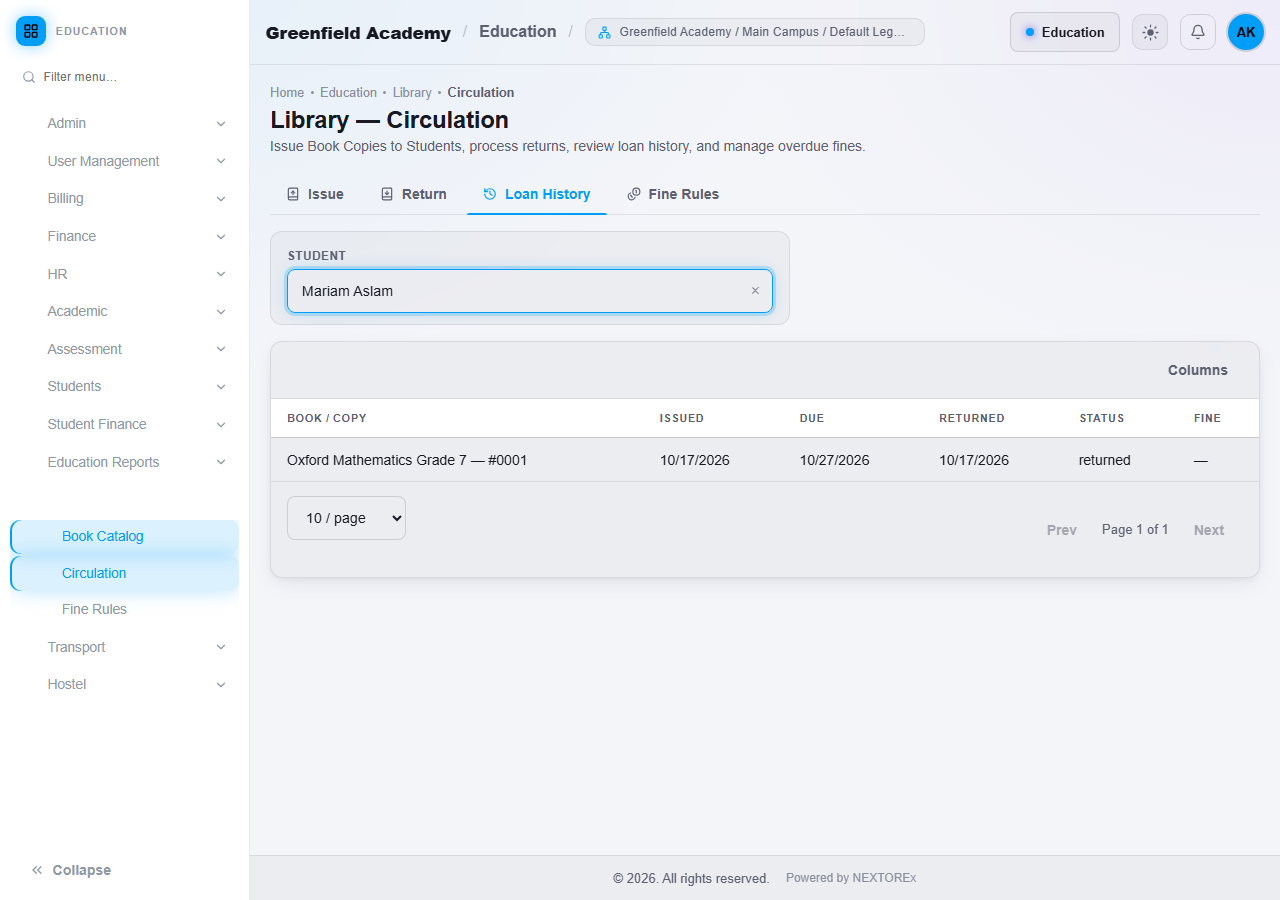
Overdue fines
NEXTOREx can charge a fine for a book that is not returned on time.
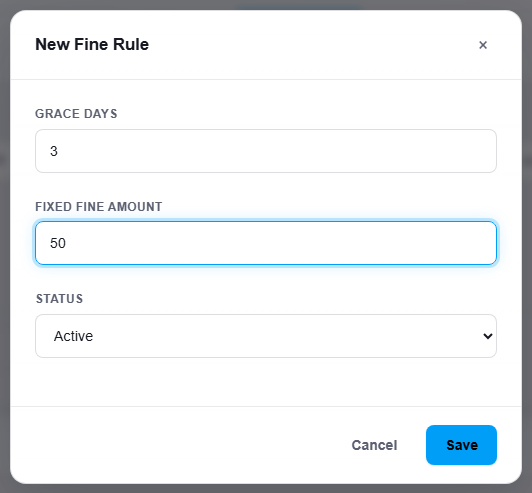
- Open Circulation, then the Fine Rules tab, and click New Rule.
- Enter the Grace Days, the number of days after the due date before a fine applies, and the Fixed Fine Amount.
- Click Save.
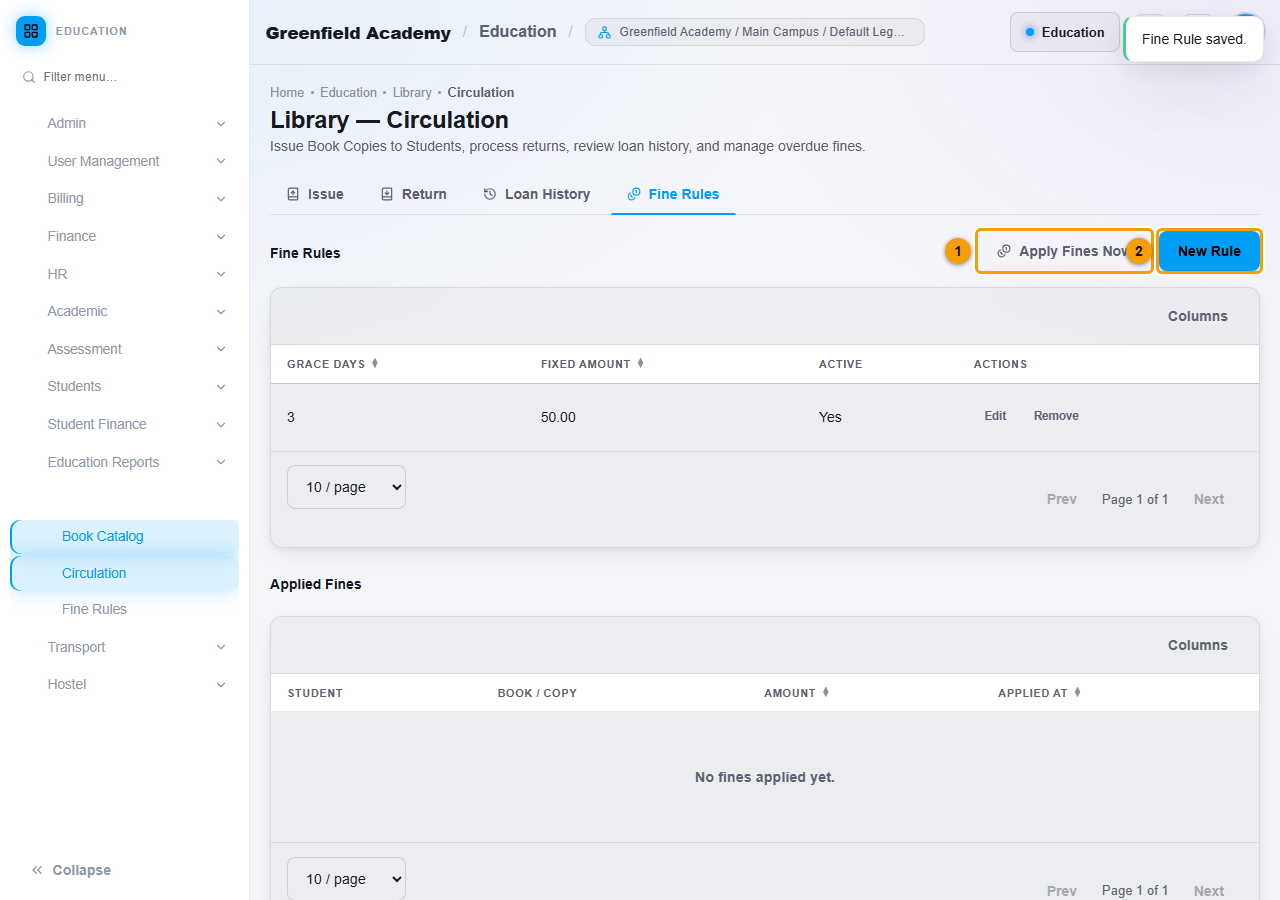
Click Apply Fines Now (1) to charge fines. NEXTOREx also runs the same check once a day. For every loan that is still out and is overdue by more than the grace days, it creates one fine invoice for the student, described as Library Fine, with the book title and the date it became overdue. A loan is fined only once. A message such as Applied 1 fine(s), skipped 2. tells you what happened.
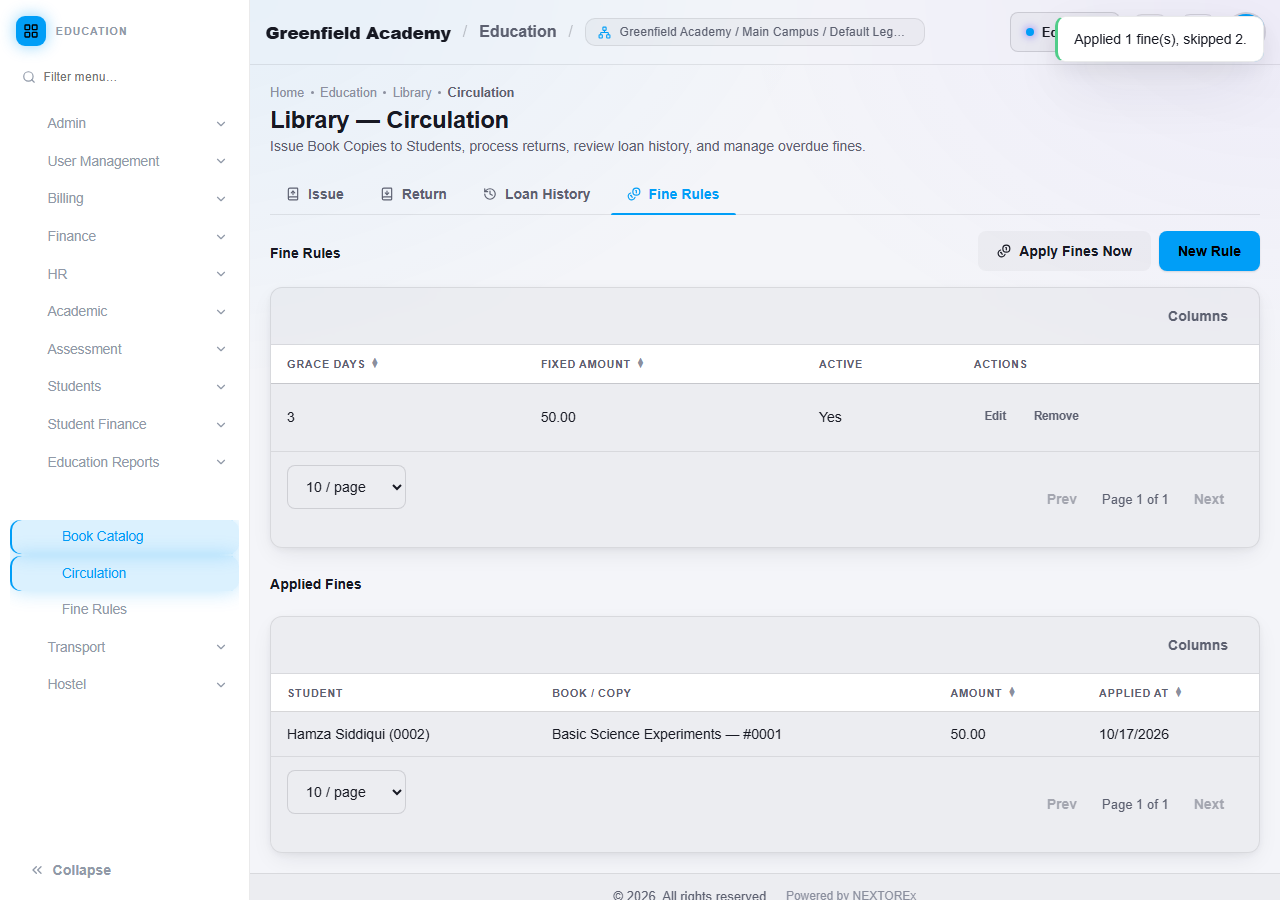
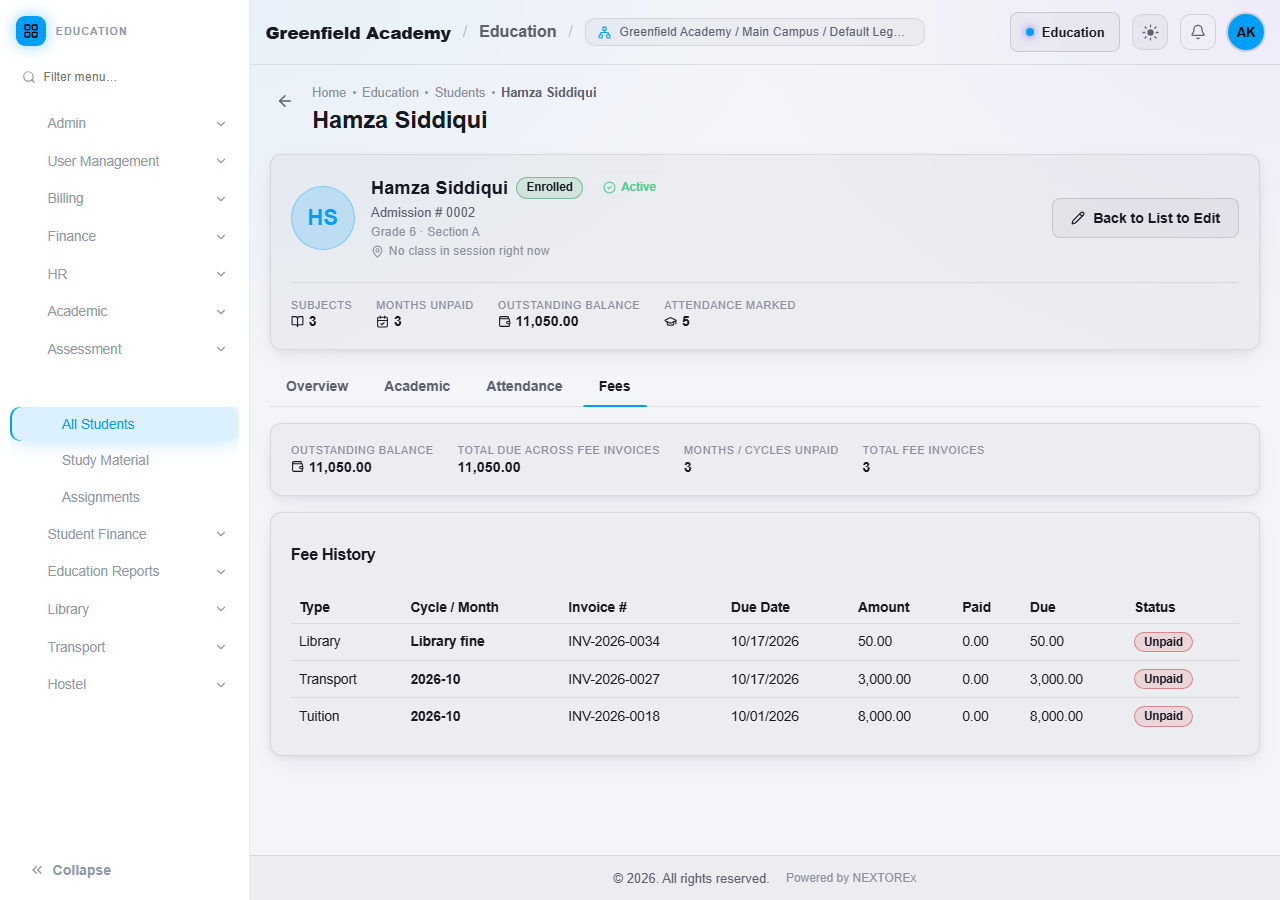
The fine is added to the student's fees. It appears in Fee History as a Library charge and is paid like any other fee.
Important rules
- A copy can be issued to one student at a time.
- A fine needs an active fine rule. Without a rule no fine is charged.
- A fine is a fixed amount, charged once per overdue loan, not a daily amount.
- A loan that has been returned is not fined.
- Fines are for books still out. Mark a book Lost or Damaged to record those cases.
Common mistakes
- Expecting fines without creating a fine rule.
- Expecting the fine to grow every day. It is a single fixed amount.
- Issuing a copy that is already issued. Only available copies are offered.