Education
Timetable
Education Standard and above · 3 min read · Updated 17 October 2026
What this does
The Timetable shows the week of one Section: for every period of every day, which Subject is taught, by which teacher, in which room. NEXTOREx stops you from booking the same Section, teacher or room twice in the same slot.
Who can use it
Staff with the Timetable permissions can create and change timetables. Teachers and students can see the timetable they are allowed to see.
Which package includes it
Education Standard and Education Campus. Education Essentials does not include the Timetable.
Where to find it
Open Academic, then Timetable. It holds Timetable, Rooms and Periods.
Before you start
- Create your Groups, Sections and Subjects. See Education getting started and academic structure.
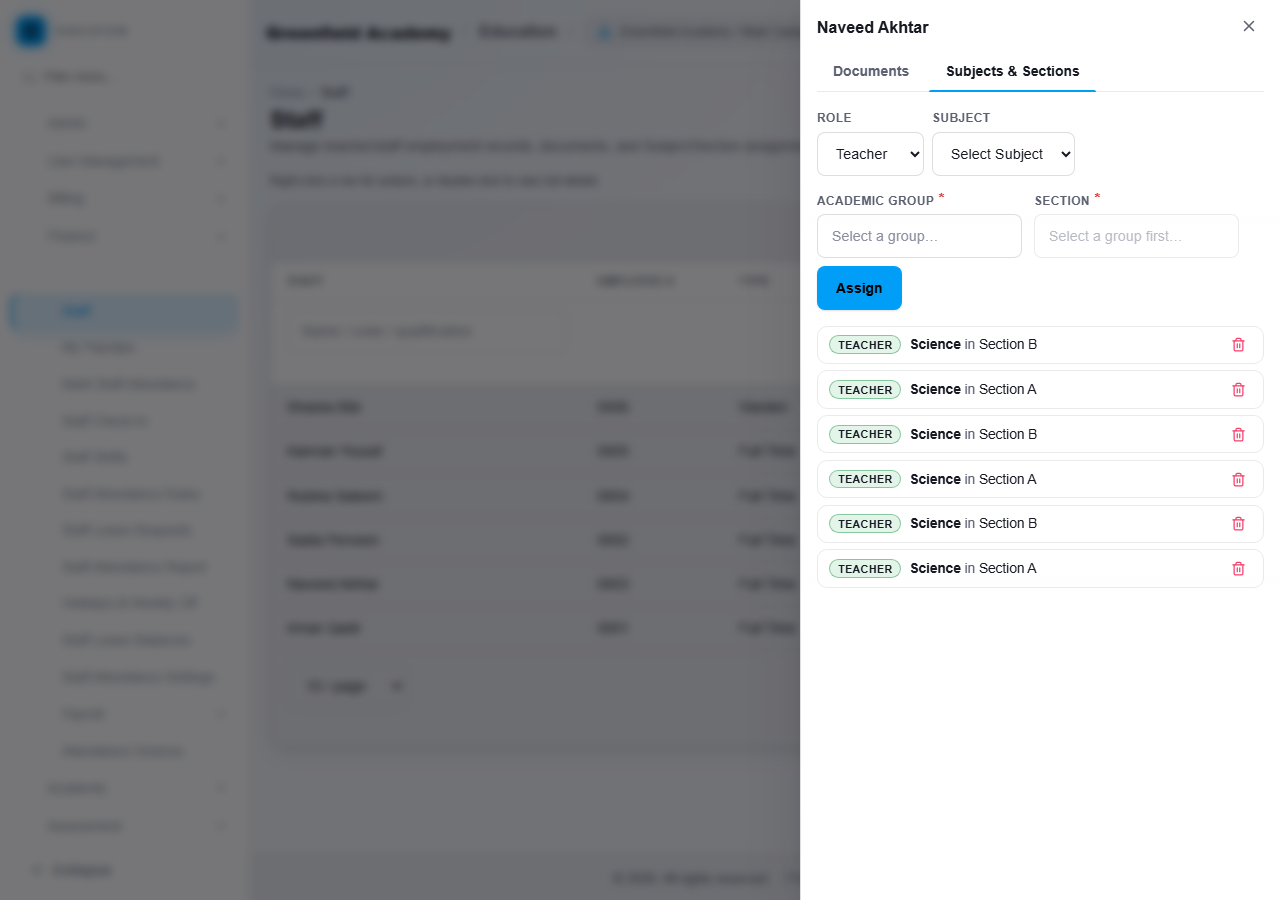
- Add your teachers and assign each one to the Subjects and Sections they teach. See Staff and staff attendance. Only teachers assigned to a Subject in a Section can be placed on that Section's timetable.
Steps: create the periods and rooms
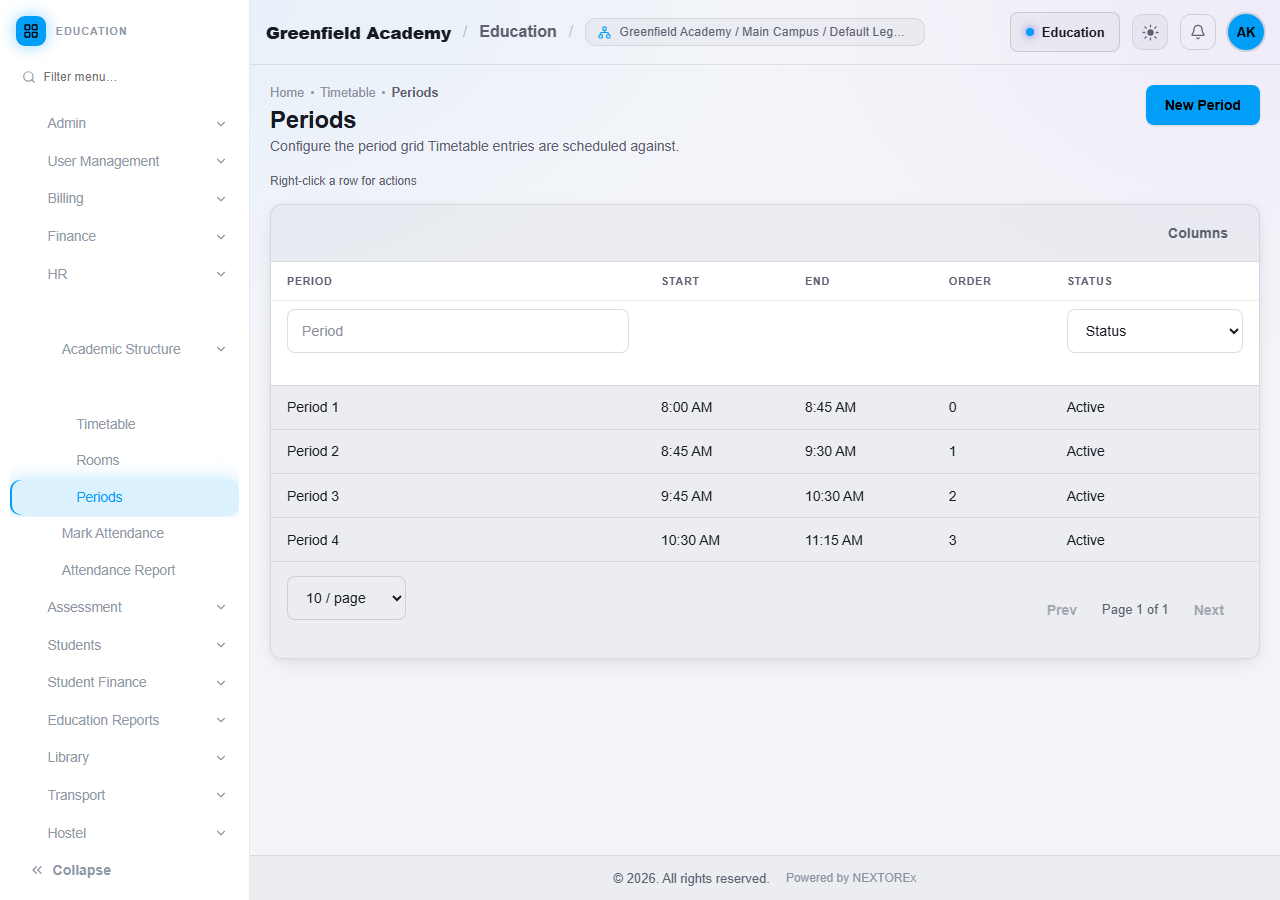
- Open Timetable, then Periods. Click New Period and enter a Name (for example
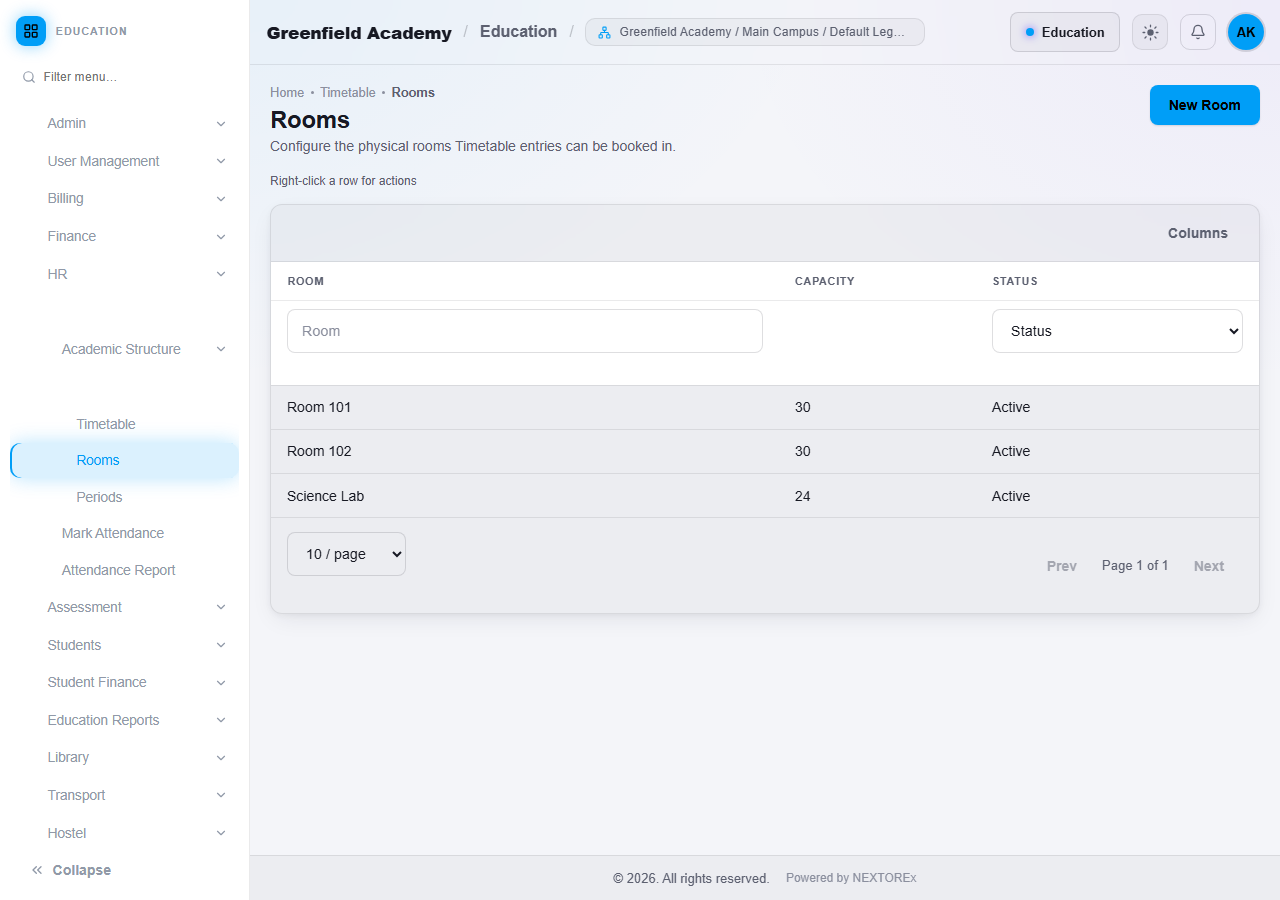
Period 1), the Start and End times and the order. - Open Rooms. Click New Room and enter a Name and, if you want, the Capacity.
Steps: build a Section's timetable
- Open Timetable, then Timetable.
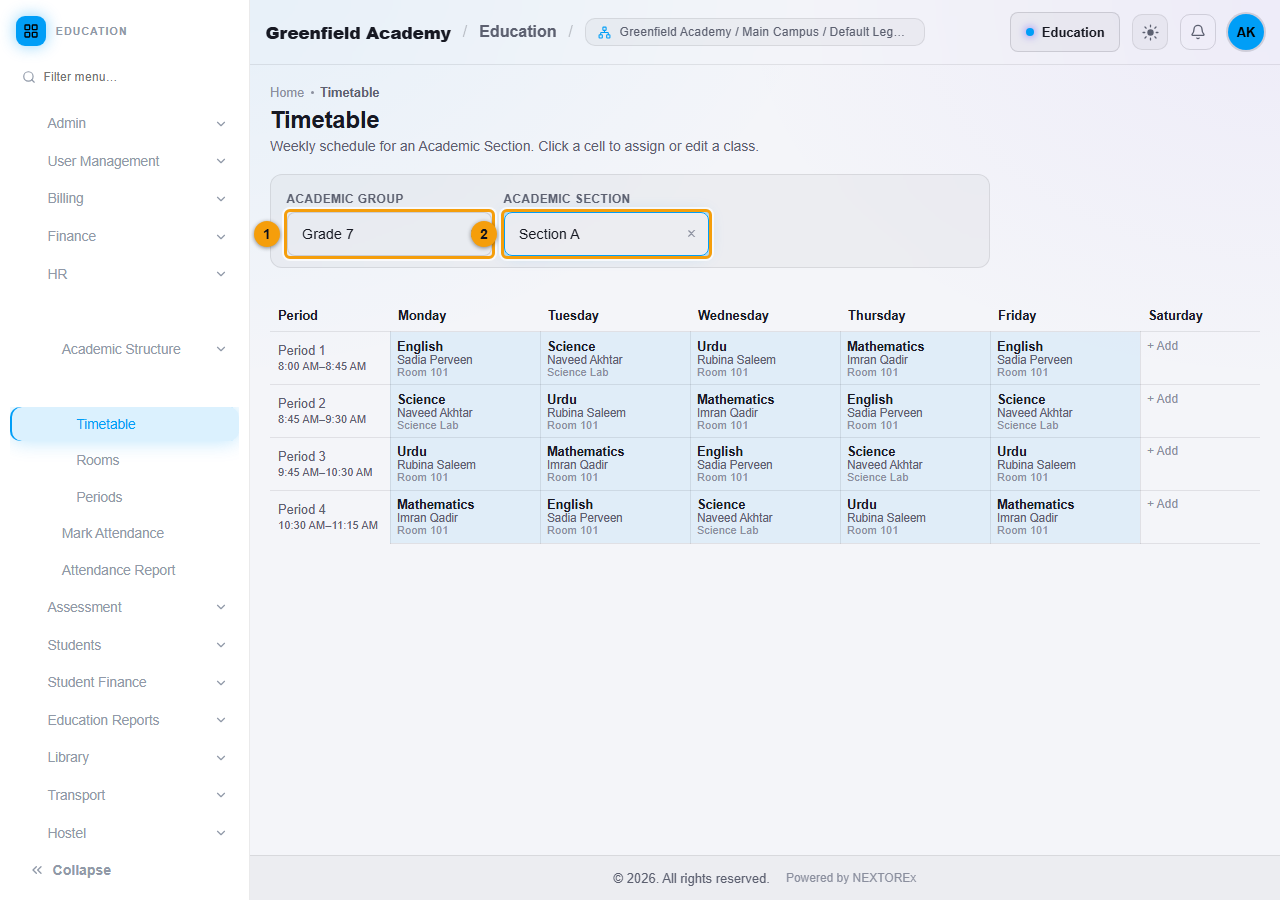
- Choose the Academic Group (1), then the Academic Section (2). The weekly grid appears with one row per period.
- Click + Add in an empty cell, or click a filled cell to change it.
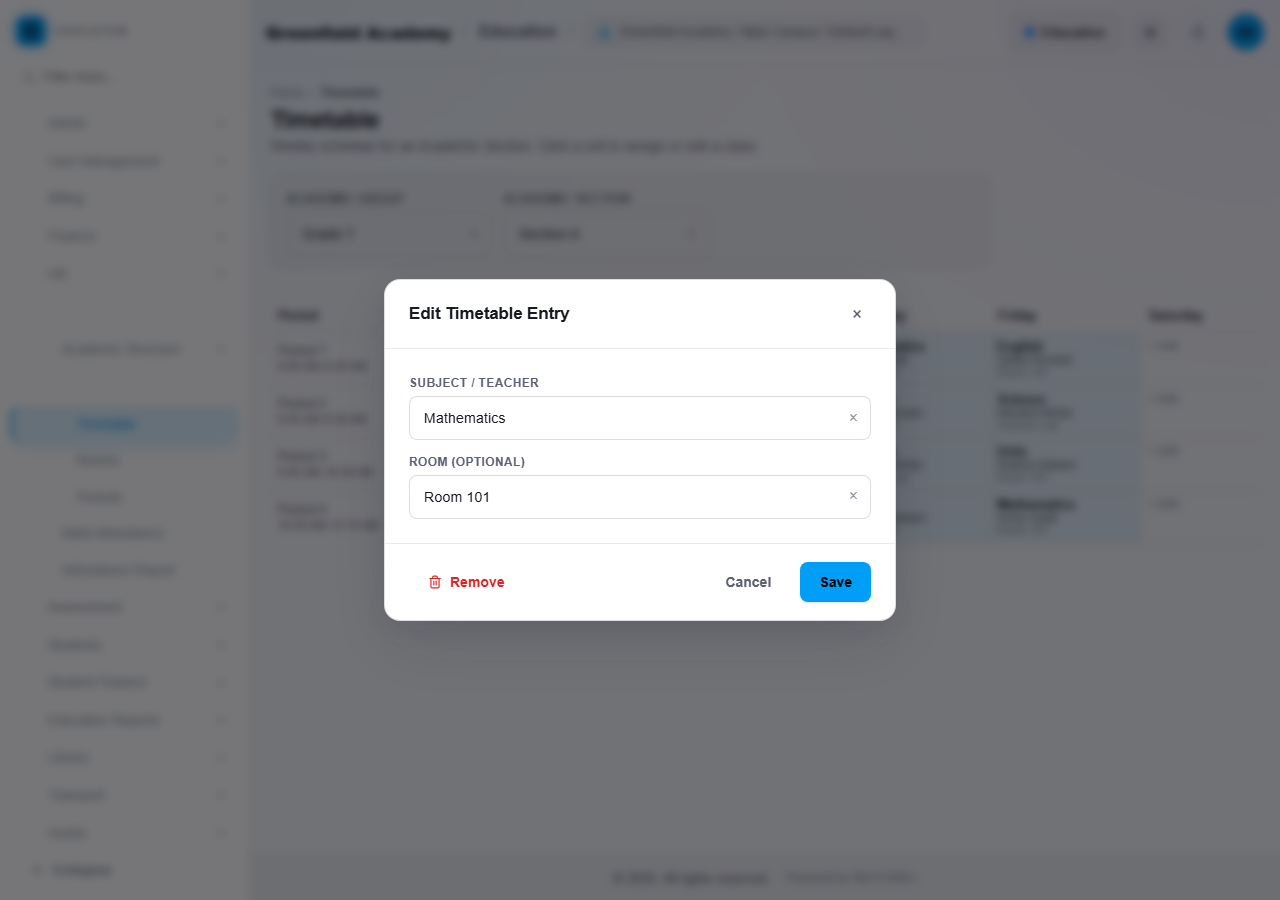
- Choose the Subject / Teacher. The list shows each Subject with the teachers assigned to it for this Section.
- Choose a Room if you want.
- Click Save. To clear a cell, open it and click Remove.
Clashes are refused
NEXTOREx refuses a booking and explains why when:
- the Section already has a Subject at that day and period,
- the teacher is already teaching another Section at that day and period, or
- the room is already booked for another Section at that day and period.
The teacher must also be assigned to that Subject in that Section.
What happens next
Teachers and students see the timetable they are allowed to see. A student's profile shows the class that is in session now, or that none is.
Important rules
- One Subject per Section per period per day.
- A teacher cannot be in two places at once.
- A room cannot be used by two Sections at once.
- The grid lists the periods you created, in order.
Common mistakes
- Trying to place a teacher who has not been assigned to the Subject and Section.
- Creating the timetable before the periods exist.
- Giving two Sections the same teacher in the same period.