Education
Transport
Education Campus · 3 min read · Updated 17 October 2026
What this does
Transport lets you define routes, give each route a monthly flat fare, assign students to routes and bill the fare as a fee every month. Each student is on one route at a time, and the history of earlier routes is kept.
Who can use it
Staff whose role includes the Transport permissions, normally the administration or accounts team.
Which package includes it
Education Campus. Education Essentials and Education Standard do not include Transport.
Where to find it
Open Transport. It holds Routes, Student Assignments and Transport Fees.
Steps: create a route
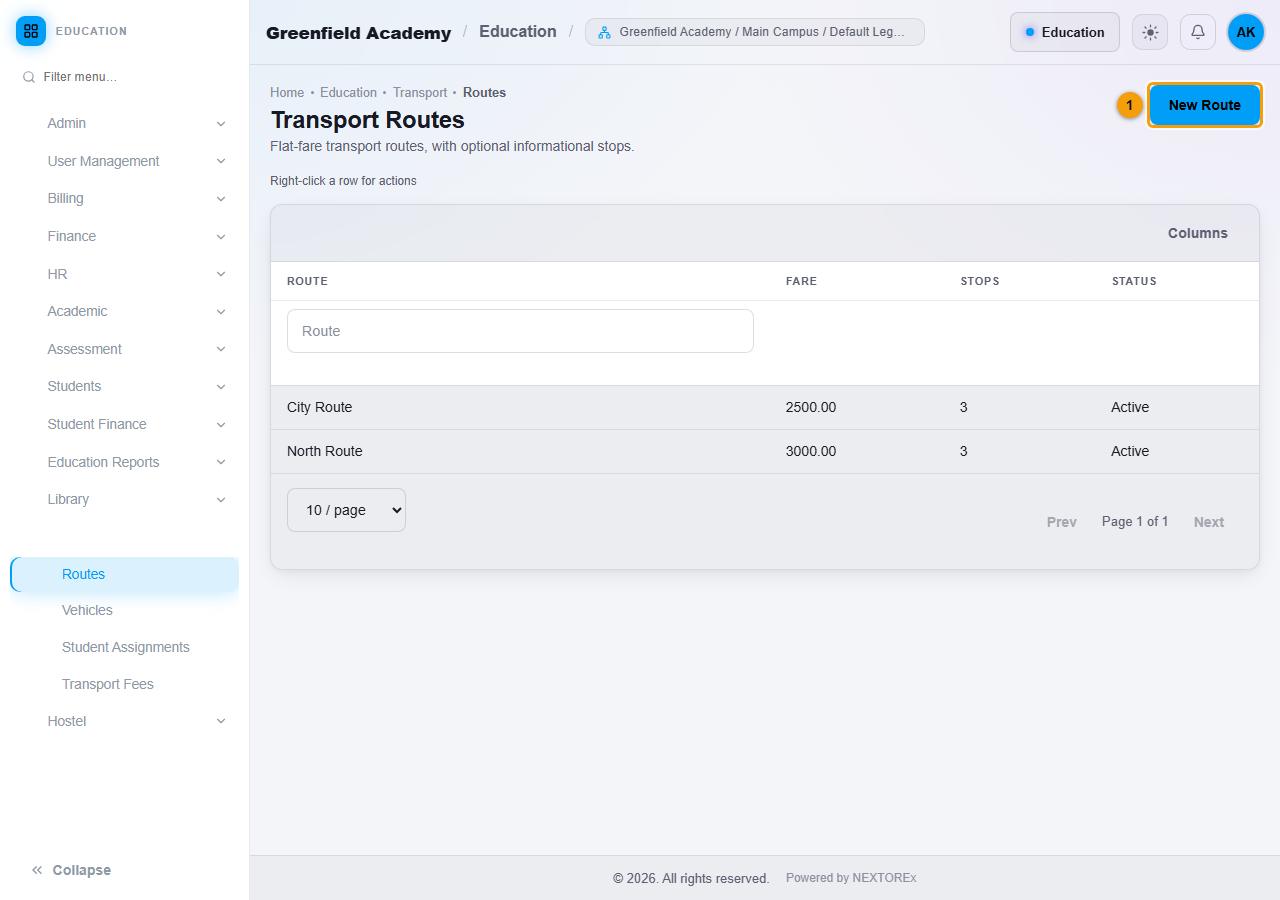
- Open Transport, then Routes, and click New Route (1).
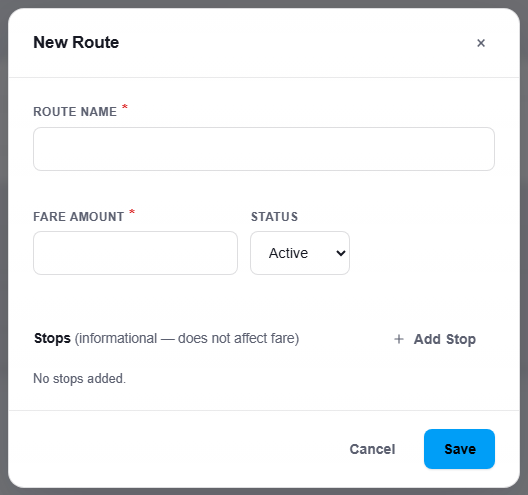
- Enter the Route Name and the Fare Amount. This is the flat fare charged every month to each student on the route.
- Choose the Status, Active or Inactive.
- Click Add Stop to list the stops of the route. Stops are for information only and do not change the fare.
- Click Save.
Steps: assign a student to a route
- Open Transport, then Student Assignments, on the Assign tab.
- Choose the Student (1). The page shows the student's Current Route and its fare.
- Under Assign / Reassign to Route (2), choose the route and click Assign.
To move a student to another route, choose the new route and click Assign again. The old assignment is closed automatically.
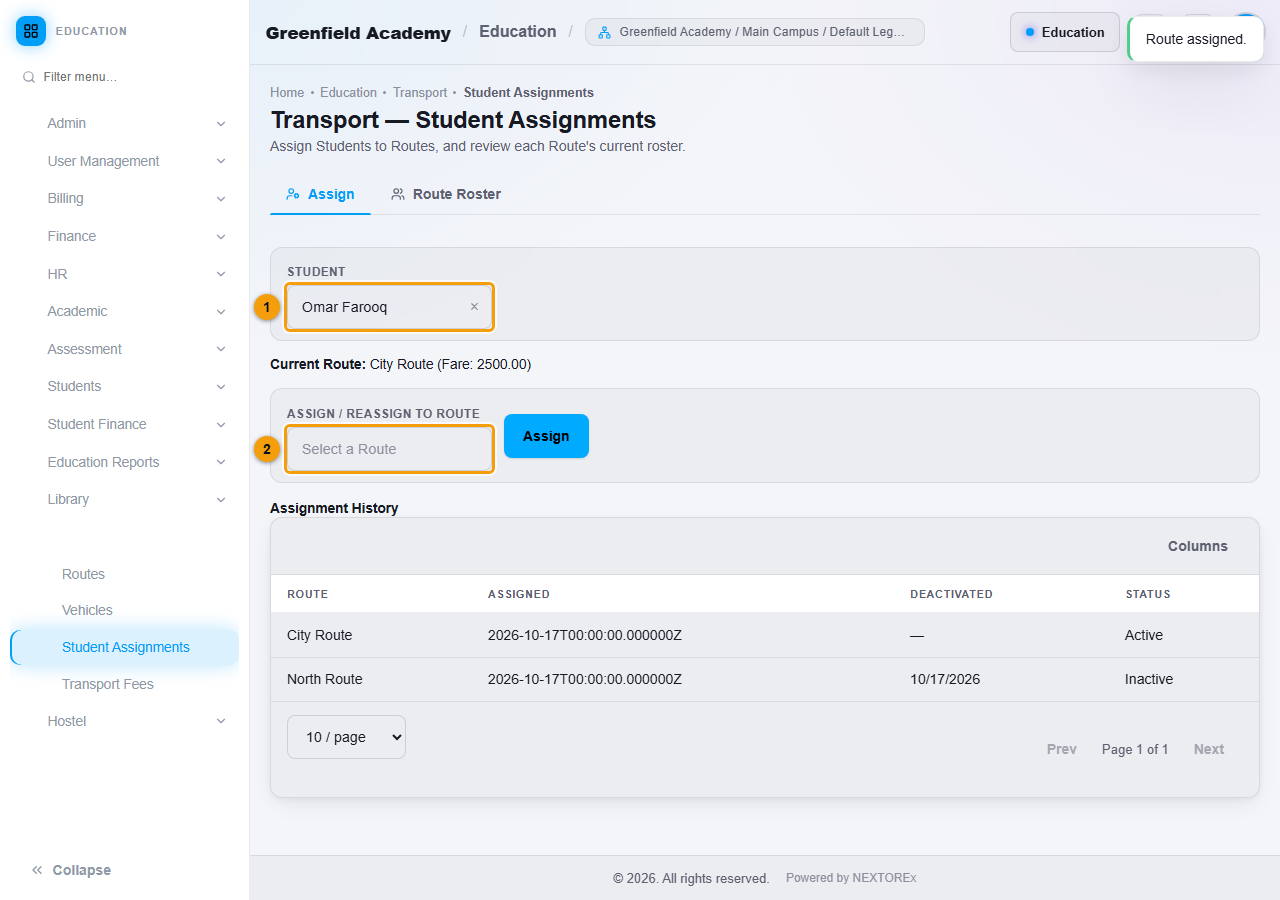
Assignment History lists every route the student has had, when it started, when it ended and whether it is still Active.
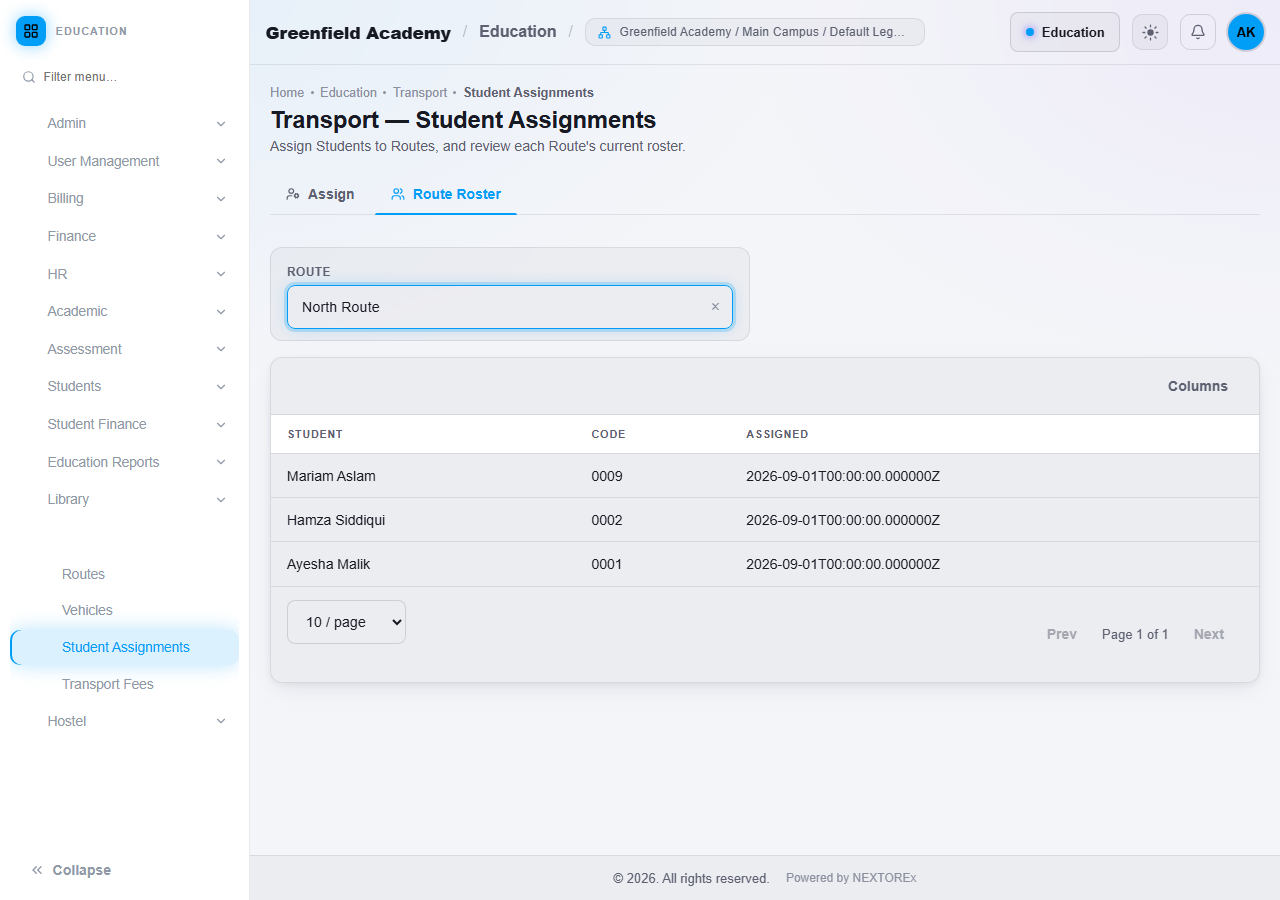
To see who travels on a route, open the Route Roster tab and choose the route.
Steps: generate the monthly transport fees
- Open Transport, then Transport Fees.
- Click Generate Now.
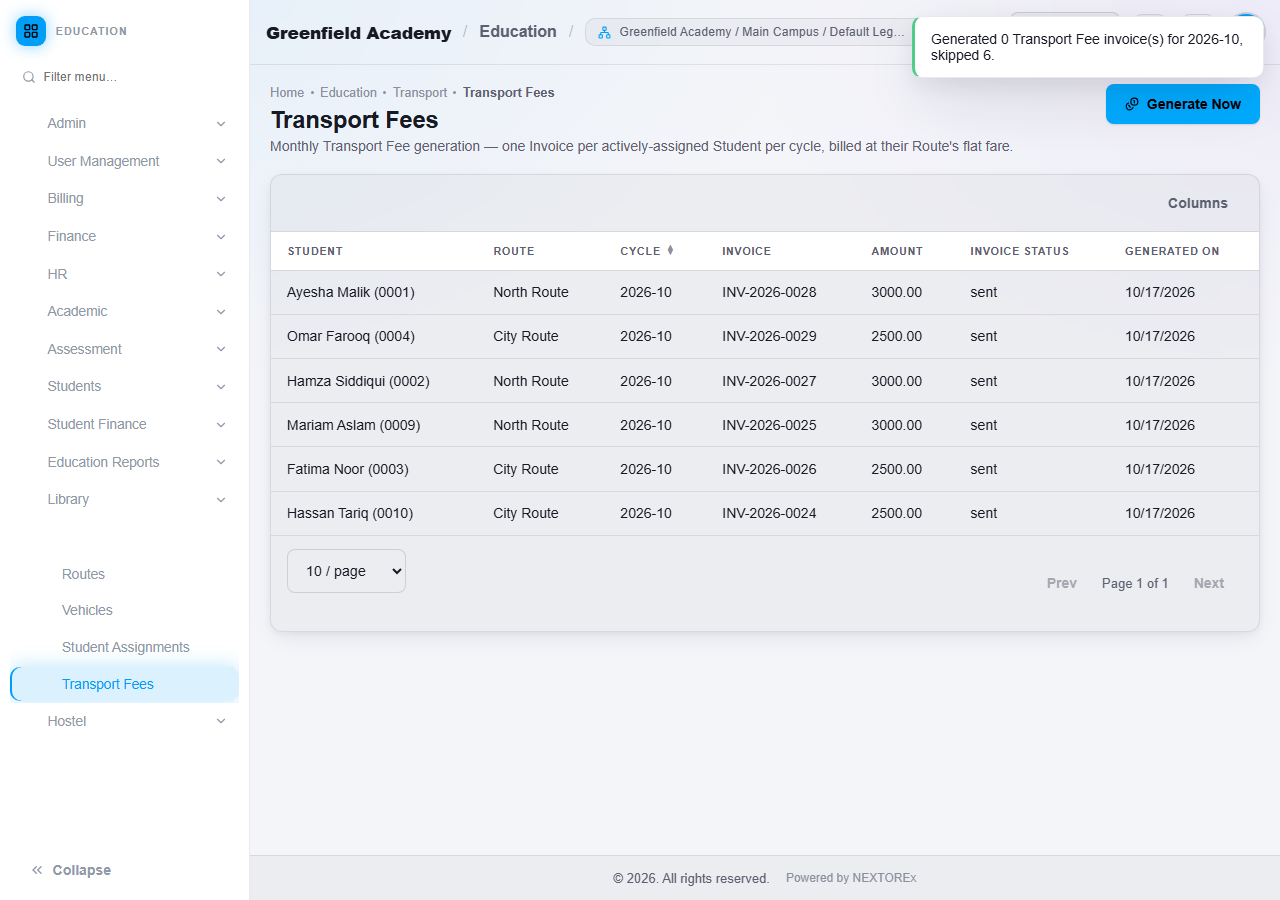
NEXTOREx creates one invoice for every student who is currently on a route, for the current month, at that route's flat fare. A message tells you how many invoices were created and how many were skipped. The table lists each student, route, month, invoice, amount, invoice status and the date it was generated.
Duplicates are prevented
A student is billed once per month. If you click Generate Now again for the same month, students who already have that month's invoice are skipped. It is safe to run it more than once.
What happens next
The transport invoice appears in the student's Fee History, next to tuition. Record the payment with a receipt. See Student payments and fee statement.
Important rules
- A student is on one route at a time.
- The fare is a flat monthly amount for the route.
- Only students who are currently assigned to a route are billed.
- A student is never billed twice for the same month.
Common mistakes
- Expecting stops to change the fare. They are informational.
- Expecting the fare to be charged before Generate Now is run.
- Assigning a student to a route after the month was generated and expecting an invoice immediately. Run Generate Now again. Only the new student receives an invoice.