Education
Student attendance
Education Essentials and above · 3 min read · Updated 18 October 2026
What this does
Teachers and administrators record who was present, absent, late or on leave for each Section every day. The saved register feeds the attendance report, the attendance summary and each student's profile.
This guide is about student attendance. Your staff's own attendance, with Check In, Check Out and leave, is separate. See Staff and staff attendance.
Who can use it
Staff with the Mark Attendance permission. People who can view attendance see every Section. A teacher who has been assigned to a Section sees only the Sections they are assigned to.
Which package includes it
All Education packages.
Where to find it
Open Academic, then Mark Attendance to record a day, or Attendance Report to review it. A summary for the whole school is in Education Reports, then Attendance Summary.
Steps: mark a day
- Open Academic, then Mark Attendance.
- Choose the Academic Group (1) and then the Academic Section (2).
- Check the Date (3). It starts as today.
- Everyone starts as Present. For each student who was not, click Absent, Late or Leave. Use the Notes box for a short remark.
- Click Save Attendance (4).
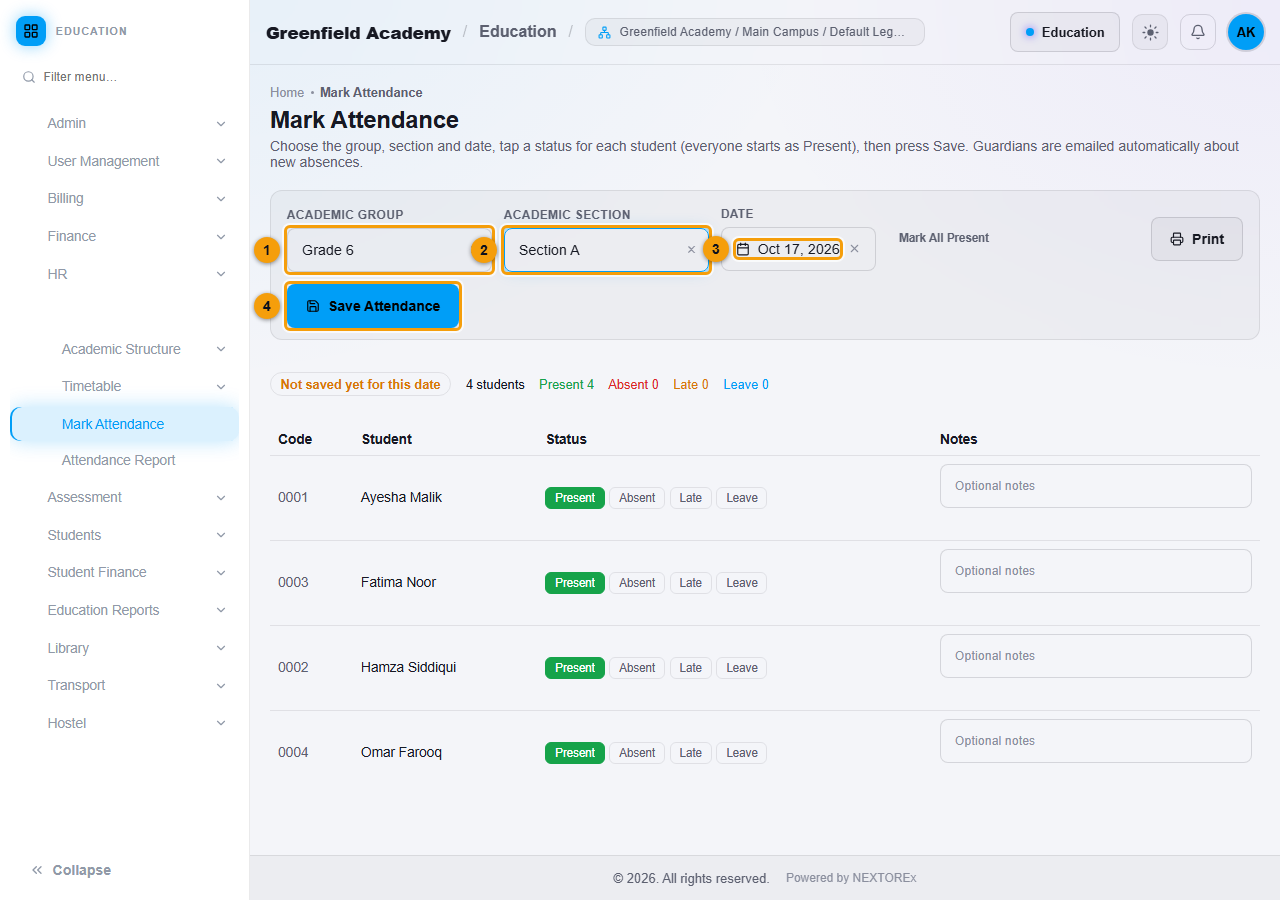
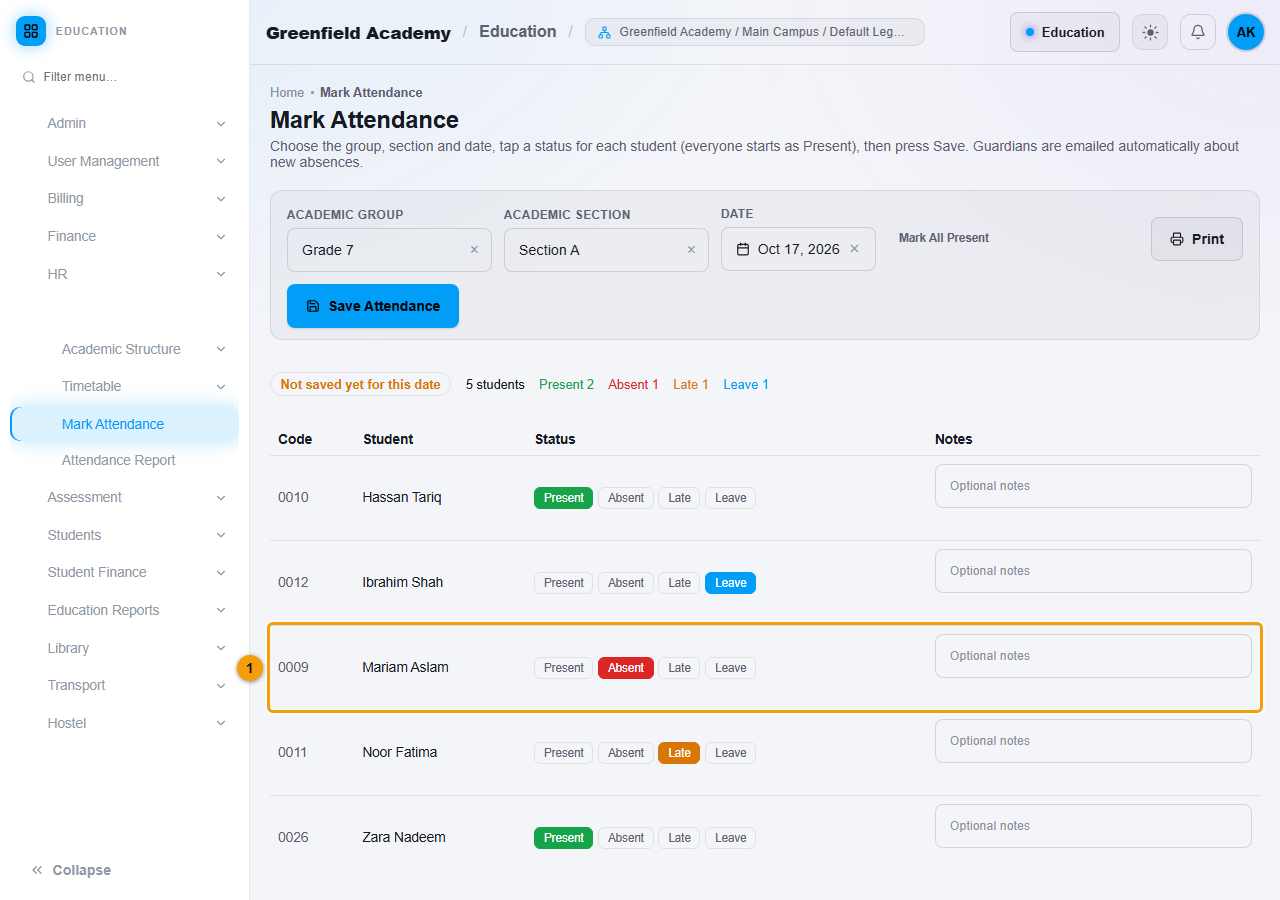
The buttons above the list show counts for the day: students, present, absent, late and leave. The label beside them says Not saved yet for this date until you save.
After saving, a message confirms the totals, for example Attendance for 10/17/2026 saved: 2 present, 1 absent, 1 late, 1 on leave.
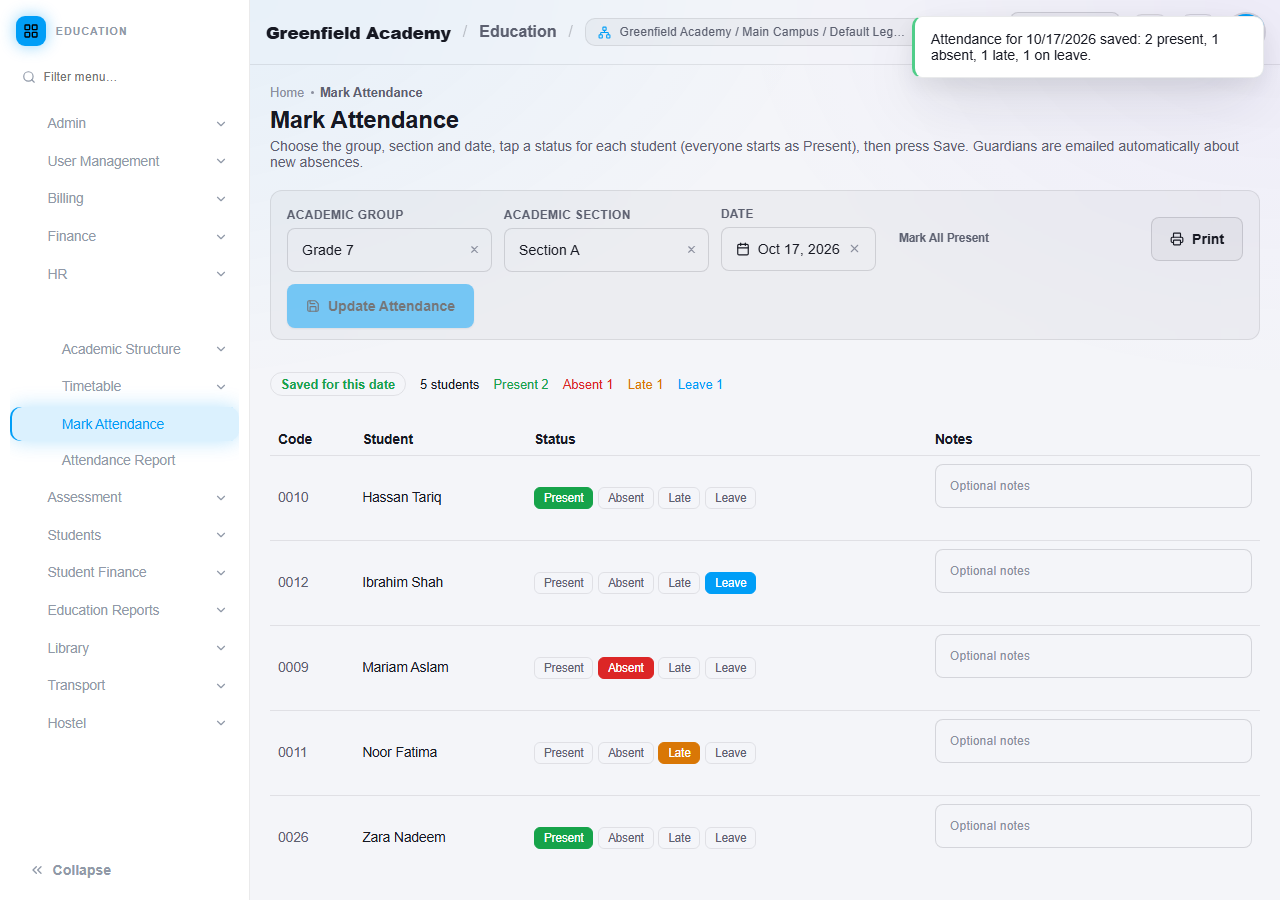
The register lists the students who are enrolled and active in that Section. Mark All Present resets the list, and Print prints it.
Open a saved day and correct it
- Choose the same Group, Section and Date again. The label now reads Saved for this date and the saved statuses are shown.
- Change any student's status.
- Click Update Attendance (2).
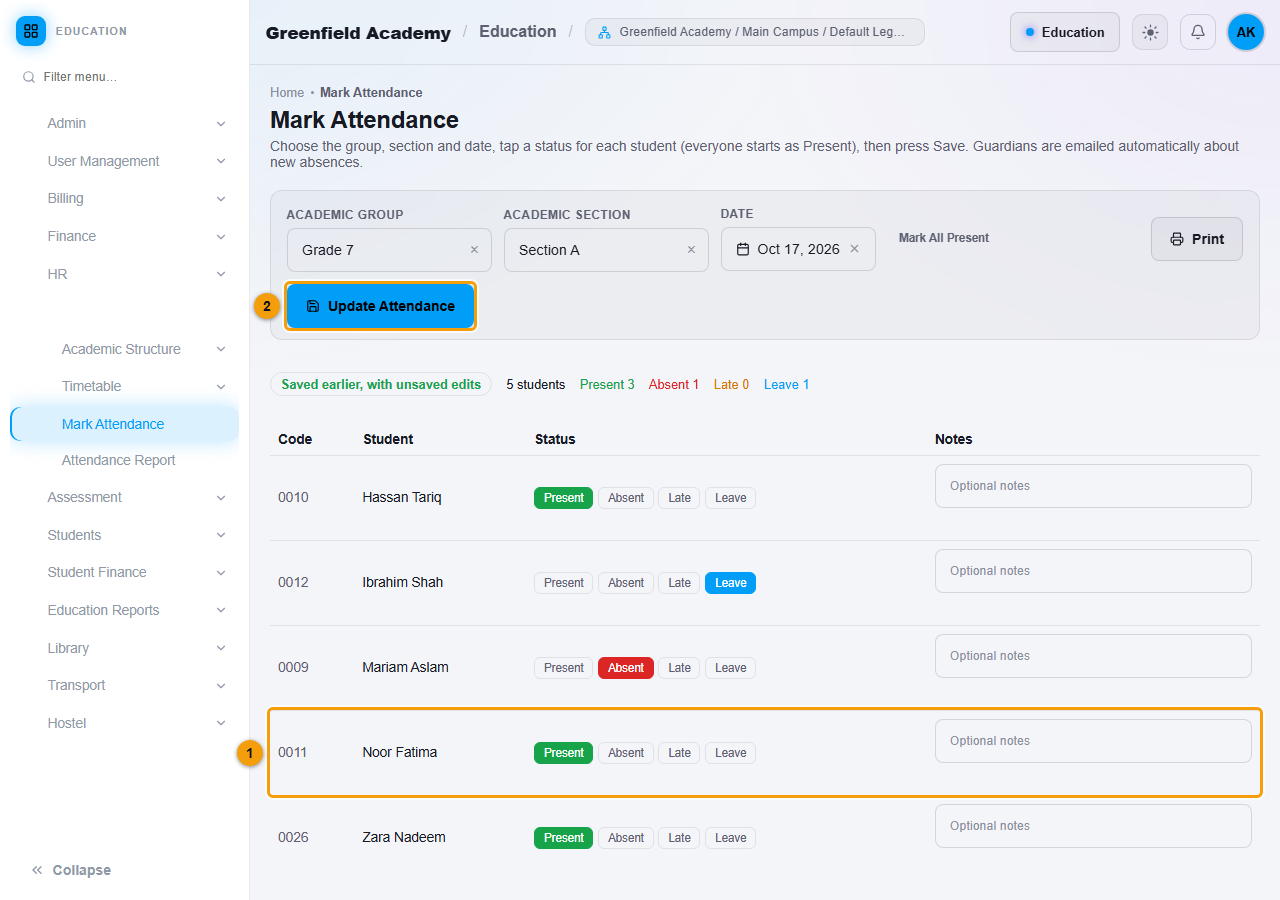
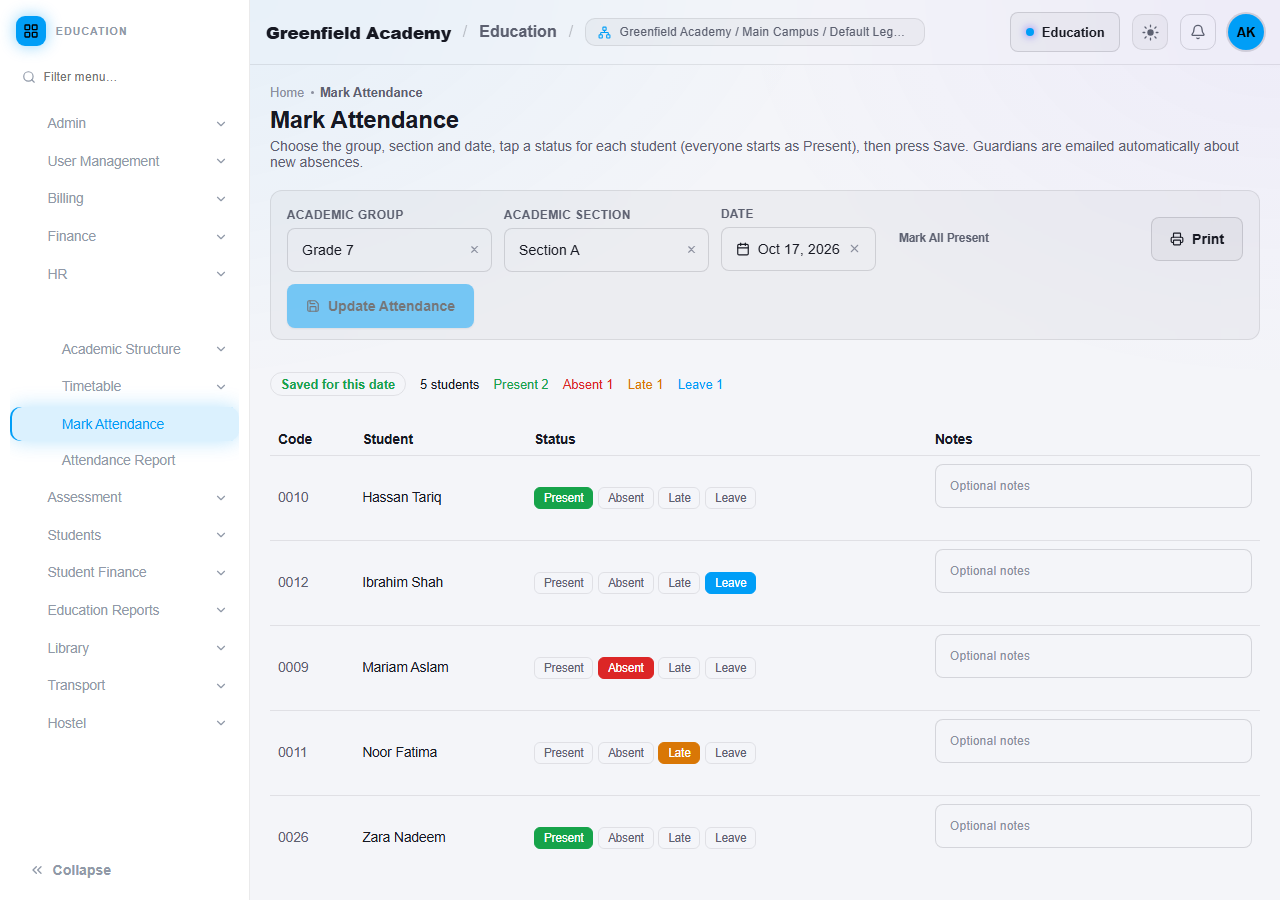
Saving the same day again never creates a second record for a student. It updates the existing one.
Guardian email for absences
When a student is newly marked Absent and a Guardian Email is recorded on the student, NEXTOREx emails the guardian. Record the guardian's email when you admit the student.
Read the attendance report
- Open Academic, then Attendance Report.
- Choose the Academic Group and Academic Section.
- Set the KPI Date, and the Trend From and Trend To dates.
- Click Generate (1).
You see the counts for the KPI date and the attendance-rate trend for the Section. The table lists each day with present, absent, late and leave counts and the attendance percentage.
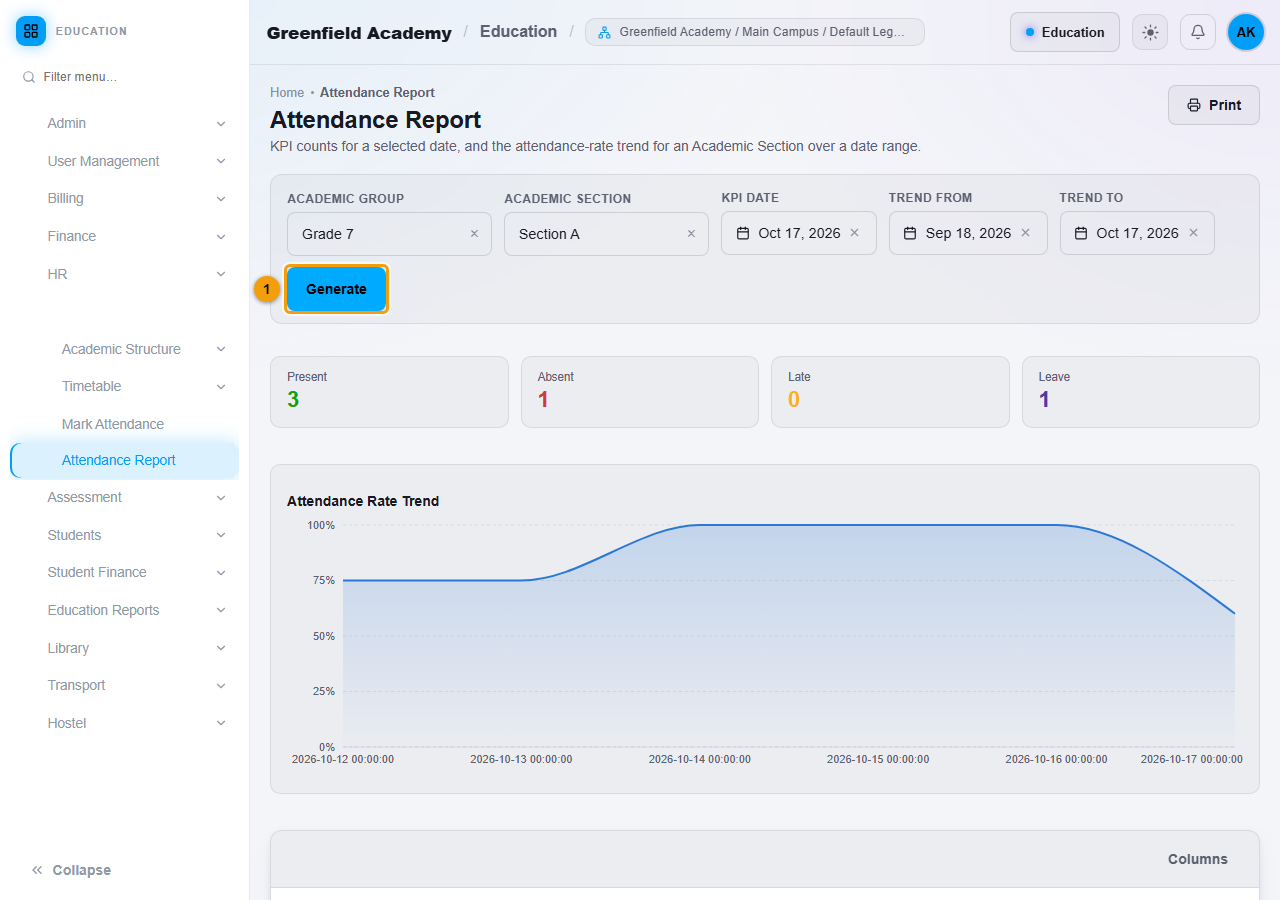
The school-wide summary by Section is described in Education reports and dashboard.
Important rules
- Attendance is kept per student per day. Correct a mistake by opening the day and updating it.
- Only students who are enrolled and active appear on the register.
- Future dates cannot be selected. You can mark today and any earlier day.
- Changing the Group while you have unsaved changes asks you to confirm before the changes are discarded.
Common mistakes
- Forgetting to click Save Attendance. The label Not saved yet for this date reminds you.
- Marking the wrong Section. Check the Group and Section before saving.
- Expecting a student who is still an Inquiry or Admitted to appear. Only enrolled students are on the register.