Education
Student payments and fee statement
Education Essentials and above · 4 min read · Updated 17 October 2026
What this does
This guide shows how to record the money a student pays, how to read a student's fee statement, and how to list everyone who still owes fees.
Who can use it
Staff whose role can create vouchers and view students. Students can see their own invoices in My Fees.
Which package includes it
All Education packages. Recording receipts uses the shared finance screens that every Education package includes. This is not the full ERP or POS accounting application. See Education receipt and payment vouchers.
Where to find it
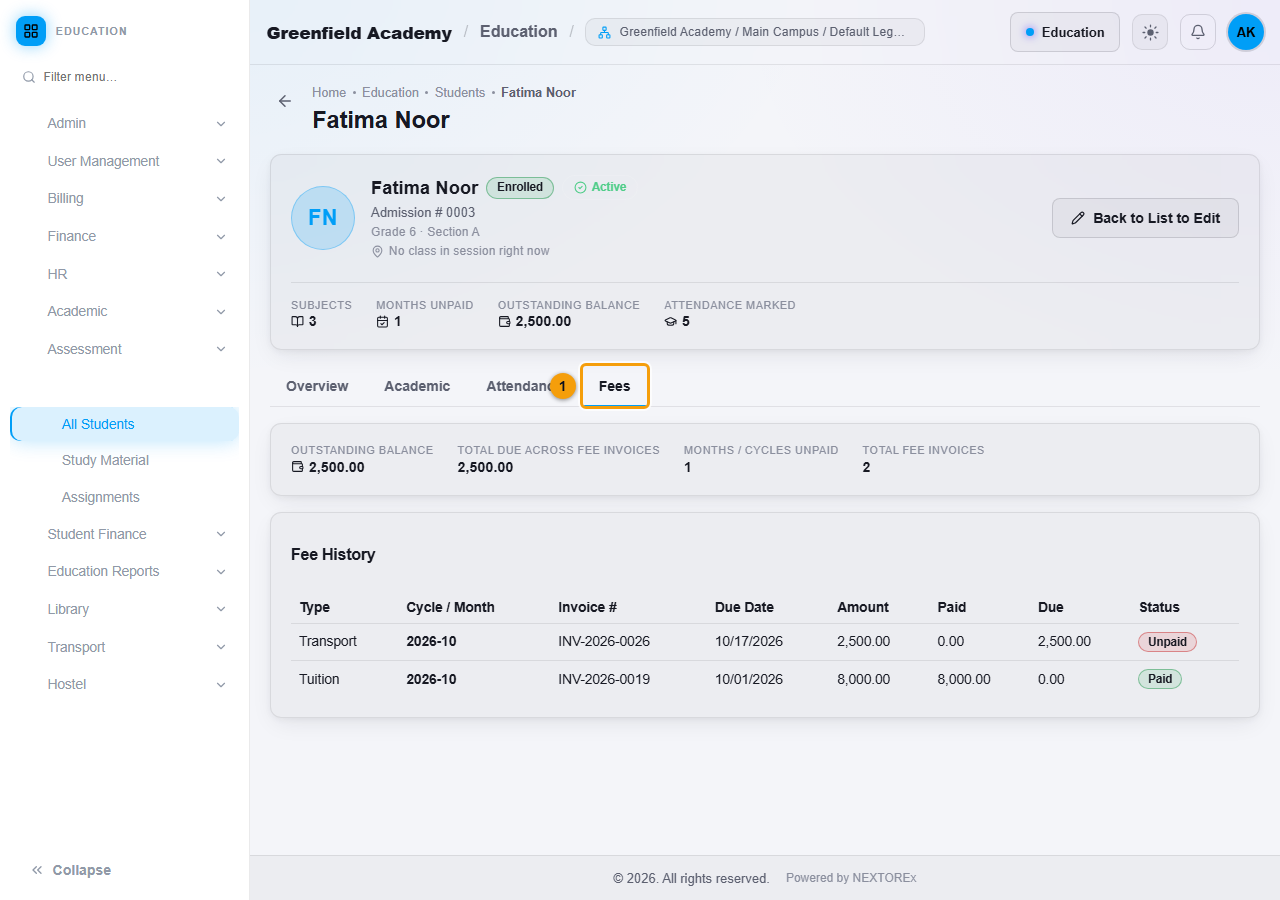
- The fee statement is the Fees tab of a student's profile: Students, All Students, then right-click the student and choose View Details.
- Payments are recorded in Finance, then Voucher, using Receipt.
- Dues are listed in Education Reports, then Fee Collection Report.
Steps: record a payment
- Open Finance, then Voucher, and click Receipt.
- Choose the Bank / Cash Account that receives the money, for example Cash in Hand.
- For Income / Asset Account, choose Accounts Receivable. Fee invoices are held there until they are paid.
- Enter the Amount.
- In Customer or Student, type the student's name and choose the student. A STUDENT badge shows who you picked, with the admission number and the current balance.
- In Related Invoice, type
INVand choose the invoice that is being paid. Only the invoices of the student you chose are offered. - Click Post Receipt.
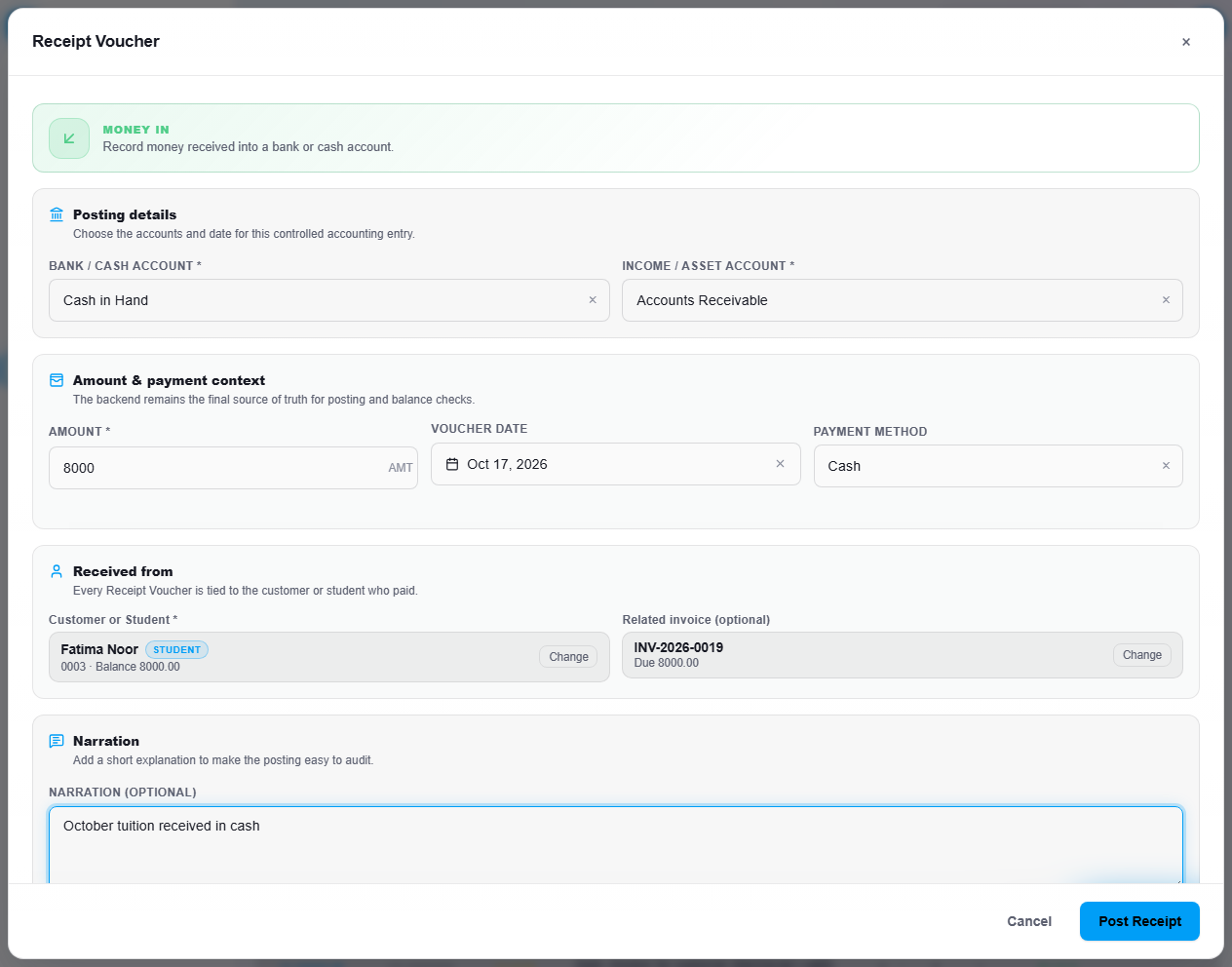
The invoice is updated straight away. Paying the full amount shows Paid. Paying less shows Partially Paid with the rest still due.
Read a fee statement
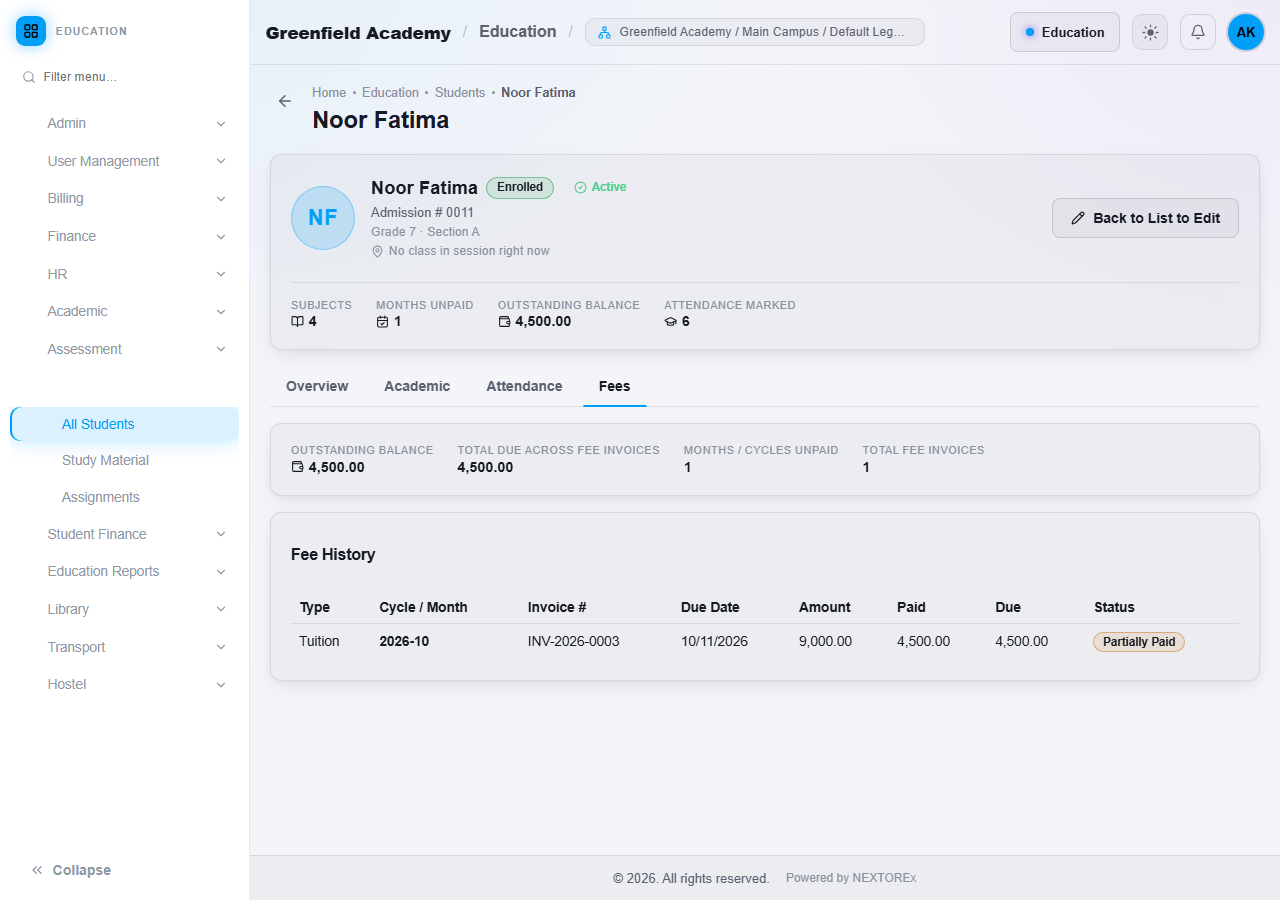
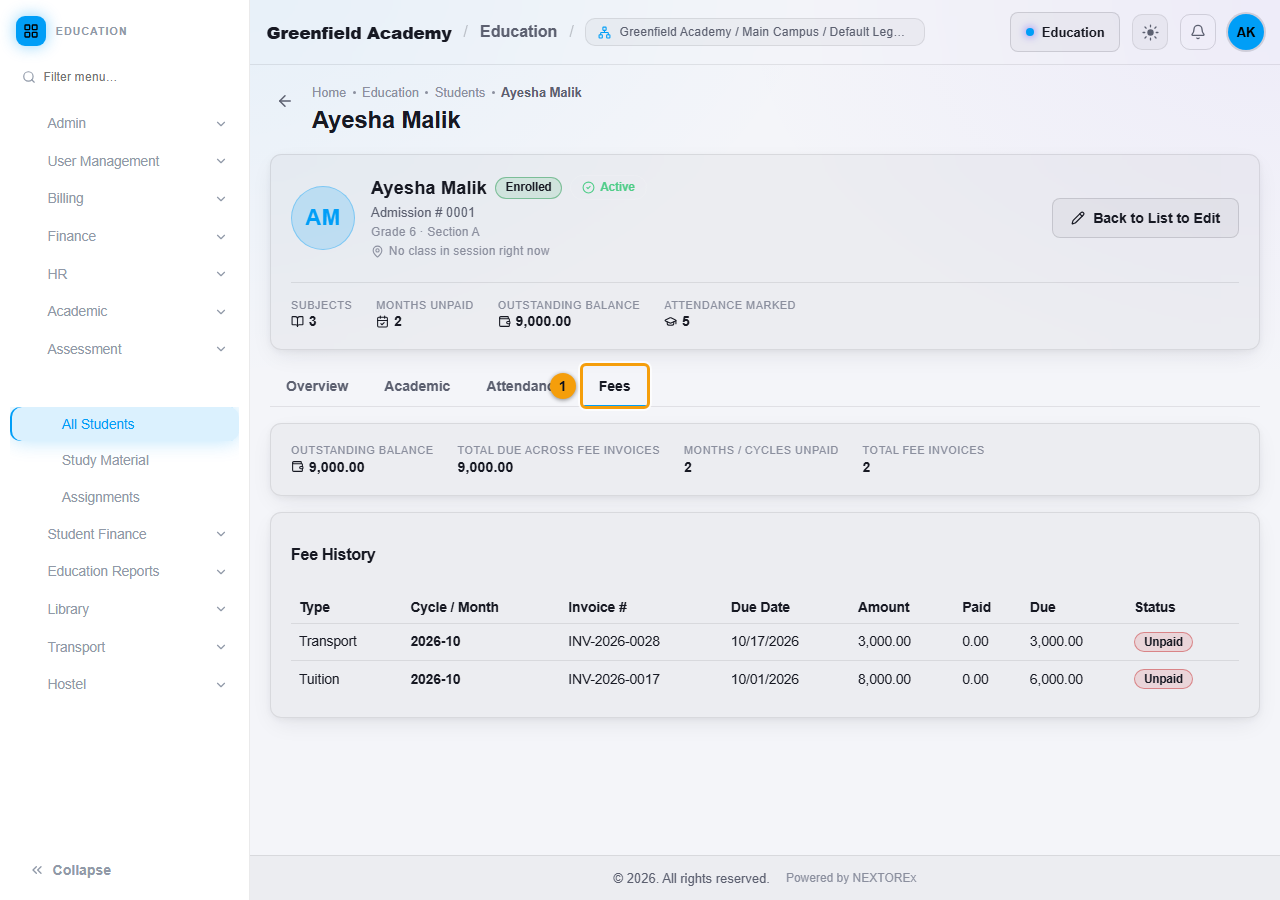
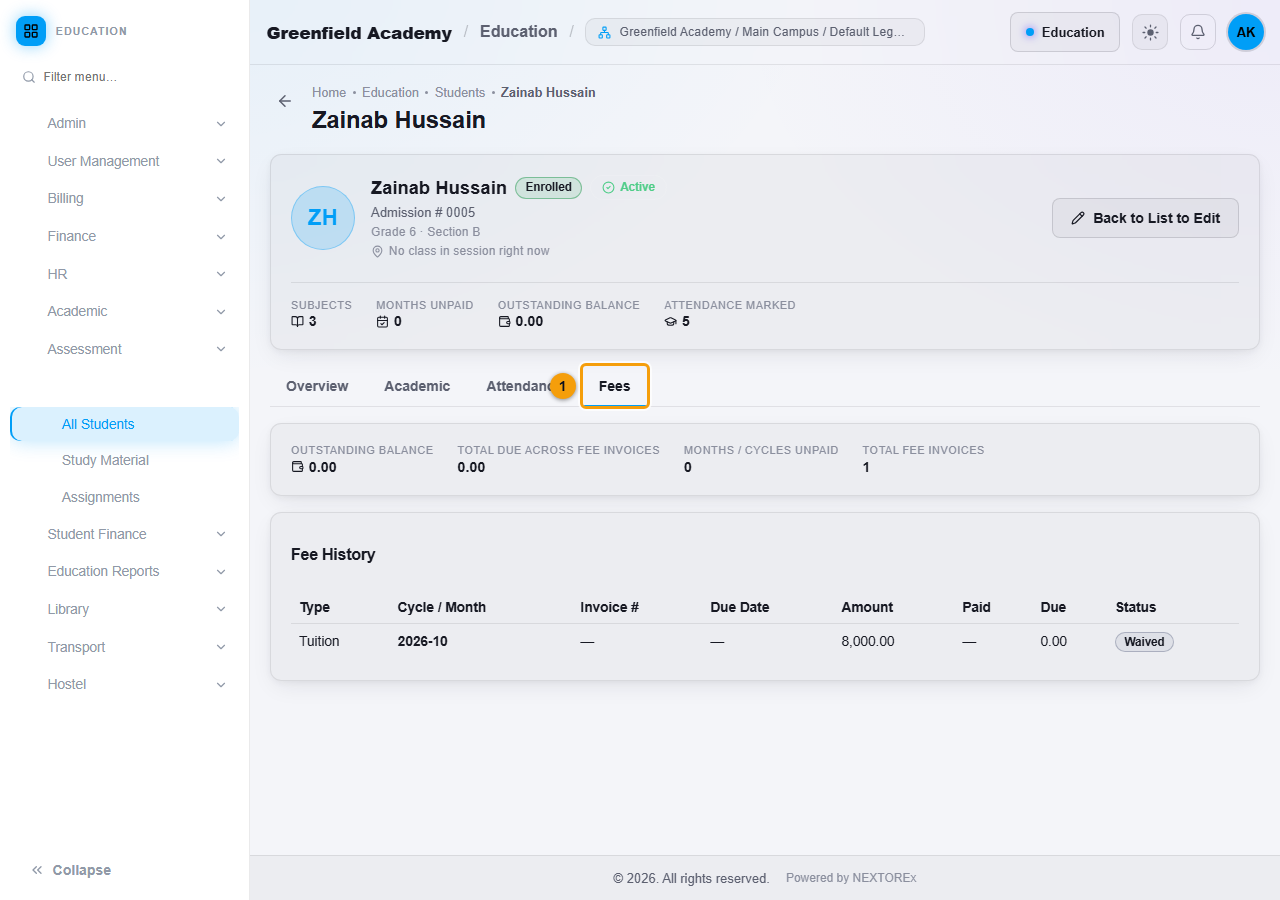
Open the student's profile and click the Fees tab (1). The summary shows the Outstanding Balance, the total due across fee invoices, the number of months or cycles still unpaid and the number of fee invoices. Fee History lists every invoice with its type, month, invoice number, due date, amount, paid, due and status.
Fee History includes every kind of Education charge: tuition, transport, hostel, library fines, late fees and extra fees.
| Status | Meaning |
|---|---|
| Paid | The invoice is fully paid. |
| Partially Paid | Some money has been received. The rest is in the Due column. |
| Unpaid | Nothing has been received. |
| Waived | The fee was fully waived by a 100 percent scholarship. Nothing is due. |
Find everyone who owes fees
- Open Education Reports, then Fee Collection Report.
- Choose the dates and, if you want, an Academic Group.
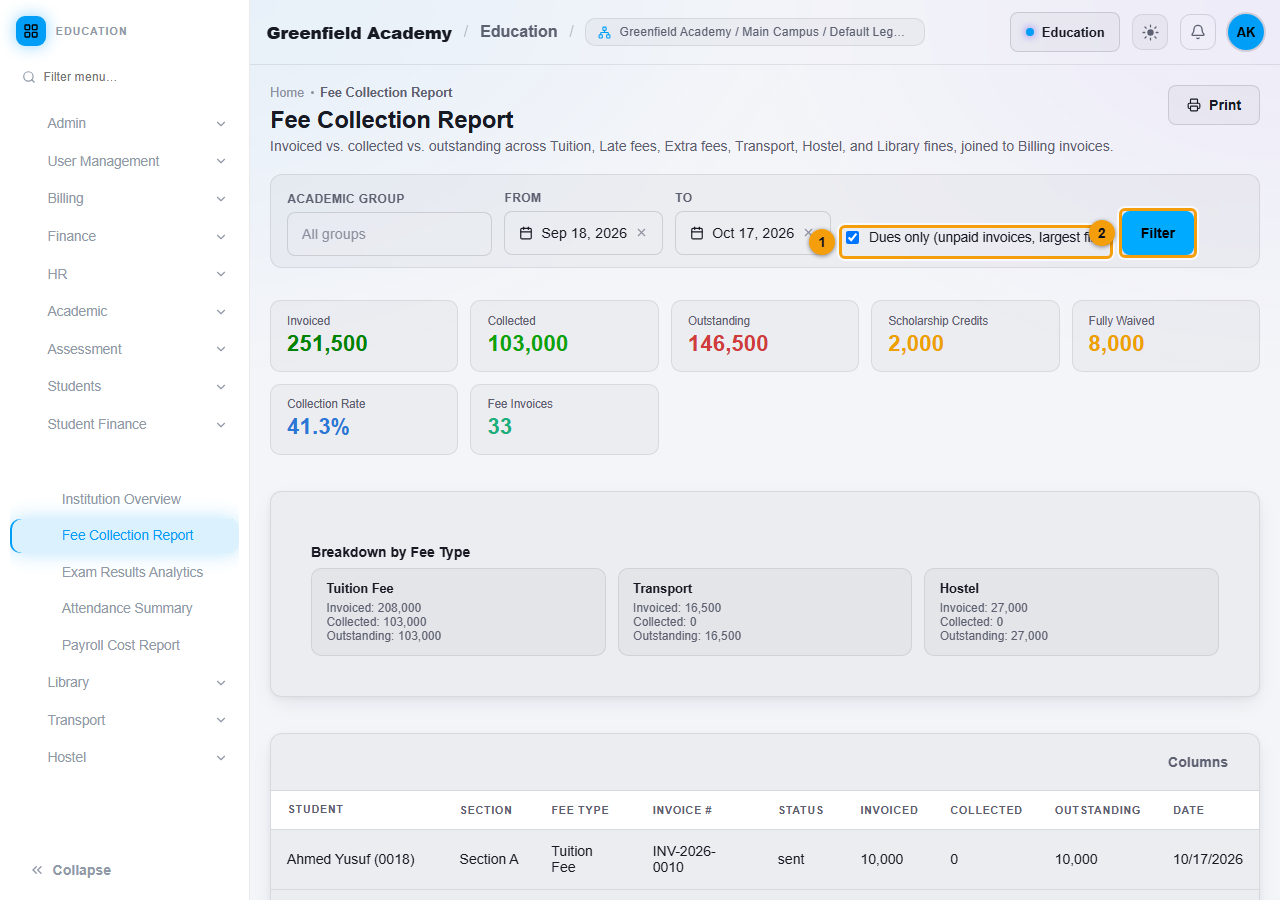
- Tick Dues only (unpaid invoices, largest first) (1).
- Click Filter (2).
The table lists only unpaid invoices, largest amount first. The cards at the top show the totals invoiced, collected and outstanding, the scholarship credits and the fully waived amount.
What students see
A student who signs in to the Student Portal opens Student Finance, then My Fees. It lists their own invoices and payments only.
Important rules
- A receipt linked to a student's invoice must be credited to Accounts Receivable. NEXTOREx refuses any other account for a student invoice.
- A receipt can only be linked to an invoice that belongs to the student you chose.
- A receipt that is wrong cannot be edited. Reverse it from the voucher list and post a new one. See Education receipt and payment vouchers.
Common mistakes
- Choosing the wrong student with a similar name. The student's admission number is shown under the name.
- Leaving Related Invoice empty, so the payment is not matched to a fee. Choose the invoice.
- Looking for a waived fee in the unpaid list. A waived fee is not owed, so it does not appear under Dues only.