Users, Roles & Permissions
Your company and branches
All plans · 2 min read · Updated 16 October 2026
What this does
NEXTOREx organises your business as a tree. You set it up once when you first sign in, and you place staff in it when you add them.
From top to bottom the levels are:
- Company
- Business Group, for example a branch or a division
- Legal Entity
- Operating Unit
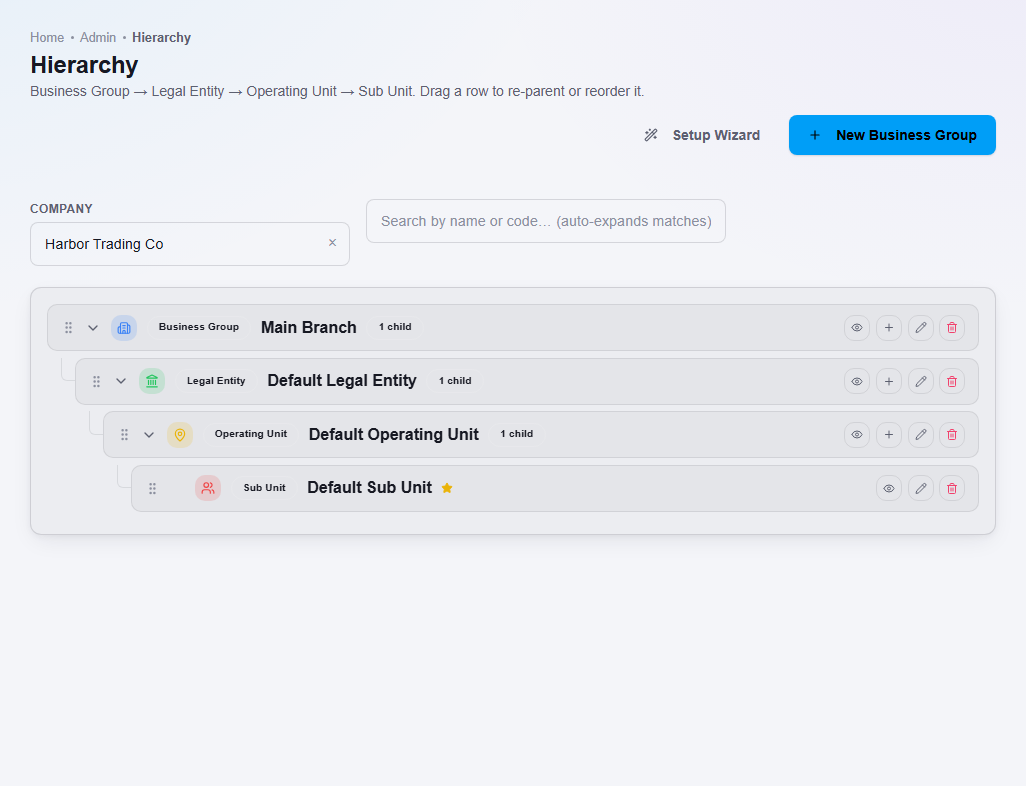
- Sub Unit, the smallest level where staff work
Small businesses usually have one of each. Setup creates them for you.
Steps
To see your structure:
- Open Admin, then Hierarchy.
- Choose your Company at the top if you have more than one.
- Read the tree. Click the small arrow on a row to open or close it.
To change it:
- Each row has small icons to view, add, edit and delete.
- Click New Business Group to add a new branch or division at the top.
- Click Setup Wizard for guided setup.
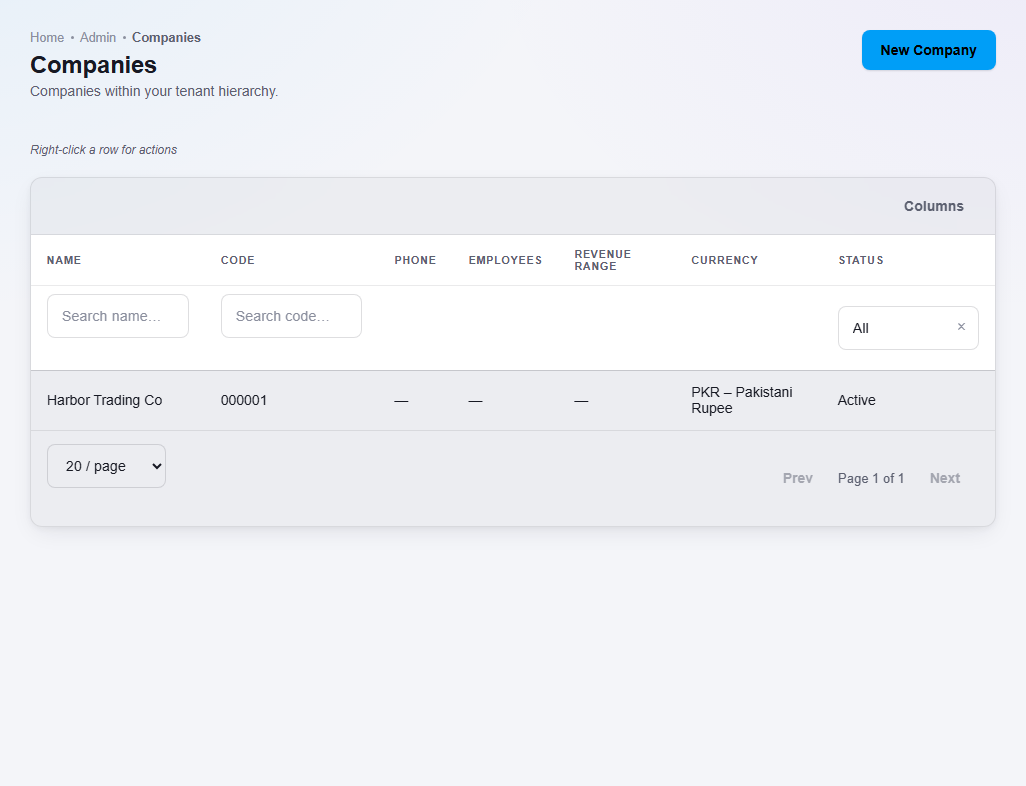
To see your companies, open Admin, then Companies.
What happens next
The top bar shows where you are working, for example Main Branch / Default Legal Entity / Default Operating Unit / Default Sub Unit. When you add a user, you place them at a Sub Unit and give them a role.
What counts as one hierarchy
Some accounts have a limit on how many hierarchies they can have. This is how they are counted:
- One hierarchy is one Business Group and everything under it, including its Legal Entities, Operating Units and Sub Units.
- Your Company does not count as a hierarchy.
- Adding a Legal Entity, an Operating Unit or a Sub Unit inside a Business Group does not use another hierarchy.
- Another, independent Business Group is another hierarchy.
The standard NEXTOREx plans do not limit the number of hierarchies. A limit applies only when one has been set for your account. This is separate from the number of client businesses an Agency can have. See Agency limits and rules.
Important notes
- The first-time setup asks for a name for each level. If setup stops with an error after you go back and start again, use new names rather than names you already entered, or ask support.
- A star appears next to the default Sub Unit.