Users, Roles & Permissions
How access works: plans, roles and permissions
All plans · 2 min read · Updated 17 October 2026
What this does
Two things decide what a person can do in NEXTOREx:
- Your plan decides what your business can use at all. For example, accounting vouchers and bank features come with Business and higher plans, and Basic Manufacturing comes with Pro and higher plans.
- A role decides what each staff member can do inside what your plan allows. For example, a cashier role can use POS Checkout and customers but not accounting.
A role can never give someone something your plan does not include.
Plans are bought per application: ERP/POS, CRM and Education each have their own packages. A person can open an application only if your account has a package for it and their role allows it. In Education, a teacher who is assigned to a Subject and Section sees only those Sections for attendance, marks and learning material. See Education plans, limits and combining apps.
How to see it
- Open User Management, then Roles to see your roles. The list shows how many permissions each role has and how many users have it.
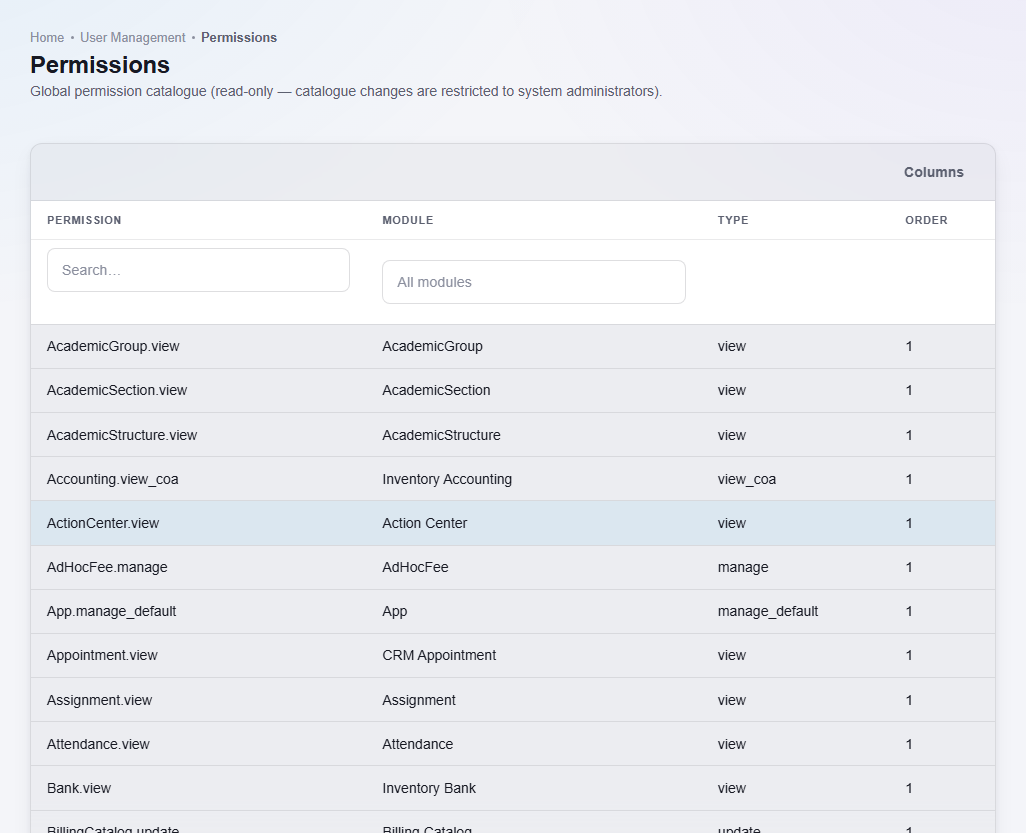
- Open User Management, then Permissions to see the full list of permissions NEXTOREx has. This is a reference list. You give permissions to people through roles.
What happens next
- To create a role, see Roles.
- To give a role to a person, see Add a user.
- If a menu item or a button is missing for someone, check their role first, then check that your plan includes the feature.
Important notes
- The person who sets up the business gets an Admin role. Keep the Admin role for the people who run the business.