Users, Roles & Permissions
Add a user
All plans (the number of users depends on your plan) · 2 min read · Updated 18 October 2026
What this does
Adding a user gives a staff member their own login. You choose which apps they can open and which role they have.
Before you start
- Create the role the person will have.
- Check your plan's user limit. Open Billing, then Subscription & Plans, then My Plan and look at Users under Usage.
Steps
- Open User Management, then Users.
- Click Add User. The Create User page opens with three steps.
Step 1: Basic Info
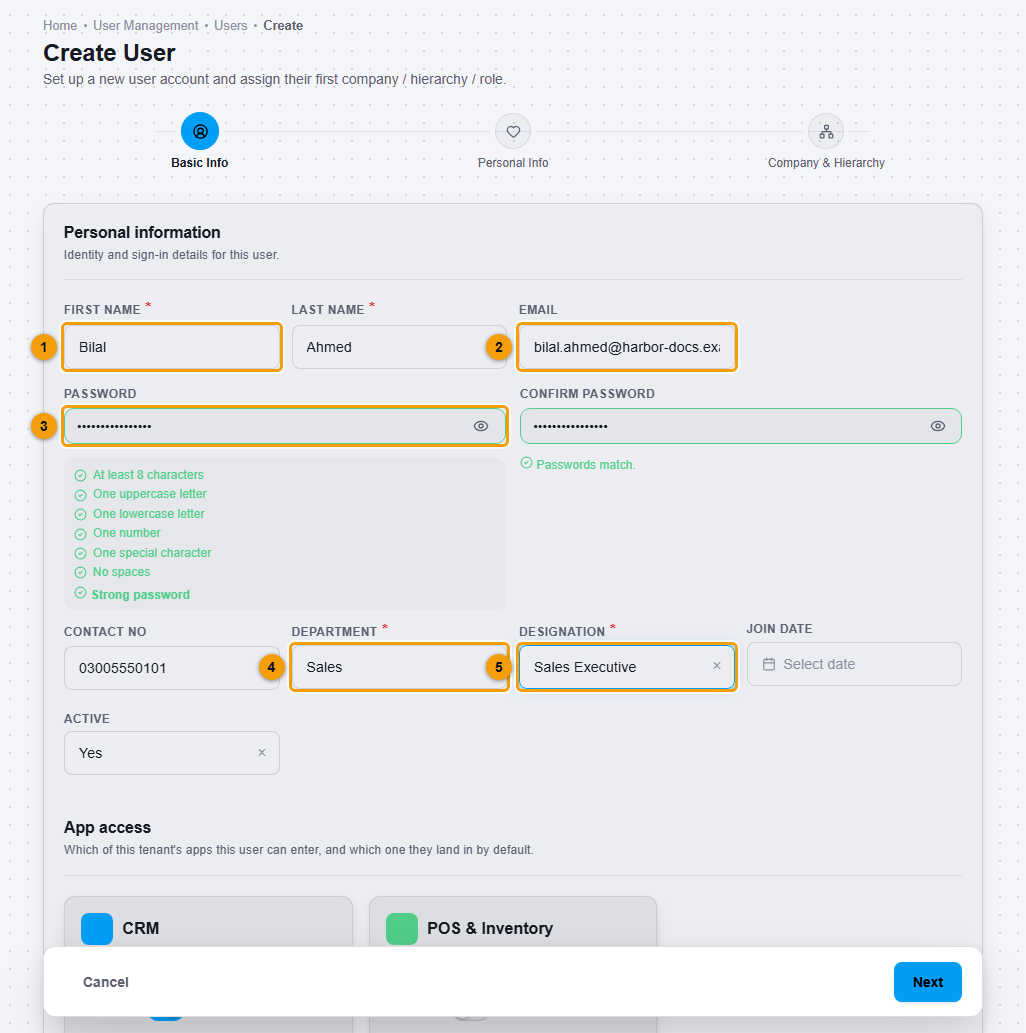
- Enter the First name and Last name (1), and the Email (2). The email is what the person signs in with.
- Enter a Password (3) and type it again in Confirm password. The page shows a checklist: at least 8 characters, one uppercase letter, one lowercase letter, one number and one special character, with no spaces.
- Choose the Department (4) and then the Designation (5). Both are required. Choose Department first, because Designation depends on it.
- Under App access, each app shows Granted or Not granted. Use the Access button to choose which apps this person can open.
- Click Next.
Step 2: Personal Info
- These details are optional, for example date of birth and address. Click Next.
Step 3: Company & Hierarchy
- Click + Add Assignment. Choose the Company, then each level below it: Business Group, Legal Entity, Operating Unit and Sub Unit. Each box fills after you pick the one before it.
- Choose the Role. The list contains only roles from your own place in the hierarchy and the places beneath it.
- Mark the assignment as Primary.

- Click Create User.
What happens next
The person appears in the Users list with their designation, company and role.
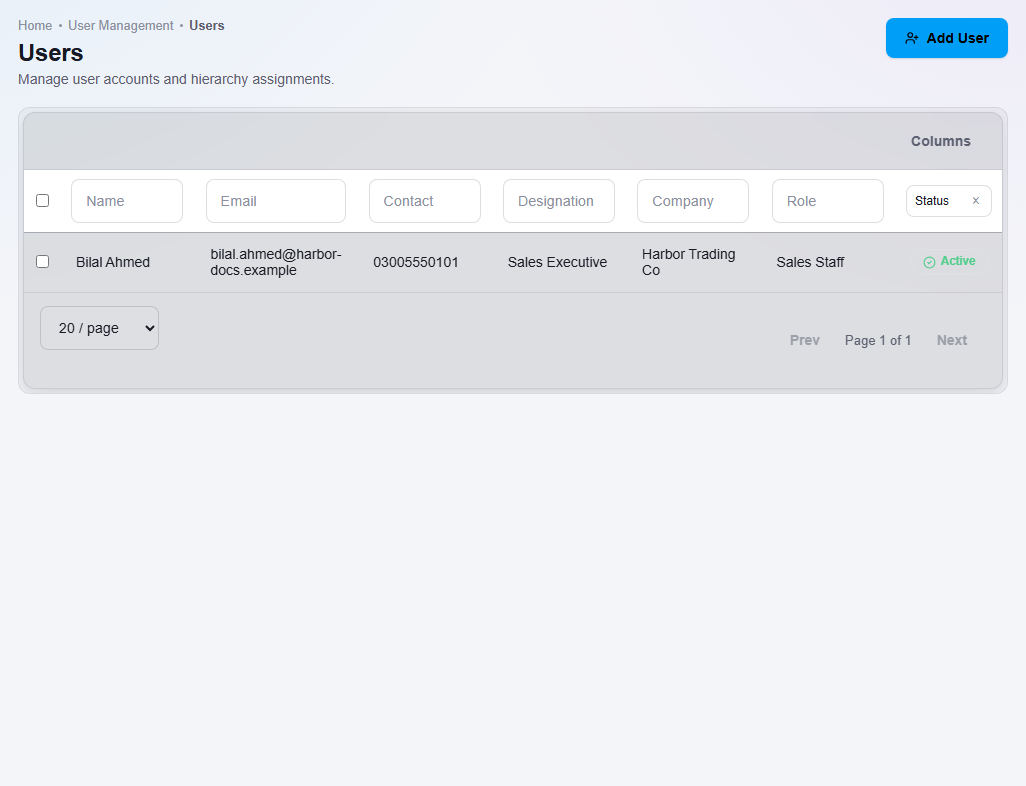
They can sign in with their email and password.
Important notes
- Every user needs at least one assignment to a Sub Unit with a role. One assignment must be primary.
- To give someone more than one place or role, click + Add Assignment again.
- Every user uses one User seat of your plan. A staff member added in Education, under HR, Staff, also uses one seat. Student portal logins do not use seats. See Education plans, limits and combining apps.
- If you have reached your plan's user limit, ask to add more users or move to a bigger plan. See Your plan.