Users, Roles & Permissions
Roles
All plans · 3 min read · Updated 18 October 2026
What this does
A role is a set of permissions for a type of job, such as Sales Staff. When you give a person a role, they can do what the role allows and nothing more.
Steps
- Open User Management, then Roles.
- Click Add Role. The Create Role page opens with three steps: General Information, Permissions and Review.
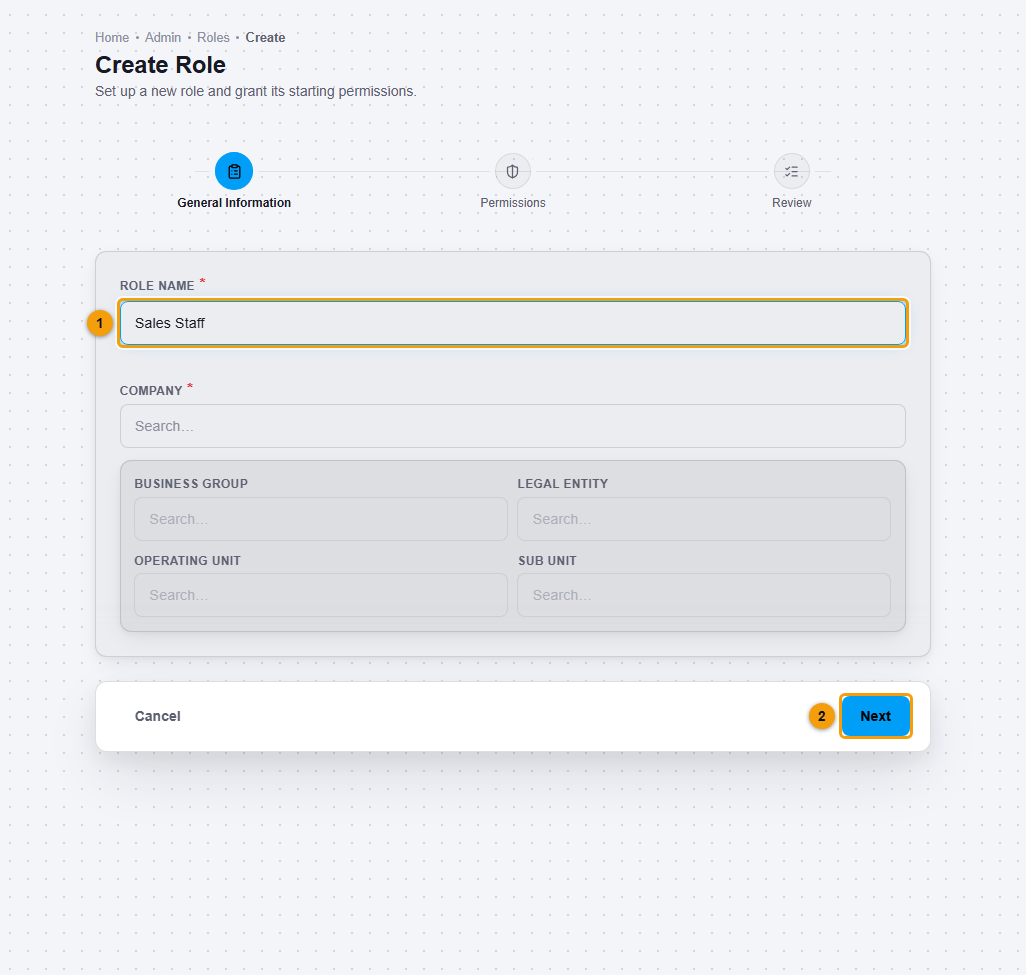
Name the role (1), then click Next (2).
- Enter the Role name (1), for example Sales Staff. If you have more than one company, choose the Company. Then choose the Hierarchy (see below). Click Next (2).
- On the Permissions step, choose what the role can do.
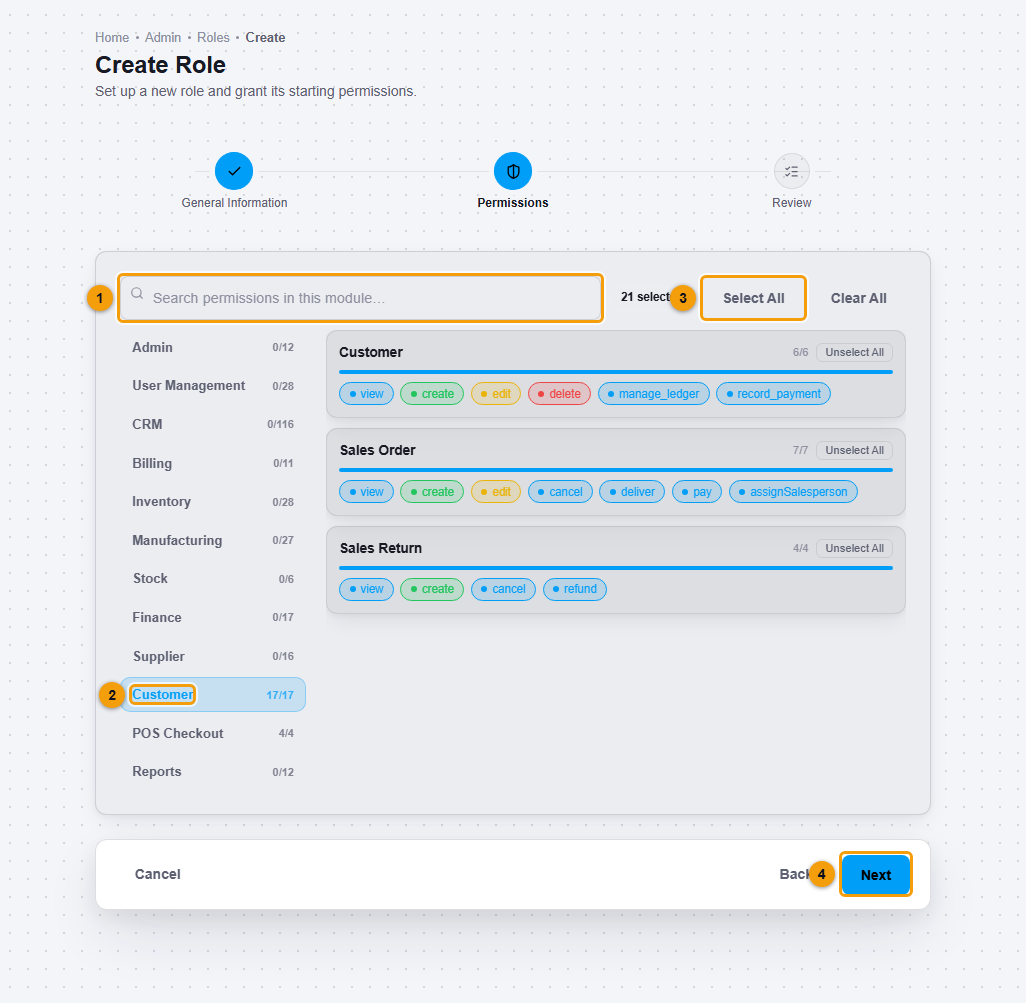
Search (1), pick a module (2), Select All (3) and Next (4). - The list on the left shows modules, such as Customer, Inventory and POS Checkout, with how many permissions you picked in each.
- Click a module (2). Each feature shows buttons such as view, create, update and delete. Click the ones you want, or click All for that feature.
- Click Select All (3) to pick every permission in the module you are viewing.
- Use the search box (1) to find a permission.
- Click Next (4).
- Check the Review page. It shows the role name and how many permissions are selected in each module.
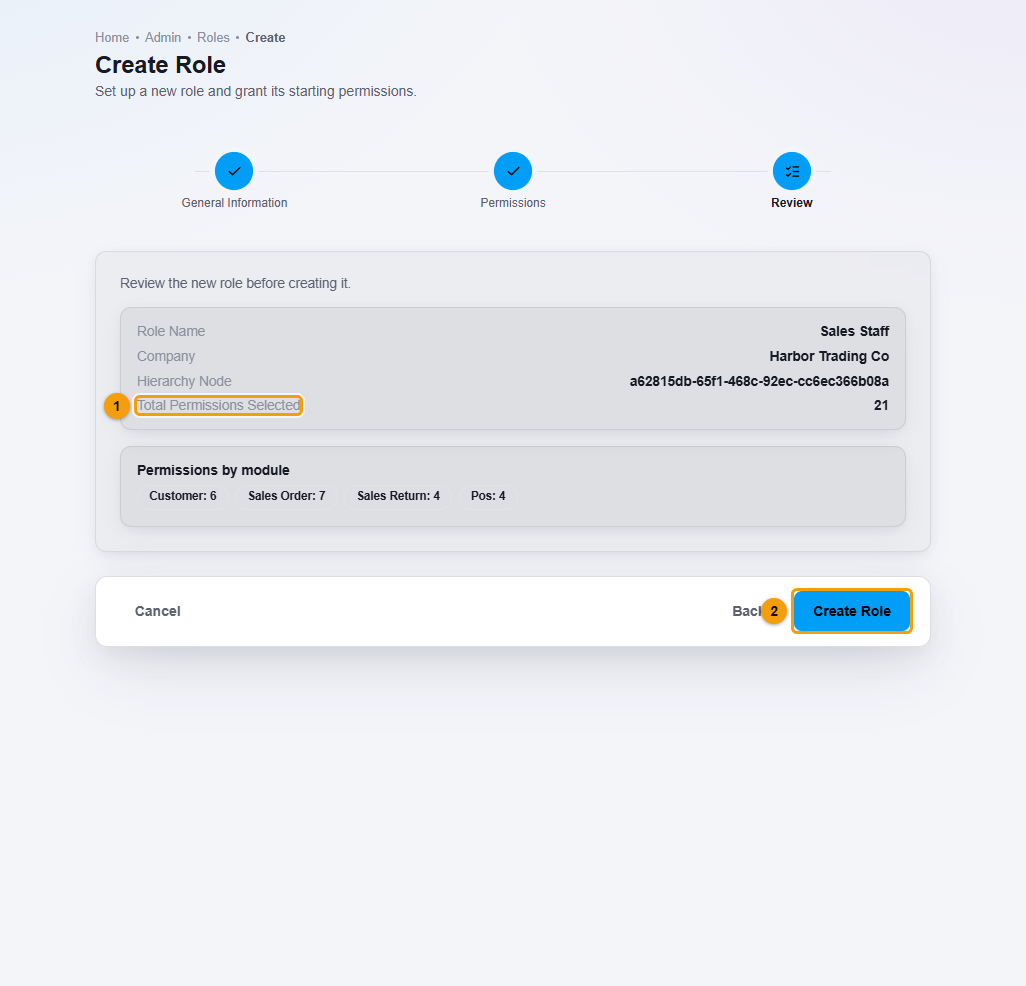
Check the summary, then click Create Role.
- Click Create Role.
Choose the hierarchy of a role
Every role belongs to one place in your hierarchy: a Business Group, a Legal Entity, an Operating Unit or a Sub Unit. On General Information, the Hierarchy box asks Where does this role belong?
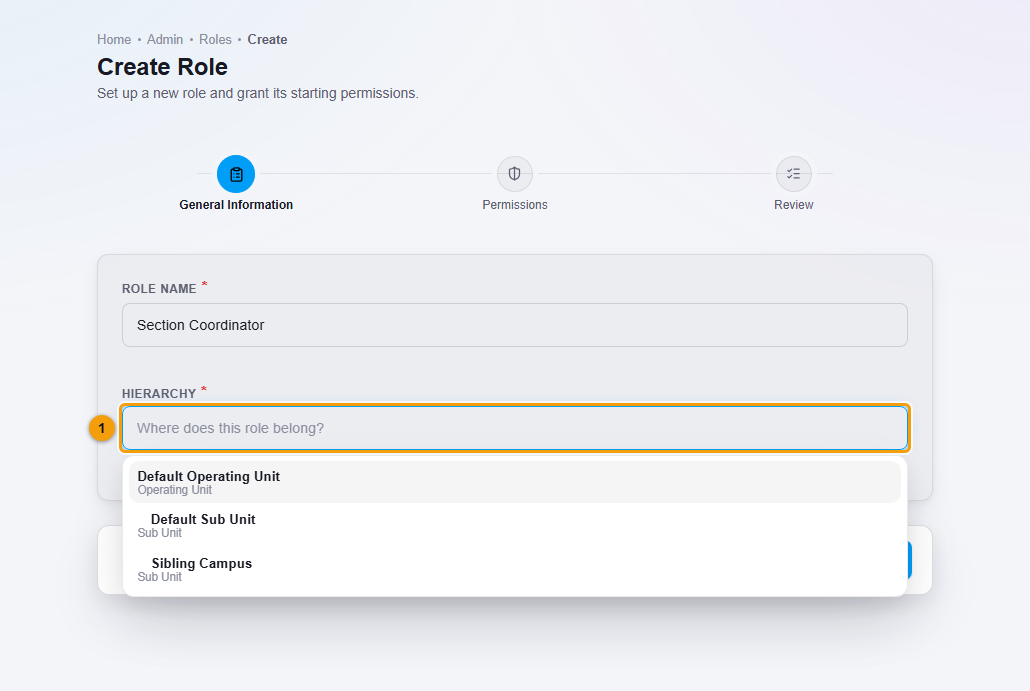
- The list shows only the places you are allowed to manage: your own place and the places beneath it.
- A user at a higher level, for example an Operating Unit manager, can create and manage roles for the Sub Units beneath them.
- A user at a lower level cannot create a role in a parent, a sibling or an unrelated branch, and those places never appear in the list.
- The hierarchy of a role is fixed when you create it. Only its permissions can be changed later.
The role and staff lists you choose from when you add a user or a staff member follow the same rule. You see only the roles of your own place and the places beneath it.
What happens next
The role appears in the Roles list with its number of permissions and Assigned users.
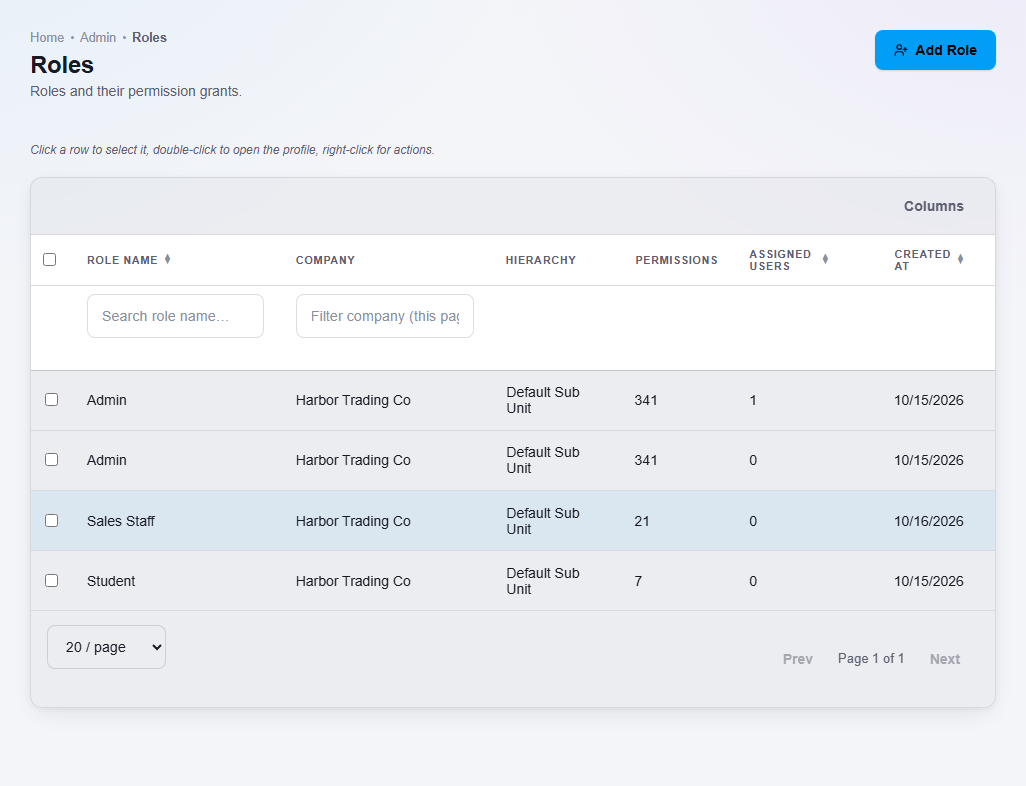
To see or change a role later, double-click it in the list.
Important notes
- Only permissions that your plan includes are useful. A role cannot unlock a feature your plan does not have.
- For a teacher, give only what the job needs, for example marking attendance and entering marks. The Subjects and Sections they teach come from their assignment on the Staff screen, not from the role. Giving a role the permission to manage the learning tools gives access to every Subject and Section. See Staff and staff attendance.
- Start with the fewest permissions a job needs. Add more if the person cannot do something they need.