Users, Roles & Permissions
Edit a user and change where they work
All plans · 2 min read · Updated 16 October 2026
What this does
You can change a staff member's details after you add them, switch their account off, and change which branch or unit they work in.
Plan, role and place: how they fit together
- Plan is what your business is entitled to. It decides which apps and features exist for the business.
- Role (permissions) is what a staff member may do inside those features.
- Hierarchy is the place in your company tree where the staff member works, for example Main Branch / Head Office / Sales Counter. See Your company and branches.
A staff member needs all three: a plan that includes the feature, a role that allows the action, and a place in your hierarchy.
Open the user's menu
- Open User Management, then Users.
- Right-click the person.
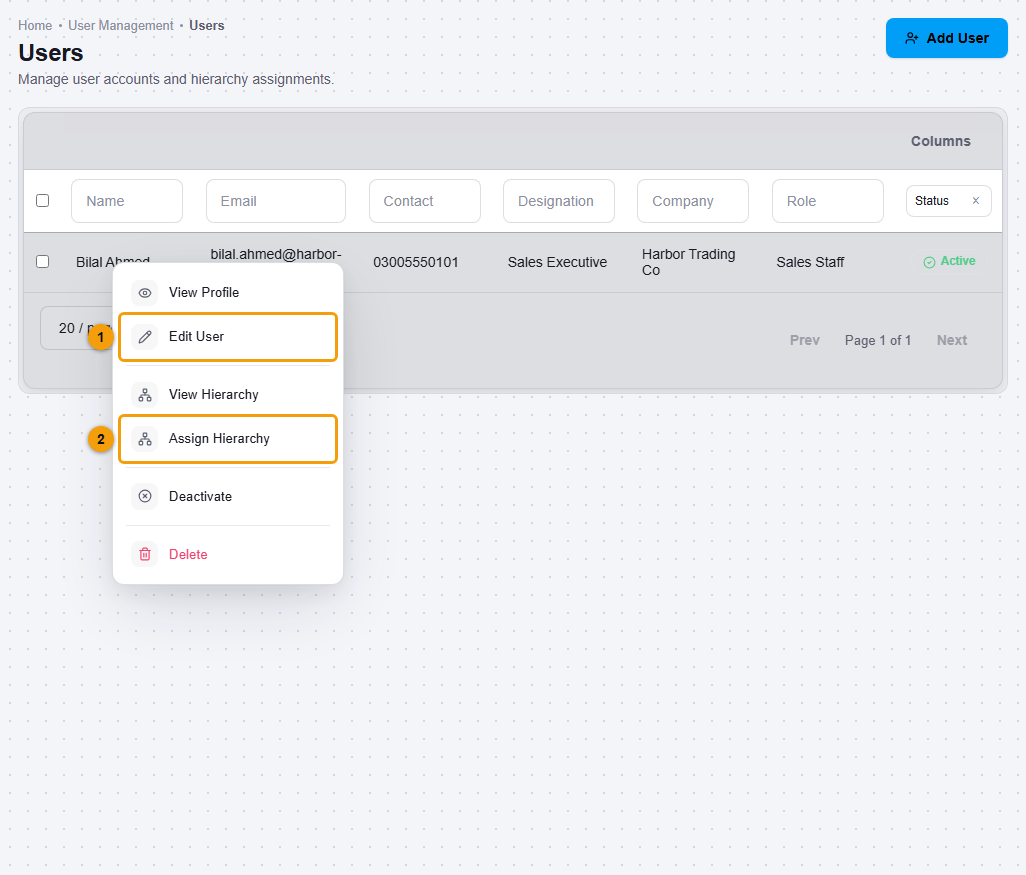
Edit User (1) and Assign Hierarchy (2).
The menu has View Profile, Edit User, View Hierarchy, Assign Hierarchy, Deactivate and Delete.
Edit the details
- Choose Edit User (1).
- Change the name, contact number, Department, Designation or join date. Leave Password empty to keep the current password.
- Use the Active setting to switch the account on or off.

The basic details. App access shows which apps the person can open.
- Use the Access button next to an app to grant or remove that app for this person.
- Use the buttons at the bottom of the page to continue and save.
Move someone to another branch or unit
- Choose Assign Hierarchy (2).
- In the tree, click a Sub Unit, or click Assign here (1) on a Business Group, Legal Entity or Operating Unit row.
- Check Assignments to save (2). Each row shows the full place and the role, and the star marks the primary place.
- Click Save Assignments (3).
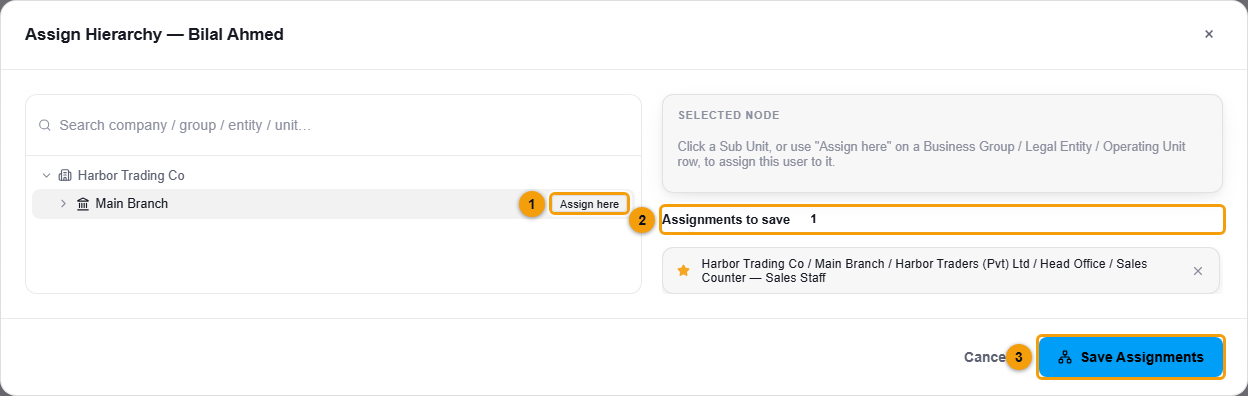
Use View Hierarchy to see where a person is placed without changing it.
Important notes
- Changing a role, a place or an app does not change your plan. If a feature is not on your plan, no role can unlock it.
- Deactivate and Delete are in the same menu. Check the person before you use either.