Getting Started
Complete your company setup
All plans · 2 min read · Updated 16 October 2026
What this does
The first time you sign in to a new business, NEXTOREx asks you to set up your company. You do this once. It creates your company and the structure your staff and records sit in.
Before you start
- Have your company name and currency ready. For Legal Entity you will also need the country.
Steps
The page says Welcome, let's set up your workspace and shows six steps.
- Company: enter your Company name (1), choose the Currency (2), and optionally add a phone number. Click Next (3).
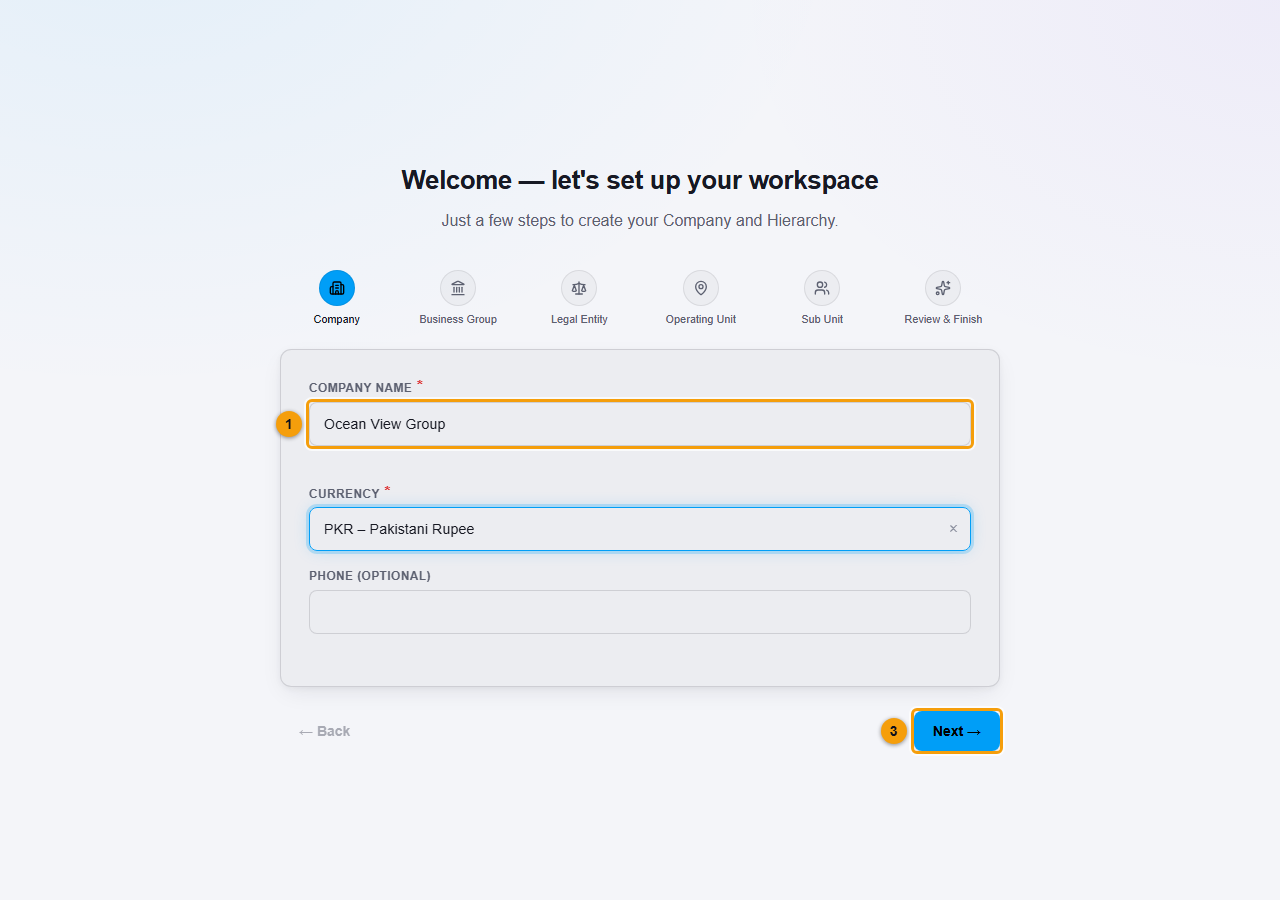
Company name, currency and Next.
- Business Group: enter a name, for example Main Branch. Click Next.
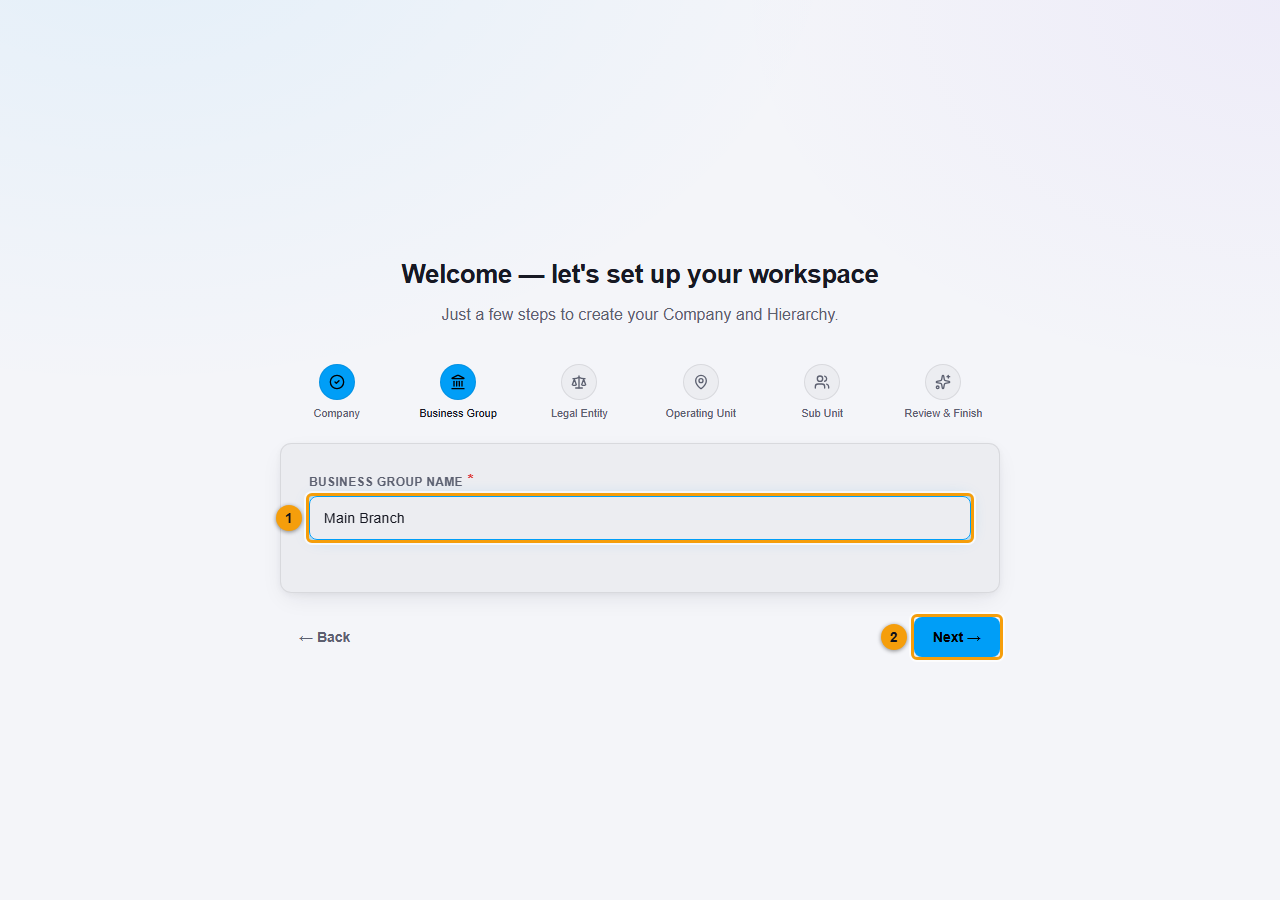
Name your first branch or division.
- Legal Entity: enter the name of your legal entity. Choose the Currency and Country. The registration number, STRN and address are optional. Click Next.
- Operating Unit: enter a name, for example Head Office. Country, state and city are optional. Click Next.
- Sub Unit: enter a name for the smallest unit where your staff work, for example Sales Counter. Click Next.
- Review & Finish: check the summary of your company and units, then click Finish Setup.
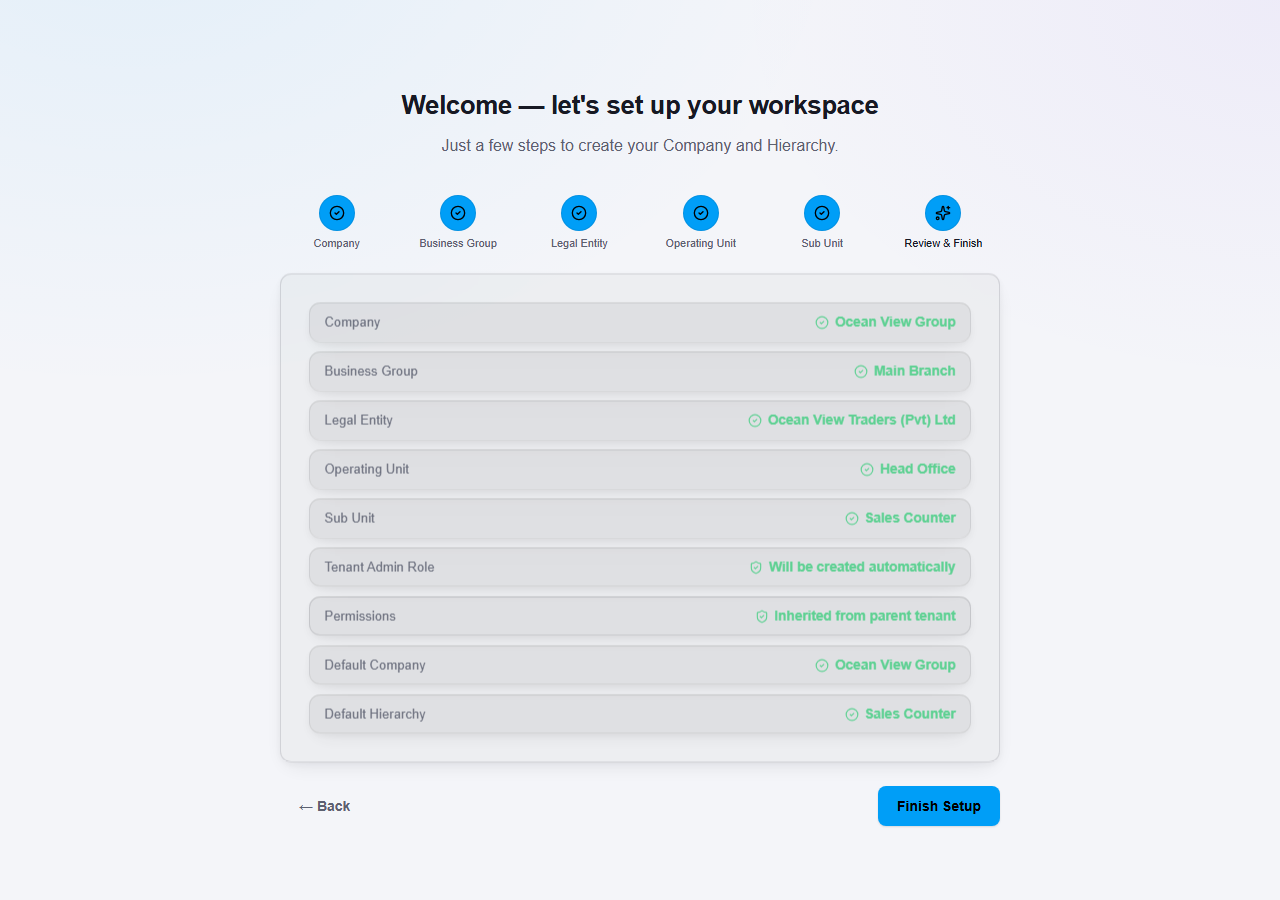
Check everything, then click Finish Setup.
What happens next
NEXTOREx creates your company, your first Admin role and your default place to work, then opens the app. You can now add users, products and customers.
Important notes
- Every step needs a name before you can continue.
- Use a company name you have not entered before. If the wizard shows an error and you start again with the same name, it may fail. Use a different name or ask support.