Getting Started
Your profile, password and preferences
All plans · 1 min read · Updated 16 October 2026
What this does
The Settings page is where you look after your own sign-in details and how NEXTOREx shows dates and times to you.
Open Settings
Open the Settings page. The Profile tab opens first.
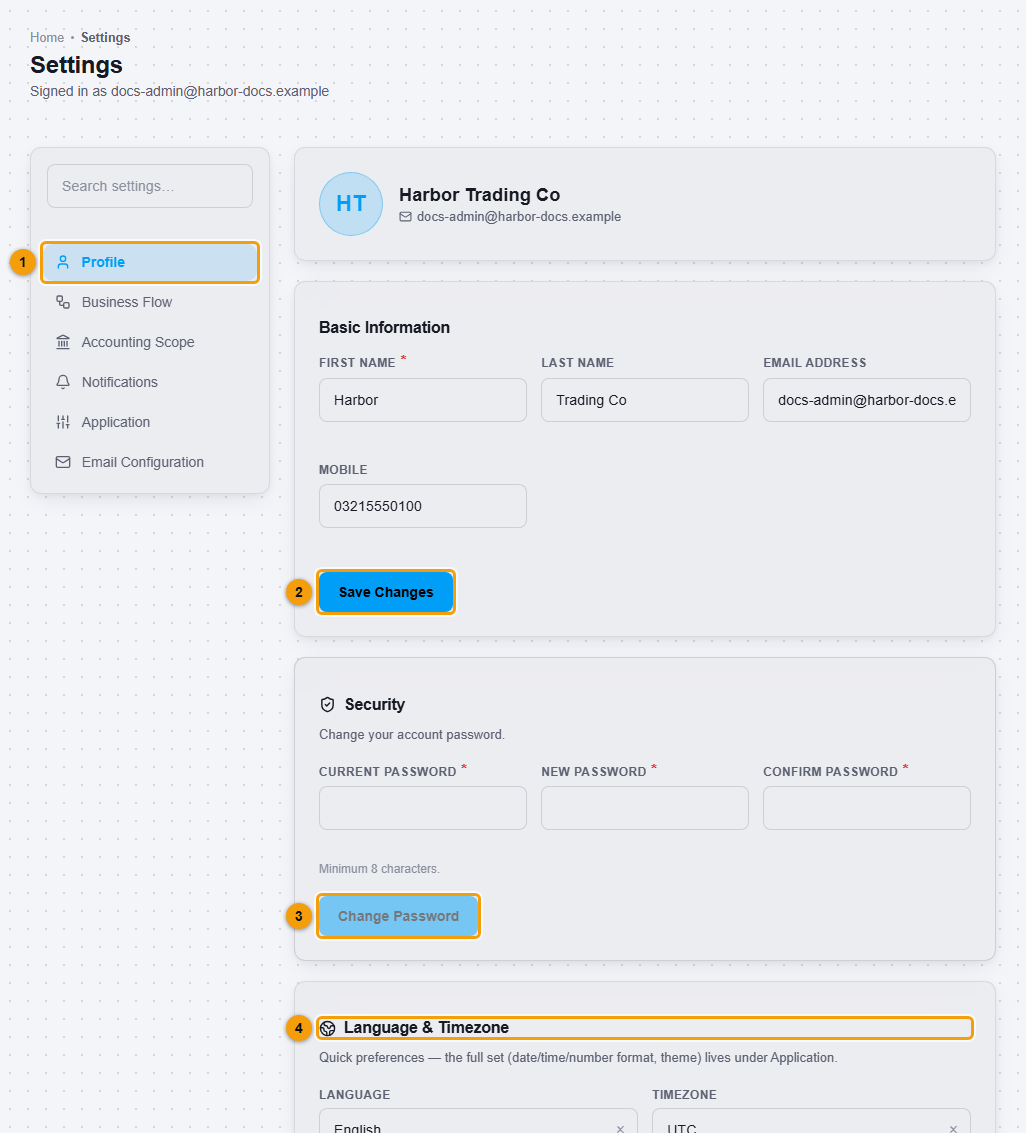
The left side lists the settings groups: Profile, Business Flow, Accounting Scope, Notifications, Application and Email Configuration.
Update your details
- Under Basic Information, change your First name, Last name or Mobile.
- Click Save Changes (2).
Change your password
- Under Security, type your Current password.
- Type a New password and type it again under Confirm password. Use at least 8 characters.
- Click Change Password (3).
Set your language and time zone
Under Language & Timezone (4), choose your Language and Timezone and click Save. Under Date & Time Format choose how dates and times appear, then click Save Format. The example line shows what the format looks like.
Important notes
- You can only change your own password here. An administrator can reset a staff member's password from the user's edit page. See Edit a user.