Getting Started
Sign in and understand the dashboard
All plans · 1 min read · Updated 16 October 2026
What this does
This guide shows how to sign in and find your way around.
Steps
- Open the sign-in address you were given in your web browser.
- Enter your Email (1) and Password (2).
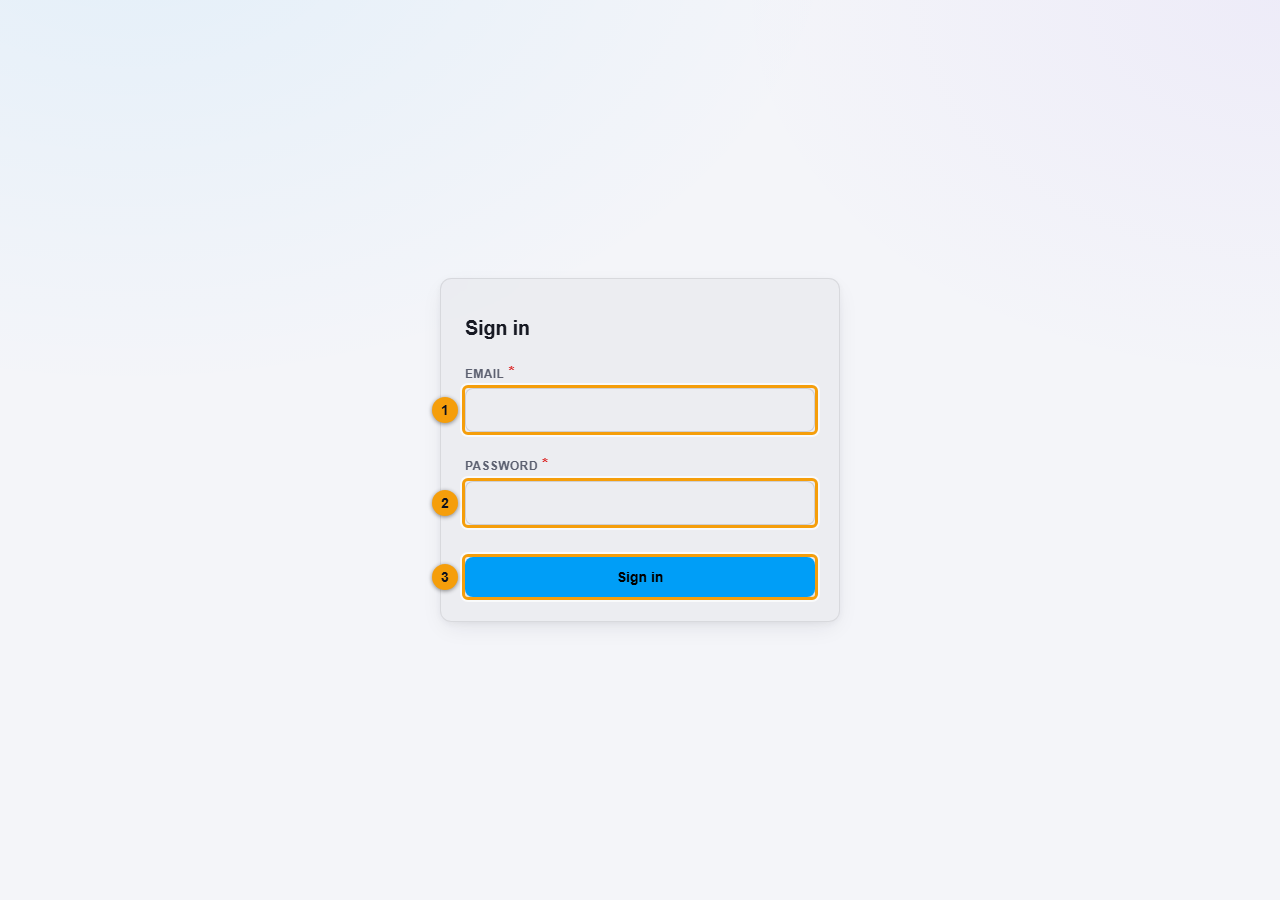
Email (1), password (2) and Sign in (3).
- Click Sign in (3).
What happens next
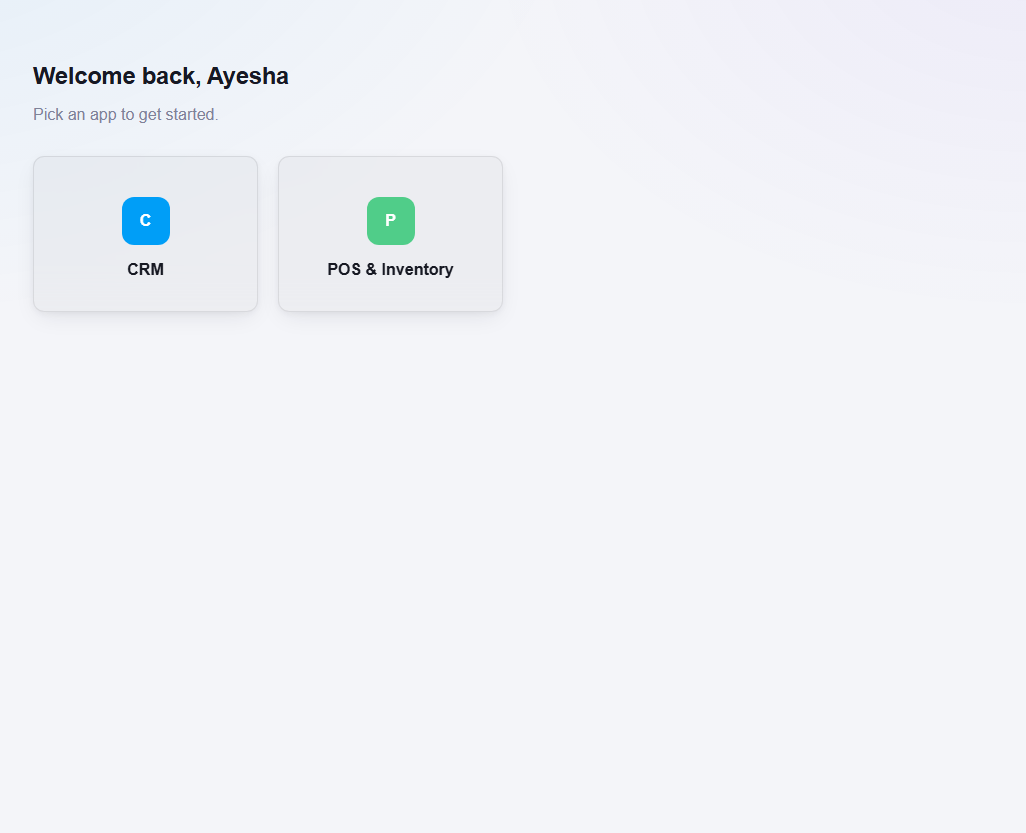
NEXTOREx opens an app for you. If your plan has more than one app, you may land on a page that says Welcome back with a card for each app, such as CRM and POS & Inventory. Click a card to open that app.
Inside an app you will see:
- Left menu: the groups and pages for the app. Use Filter menu at the top to search it. Click Collapse at the bottom to make it narrower.
- Top bar: your business name, the place in your company you are working in, a Switch app button, the light and dark mode button, notifications and your profile picture. Click your picture for Settings and Sign out.
- Page area: the page you opened, with a title and buttons such as Add Product.
On most list pages:
- Click a row to select it.
- Double-click a row to open it.
- Right-click a row to see its actions.
Important notes
- If you cannot see a menu item, your role or plan may not include it. See How access works.