Accounting & Banking
Reverse a voucher
Business and above · 1 min read · Updated 16 October 2026
What this does
A posted voucher is never edited or deleted. If it is wrong, you reverse it. NEXTOREx posts a new voucher with the debits and credits swapped, and marks the original as Reversed. Then you post the correct voucher.
Before you start
You need permission to reverse vouchers. Know the voucher you want to reverse.
Steps
- Open Finance, then Voucher.
- Right-click the voucher in the list.
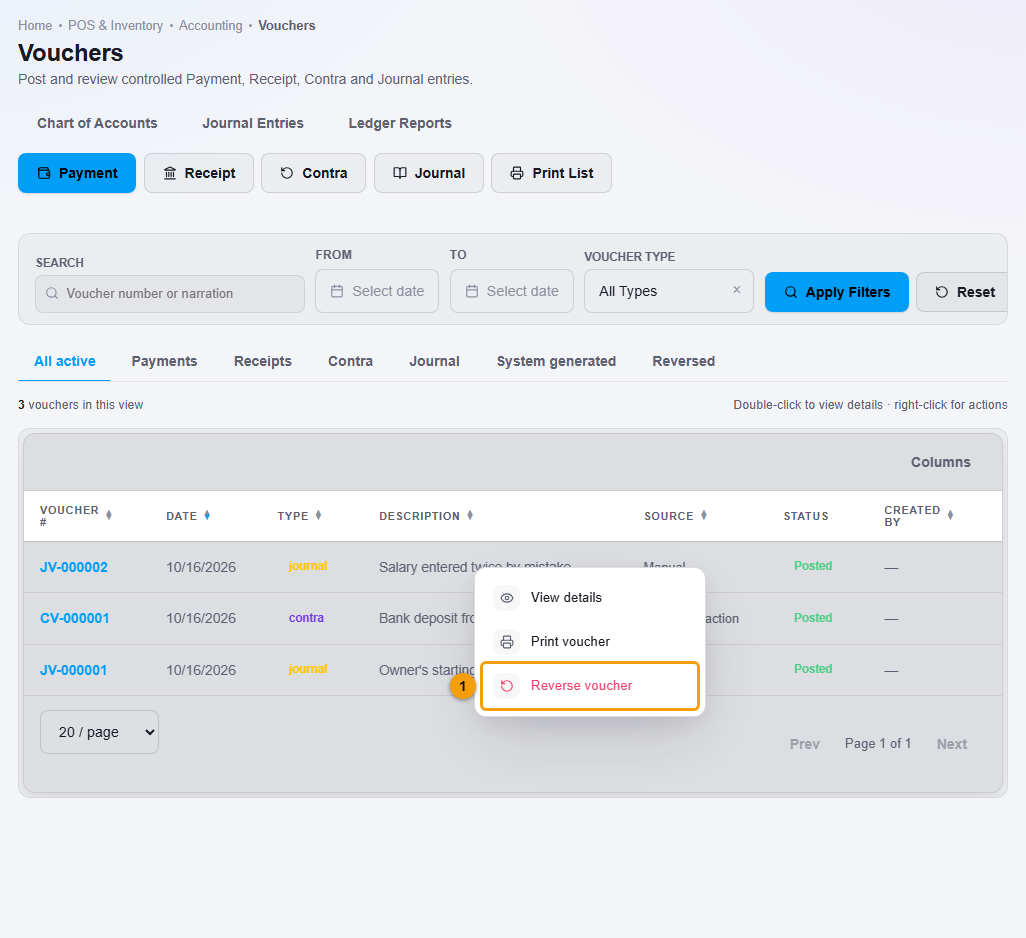
Reverse voucher (1).
- Choose Reverse voucher (1).
- Type a Reason (1) if you want to. It becomes part of the new voucher's narration.
- Click Yes, Reverse (2).
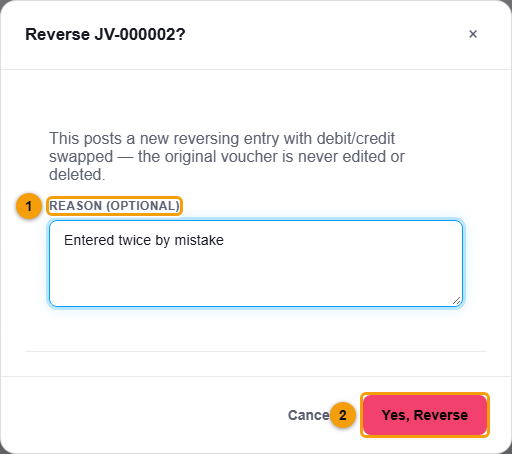
Reason (1) and Yes, Reverse (2).
You can also open the voucher and click Reverse at the bottom of the details window.
What happens next
- The original voucher, for example JV-000002, gets the status Reversed.
- A new voucher, for example JV-000003, is posted with the narration Reversal of JV-000002, followed by your reason.
- Open the Reversed tab to see all reversed vouchers.
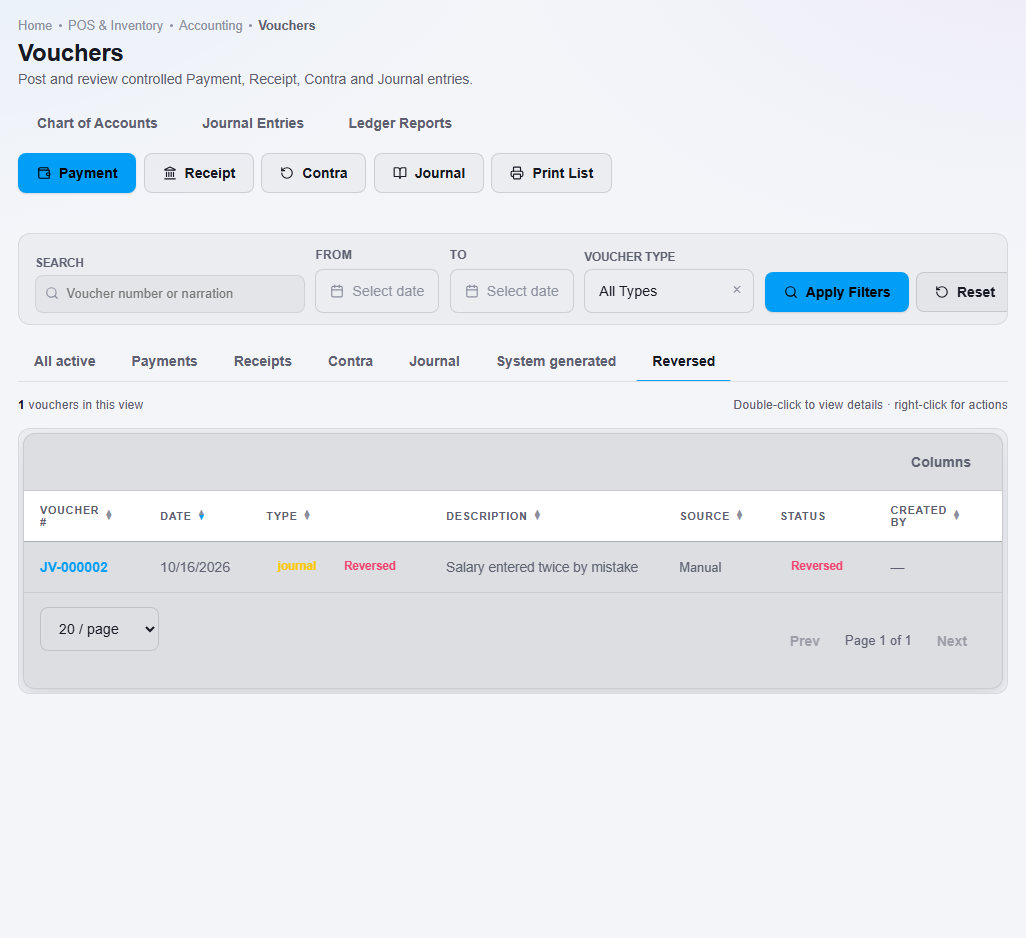
Reversed vouchers stay on record.
- Journal Entries lists both the original and the reversal, so the history is complete.
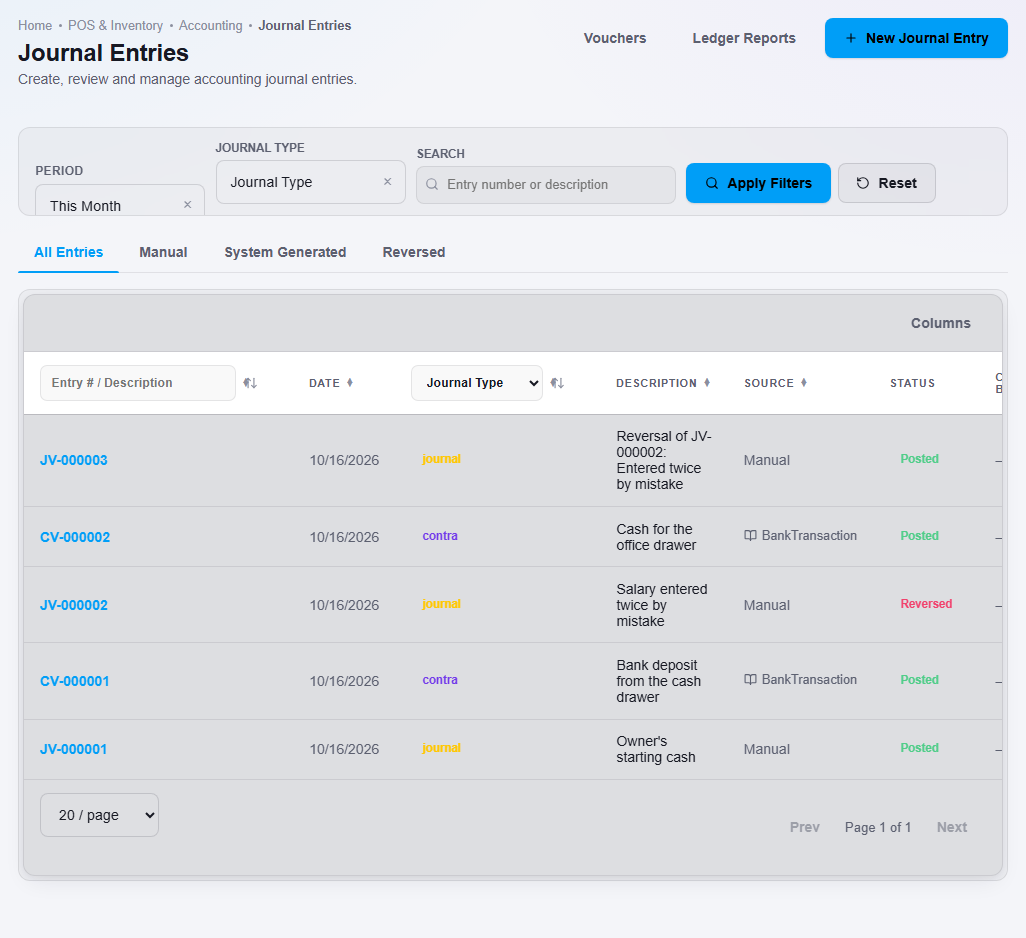
The original is marked Reversed and the reversal is posted.
After reversing, post the correct voucher.
Important notes
- A reversal does not delete anything. The full history stays in your records for your accountant and auditors.