Accounting & Banking
Ledger reports
Business and above · 1 min read · Updated 16 October 2026
What this does
Ledger Reports show every posting made to your accounts, with a running balance. Use them to find out how an account got to its balance.
Steps
- Open Finance, then Voucher, and click Ledger Reports. You can also open it from Chart of Accounts or Journal Entries.
- Choose a tab: General Ledger, Account Ledger, Customer Ledger or Supplier Ledger.
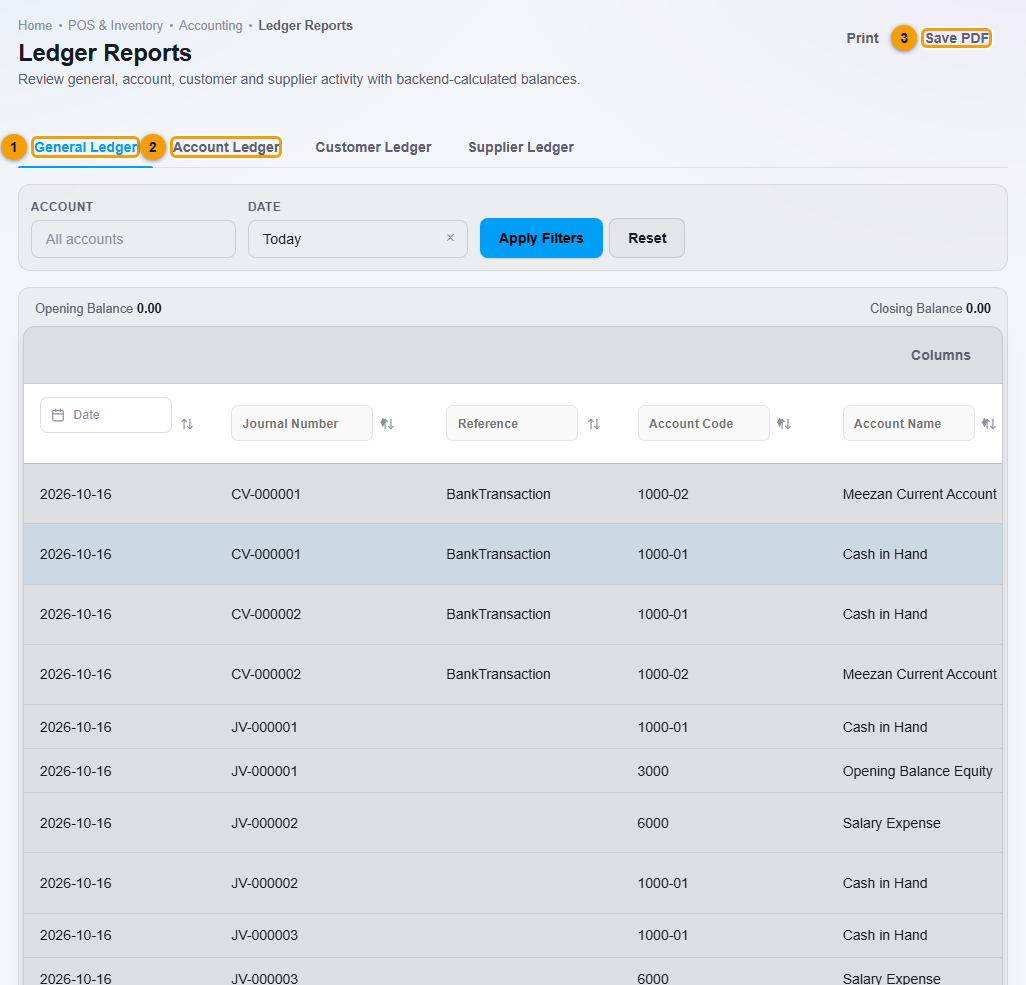
The tabs (1 and 2) and Save PDF (3).
- For General Ledger, set the date range and click Apply Filters to see the postings of all accounts.
- For Account Ledger, choose the Account and click Apply Filters (1).
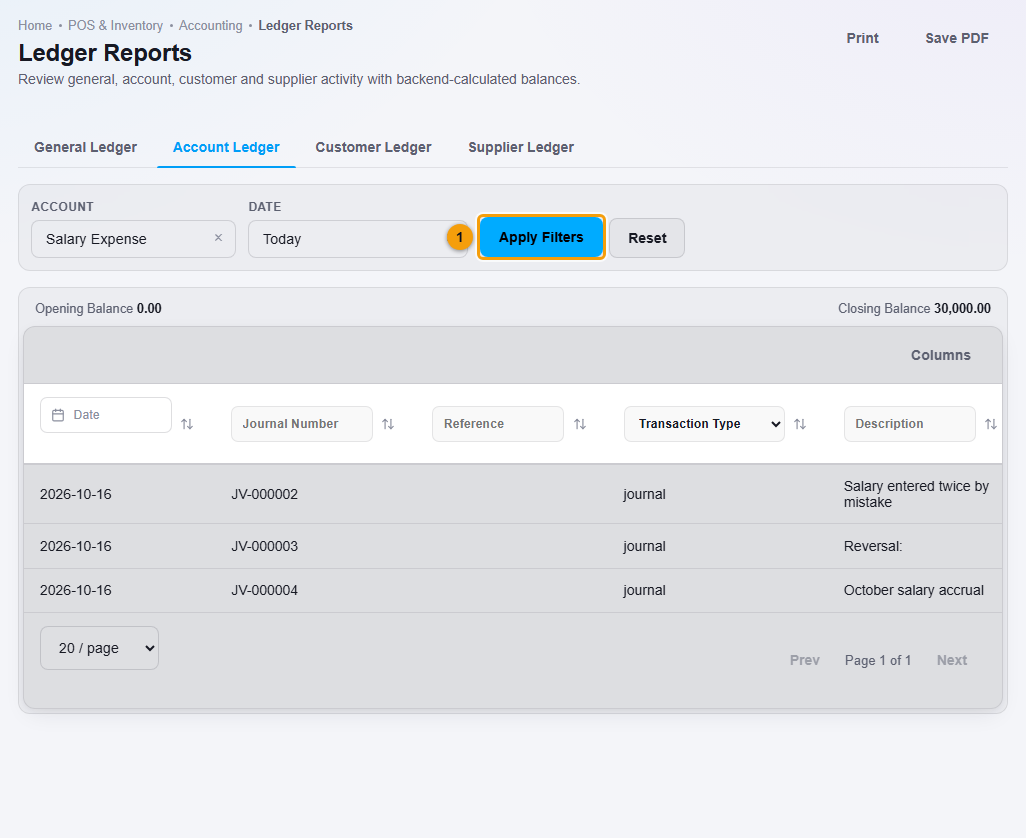
Choose the account, then Apply Filters (1).
- Read the Opening Balance and Closing Balance at the top. Each row shows the date, the voucher number, the source, the account, the description, the debit, the credit and the running balance.
- Use Print or Save PDF to keep a copy.
What happens next
Rows from a reversed voucher show the status Reversed, and the reversing voucher is a separate row. The status filter lets you show Posted or Reversed rows.
Important notes
- Customer and supplier statements are explained in Customer and supplier ledgers.
- There is no separate Trial Balance screen in NEXTOREx. Use the General Ledger and the Balance Sheet.