Inventory
Batches and expiry dates
Starter and above · 2 min read · Updated 16 October 2026
What this does
Use batch tracking for products that come in lots and may expire, such as food, medicine or cosmetics. Each time goods arrive you record a Batch number and, if you wish, a manufacture date and an expiry date. The Batches page then shows how much of each batch is left and how soon it expires.
Before you start
- You need a supplier, a warehouse and a purchase order that has been marked as ordered. See Purchase orders.
Steps
1. Set up the product
- Open Inventory, then Product, and click Add Product.
- Choose Batch / Expiry in Tracking type (2).
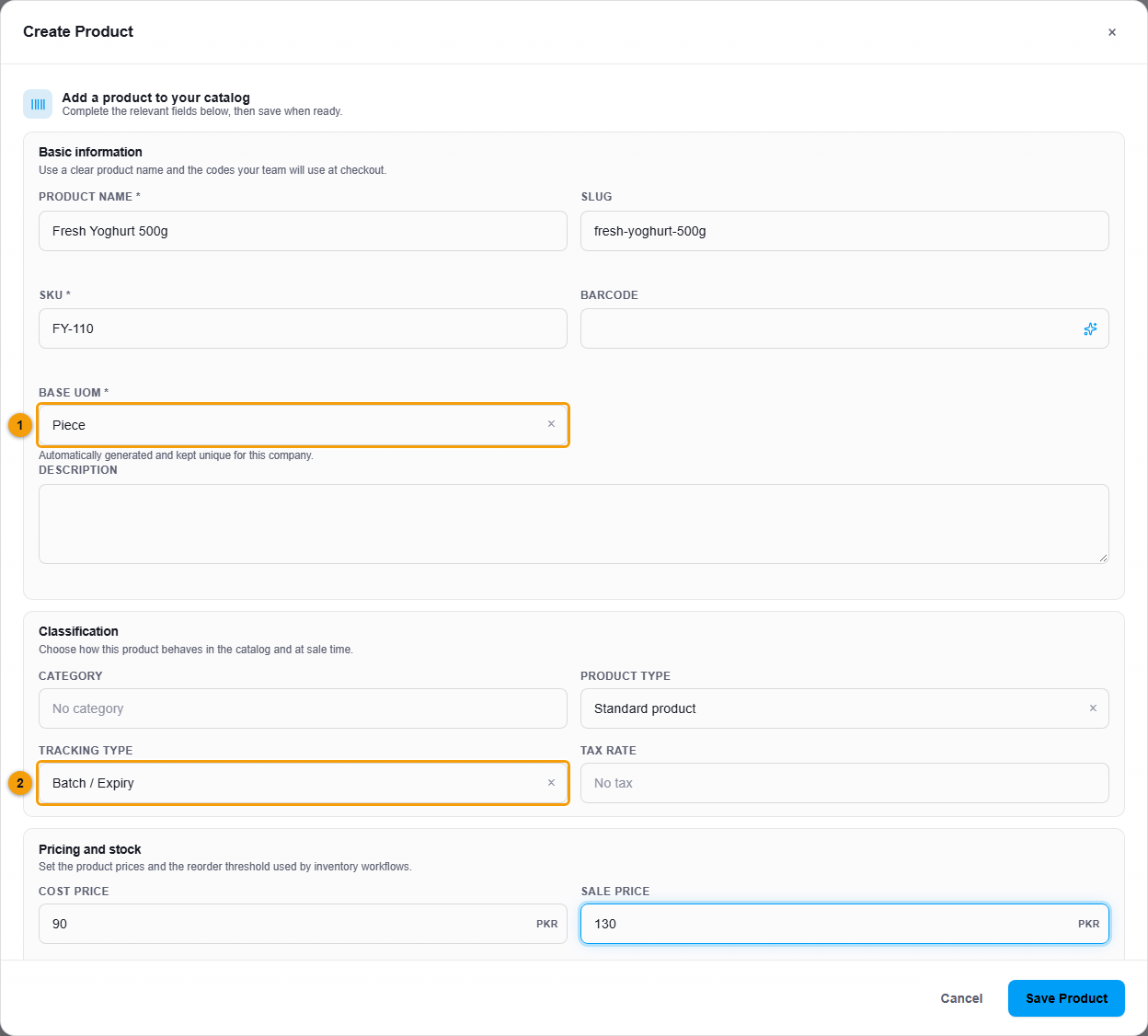
Base UOM (1) and Tracking type (2).
- Fill in the other details and click Save Product.
2. Receive the batch
- Open the purchase order and click Receive goods. See Receive goods from a supplier.
- In Batch details, type the Batch number (1). It is required for a batch tracked product.
- Optionally choose the Manufactured (2) and Expires (3) dates.
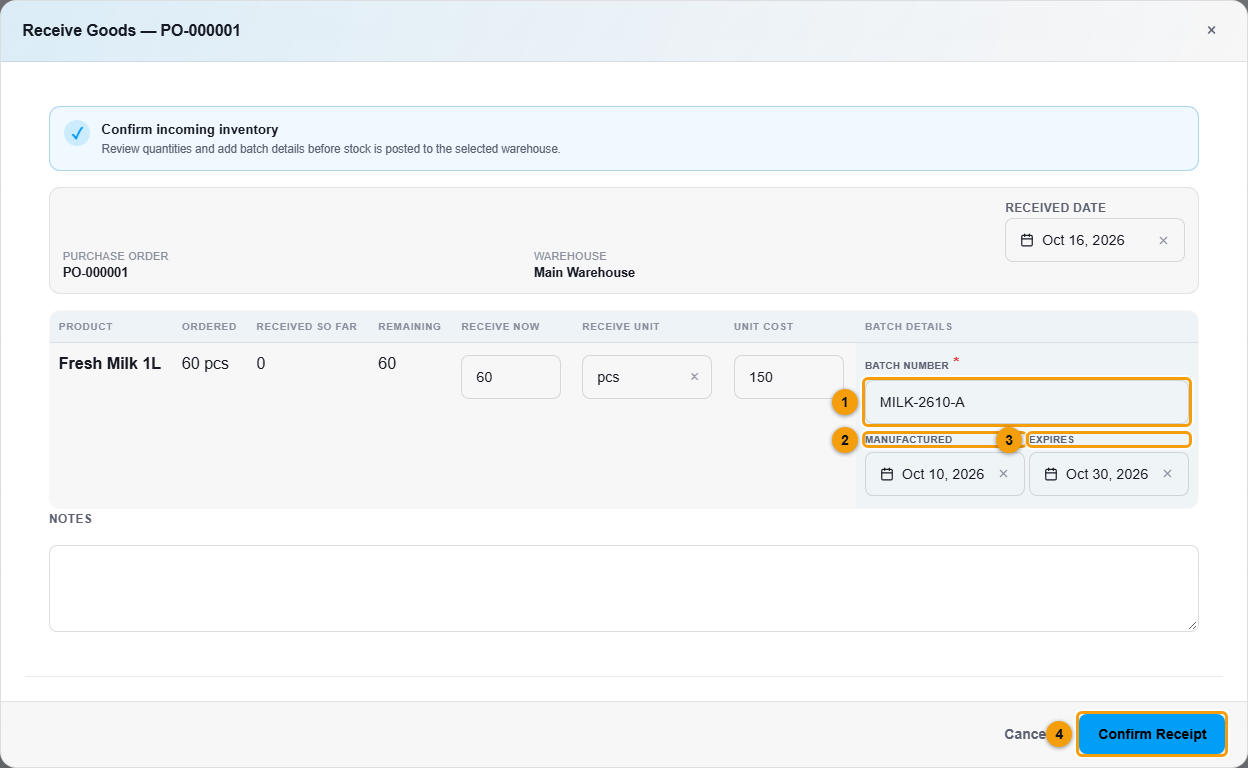
Batch number (1), Manufactured (2), Expires (3) and Confirm Receipt (4).
- Click Confirm Receipt (4).
3. Check the batch
Open Stock, then Batches. Each row shows the batch number, product, warehouse, manufacture and expiry dates, the Expiry Status and the quantity On hand.
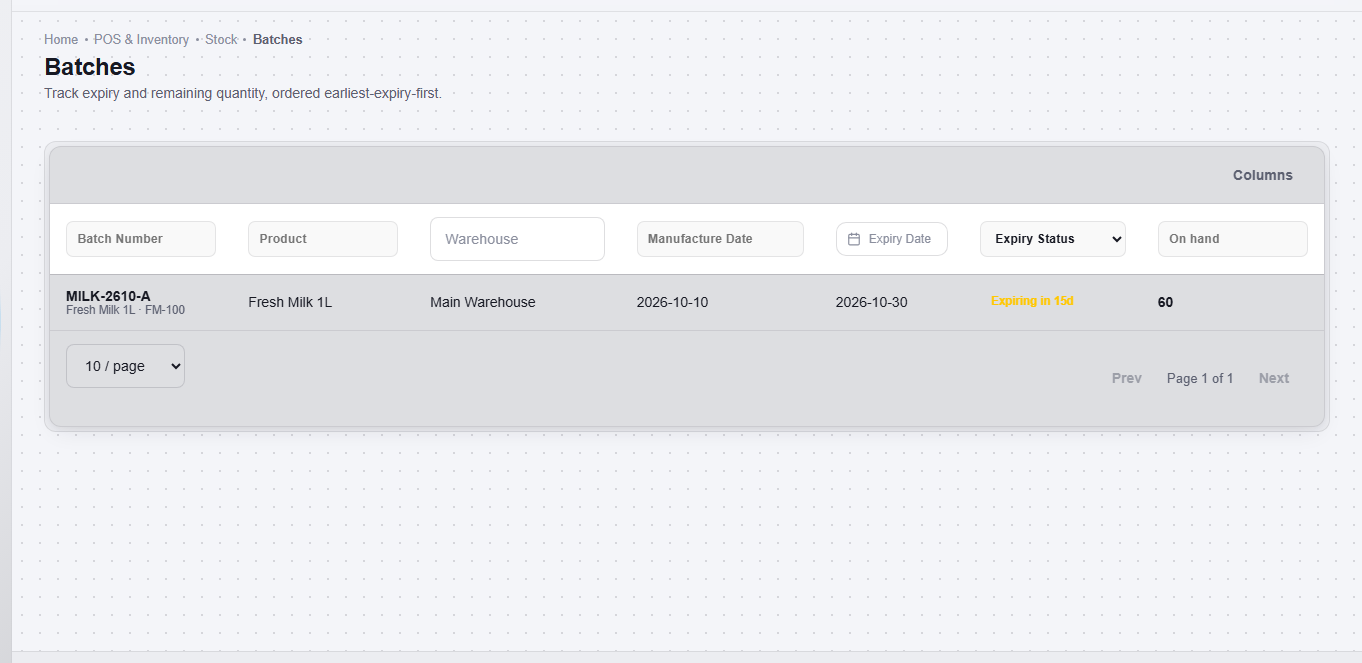
Use the filters at the top of each column to find a batch. Expiry Status can be set to Valid, Expired or No expiry date.
What happens next
- The batch is created in the order's warehouse with the quantity you received. The same quantity is added to Stock levels and appears in Stock movements.
- If you receive more of the same batch number into the same warehouse later, the existing batch quantity goes up. It does not create a second row.
- The purchase order shows the goods as received, as for any other product.
Important notes
- If a batch number is missing, NEXTOREx does not receive the goods. Nothing is saved, and you can correct the line and try again.
- Batches are listed with the earliest expiry first.