Inventory
Serial numbers and bundles
Starter and above · 2 min read · Updated 16 October 2026
What this does
Two product settings sit on the Create Product window: Tracking type and Product type. They label a product as serial tracked or as a bundle. This guide explains exactly what each one does in the product today, so you can decide whether to use it.
Serial tracked products
- Open Inventory, then Product, and click Add Product.
- Choose Serial Number in Tracking type (2).
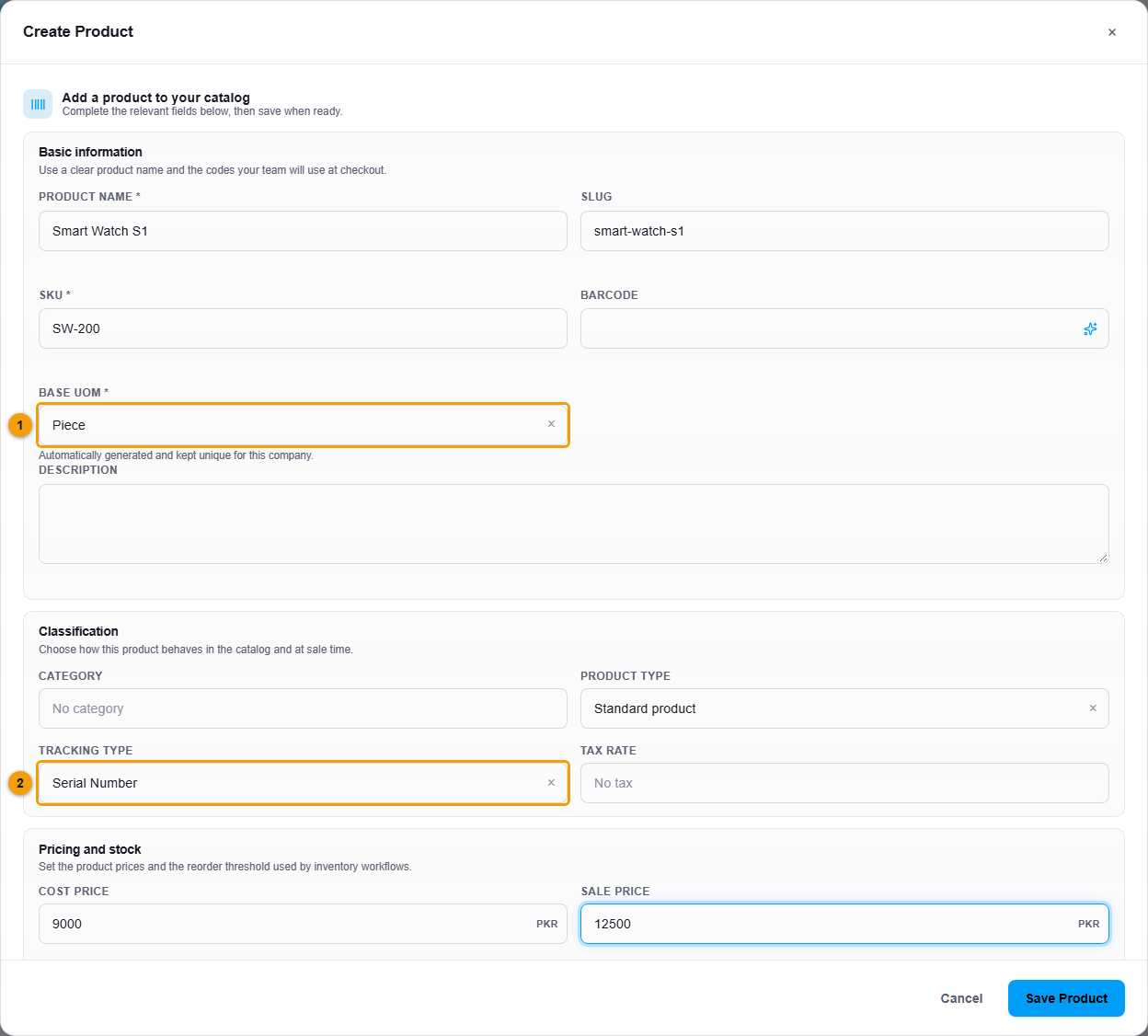
Base UOM (1) and Tracking type (2).
- Fill in the other details and click Save Product.
The product page then shows Tracking: Serial tracked. You buy it, receive it and sell it like any other product, and Stock Levels shows its quantity.
Bundle / Combo products
- Click Add Product.
- Choose Bundle / Combo in Product type (1).
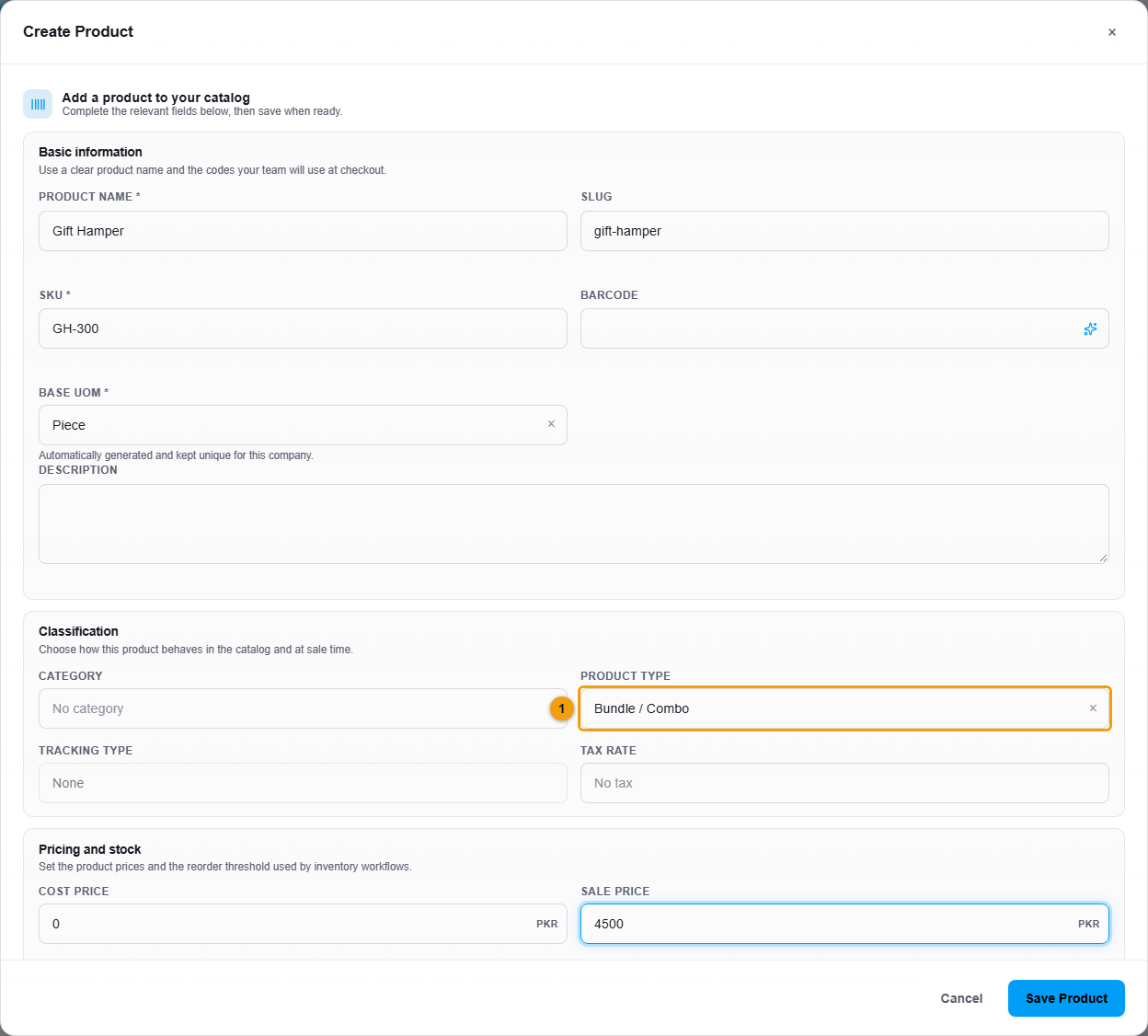
Product type (1). Bundles are not stock tracked directly.
- Enter the Sale price and click Save Product.
The product page shows Product type: Bundle / Combo. A bundle is not stock tracked directly, and it cannot have variants.