Inventory
Tax rates
Starter and above · 1 min read · Updated 16 October 2026
What this does
A tax rate is a named percentage, for example Sales Tax 18%. When you attach it to a product, sales orders for that product add the tax and show it separately from your sales.
Before you start
You need permission to manage inventory. Admins on plans that include Inventory have it by default.
Steps
- Open Inventory, then Tax Rate.
- Click Add Tax Rate (1).
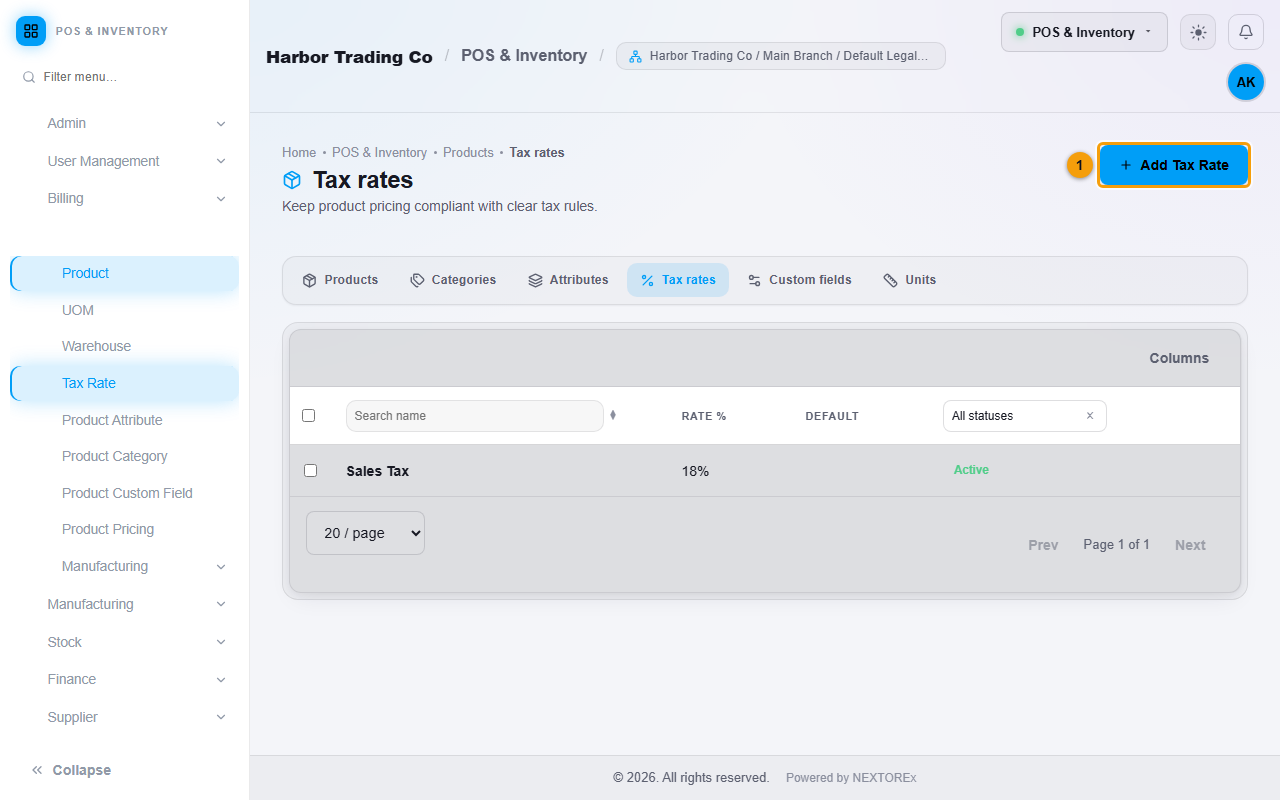
Your tax rates. Add Tax Rate (1). 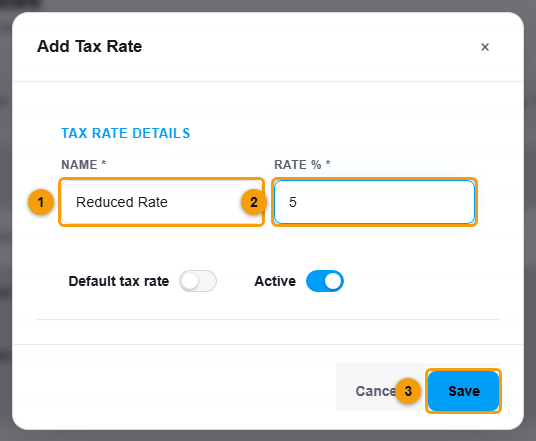
Name (1), rate (2) and Save (3).
- Enter the Name (1) and the Rate % (2).
- Switch on Default tax rate if most of your products use it.
- Click Save (3).
- Open a product, click Edit, choose the Tax rate, and click Update Product.
Important notes
- POS Checkout does not add tax to the cart. Sales orders do. See Sales orders.