POS & Sales
Sales orders
Starter and above · 2 min read · Updated 16 October 2026
What this does
A sales order is an order from a customer that you deliver and get paid for later. Use it when the customer does not pay at the counter, when you deliver goods after taking the order, or when the sale needs sales tax.
Before you start
Steps
- Open Customer, then Sales Order.
- Click Create Sales Order. The New Sales Order window opens.
- Under Customer, search for and choose the customer.
- Choose the Sales warehouse, the warehouse the goods will come from. The order date is today unless you change it.
- Under Order Items, search for a product by name, SKU or barcode and pick it. Set the Qty. The Unit price is filled in from the product. If the product has a tax rate, it is filled into Tax.
- Click Add product for more lines. Check the Order Summary on the right: subtotal, discounts, tax and grand total.
- Add notes if you need them. Customer-facing notes are for delivery instructions. Internal notes are for your team.
- Click Create Sales Order.
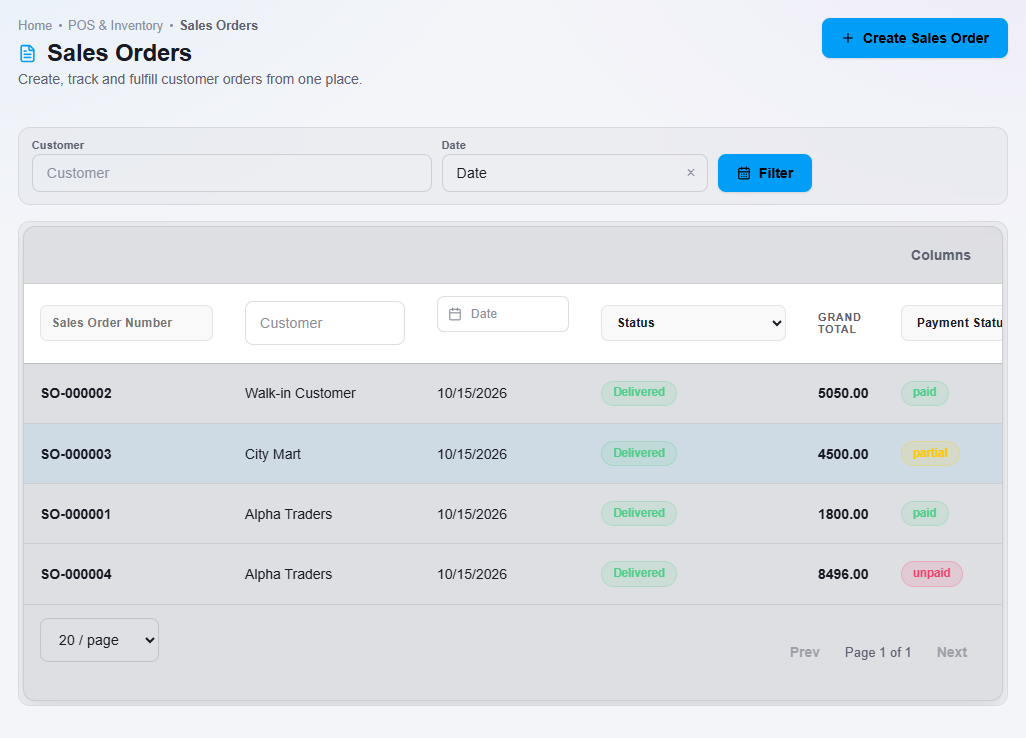
The order is saved as a Draft. Open it from the list by double-clicking it.
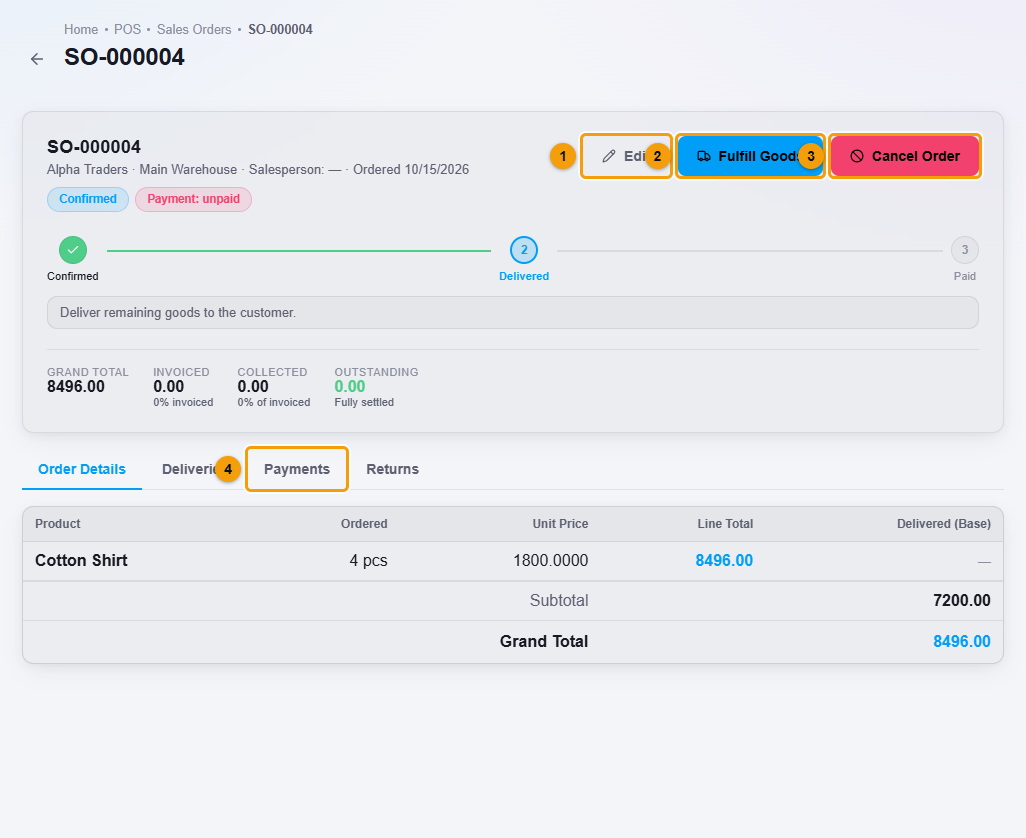
- Click Confirm. The order status becomes Confirmed.
- When you hand over the goods, click Fulfill Goods. See Deliver an order.
What happens next
After delivery the order shows Delivered and an invoice is created automatically. The amount the customer owes is added to their balance. To record the customer's payment, see Receive a customer payment.
Important notes
- Confirm the order before you deliver it.
- On the order page, the Collect Payment button is not available yet. Record payments with a receipt voucher instead.
- After goods are delivered, the order page offers Return Goods if the customer sends something back.