POS & Sales
Deliver an order
Starter and above · 1 min read · Updated 16 October 2026
What this does
Fulfilling a sales order records that the goods have left your warehouse. NEXTOREx reduces your stock and creates the invoice.
Before you start
- The sales order must be Confirmed. See Sales orders.
Steps
- Open Customer, then Sales Order, and double-click the order.
- Click Fulfill Goods. The Fulfill Goods window opens.
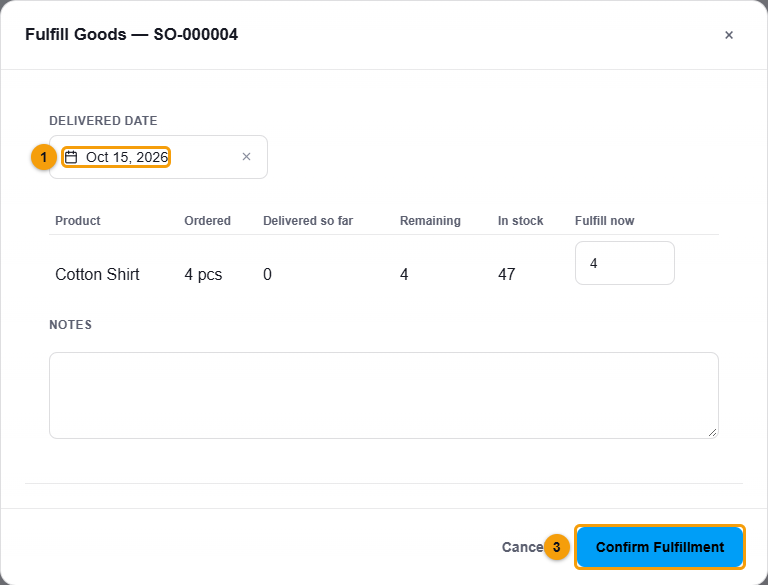
Delivered date (1), quantity to fulfil (2) and Confirm Fulfillment (3).
- Check the Delivered date (1).
- For each product, the table shows Ordered, Delivered so far, Remaining and In stock. Check the Fulfill now quantity (2).
- Add a note if you need one.
- Click Confirm Fulfillment (3).
What happens next
- The order status becomes Delivered.
- Your stock goes down.
- An invoice is created and linked from the order, for example Invoice: INV-2026-0004.
- The Deliveries tab keeps a history of each delivery.
The order now says how much is still to collect. To record payment, see Receive a customer payment.