POS & Sales
Credit and part payments
Starter and above · 1 min read · Updated 16 October 2026
What this does
Sometimes a customer pays only part of the bill. NEXTOREx records the part payment and keeps the rest as an amount the customer owes you.
Before you start
- Create the customer. Part payments are recorded against a named customer.
Steps
- Open POS Checkout and add the products. See Make a sale at the POS.
- Click Change and choose the customer (1).
- Type the amount the customer is paying now in Amount received (2). A red message (3) shows how much is Short by.
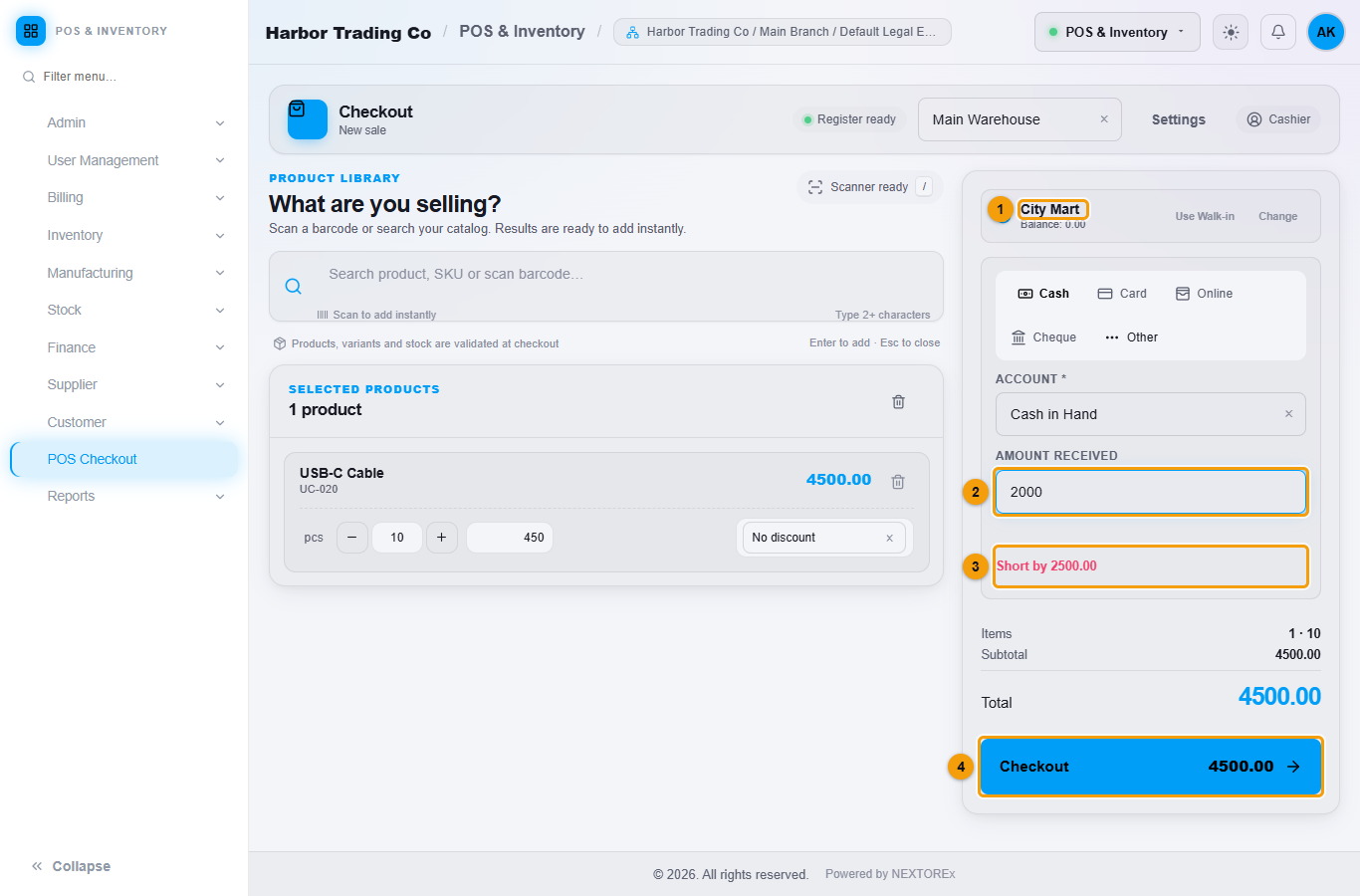
City Mart pays 2,000 of 4,500.
- Click Checkout (4).
What happens next
The sale is marked partial. The screen shows how much was Paid and how much is Outstanding.
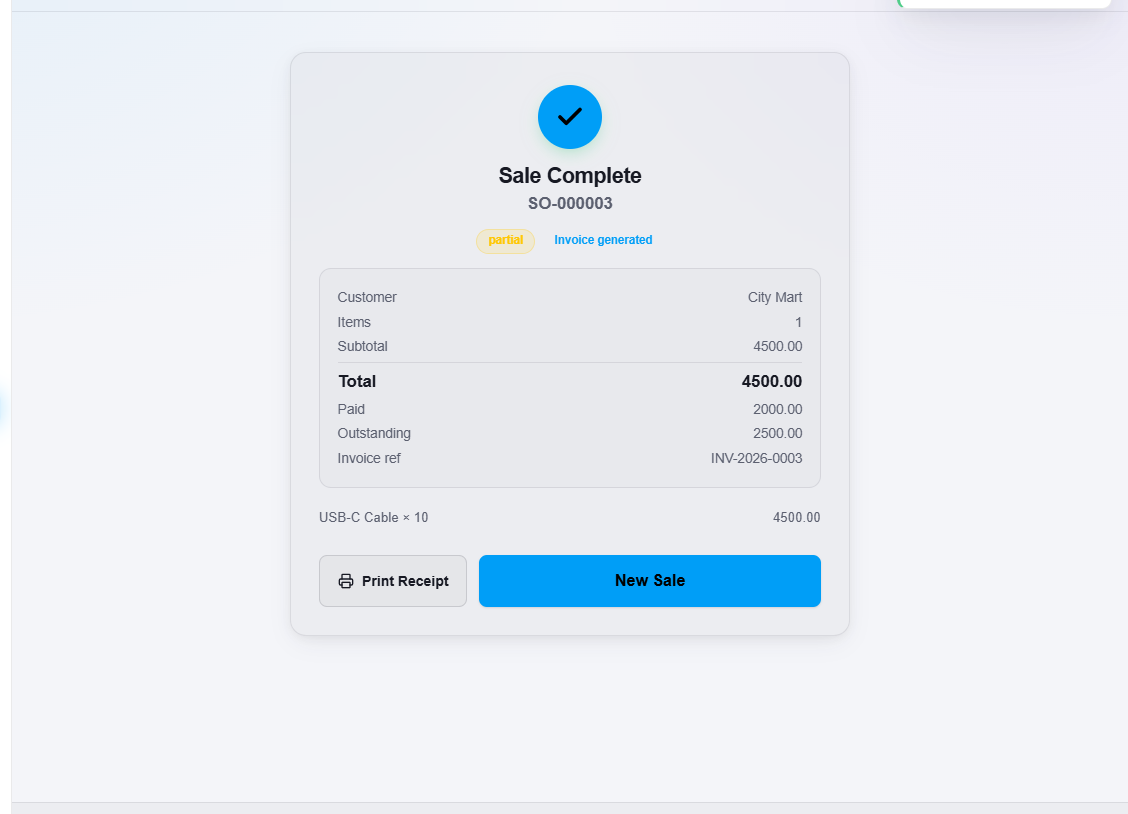
The outstanding amount is added to the customer's balance. You can see it in the Customer Ledger. When the customer pays more later, record it with a receipt voucher.
Important notes
- POS Checkout needs a payment of at least 0.01. For a sale where nothing is paid now, create a sales order instead.
- For a cash sale you may enter more than the total. NEXTOREx records only the total as the payment and shows the Change due.