POS & Sales
Sales returns
Starter and above · 2 min read · Updated 16 October 2026
What this does
A sales return takes goods back from a customer. The returned quantity goes back into the warehouse you choose, and the value of the goods is credited to the customer's balance.
Before you start
- The sale must exist as a sales order. POS Checkout sales appear in Sales Orders too, so you can return them the same way.
- The Return Goods window shows how much of each product can still be returned.
Steps
- Open Customer, then Sales Orders, and open the order (for example SO-000006).
- Click Return Goods (1).
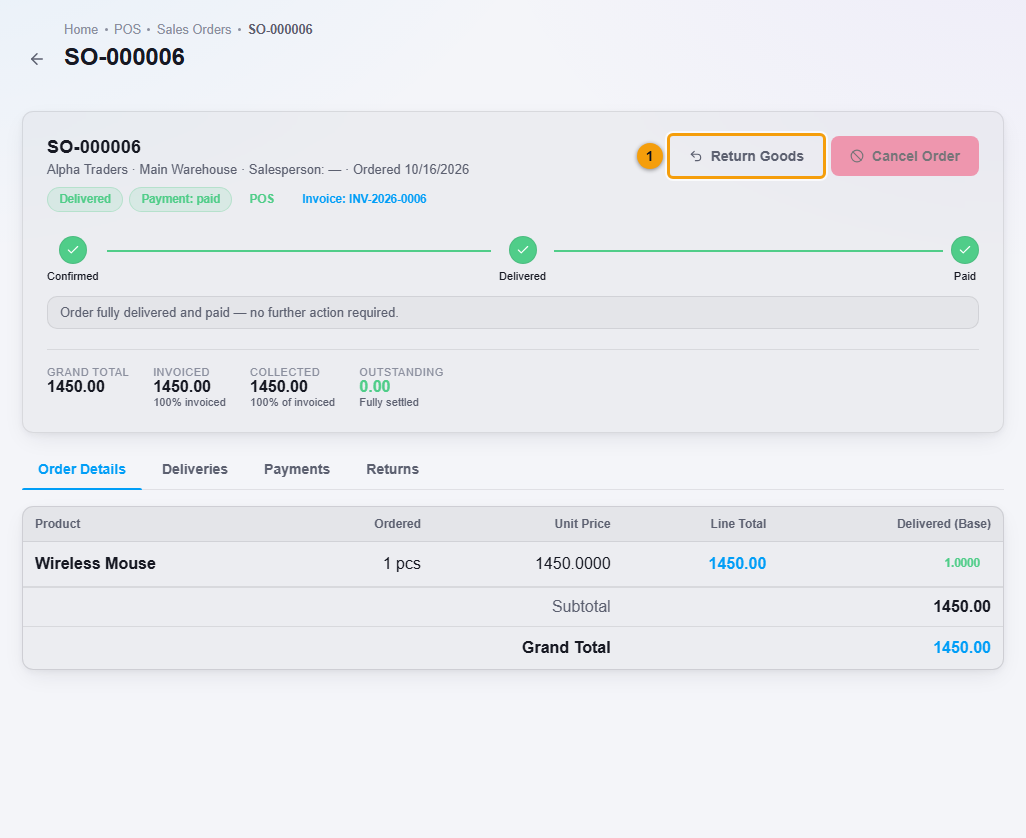
Return Goods (1).
- In the Return Goods window, check the Return warehouse (1). Stock goes back into this warehouse.
- Type the Reason for return (2), for example Customer changed mind.
- Enter the Return Qty (3) for each product the customer is returning. You cannot return more than the Returnable quantity.
- Click Confirm Return (4).
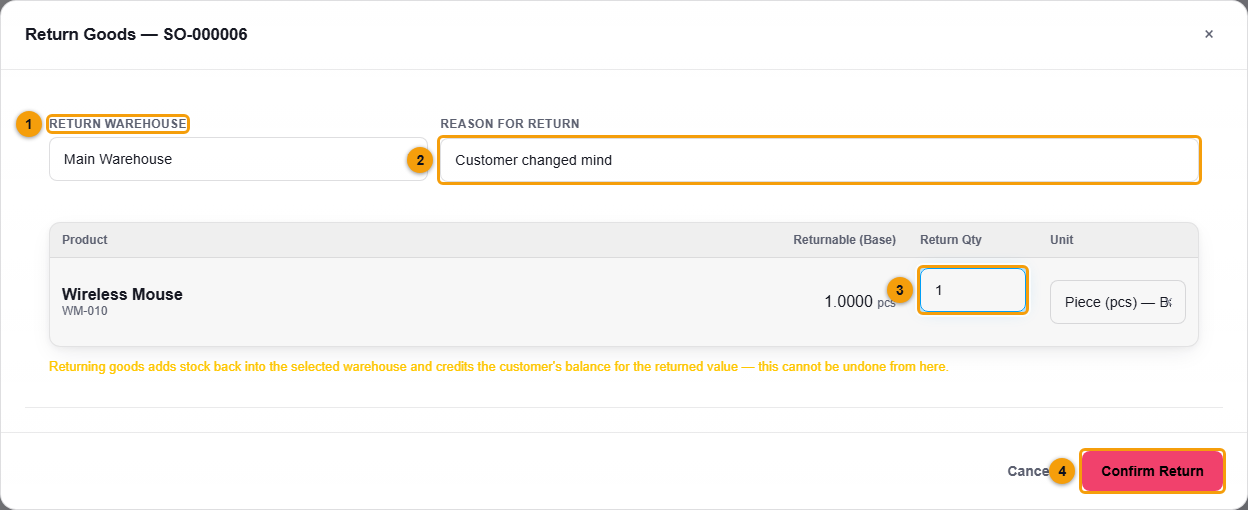
Return warehouse (1), reason (2), return quantity (3) and Confirm Return (4).
What happens next
- A return such as SR-000001 is created with the status completed. Open Sales Returns to see all returns.
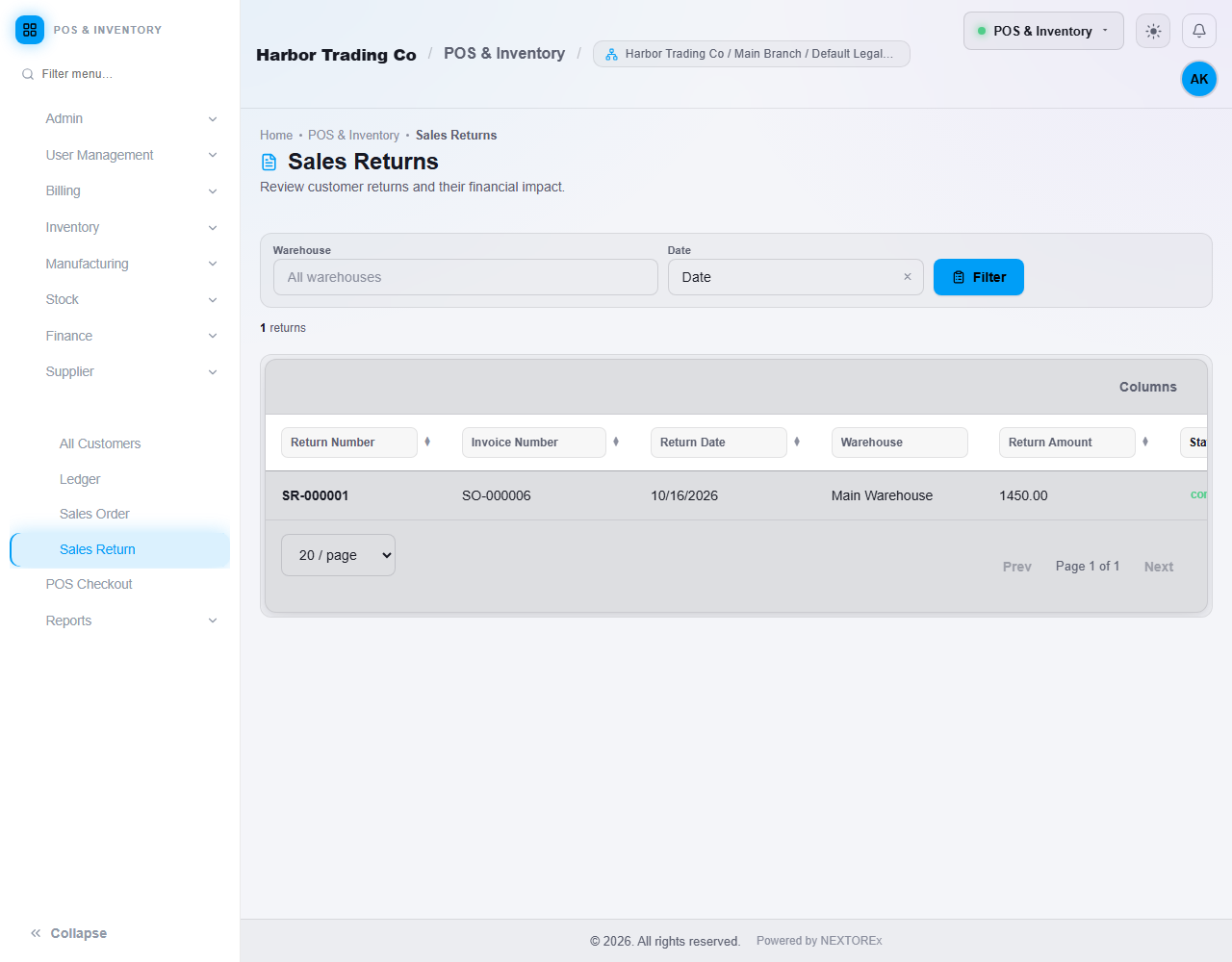
Each return, the order it belongs to, the amount and the status.
- The returned quantity is added back to Stock Levels in the return warehouse.
- The customer's balance is credited for the returned value. You can see it in the Customer Ledger.
- Open the return to see the returned items, the reason and the activity.
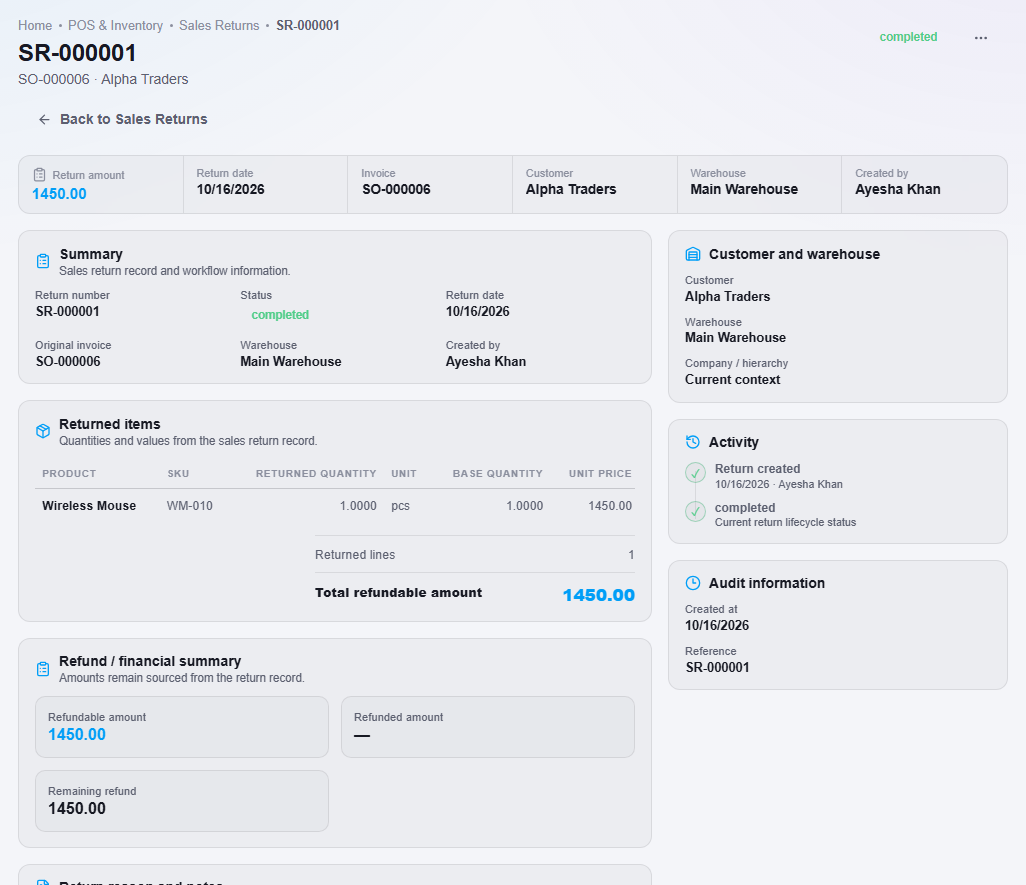
The returned items, the reason and the refund summary.
Important notes
- You cannot undo a return from the return window. Check the quantity before you confirm.
- The credit stays on the customer's balance. NEXTOREx does not pay cash back from the return screen.