POS & Sales
POS settings and receipts
Starter and above · 2 min read · Updated 16 October 2026
What this does
POS Settings sets the starting choices of the checkout screen so your cashier does not repeat them on every sale. Receipts are printed from your browser in a narrow format made for a receipt printer.
Change the POS defaults
- Open POS Checkout.
- Click Settings at the top right.
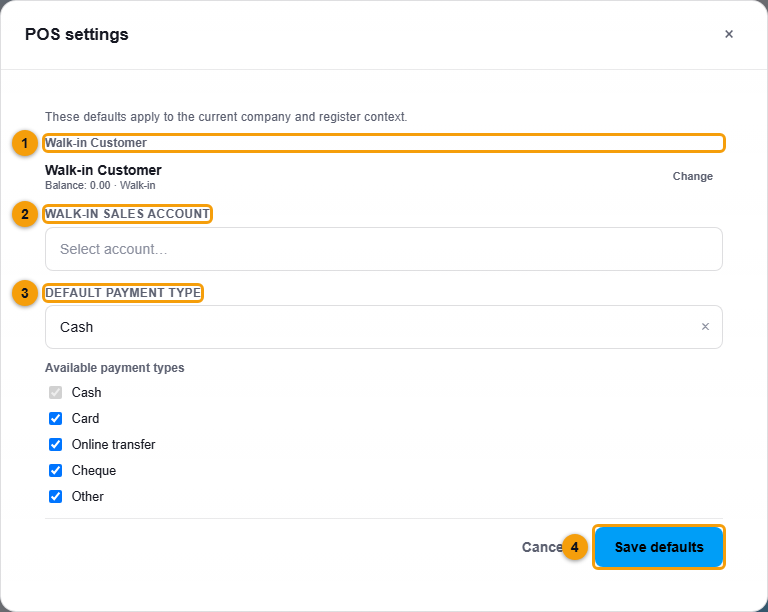
Walk-in customer (1), walk-in sales account (2), default payment type (3) and Save defaults (4).
- Choose the Walk-in Customer (1) used when no customer is picked.
- Choose the Walk-in sales account (2) that receives the money.
- Choose the Default payment type (3), and the payment types that are available at checkout: Cash, Card, Online transfer, Cheque and Other.
- Click Save defaults (4).
The defaults apply to the current company. Your cashier can still change the customer, payment type and account on any sale.
Print a receipt
When a sale is complete, your browser opens its print window with the receipt. Choose your printer and click Print. Click Print Receipt on the Sale Complete screen to print it again.
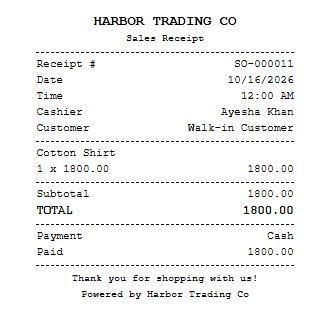
The receipt shows your company name, the receipt number, the date, the cashier, the customer, each item with its quantity and price, the subtotal, any discount or tax, the total, the payment type and the amount paid. For a part payment it also shows the Balance due.
Important notes
- The receipt is printed by your browser. Use the printer's own settings in the print window for paper size and copies.
- If a customer hands over more cash than the total, the receipt shows the amount paid, which is the sale total. The Change due is shown on the checkout screen, not on the receipt.