Inventory
Add a product
Starter and above · 2 min read · Updated 16 October 2026
What this does
A product is anything you sell, buy or stock. Once a product exists you can sell it at the POS, order it from a supplier and see how much of it you have.
Before you start
- Create a warehouse if you have not yet. See Warehouses.
- Optional: create a category first so you can pick it. See Categories.
Steps
- In the left menu, open Inventory, then Product.
- Click Add Product. The Create Product window opens.
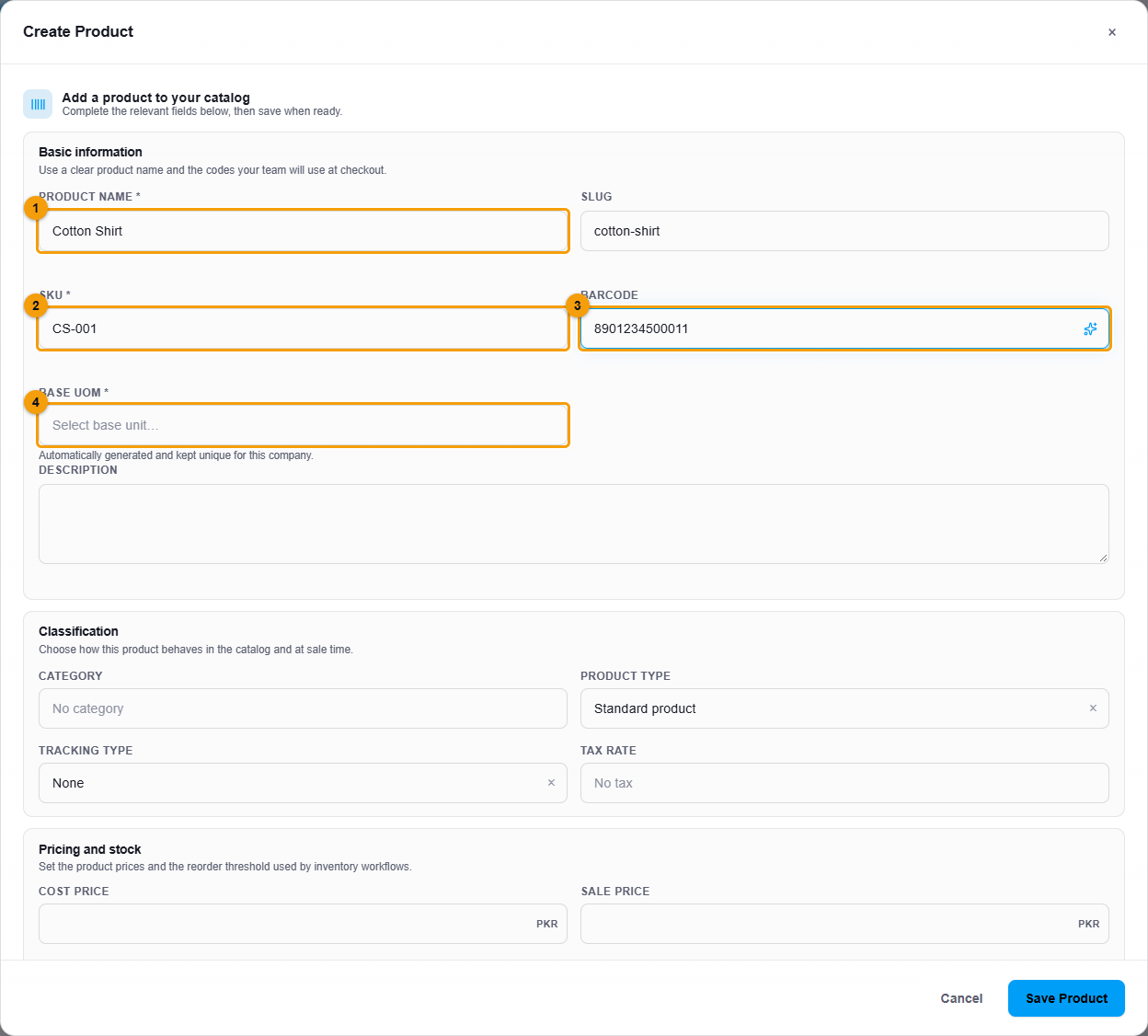
Basic information. Numbers match the steps below.
- Enter the Product name (1) and a SKU (2). The SKU is your own short code, for example CS-001.
- Add a Barcode (3) if the product has one. Type or scan it, or click the small sparkle button inside the box to have NEXTOREx create one.
- Choose the Base UOM (4). This is the smallest unit you count the product in, such as Piece or Kilogram.
- Scroll down. Choose a Category (1) and, if the product is taxed, a Tax rate (2).
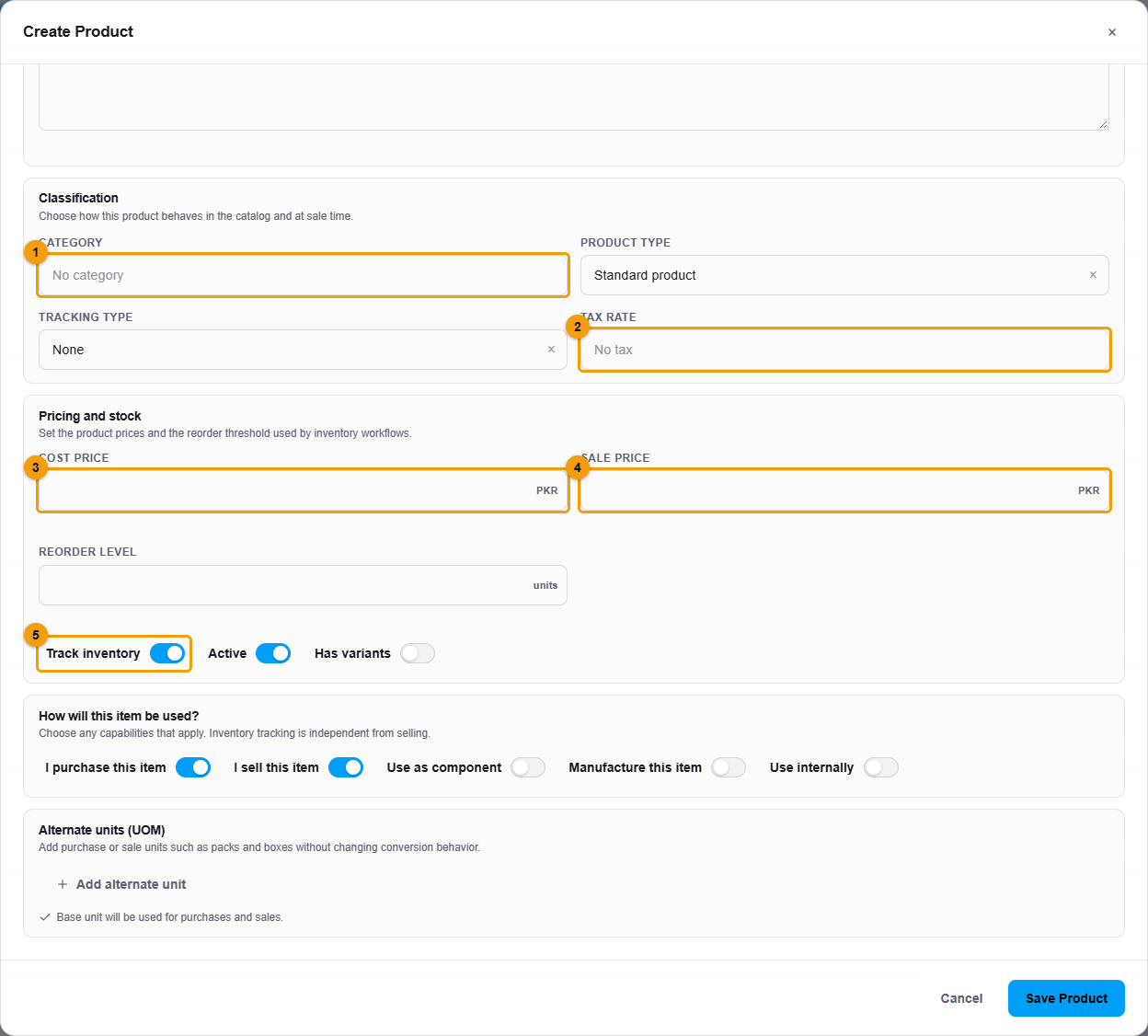
Classification, prices and options.
- Enter the Cost price (3), what you pay, and the Sale price (4), what you charge.
- Leave Track inventory (5) switched on so NEXTOREx counts your stock for this product.
- Under How will this item be used? switch on I purchase this item and I sell this item as needed.
- Click Save Product.
What happens next
The product appears in the Products list. You can now add stock to it, buy it from suppliers and sell it at the POS.
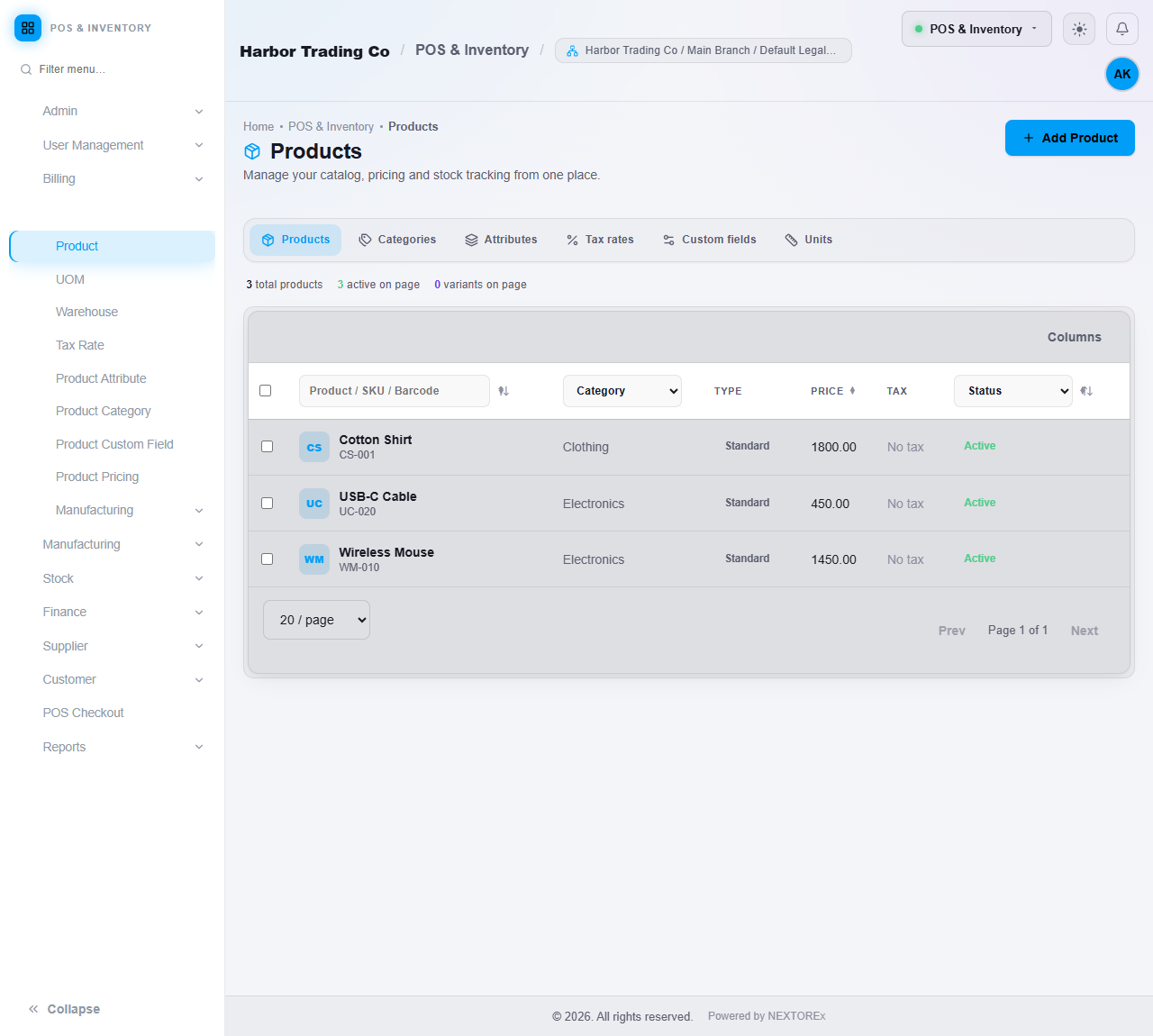
To change a product later, double-click it to open its page, then click Edit.
Important notes
- The product has no stock yet. Add opening stock with a stock adjustment.
- The list column named Tax may not show the tax rate you picked. Open the product to see its tax rate.