POS & Sales
Make a sale at the POS
Starter and above · 3 min read · Updated 16 October 2026
What this does
POS Checkout is the quick sale screen for the counter. You add products, take payment and finish in one screen. Each sale reduces your stock and is recorded in your sales and accounts.
Before you start
- You need at least one product with stock in a warehouse.
- For a named customer, create the customer first. Otherwise sell to Walk-in Customer.
Steps
- In the left menu, click POS Checkout.
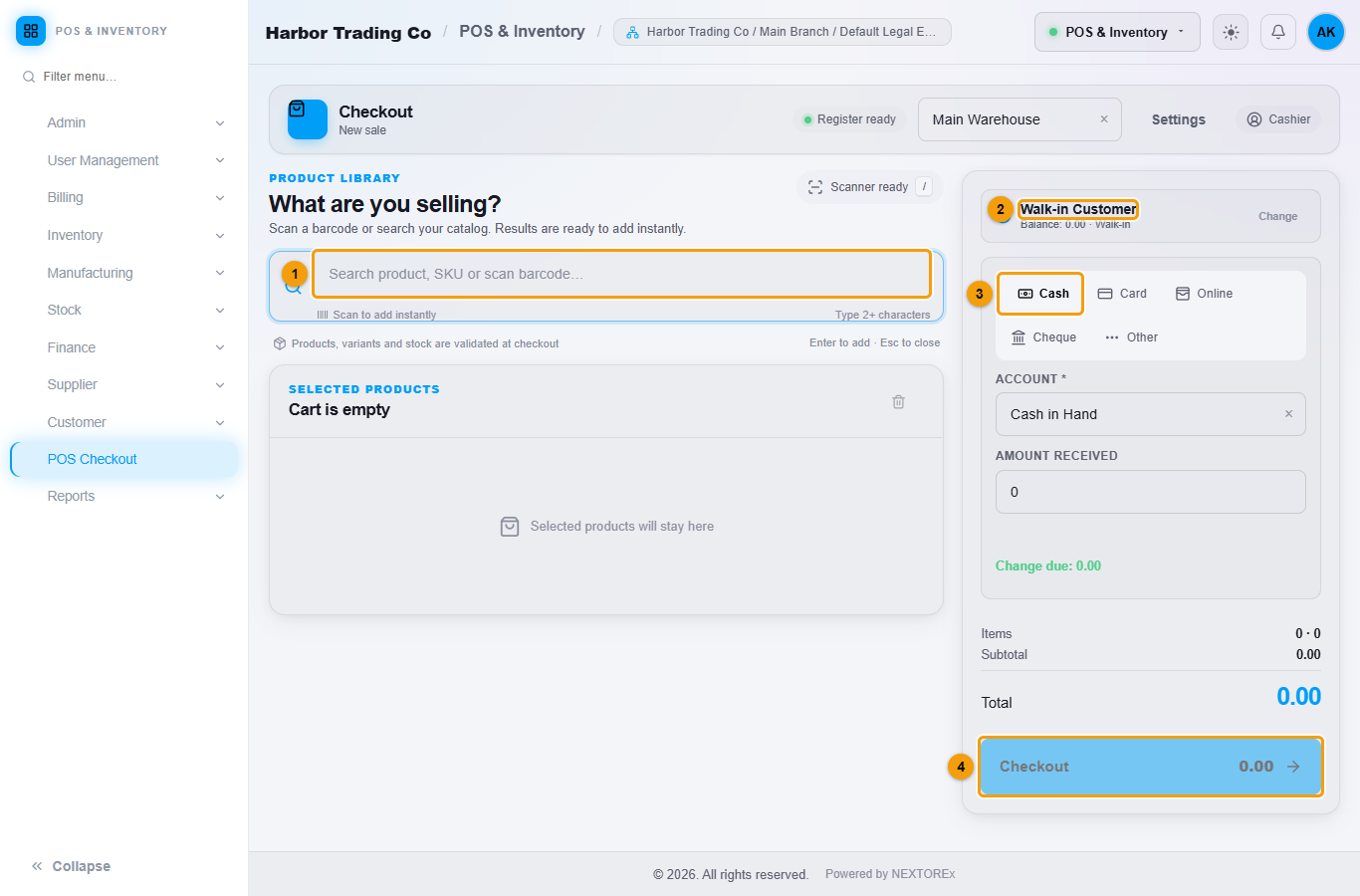
The checkout screen. Numbers match the steps below.
- Check the warehouse at the top of the page. Your default warehouse is chosen for you.
- Click the search box (1). Type at least two letters of a product name or SKU, or scan the barcode. Press Enter or click the product to add it to the cart.
- Change the quantity with the − and + buttons or by typing a number. You can change the unit price and add a discount to a line.
- To sell to a named customer, click Change next to the customer (2), search by name, phone or email, and pick the customer. Click Use Walk-in to go back to a walk-in sale.
- Choose how the customer pays (3): Cash, Card, Online, Cheque or Other. Check the Account that will receive the money, for example Cash in Hand.
- Leave Amount received as the total, type a smaller amount for a part payment, or, for a Cash sale, type the cash the customer handed over. If it is more than the total, the screen shows Change due (2). See Credit and part payments.
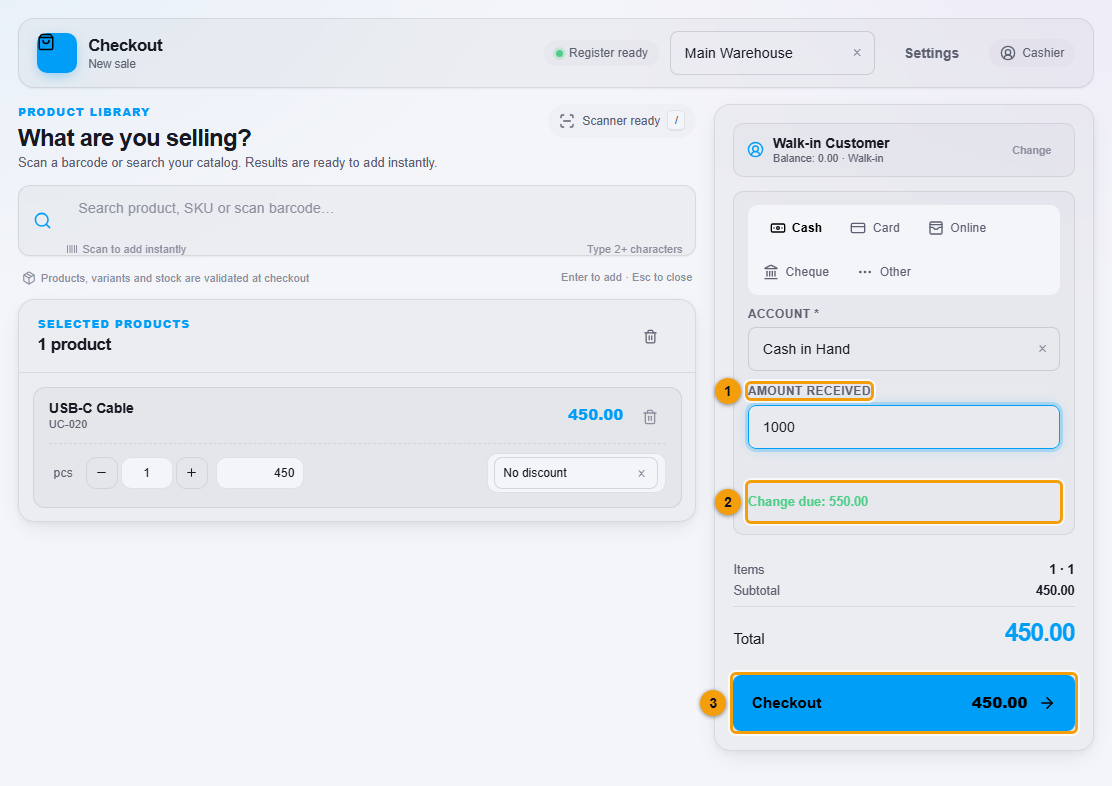
Amount received (1), Change due (2) and Checkout (3). 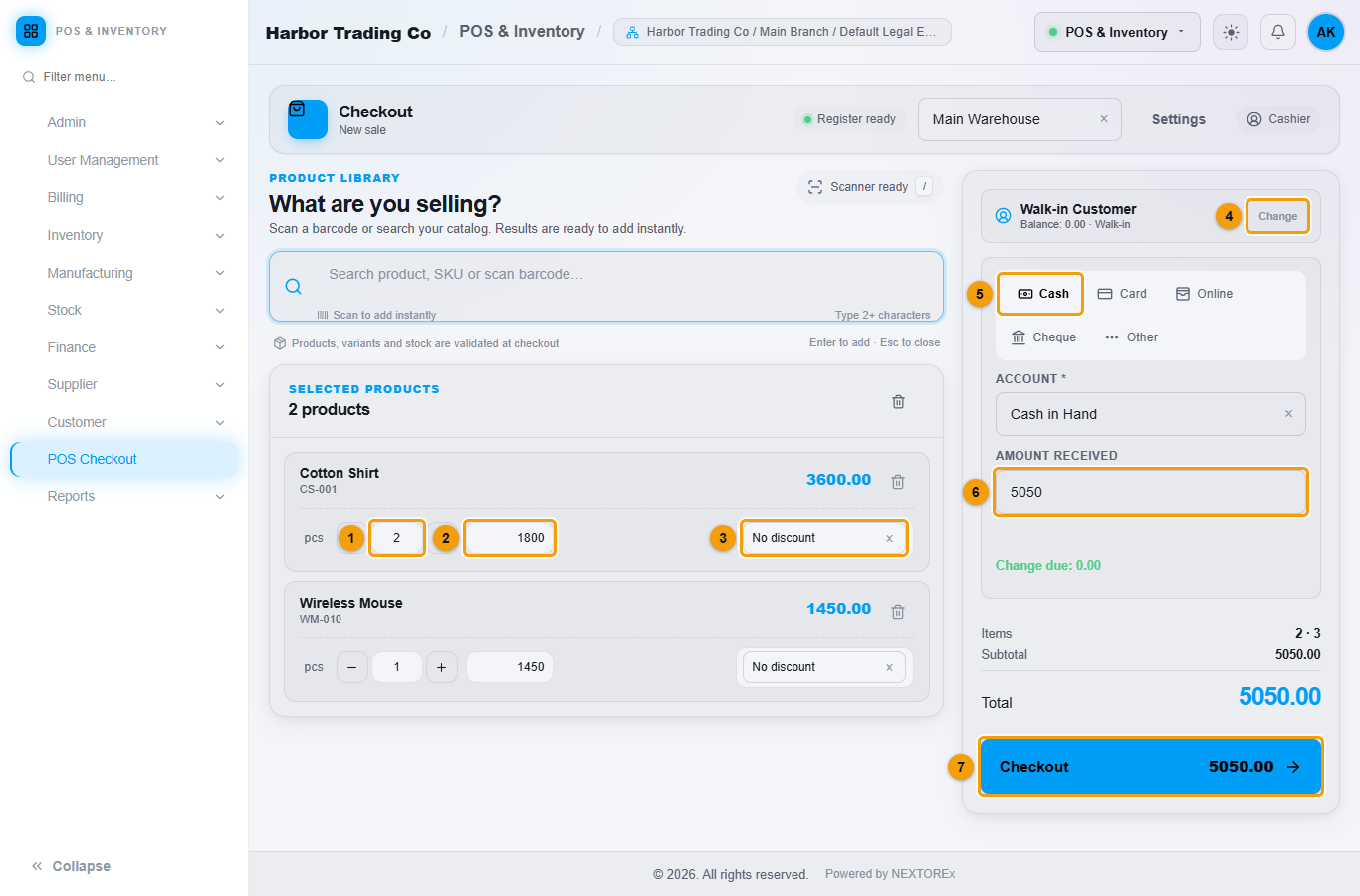
Quantity (1), price (2), discount (3), customer (4), payment method (5), amount received (6) and Checkout (7).
- Click Checkout (7).
What happens next
The Sale Complete screen shows the sale number, the customer, the total and the amount paid. An invoice is created for the sale.
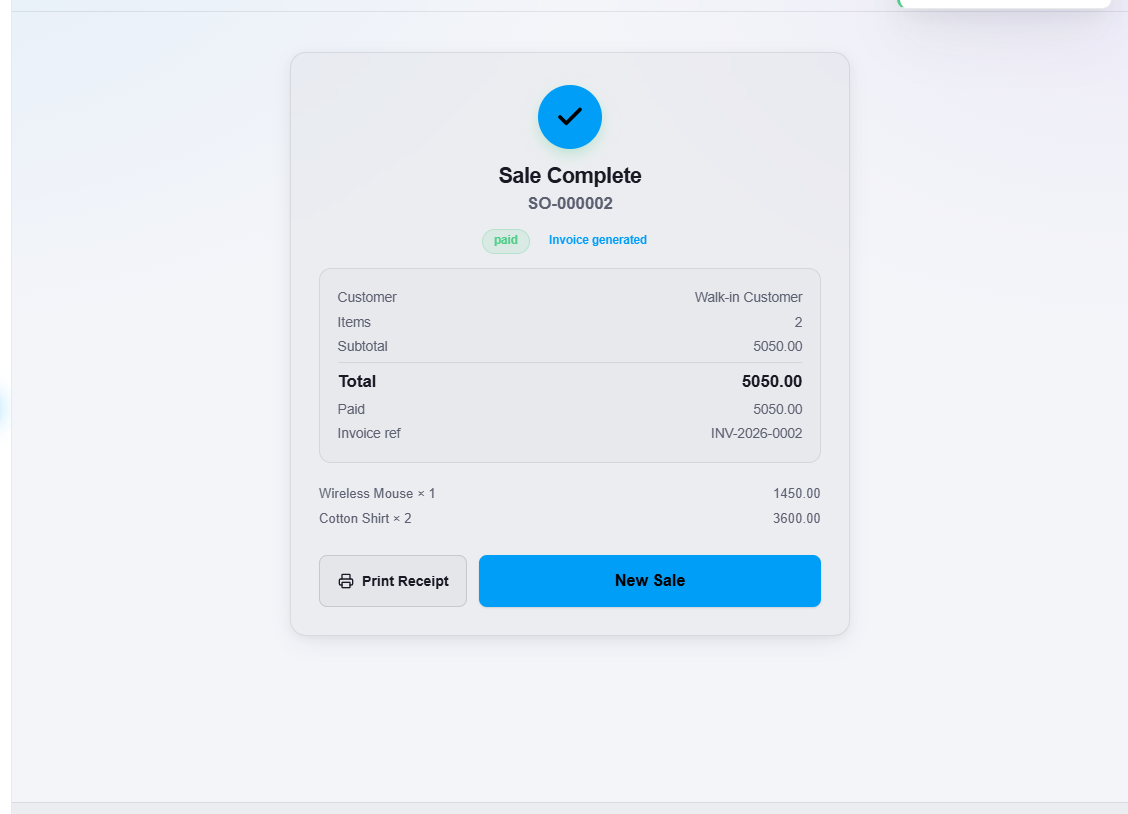
- The print window of your browser opens by itself with the receipt. Click Print Receipt to print it again. See POS settings and receipts.
- Click New Sale to start the next sale.
Your stock goes down by the quantities sold.
Important notes
- If a cash customer hands over more than the total, enter what they gave you. NEXTOREx records only the sale amount as the payment and shows the Change due for you to hand back. The extra cash is not recorded as a payment.
- POS Checkout does not add sales tax to the cart. If a sale needs sales tax, create it as a sales order.
- You cannot finish a sale with a payment of zero. To sell on credit with nothing paid, use a sales order.