Purchasing & Suppliers
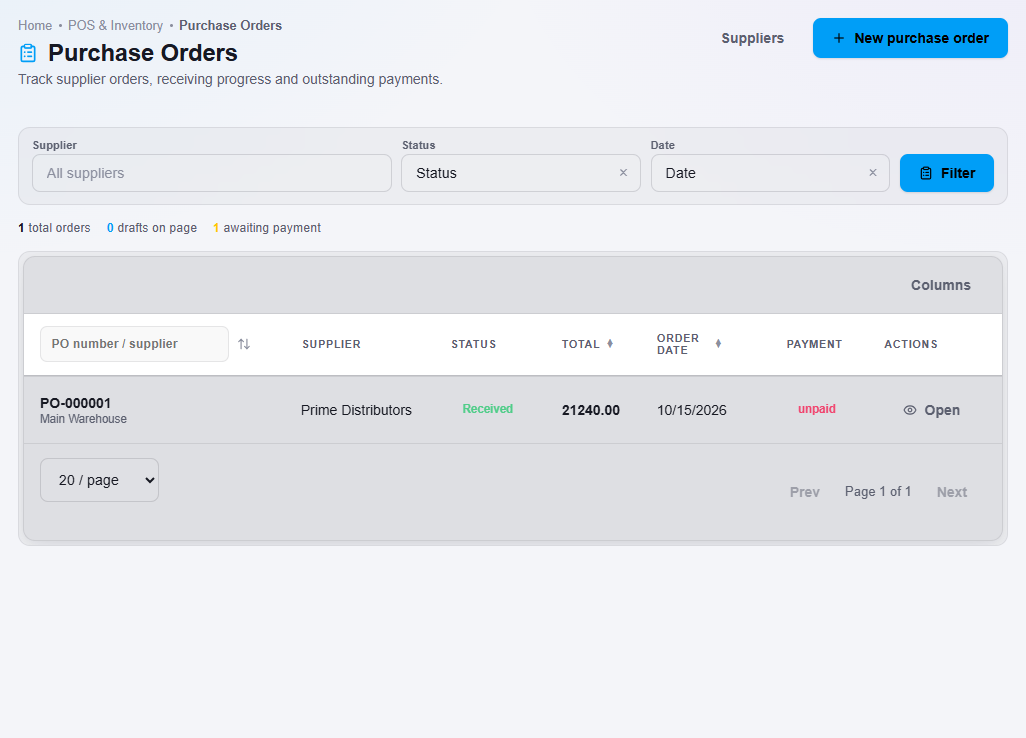
Purchase orders
Starter and above · 1 min read · Updated 16 October 2026
What this does
A purchase order (PO) is your order to a supplier. It records what you asked for, at what price, and later what you received and paid.
Before you start
Steps
- Open Supplier, then Purchase Order.
- Click New purchase order. The Create Purchase Order window opens.
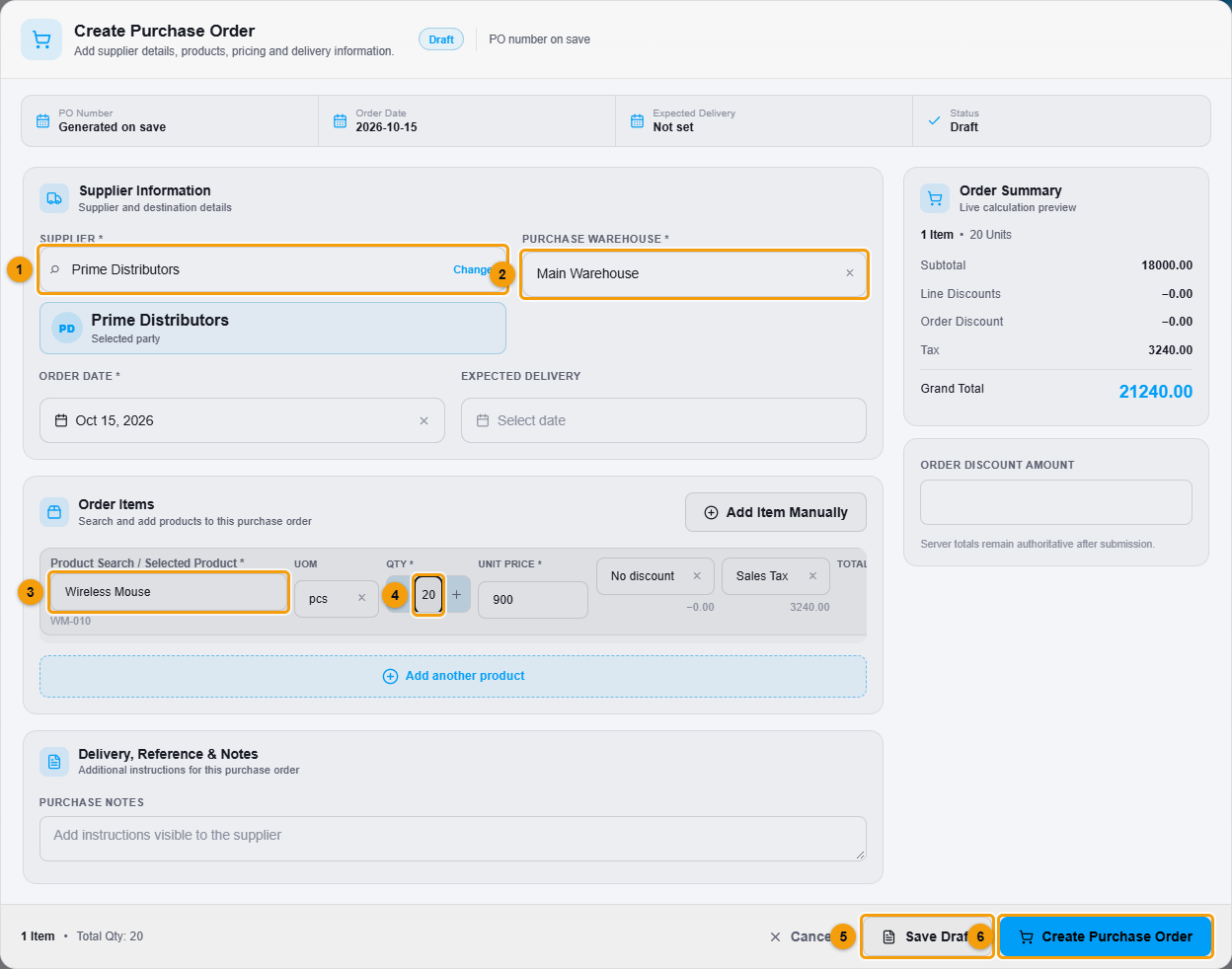
Supplier (1), warehouse (2), product (3), quantity (4), Save Draft (5) and Create Purchase Order (6).
- Search for and choose the Supplier (1).
- Choose the Purchase warehouse (2), where the goods will arrive.
- Search for a product (3) and pick it. Enter the Qty (4). The Unit price is filled in from the product cost and you can change it.
- Click Add another product for more lines. The Order Summary on the right updates as you go.
- Add purchase notes if the supplier needs instructions.
- Click Save Draft (5) to keep working on it later, or Create Purchase Order (6).
What happens next
The order opens on its own page with the status Draft.
- Click Mark ordered when you have placed the order with the supplier.
- When the goods arrive, see Receive goods from a supplier.
- To pay the supplier, see Pay a supplier.
Important notes
- A product's tax rate is filled in on the line, but NEXTOREx does not treat purchase tax as a separate recoverable tax in your accounts. Ask your accountant how you want to handle it.