Purchasing & Suppliers
Pay a supplier
Business and above · 1 min read · Updated 16 October 2026
What this does
A payment voucher records money you paid to a supplier. It reduces what you owe them and reduces your cash or bank balance.
Before you start
- Receive the goods first. See Receive goods from a supplier.
Steps
- Open Finance, then Voucher.
- Click Payment. The Payment Voucher window opens.
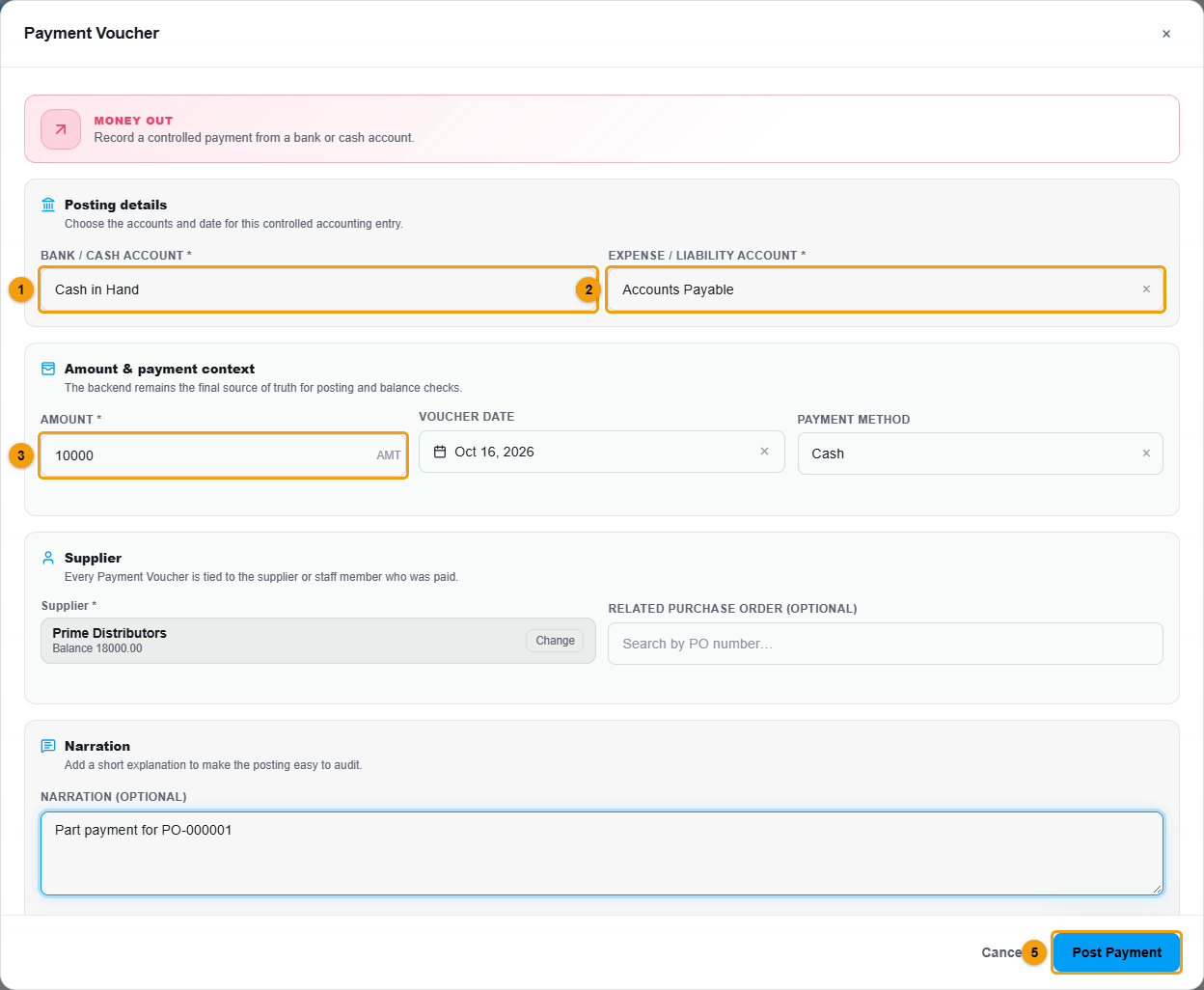
Account paid from (1), account (2), amount (3), supplier (4) and Post Payment (5).
- Under Supplier (4), search for and choose the supplier.
- Choose the Bank / cash account (1) the money comes from, for example Cash in Hand.
- Choose the Expense / liability account (2). To pay a supplier for goods you bought, choose Accounts Payable.
- Enter the Amount (3).
- Add a Narration, for example Part payment for PO-000001.
- Click Post Payment (5).
What happens next
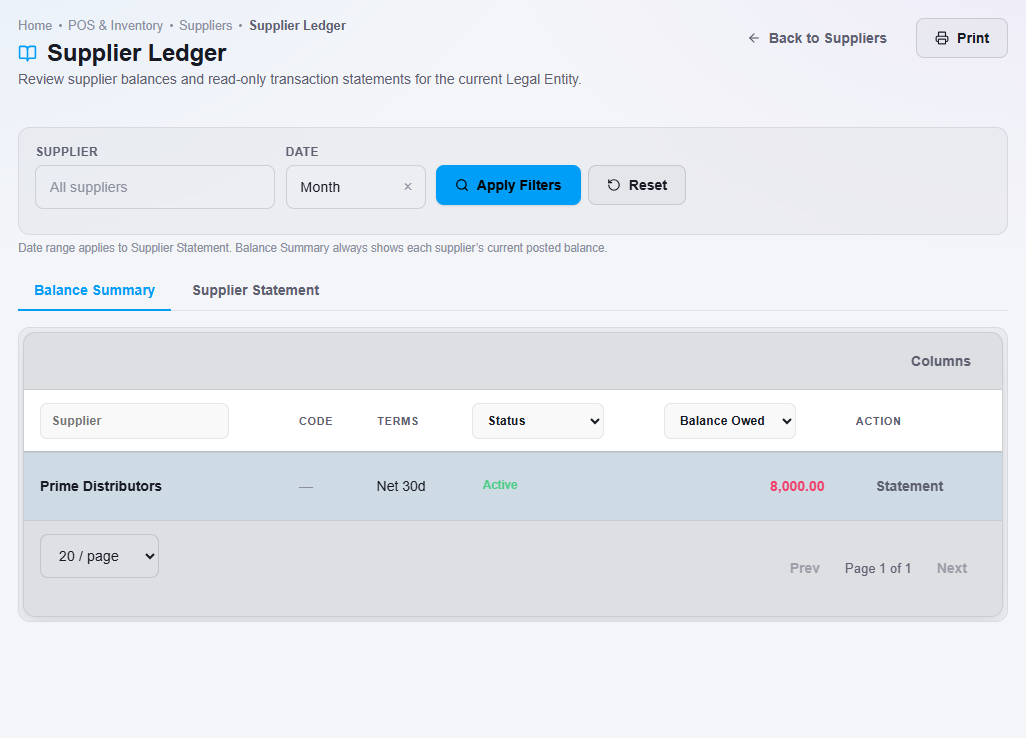
The payment is posted to your accounts. Open Supplier, then Ledger to see the supplier's balance go down.
Important notes
- A voucher cannot be edited after it is posted. To correct a mistake, reverse it and post a new one. See Vouchers and journal entries.
- Vouchers are part of the accounting features on Business and higher plans.