CRM
Create a lead
CRM Basic, Business, Pro and Agency · 1 min read · Updated 16 October 2026
What this does
A lead is a person or business that may become a customer. Adding leads to CRM keeps every enquiry in one place so none are forgotten.
Steps
- Open the CRM app. In the left menu, open CRM, then Leads, then All Leads.
- Click Add Lead. The Add Lead window opens.
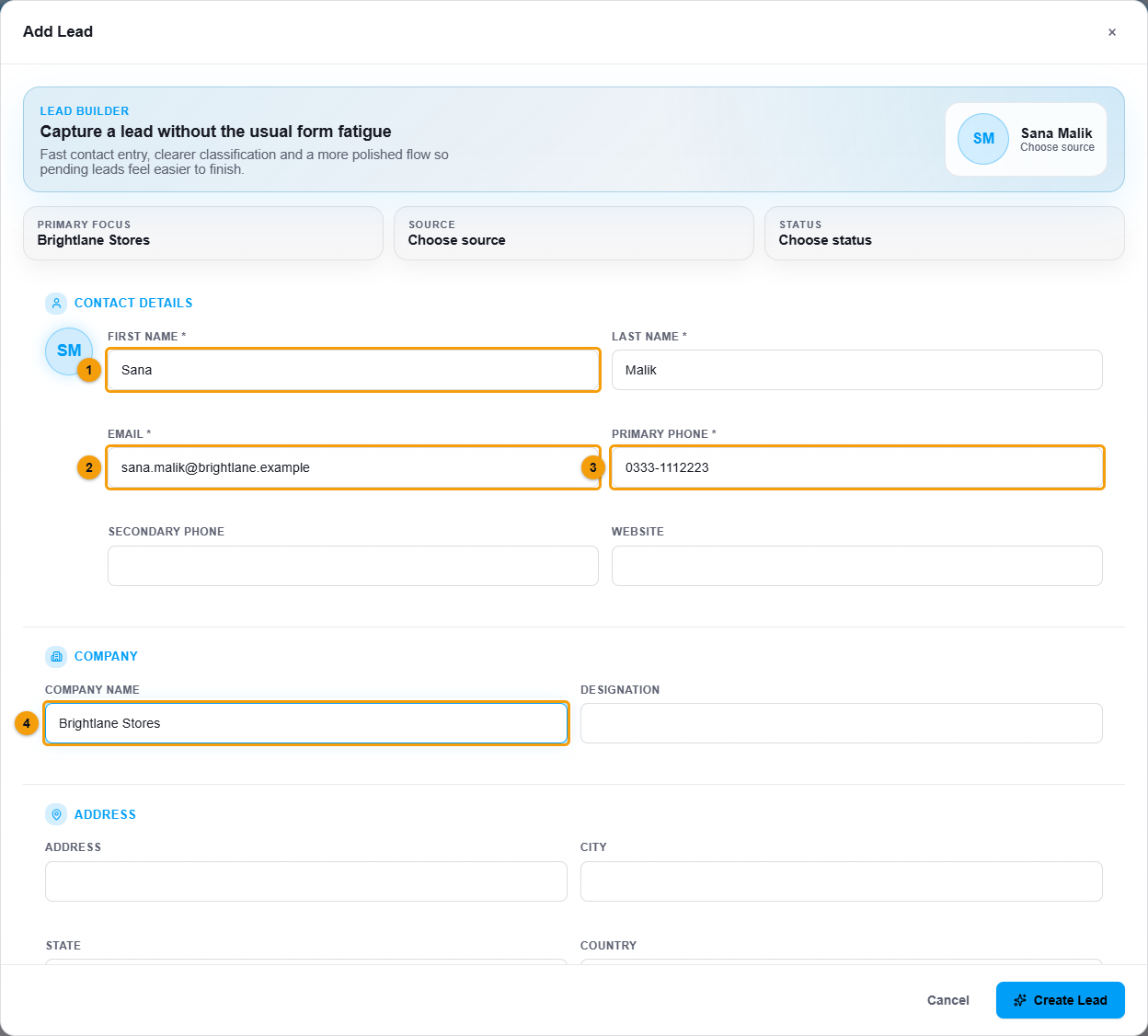
First name (1), email (2), phone (3) and company (4).
- Enter the First name (1) and Last name. Both are required.
- Enter the Email (2) and Primary phone (3). Both are required.
- Add the Company name (4), designation and address if you know them.
- Scroll down to Classification.
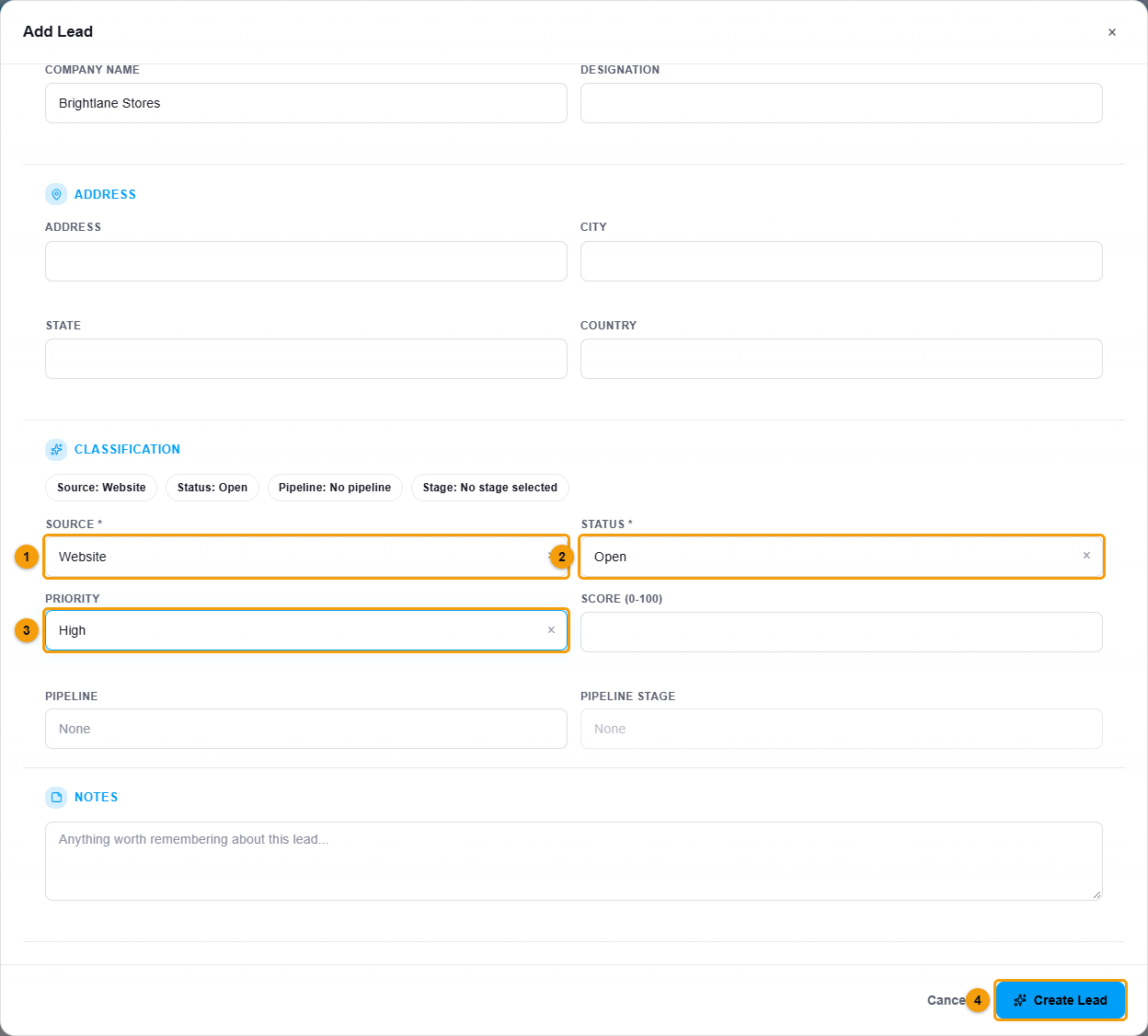
Source (1), status (2), priority (3) and Create Lead (4).
- Choose the Source (1), where the lead came from, for example Website or Referral.
- Choose the Status (2), for example Open. Optionally choose the Priority (3) and a Score from 0 to 100.
- Add notes if you want, then click Create Lead (4).
What happens next
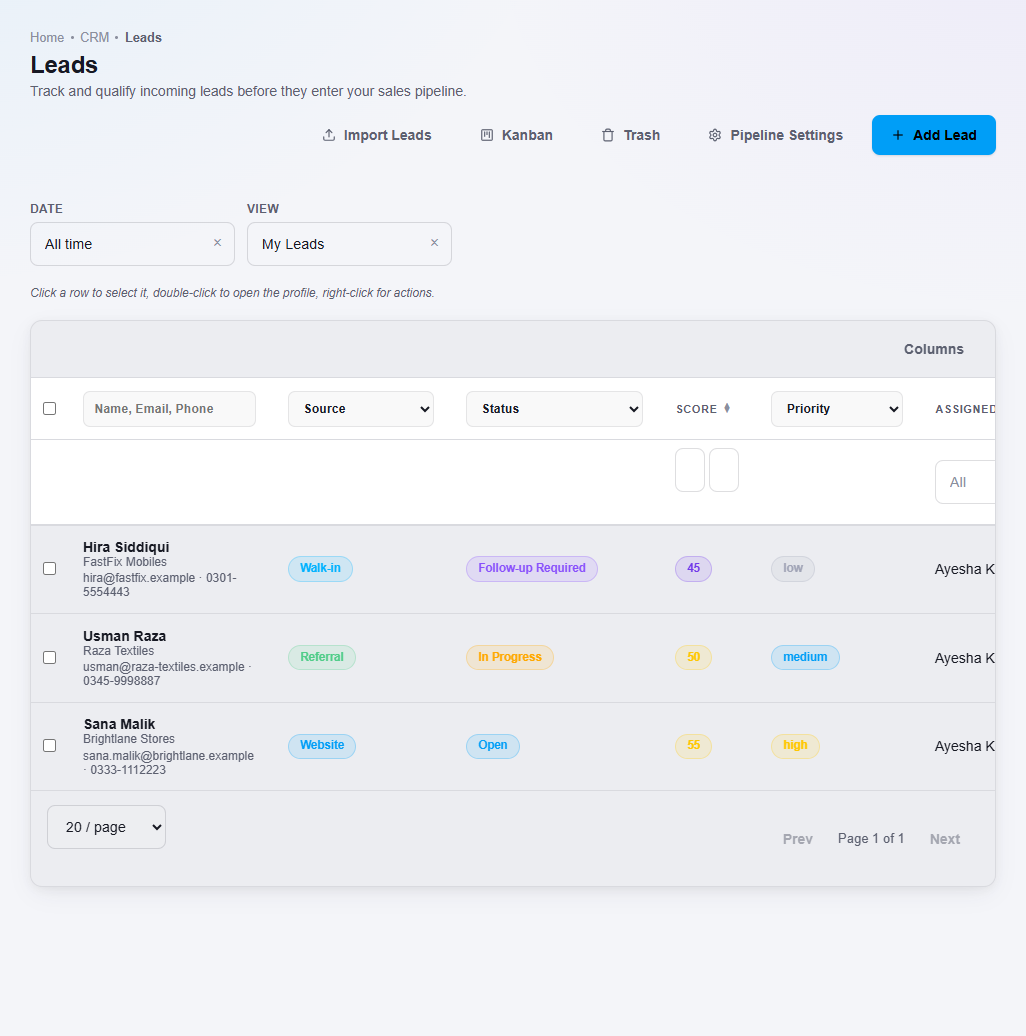
The lead appears in the Leads list. By default the list shows your own leads, with their source, status, score and priority.
Important notes
- To add many leads at once, see Import leads from a CSV file.