CRM
Appointments
CRM Basic, Business, Pro and Agency · 3 min read · Updated 16 October 2026
What this does
Appointments keep your meetings with clients in one place. You choose a date, a meeting length and one of the open time slots of the owner, and the appointment then moves through scheduled, confirmed and completed, with an outcome you record at the end.
Before you start
Your company needs working-hour windows, called slots. Open CRM, then Appointments, then Slots to see them.
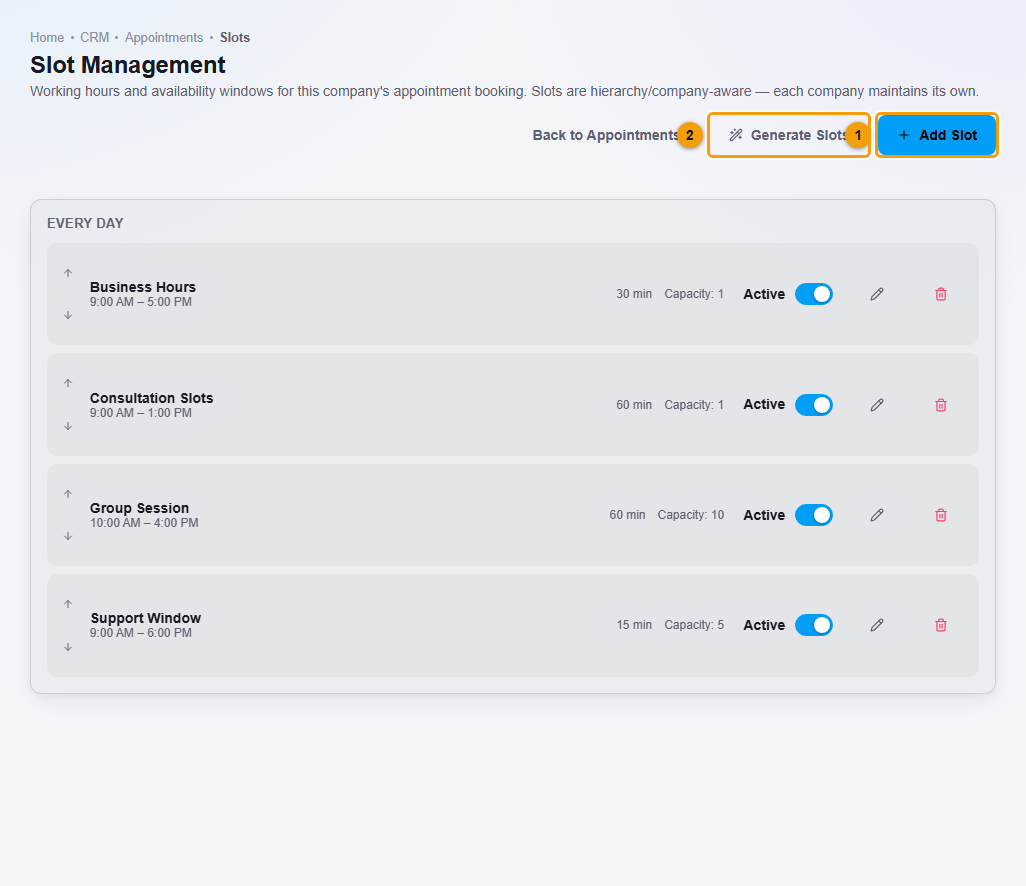
If the list is empty, click Add Slot (1) and enter a Name, the Day, the Duration (min) of one slot, the Max bookings (0 means unlimited), and the Start time and End time. Click Save Slot. Use the switch on a row to stop offering a window.
Book an appointment
- Open CRM, then Appointments.
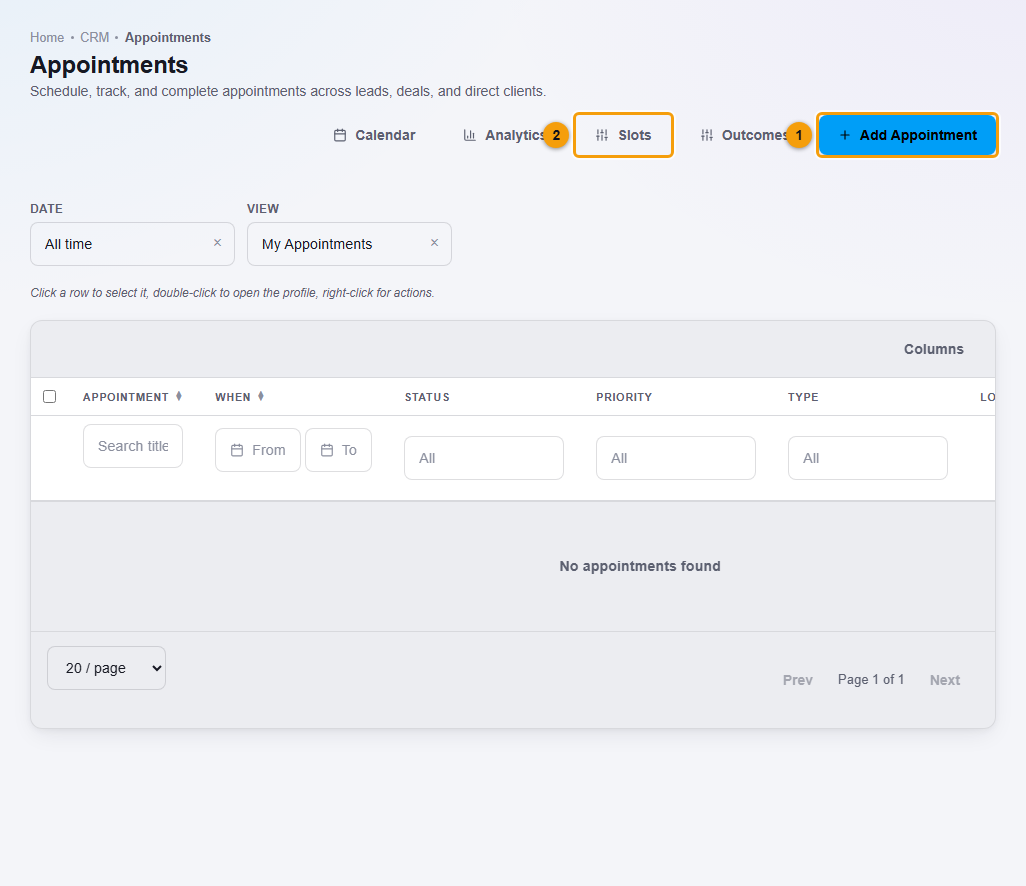
Add Appointment (1), Slots (2) and Calendar (3).
- Click Add Appointment (1).
- Enter the Title (1), choose the Owner (2), and enter the client's Name (3), Email and Phone.
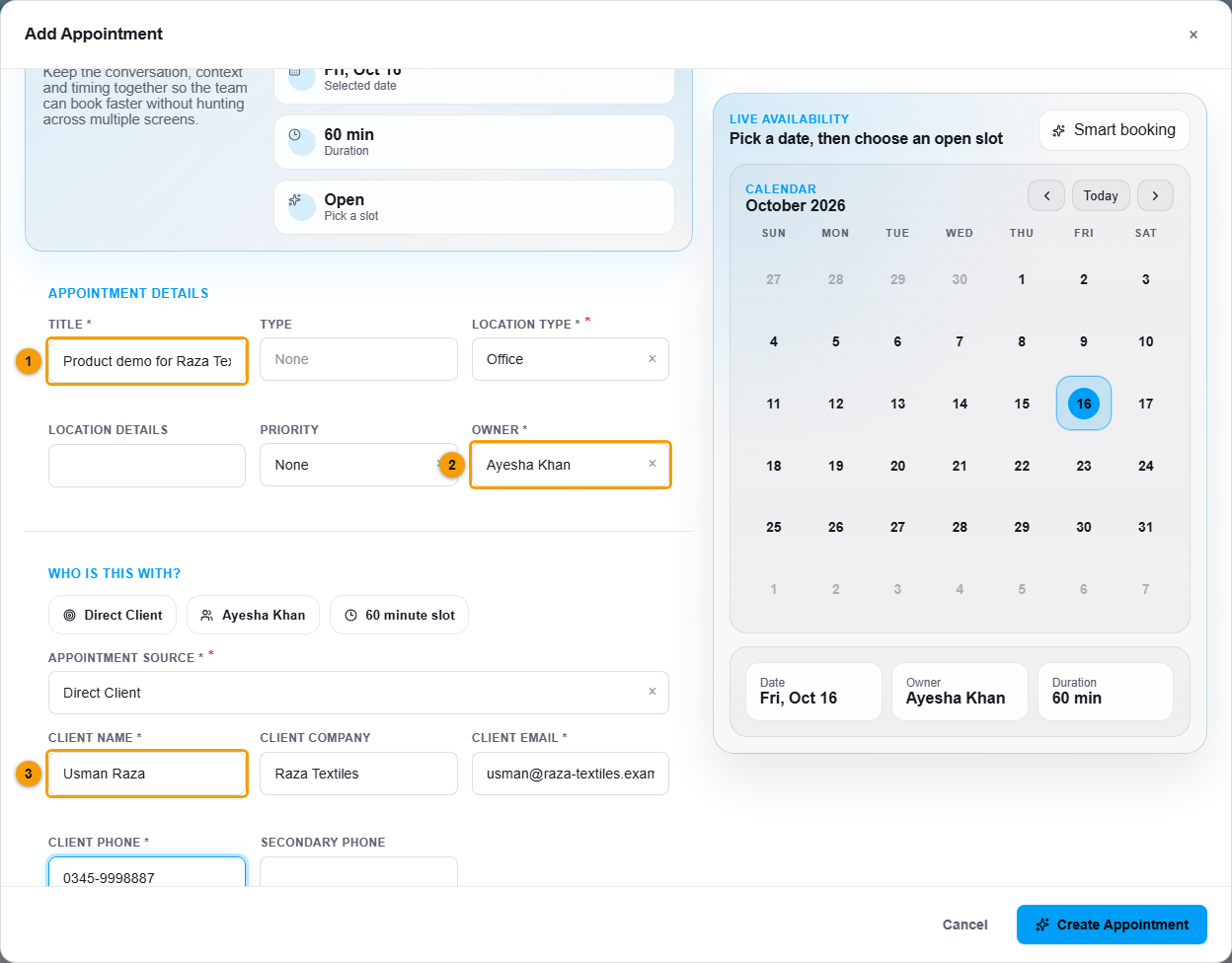
Title (1), owner (2) and client name (3).
- On the calendar at the right, click the date.
- Under Pick a meeting length, choose 15, 30, 45, 60, 90 or 120 min.
- Under Available slots, click an open time. Only free times are shown.
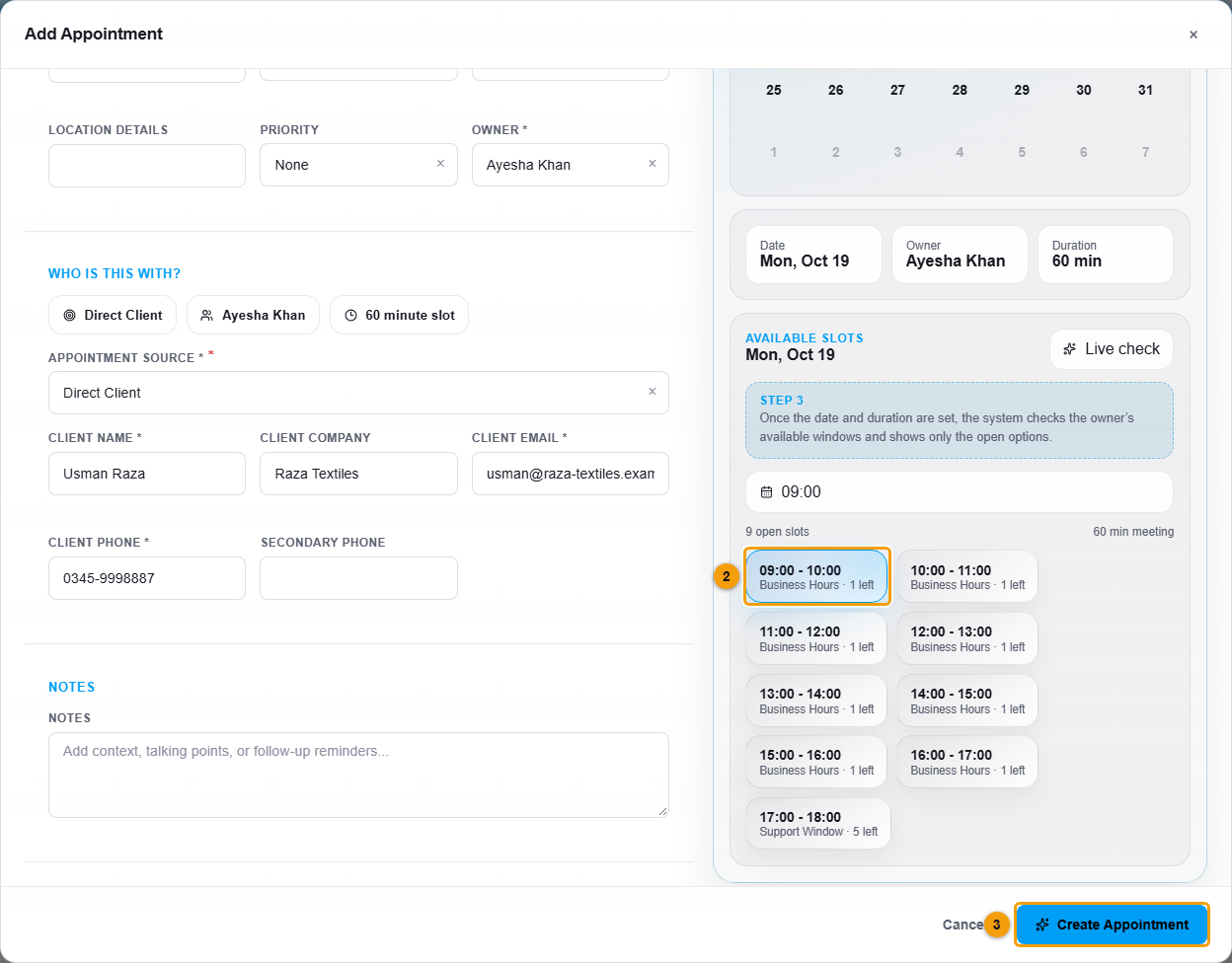
Meeting length (1), open slot (2) and Create Appointment (3).
- Click Create Appointment (3).
The appointments list covers meetings with leads, deals and direct clients. The steps above book a Direct Client.
Confirm, complete or change an appointment
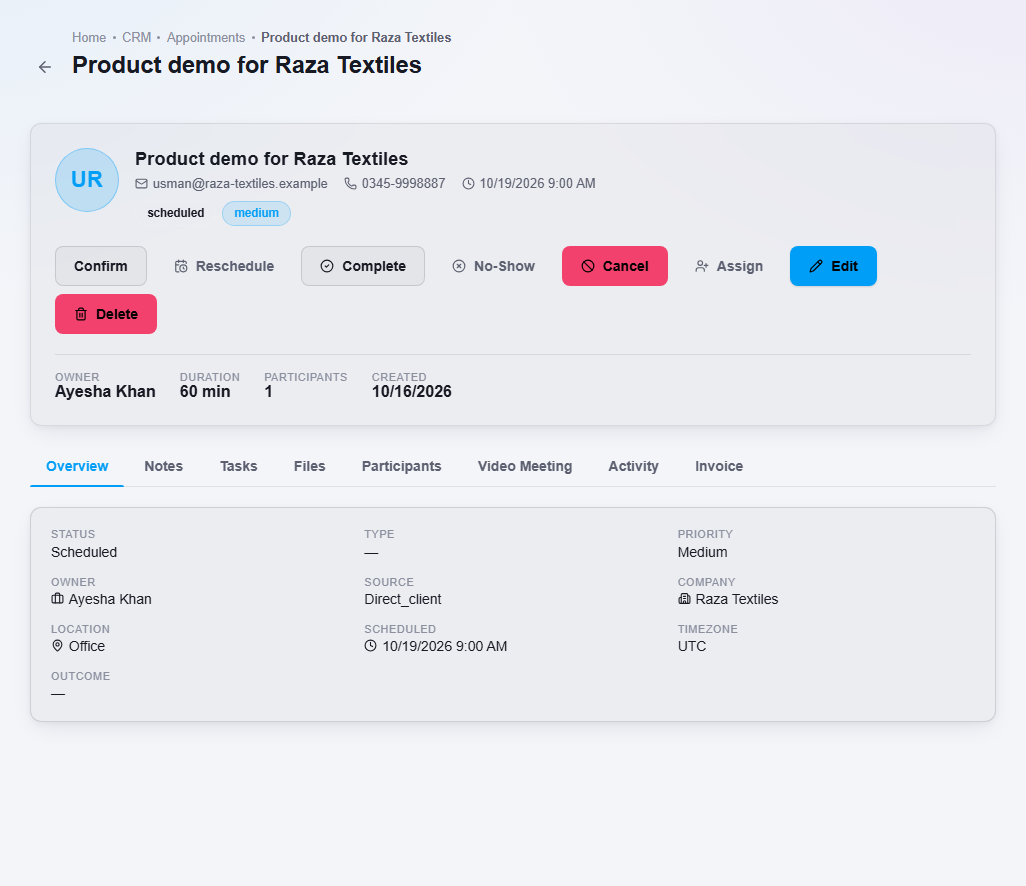
Double-click the appointment to open its profile. The buttons at the top move it along:
| Button | What it does |
|---|---|
| Confirm | Marks the appointment as confirmed. |
| Reschedule | Moves it to another date and time. |
| Complete | Closes it and records the outcome. |
| No-Show | Records that the client did not come. |
| Cancel | Cancels the appointment. |
| Assign | Gives it to another teammate. |
Record the outcome
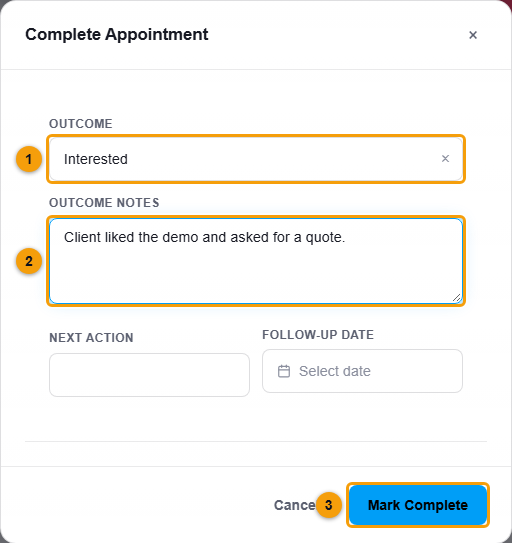
- Click Complete.
- Choose the Outcome, for example Interested, Proposal Requested or Closed Won.
- Add Outcome notes, and a Next action with a Follow-up date if you need one.
- Click Mark Complete.
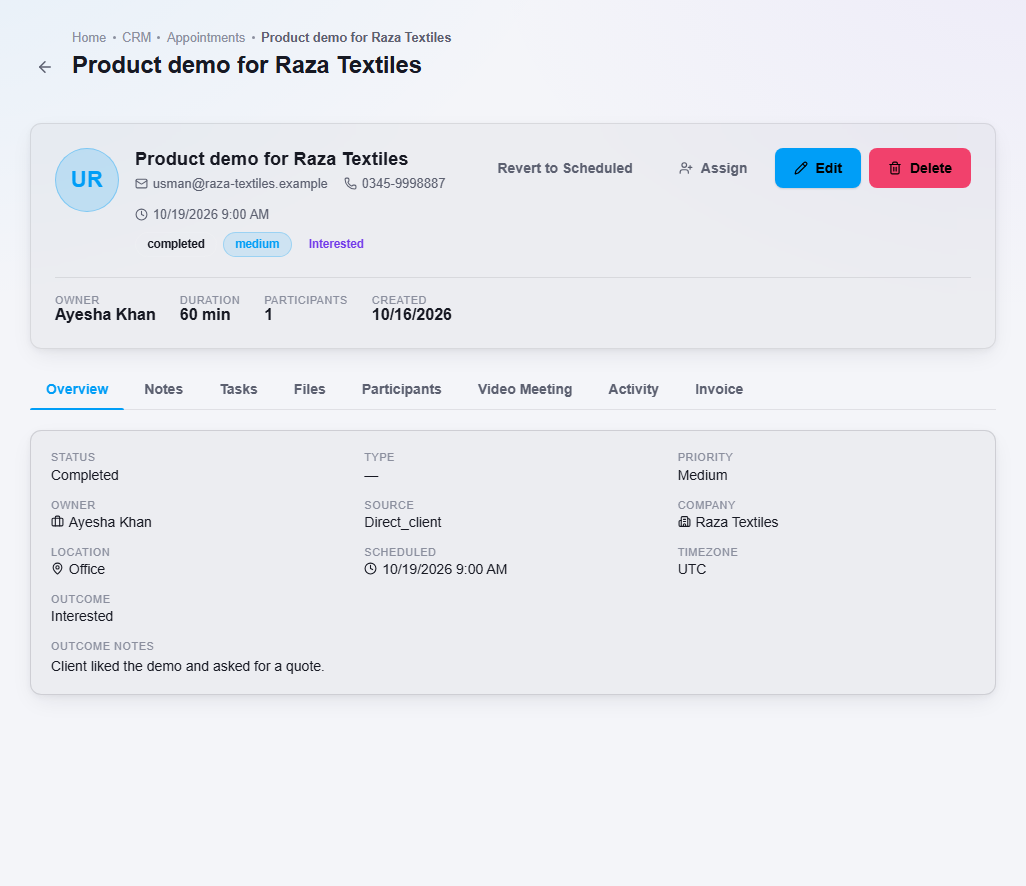
The profile shows the status completed with the outcome and your notes. Revert to Scheduled is available if you completed it by mistake.
Important notes
- Slots belong to the company you are working in. Each company keeps its own working hours.
- Use Calendar at the top of the list to see appointments by month, week or day.