CRM
The lead profile
CRM Basic, Business, Pro and Agency · 1 min read · Updated 16 October 2026
What this does
The lead profile is the page for one lead. It shows everything about them and keeps your notes, tasks, files and history together.
Steps
- Open CRM, then Leads, then All Leads.
- Double-click a lead to open the profile.
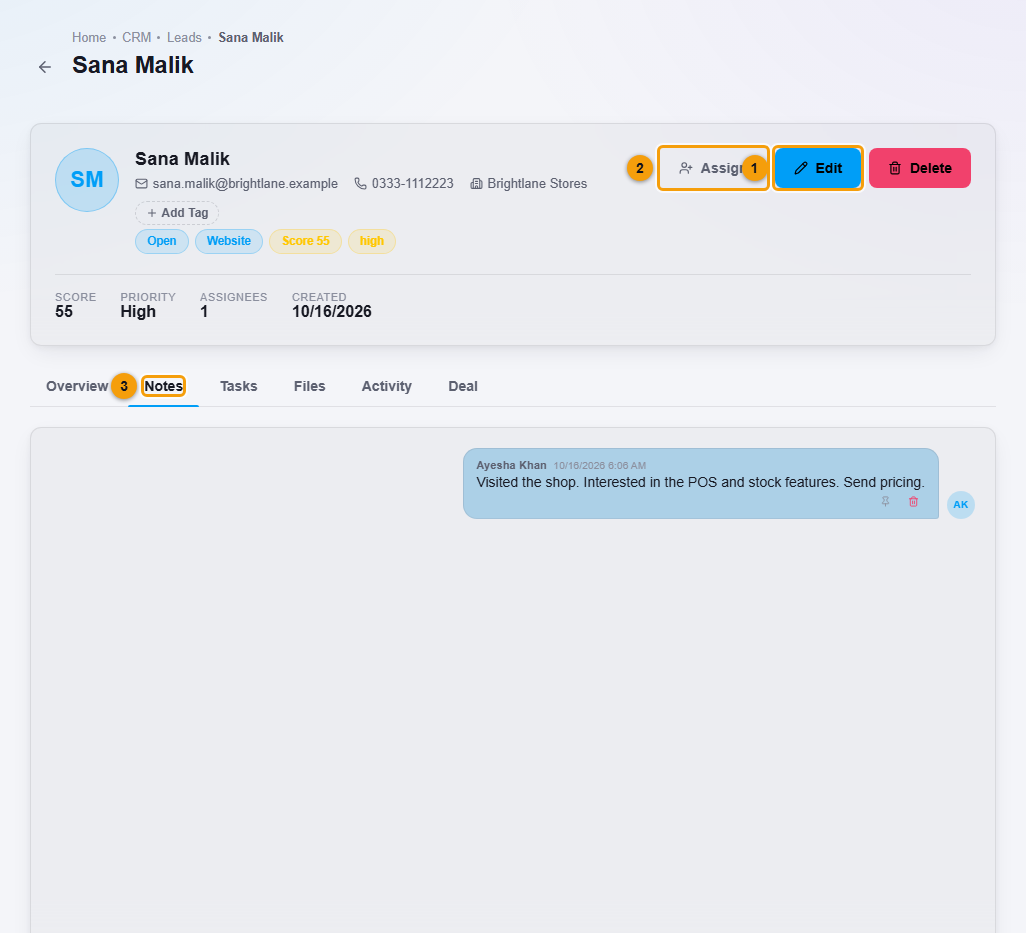
At the top you can see the name, email, phone, company and tags such as the status, source, score and priority.
- Click Edit (1) to change the lead's details.
- Click Assign (2) to give the lead to a teammate.
- Click Add Tag to label the lead.
- Click Delete to remove the lead.
Use the tabs under the header:
- Overview: status, stage, pipeline, owner, company, address and assigned users.
- Notes: write a note and post it. Your notes show as a conversation, newest at the bottom.
- Tasks: things to do for this lead. See Tasks and follow-ups.
- Files: drag files onto the page, or click to choose them.
- Activity: a history of what happened, starting with Lead was created.
- Deal: the deals linked to this lead.
What happens next
Everything you add stays on the lead. Teammates who can see the lead see the same notes and tasks.