White Label
Brand NEXTOREx with your logo and colours
Agency · 2 min read · Updated 16 October 2026
What this does
Theme Studio lets you make the app look like your own: your brand name, logo, favicon, colours and fonts. You can preview changes before you publish them.
Steps
- Click your profile picture at the top right, then click Theme Studio. You see it only if your plan includes White Label.
- On the left, choose a section:
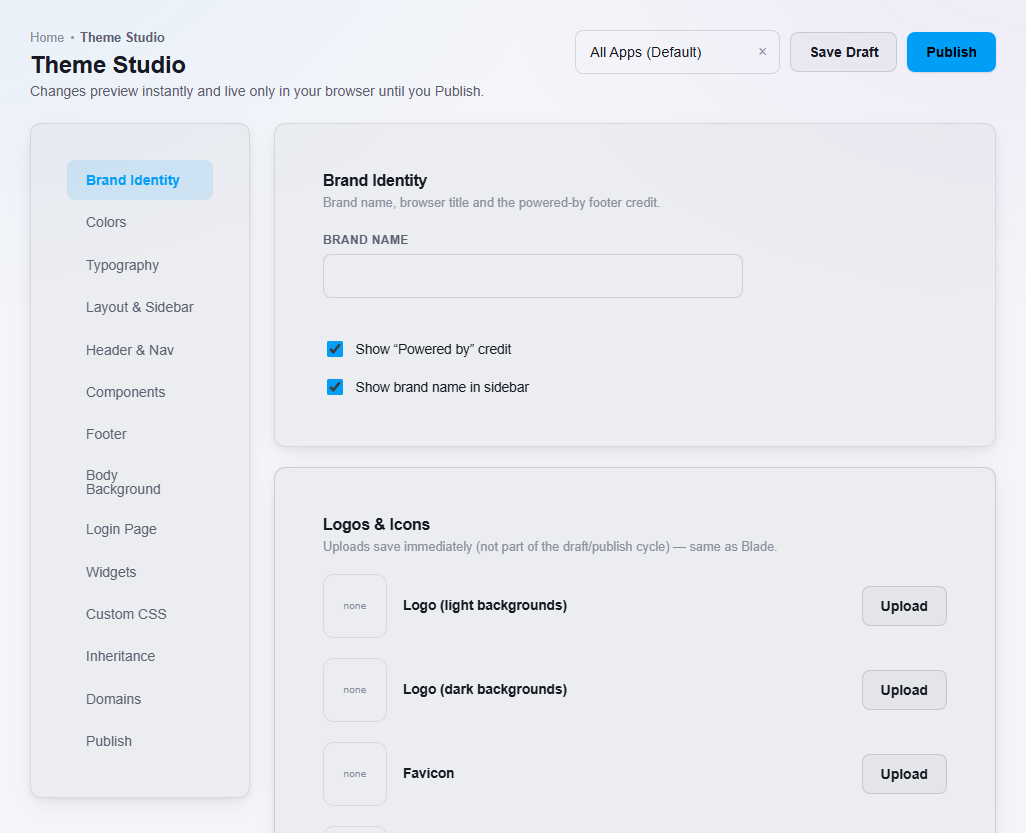
Brand Identity is the first section. Use Save Draft and Publish at the top right. - Brand Identity: your Brand name, and switches for Show "Powered by" credit and Show brand name in sidebar. Below it, Logos & Icons has places to upload your Logo (light backgrounds), Logo (dark backgrounds) and Favicon.
- Colors: your Primary colour, which drives buttons, badges and links, plus Secondary, Success, Danger, Warning and Info, and sidebar colours.
- Typography: Font family, Base size and Text color.
- Other sections: Layout & Sidebar, Header & Nav, Components, Footer, Body Background, Widgets, Custom CSS, Inheritance, Domains and Publish.
- Make your changes. They show right away in your browser as a preview.
- Click Save Draft to keep your work, or Publish to make the changes live for everyone who uses your workspace.
What happens next
After you publish, your brand shows in the app for your workspace. Logo and favicon uploads save as soon as you upload them. They are not part of the draft and publish steps.
Important notes
- The All Apps (Default) box at the top lets you choose which app the theme applies to.
- Inheritance lets a client business start from your published branding instead of its own.
- Branding changes how the app looks. Do not assume every email, every sign-in page and every report carries your branding. Check the places that matter to you before you tell clients.
- To use your own web address, see Connect your own domain.