Reseller & Multi-Tenant
Create a client business
Agency (up to 10 client businesses) · 1 min read · Updated 16 October 2026
What this does
An Agency plan lets you set up and manage client businesses from your own account. Each client business is kept separate, with its own data and logins. Agency includes up to 10 client businesses.
Steps
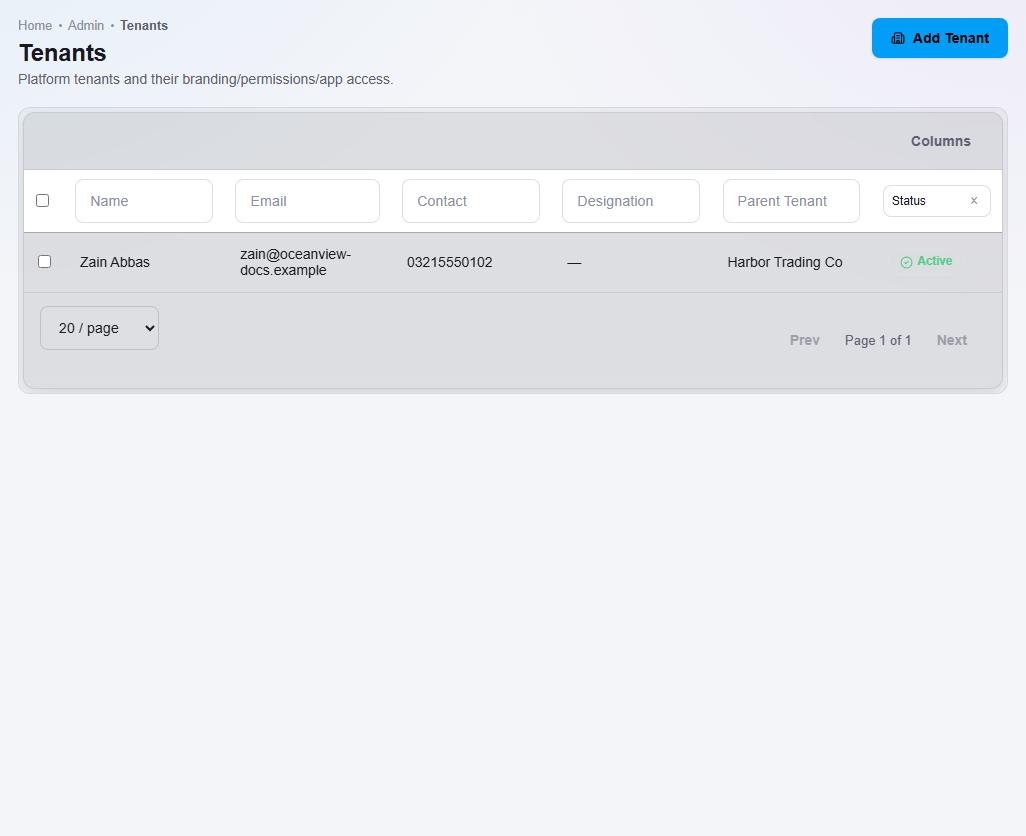
- Open User Management, then Tenants. This lists your client businesses.
- Click Add Tenant. The Create Tenant page opens with three steps.
Step 1: Basic Info

- Enter the client contact's First name, Last name and Email (2). The email is their login. The business appears in your list under the name you enter for this contact.
- Enter a Password (3) and confirm it. Add a contact number if you have one.
- Click Next (4). The client business is created at this point.
Step 2: Personal Info
- These details are optional. Click Next.
Step 3: Permissions
- Choose the plan for the client. See Choose a plan for a client. You can click Skip for now and choose it later.
What happens next
The client business appears in your Tenants list.
When the client signs in for the first time, they complete the company setup for their business.
Important notes
- You can create up to 10 client businesses on Agency.
- Deleting a client business permanently deletes its companies, hierarchy and CRM data. It cannot be undone.